
Contacting Support
ShadowMap has a built-in Support menu, reachable from any page, that routes your request to the right place: account and data questions go straight to the support team's inbox, while bugs and feature ideas are filed into the product backlog. You never have to leave the dashboard or hunt for an email address.
Overview
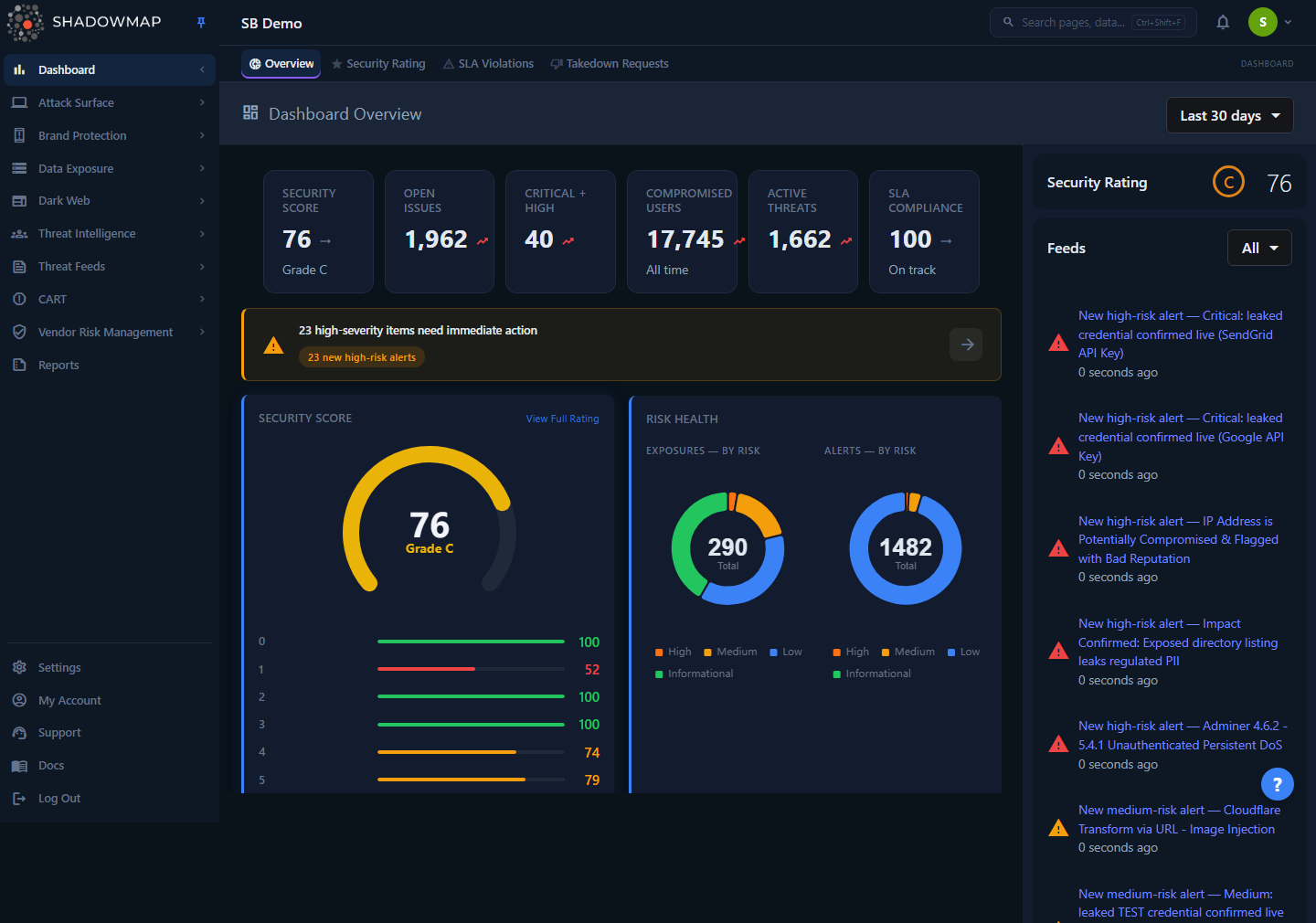
The Support menu is opened from the in-app navigation — it is a modal overlay, not a separate page, so it works on top of whatever screen you are on.
Support is not a routed page (there is no /support URL). It is a modal you open from two places in the navigation:
- Left sidebar — the Support item (headset/
support_agenticon) near the bottom of the icon rail, just above Docs and Log Out. - Top-right user menu — open the avatar/account dropdown and choose Support.
Either entry point opens the same dialog — titled Support, with the prompt "How can we help you?" — offering three options:
| Option | Icon | What it does |
|---|---|---|
| Raise a Support Ticket | Headset | Emails the support team directly. Use for account help, access problems, data questions, or anything that needs a human reply. |
| Report a Bug | Bug | Files a bug into the ShadowMap product backlog, with an optional screenshot. |
| Request a Feature | Lightbulb | Files a feature idea into the product backlog, with an optional mockup attachment. |
Pick one and the dialog swaps to that form. A back arrow in the form header returns you to the three-option menu; Close/Cancel dismisses the dialog entirely. You can also close by pressing Esc or clicking outside the modal.
Who can use it
Every authenticated user can open Support and submit any of the three forms. There is no special role or permission required, and submitting does not depend on which modules your account can see.
How it works
The three options look similar but go to different destinations and behave differently. This is the part you cannot tell from the UI.
Raise a Support Ticket → email to the support team
A support ticket is emailed to the ShadowMap support inbox ([email protected]). It is not stored as a record you can later view in the dashboard — the conversation continues over email.
- The email's Reply-To is set to the address you entered, so when support replies, it goes back to you directly.
- The email subject is formatted
[<Ticket Type>] <Subject> — <Company>, and the body includes your name, email, company, priority, and a timestamp. This means the support team sees your priority and organization without you having to spell them out. - Because the destination is an inbox, expect a human reply by email, not an in-app status change.
Report a Bug / Request a Feature → product backlog
Bugs and feature requests are stored as records in ShadowMap's internal product backlog (not emailed). Each new submission lands in a backlog stage at medium severity by default, tagged to your company, and is triaged by the product team. You will not see a ticket queue for these inside your dashboard — they feed ShadowMap's roadmap and bug tracking.
- A bug is recorded with type
bug; a feature request with typefeature_request. - For bugs, if you fill in the optional Module / Page field, it is prepended to the description so the team knows where to look first.
- For feature requests, the optional Current workaround is appended to the description, so the team understands how painful the gap is today.
Attachments
Bug reports and feature requests support a single optional file upload:
| Bug Report | Feature Request | |
|---|---|---|
| Field | Screenshot | Attachment (mockup or reference) |
| Max size | 10 MB | 10 MB |
| Allowed types | PNG, JPG, GIF, WebP | PNG, JPG, GIF, WebP, PDF |
| Upload method | Click the drop zone or drag-and-drop | Click the drop zone or drag-and-drop |
The record is saved first and the file is uploaded afterward. If the upload itself fails, your report is still submitted — you will see a note that the file could not be saved and the team will follow up. So a flaky upload never loses your report.
Pre-filled identity
On every form your Name and Email (and, for bugs and feature requests, your Company) are filled in automatically from your profile. On the support-ticket form you can edit Name and Email before sending — useful if you want replies to go to a shared inbox or a colleague.
Choosing the right option
| Your situation | Use |
|---|---|
| "I can't log in / I'm locked out / MFA isn't working" | Support Ticket (also see Login Issues) |
| "An asset is missing or a scan looks wrong" | Support Ticket — Bug Report or General Inquiry (see Missing Assets first) |
| "I need a data export, a re-scan, or access to something" | Support Ticket — Data Request |
| "This screen is broken / throwing an error / showing wrong numbers" | Report a Bug (attach a screenshot) |
| "I wish ShadowMap could also do X" | Request a Feature |
| "General question about a module or a finding" | Support Ticket — General Inquiry |
Form fields
Raise a Support Ticket
| Field | Required | Notes |
|---|---|---|
| Ticket Type | Yes | One of: Feature Request, Bug Report, Data Request, General Inquiry |
| Priority | Yes | One of: Low, Medium, High, Critical — drives how the support team triages it |
| Subject | Yes | Short summary (up to 255 characters) |
| Description | Yes | Full detail (up to 5,000 characters) |
| Name | Yes | Pre-filled from your profile; editable |
| Yes | Pre-filled from your profile; editable. Replies go here |
A reminder line at the bottom of the form notes you can also email [email protected] directly if you prefer.
Report a Bug
| Field | Required | Notes |
|---|---|---|
| Title | Yes | Up to 255 characters, e.g. "Dashboard metrics not loading" |
| Description | Yes | Up to 5,000 characters — what happened and what you expected |
| Module / Page | No | Up to 255 characters, e.g. "Dashboard", "Attack Surface", "SLA" |
| Screenshot | No | One image up to 10 MB |
Request a Feature
| Field | Required | Notes |
|---|---|---|
| Title | Yes | Up to 255 characters |
| Problem | Yes | Up to 5,000 characters — the use case you're trying to solve, not just the feature |
| Current workaround | No | Up to 2,000 characters — how you handle it today |
| Attachment | No | One image or PDF up to 10 MB |
Priority is for triage, not an SLA
The Priority dropdown on a support ticket tells the team how urgent your request is; it is a triage signal, not a contractual response-time guarantee. Contractual remediation timers (the SLA clock on findings) are a separate feature — see SLA Policies.
Submitting
- Open Support from the left sidebar or the top-right user menu.
- Choose Raise a Support Ticket, Report a Bug, or Request a Feature.
- Fill in the required fields (marked with a red
*). Your name, email, and company are pre-filled. - (Bug / Feature only) Optionally drag-and-drop or click to attach a screenshot, mockup, or PDF.
- Click the submit button (Submit Ticket / Submit Bug Report / Submit Feature Request).
- A toast confirms success. If a required field is missing or the submission fails, a toast lists exactly what to fix.
The Docs / Knowledge Base link
Directly below Support in the left sidebar is a Docs (Knowledge Base, menu_book icon) link. It opens the public documentation site (docs.shadowmap.com) in a new tab — the same site you are reading now. For self-service answers, check the docs and FAQ before raising a ticket; many questions about statuses, severities, and module behavior are already documented.
Common questions
Where does a support ticket go? It is emailed to the ShadowMap support inbox with your address set as Reply-To. Support replies to you over email — there is no in-app ticket thread to track.
Can I see the status of a bug or feature request I filed? Not from your dashboard. Bugs and feature requests feed ShadowMap's internal product backlog. The support team will follow up by email if they need more detail.
Do I need a special permission to contact support? No. Any logged-in user can open the Support menu and submit any of the three forms, regardless of role or module access.
My screenshot wouldn't upload — did my bug report get lost? No. The report is saved before the file is uploaded. If the upload fails you'll see a message saying the file couldn't be saved and that the team will follow up — but the report itself is already filed.
What file types and sizes can I attach? Bug screenshots: PNG, JPG, GIF, or WebP up to 10 MB. Feature attachments additionally allow PDF, up to 10 MB. One file per submission.
Can I just email support instead of using the form? Yes. The support-ticket form lists [email protected] as a direct alternative. The form is usually faster because it auto-attaches your name, company, and priority.
I picked "Bug Report" as a ticket type on the support form — is that the same as "Report a Bug"? No. "Bug Report" as a ticket type still emails the support team. "Report a Bug" (the separate menu option) files a structured record into the product backlog and lets you attach a screenshot. Use Report a Bug when you want it tracked by the product team; use a support ticket when you want a person to reply to you.
Related
- Login Issues — self-service fixes for sign-in, MFA, and lockout problems before you raise a ticket.
- Missing Assets — why an asset might not appear, and what to confirm before reporting it as a bug.
- Troubleshooting — the full troubleshooting hub.
- FAQ — common questions about statuses, severities, and module behavior.
- SLA Policies — contractual remediation timers, distinct from the priority you set on a support ticket.
- Profile — where the name and email pre-filled on support forms come from.