
Login and 2FA Issues
Most ShadowMap sign-in problems fall into a small number of buckets: a forgotten or expired password, a lost or reset two-factor device, a suspended account, or an SSO tenant mismatch. This page explains how ShadowMap authentication actually works, which problems you can fix yourself, and which ones require an organization administrator.
Overview
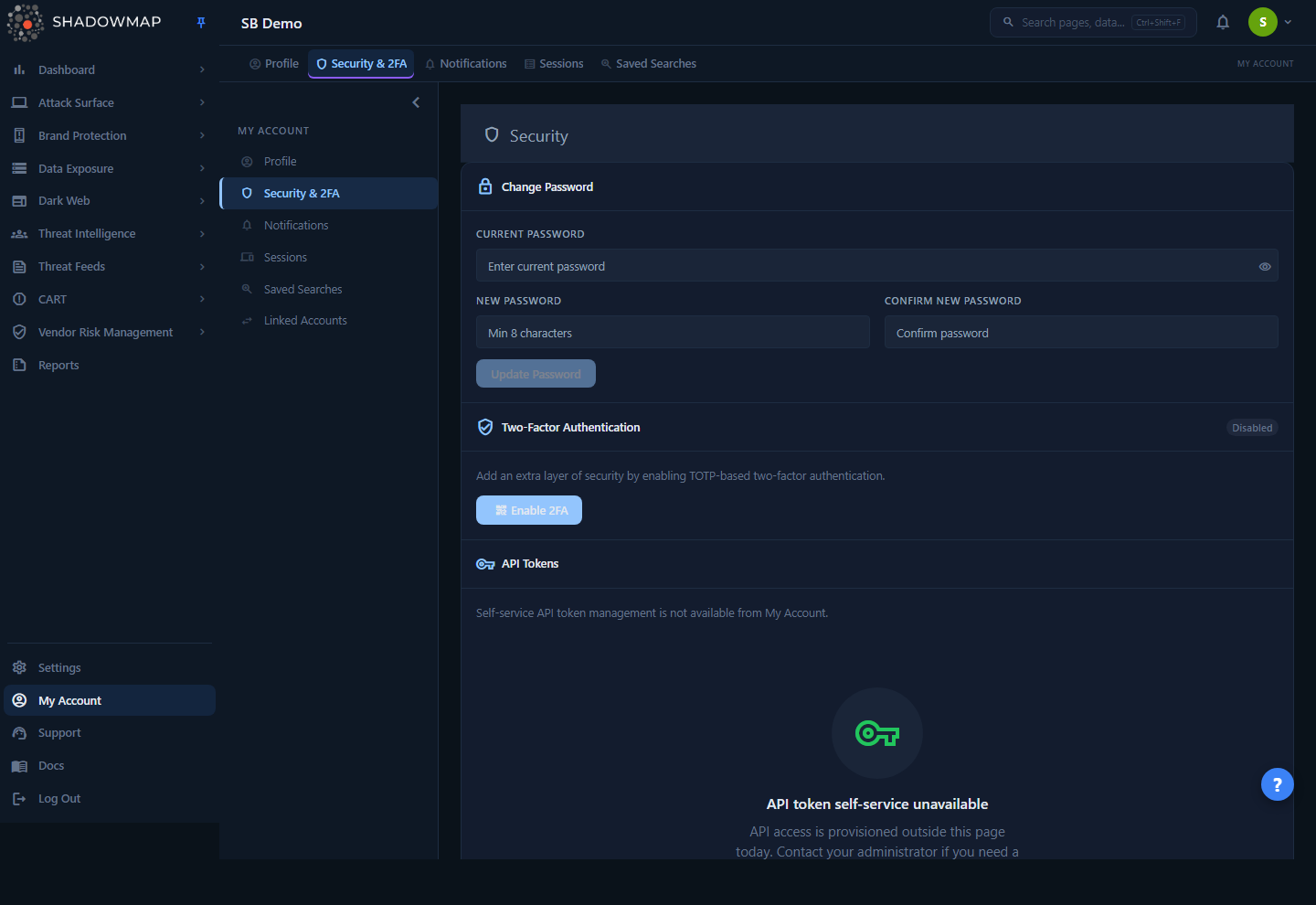
The Security page (My Account → Security) is where you change your password and manage two-factor authentication. Recovery from a lost 2FA device, however, is handled by an administrator from the Members page — see How it works.
ShadowMap authenticates you with an email + password credential, optionally protected by a second factor (a time-based one-time code from an authenticator app). Some organizations instead sign in through Azure AD single sign-on (SSO). The login page itself lives outside the dashboard application — once you authenticate, the single-page app loads and your session is tracked server-side.
Two distinct surfaces govern login:
- My Account → Security (
/account/security) — what you control: your password and your own 2FA enrolment. - Settings → Members (
/settings/members) — what an administrator controls for other users: removing 2FA, issuing recovery codes, suspending/reactivating accounts, terminating sessions, and resending first-login credentials.
Who can help
You can reset your own password and re-enrol 2FA only while you are still able to sign in. If you are locked out — lost authenticator, forgotten password with no email access, or a suspended account — an administrator must act on your behalf. There is no self-service "forgot my 2FA" path.
How it works
These are the mechanics you cannot infer from the screens themselves.
First login uses a temporary password
When an administrator invites you, ShadowMap creates the account with a temporary password and a mustChangePassword flag set. The invite email carries those temporary credentials. On your first sign-in you are forced to set a new password before you can reach the dashboard.
Until you complete that first login, your account shows as Pending First Login to administrators. If the invite email never arrived or the temporary password expired, an admin can press Resend Credentials on your member record to re-send a fresh temporary password — you do not need a new invite.
Two-factor authentication is TOTP
ShadowMap 2FA is TOTP (time-based one-time password, RFC 6238) — the same standard used by Google Authenticator, Authy, 1Password, Microsoft Authenticator, and similar apps. Enrolment works like this:
- On My Account → Security, press Enable 2FA. The server returns a QR code (rendered inline).
- Scan it with your authenticator app, which derives a shared secret and starts generating 6-digit codes that rotate every 30 seconds.
- Enter the current 6-digit code and press Verify & Enable. The server validates the code against the secret before flipping your account to Enabled.
After enrolment you are prompted for a TOTP code on every login. Because TOTP codes are time-based, a wrong code is most often caused by device clock drift — see Common questions.
Recovery codes are issued by an admin, not by you
If you lose your authenticator device, you cannot generate a recovery code yourself. An administrator opens your member record and presses one of two buttons under Authentication:
| Admin action | Endpoint behaviour | Effect |
|---|---|---|
| Generate Recovery Code | Issues a one-time recovery code | You use it to log in once, after which you are prompted to reset and re-enrol 2FA. |
| Remove 2FA | Clears all 2FA methods on the account | Your next login uses password only; you can re-enrol 2FA afterward. |
The recovery code is shown to the admin once, in a modal, and is meant to be relayed to you over a trusted channel. It is single-use — it logs you in and forces a 2FA reset, then it is spent. Both actions require the administrator's role level to be at or above your own role level; an admin cannot reset 2FA for someone more privileged than themselves.
Email OTP can be a fallback (if your org enables it)
Organizations can turn on Email OTP Fallback in Settings → Global Settings → Authentication. When enabled, members who have not configured an authenticator-based (TOTP) second factor can receive a one-time code by email instead. TOTP is strictly stronger, so this is a convenience fallback, not a replacement — if you have TOTP enrolled, you are always challenged for the TOTP code.
Single sign-on restricts the Azure tenant
If your organization uses Azure AD / Microsoft Entra SSO, an administrator can set a Trusted Azure AD Tenant ID (a GUID) in Global Settings. ShadowMap will then sign in only users whose Microsoft login originates from that exact directory, which blocks impersonation from any other Azure tenant. A "wrong tenant" or rejected-SSO error usually means your Microsoft account is in a different directory than the one configured — that is an administrator setting, not something you can change.
Accounts can be suspended
An administrator can suspend a member. Suspension immediately terminates all active sessions and blocks login — a suspended user sees their credentials rejected even though the password is correct. Reactivate restores access. If your password "suddenly stopped working" with no change on your end, confirm with an admin that the account is not suspended.
Failed logins are recorded
ShadowMap records failed login attempts per user. On your member record, an administrator reviews sign-in activity from the Activity & Sessions tab — your Active Sessions and a filterable Audit Timeline, each entry stamped with the IP it came from. This is the fastest way to distinguish a forgotten password (attempts from your known location) from a credential-stuffing or impostor attempt (attempts from an unfamiliar IP).
Diagnosing the problem
Match the symptom to the cause and the fix.
| Symptom | Likely cause | Fix |
|---|---|---|
| Invite email never arrived, or temp password rejected | First-login credentials expired or lost | Admin presses Resend Credentials on your member record |
| "You must change your password" on first sign-in | mustChangePassword flag — expected | Set a new password (at least 10 characters, with upper- and lower-case letters, a number, and a special character) to continue |
| Password correct but login rejected | Account suspended | Admin Reactivates the account |
| 2FA code always "invalid" | Authenticator clock drift, or wrong account in app | Re-sync device time; verify you're reading the ShadowMap entry |
| Lost / wiped authenticator device | No access to TOTP codes | Admin issues a Recovery Code or presses Remove 2FA |
| SSO sign-in rejected / "wrong tenant" | Microsoft account in a non-trusted Azure directory | Admin checks the Trusted Azure AD Tenant ID |
| Unexpected sessions / "signed out elsewhere" | Active session on another device, or a forced revoke | Review and revoke sessions (see below) |
Recovering access
Reset your own password (while still signed in)
On My Account → Security, under Change Password:
- Enter your current password.
- Enter a new password — at least 10 characters, with upper- and lower-case letters, a number, and a special character — and confirm it. The form blocks the save until both new-password fields match.
- Press Update Password.
Forgotten password with no session
The change-password form requires your current password, so it only works while you can still sign in. If you are fully locked out, an administrator must reset your credentials for you.
Recover a lost 2FA device
You cannot do this yourself. Ask an administrator to open Settings → Members → your record → Authentication and either:
- Generate Recovery Code — relays you a one-time code; you log in with it once, then re-enrol 2FA, or
- Remove 2FA — clears 2FA so your next login is password-only; re-enrol afterward from My Account → Security.
Re-enrol 2FA after a reset
Once you can sign in (via recovery code or after 2FA removal), return to My Account → Security → Two-Factor Authentication, press Enable 2FA, scan the new QR code with your authenticator app, and verify a fresh 6-digit code. Treat the old device's entry as dead and delete it from your app.
Review and revoke sessions
If you suspect someone else is signed in as you, both you and an administrator can act:
- You — your recent sessions (device, IP address, location, when they were signed in, and last activity) are listed under My Account → Sessions, each tagged Current, Active, or Ended. You can revoke any session other than the one you're using, or press Revoke All Others to end every session except your current browser.
- An administrator — can view and terminate any single session, or Terminate All Sessions for a member, from the member's Activity & Sessions tab.
Revoking sessions never signs you out here
Both the per-session revoke and Revoke All Others deliberately exclude the browser you're currently signed in with, so you won't be bounced to the login page. To end your current session, sign out normally.
For administrators
If you are the one fixing another user's login, the relevant controls live on the member's record at Settings → Members:
| Control | Where | Use it when |
|---|---|---|
| Resend Credentials | Pending First Login card | Invite email lost / temp password expired |
| Remove 2FA | Authentication card | User lost their device and you'll let them re-enrol fresh |
| Generate Recovery Code | Authentication card | User needs a one-time code to get back in and reset 2FA |
| Suspend / Reactivate | Member actions | Block or restore a user's access (suspend kills all sessions) |
| Terminate session(s) | Activity & Sessions tab | Force-sign-out a suspicious or stale session |
| Send 2FA Reminder | Members list — bulk action | Select members, then nudge those who haven't enabled 2FA |
| Sign-in activity | Activity & Sessions tab | Investigate whether recent attempts are the user or an attacker (by IP) |
The Members list also surfaces a 2FA Adoption metric and lets you filter by 2FA Enabled / Disabled (and by SSO usage), so you can find and remind every member who hasn't enrolled.
Role-level guardrail
Remove 2FA and Generate Recovery Code are only available when your role level is at or above the target member's. You cannot reset authentication for a more-privileged account.
Common questions
My TOTP code keeps being rejected even though I'm typing it correctly. TOTP is time-based. If your phone's clock has drifted by more than ~30 seconds from real time, every code it generates will be slightly off. Enable automatic/network time on your device, or use your authenticator app's built-in time-sync option, then try a fresh code. Also confirm you're reading the ShadowMap entry in your app, not another service.
I lost my phone. How do I get back in? You can't self-recover. An administrator must either Generate Recovery Code (a one-time code you use to log in and then reset 2FA) or Remove 2FA entirely from your member record. Re-enrol with your new device once you're back in.
I forgot my password and I'm logged out. The in-app change-password form needs your current password, so it can't help once you're locked out. Ask an administrator to reset your credentials — they can resend login credentials from your member record.
My password is right but it says login failed. The most common non-password cause is a suspended account, which blocks login and kills sessions regardless of a valid password. Ask an admin to check your account status and Reactivate if needed. If your org uses SSO, also confirm your Microsoft account is in the trusted Azure tenant.
Is the recovery code reusable? No. It is single-use — it logs you in once and forces a 2FA reset, then it's spent. Don't store it as a permanent backup; get a fresh one if you need to recover again.
Can I use email codes instead of an authenticator app? Only if your organization has enabled Email OTP Fallback in Global Settings, and you don't already have authenticator-based 2FA configured. TOTP always takes precedence when it's set up.
Our SSO login is being rejected for some staff. Single sign-on only admits users from the Trusted Azure AD Tenant ID configured in Global Settings. If a user's Microsoft account belongs to a different directory (e.g. a guest account or a separate subsidiary tenant), they'll be rejected. An administrator must verify or update the tenant GUID.
I was unexpectedly signed out. This happens when an administrator terminates your session(s) or suspends your account. (Revoking your own sessions from My Account → Sessions never signs you out — Revoke All Others and the per-session revoke both keep your current browser.) Sign in again; if it persists, check with an admin that your account isn't suspended.
Related
- Security — change your password and enrol or remove your own two-factor authentication.
- First Login — the temporary-password and initial-setup flow for new accounts.
- Members — where administrators reset 2FA, issue recovery codes, suspend users, and resend credentials.
- Sessions — review your active sessions and revoke ones you don't recognize.
- Roles and Permissions — why some admin actions are gated by role level.
- Contact Support — when an administrator can't resolve the lockout.