
Roles and Permissions
ShadowMap controls who can see and change what through two layers: a role that sets each member's baseline access, and an optional per-module permission matrix plus data restrictions that fine-tune it. This page explains the model so you can grant the least privilege each person needs.
Overview
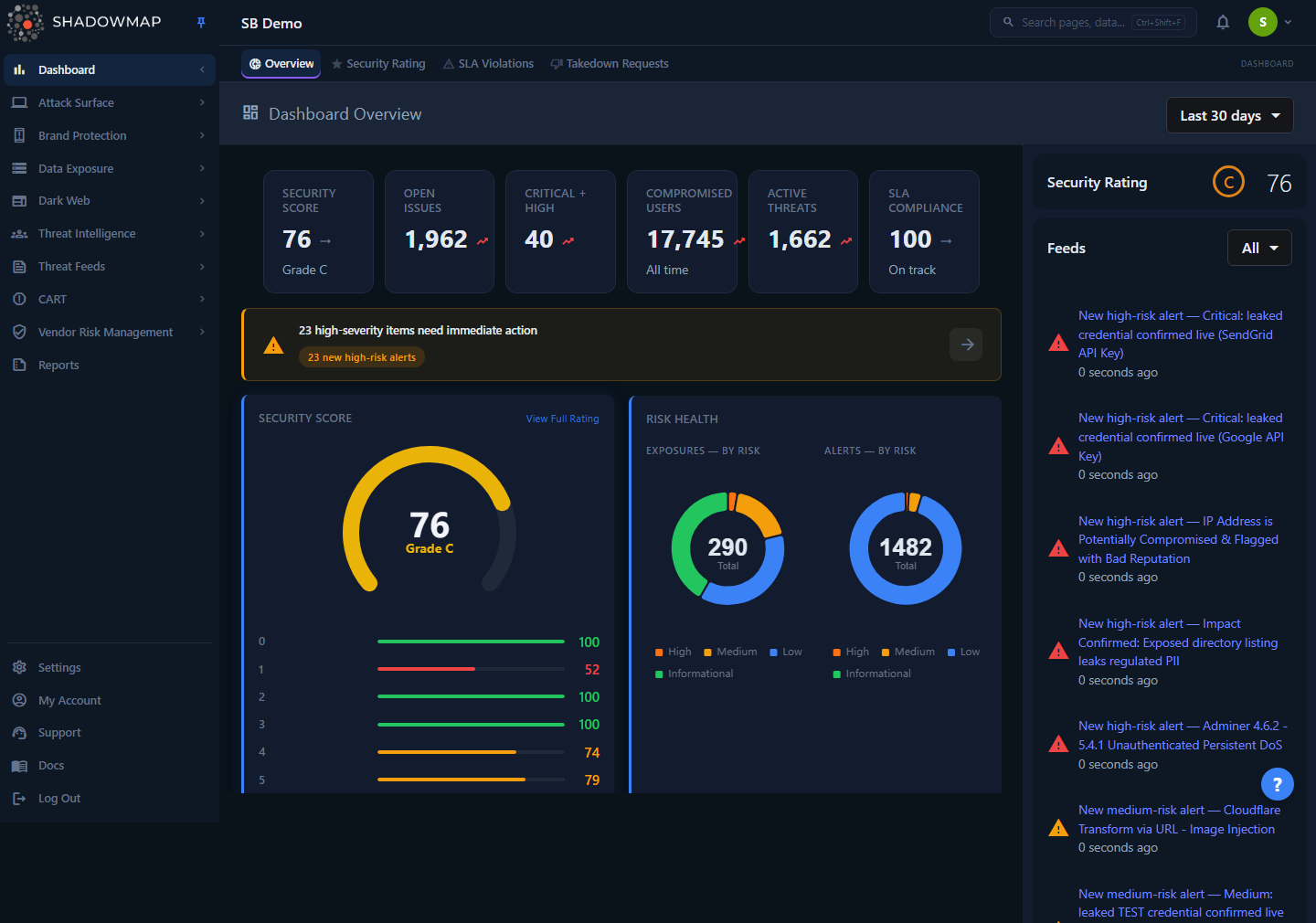
A member's role and permissions decide which of these modules they can open and whether they can act on findings. Roles are administered from Settings → Members.
Every person in your organization is a member with exactly one role. The role determines:
- Which modules they can open (their navigation is filtered to permitted modules).
- Whether they can only read findings, or also write — change statuses, assign owners, apply tags, request takedowns, and manage settings.
- Which members they can invite, edit, suspend, remove, or re-role.
On top of the role, an Administrator can override access per module (grant or revoke individual Read/Write permissions) and apply data restrictions that limit a member to a filtered slice of findings. Members can also be grouped into Teams for assignment and organization.
Roles and permissions are managed under Settings → Members and Settings → Teams. See Members and Teams for the administration surfaces; this page covers the model behind them.
How it works
The access model has four moving parts. The first three are knowable only by reading them here — the UI shows the controls but not the rules they enforce.
1. The role hierarchy
There are four roles. Each sits at a numeric level, and the level governs who can manage whom and which roles a member is allowed to hand out.
| Role | Level | Baseline access |
|---|---|---|
| Administrator | 3 | Full read and write across every module, plus all of Settings (members, teams, SLAs, integrations, tag rules, audit logs). Manages the organization. |
| Analyst | 2 | Full read and write across the security modules. Cannot manage organization-level settings such as members unless explicitly permitted. |
| SOC User | 1 | Read-only across the dashboard. Can view every finding but cannot change a status, assign, tag, or take action. |
| Vendor | 0 | Scoped access used for third-party / vendor-risk accounts. Limited to the modules a vendor is meant to see. |
The level is what makes the hierarchy enforceable:
- You can only manage members at or below your own level. On a member's detail page, the permission matrix is editable only when your role level is greater than or equal to theirs. An Analyst cannot edit an Administrator; a SOC User cannot edit anyone.
- You can only assign roles at or below your level. This is enforced server-side and reflected in the UI — the role dropdown for a member shows only the roles you are allowed to grant, plus that member's current role (always visible so you can see it).
- SOC User — cannot assign any role.
- Analyst — can assign SOC User only.
- Administrator — can assign SOC User, Analyst, Administrator, and (for vendor-type accounts) Vendor.
- Vendor — can assign Vendor only.
Administrators cannot be edited downward by non-admins
An Administrator's permission set is locked in the UI — the "Save Changes" button is disabled and read/write checkboxes are greyed out — because their access is, by definition, the full set. To reduce an Administrator's access, first change their role to Analyst or SOC User, then adjust the matrix.
2. Roles carry a default permission set — changing a role re-syncs it
A role is not just a label. Each role maps to a concrete set of module permissions:
- Administrator — every module, both
:readand:write(the complete superset, including Settings). - Analyst — the security modules with read and write: Dashboard, Attack Surface Area, Brand Monitoring, Data Leaks, Dark Web, Threats, Threat Intelligence, Reports, plus the operational settings an analyst needs (tag rules, SLA policies, integrations, cloud sources, vulnerability scan).
- SOC User — the same broad list of modules but read only (every permission is
:read, none are:write). This is why a SOC User sees everything but the action controls — status dropdowns, assignment, takedown buttons — are unavailable to them. - Vendor — a narrower module list aimed at vendor self-service.
The important consequence: when you change a member's role, ShadowMap re-syncs their permissions to that role's default set. A member promoted from SOC User to Analyst gains write access to the standard modules; a member moved the other way loses it. Any custom per-module overrides you applied previously are replaced by the new role's defaults, so re-apply overrides after a role change if you still need them.
3. Read vs. Write is the real privilege boundary
Permissions come in pairs per module — a Read and a Write flag, e.g. threat.alerts:read and threat.alerts:write.
- Read controls whether the module is visible at all. Removing Read for a module hides it from that member's navigation.
- Write controls whether the member can act inside the module — change a finding's status, assign it to someone, add tags and risk, request a takedown, edit settings records, and so on. Without Write, the module is view-only for that member regardless of role.
The role baseline already encodes this: SOC User gets only :read permissions, which is exactly why the role is described as "read-only access to the Dashboard." Analyst and Administrator get matched :read + :write pairs.
Write cannot be granted to a SOC User from the matrix
In the per-member permission matrix, the Write column is disabled for a SOC User (the checkbox is greyed out with a "You cannot assign write permission to SOC user" tooltip). If you need that person to take action on findings, promote them to Analyst instead of trying to toggle individual write flags.
4. Data restrictions scope a member to a slice of findings
Beyond which modules a member can see, an Administrator can attach data restrictions when inviting or editing a member. A restriction is a saved-search-style query applied to a finding type, so the member only ever sees findings matching that query. Restrictions can be set per type:
| Restriction type | Limits the member to a filtered view of |
|---|---|
| Exposure | Attack-surface exposures |
| Alert | Alerts |
| Stealer Log | Compromised-computer / stealer-log records |
| Discussion | Dark-web discussions |
| Domain Squatting | Domain-squatting findings |
Each restriction is expressed as a filter query (the same filter builder used elsewhere in the product) and shown as a "Criteria Query Summary." Use this to give, for example, a business-unit analyst visibility into only that unit's domains, or a regional SOC user only their region's alerts. A member can only view or edit another member's restrictions if they outrank them; you cannot view or change your own restrictions.
Module visibility is enforced at the router
Access is not only a backend check. The dashboard's navigation and route guard read each member's granted permissions and redirect away from any section the member lacks Read access to, so a SOC User with no Settings permission cannot reach Settings by typing the URL.
Understanding the data
Roles at a glance
| Role | Reads findings | Acts on findings (write) | Manages members & org settings | Typical use |
|---|---|---|---|---|
| Administrator | Yes | Yes | Yes | Security lead / platform owner |
| Analyst | Yes | Yes | No (unless explicitly granted) | SOC analyst, triage and remediation |
| SOC User | Yes | No | No | Monitoring, reporting, read-only stakeholders |
| Vendor | Scoped | Scoped | No | Third-party vendor self-service |
Member-level access controls
On a member's Access & Permissions tab, the permission matrix groups every module and exposes:
| Control | Effect |
|---|---|
| Per-permission Read checkbox | Show/hide that specific module for the member |
| Per-permission Write checkbox | Allow/deny actions in that module |
| Per-module Read / Write toggle | Set Read or Write for every permission in a module group at once |
| All Read / All Write | Set Read or Write across all modules at once |
| Module search | Jump to and highlight a specific module in the matrix |
| Save Changes | Persist the matrix for this member (disabled for Administrators) |
Managing members
Members are administered from Settings → Members. The member list shows each person's Role, security Score, Security (2FA) status, Last Active time, and Status, with the following lifecycle actions (gated by your own role/permissions):
| Action | Who can do it | What it does |
|---|---|---|
| Add Member | Members with invite permission (Administrators always) | Sends a temporary password by email; the member sets their own password and, if enforced, 2FA on first login. Accepts multiple comma-separated emails. |
| Change role (inline dropdown) | Members with update permission, on members at/below their level | Re-roles the member and re-syncs their permission set. You cannot change your own role here. |
| Suspend / Reactivate | Members with remove permission | Suspend immediately terminates all active sessions and blocks login; reactivate restores access. |
| Remove | Members with remove permission | Deletes the member. If the member still owns assigned findings, removal is blocked and ShadowMap returns an error asking you to reassign those findings to another member first. |
| Resend | Members with invite permission | Re-sends credentials to a member who hasn't logged in yet. |
| Leave | Any member, on their own account | Removes yourself from the organization; you can no longer log in. |
| Send 2FA Reminder (bulk) | — | Prompts selected members to enable two-factor authentication. |
| Suspend (bulk) | Members with remove permission | Suspends multiple selected accounts at once. |
| Export | Administrators | Exports the member list. |
When adding a member you choose their role, optionally enforce 2FA, attach data restrictions, and assign them to one or more teams in a single step.
Account hygiene built into the list
The Members page surfaces an org security score, 2FA / SSO adoption, pending first logins, dormant accounts (inactive 30/90 days), and an access-review indicator (members not reviewed in 90+ days). New-location logins are flagged on the row. Use the Activity filters to run periodic access reviews and find stale accounts to suspend.
Teams
Teams group members for organization and assignment. From Settings → Teams an Administrator can create a team and add members to it; the team detail page lists its members and supports adding or removing members and deleting the team. A member can belong to multiple teams, and team membership can be set at invite time. Teams do not, by themselves, grant module access — access still comes from the member's role, permission matrix, and data restrictions.
Common questions
What's the difference between an Analyst and a SOC User? Both can see the same security modules, but a SOC User has read-only access — they cannot change statuses, assign findings, apply tags, or take action. An Analyst has the same module visibility plus write, so they can triage and remediate. Promote a SOC User to Analyst when they need to act, not just observe.
Can I give a SOC User write access to just one module? No. The Write column is disabled for SOC Users in the permission matrix. Write access is granted by moving the person to the Analyst role. You can, however, narrow a SOC User by removing Read on modules they shouldn't see.
Why can't I edit a particular member's permissions? You can only manage members at or below your own role level. If the member is an Administrator (level 3) and you are an Analyst (level 2), their matrix is read-only to you. Administrators also can't have their matrix edited directly — change the role first.
I changed someone's role and my custom permission overrides disappeared. Why? Changing a role re-syncs the member to that role's default permission set, replacing any per-module overrides. Re-apply the overrides on the Access & Permissions tab after the role change.
How do I limit a member to only part of our attack surface? Apply a data restriction. When inviting or editing the member, add a restriction for the relevant type (Exposure, Alert, Stealer Log, Discussion, or Domain Squatting) and define a filter query. The member then sees only findings matching that query.
Who can invite or remove other members? Administrators always can. Other roles can do so only if granted the corresponding user permission (invite/remove), and only against members at or below their level. SOC Users cannot manage other members.
What happens to findings owned by someone I remove? Removal is blocked while the member still owns assigned findings — ShadowMap returns an error telling you to reassign those findings to another member first. Reassign them, then remove the account, so nothing is left orphaned.
Does removing Read access hide the module immediately? Yes. Navigation is filtered to the member's permitted modules and the route guard blocks direct URL access, so a member without Read on a module cannot open it at all.
Related
- Members — the administration surface for adding, editing, suspending, and re-roling members.
- Teams — group members for organization and assignment.
- RBAC and Permissions — the reference list of permission names and the role that holds each.
- First Login and Key Concepts — onboarding context for new members.
- Account Security — where each member manages their own password and two-factor authentication.
- Sessions — active sessions a member can review (and that suspension terminates).
- Audit Logs — record of administrative actions, including role and permission changes.