
Active Sessions
Active Sessions (labeled Recent Sessions in the app) is your per-user login audit trail. It lists the most recent sign-ins to your ShadowMap account — the device, browser, IP address, approximate location, and sign-in time of each — and lets you terminate any session except the one you're currently using. It's the page you open when you want to confirm nobody else is in your account, or to forcibly log out a device you no longer control.
Overview
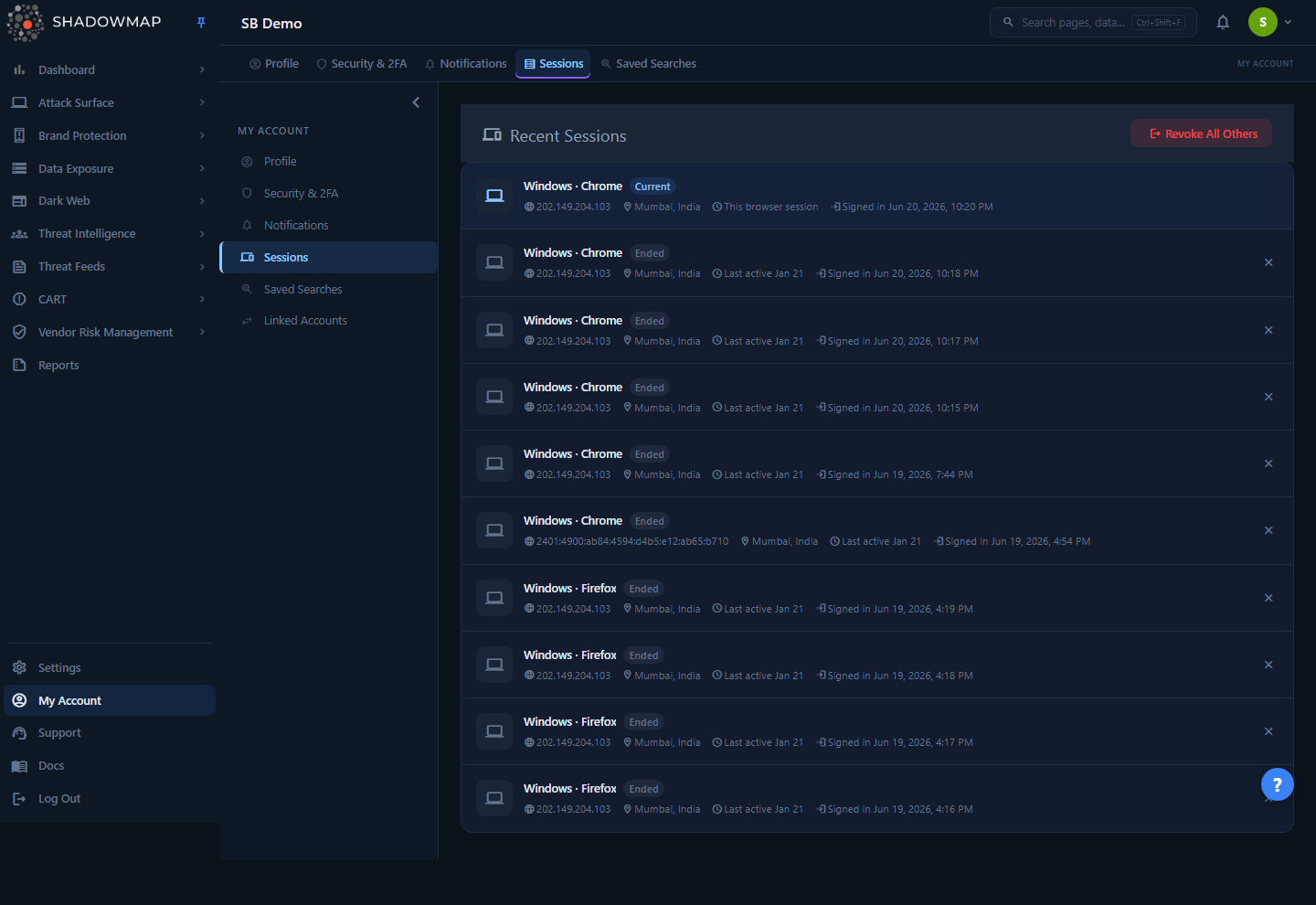
The page is reached from My Account → Sessions (route /account/sessions). Each row is one login session for your own user account only — this is not an organization-wide session monitor. Reading top to bottom:
- A device icon (laptop, phone, or tablet) inferred from the user agent.
- The device label — operating system and browser, for example
Windows · Chrome. - A status badge:
Current,Active, orEnded. - The IP address the session connected from (IPv4 or IPv6).
- The approximate location (city, country) derived from that IP.
- Activity context:
This browser sessionfor the current session,Active nowfor another live session, orLast active <time ago>for a session that has gone idle or ended. - A Signed in timestamp showing when the session began.
The newest sessions appear first. A red × on the right of any non-current, still-open session revokes it. The Revoke All Others button in the header terminates every other session in one action.
How it works
Most of what makes this page trustworthy happens server-side and isn't visible in the UI. The mechanics below explain how each field is derived and what the actions actually do.
Where sessions come from
ShadowMap records a row in a recent_sessions table every time you log in, capturing your session ID, IP address, raw user agent, login method, and sign-in time. Logging out (or being terminated) stamps a signed_out time on that row. The page reads back the 10 most recent sessions for your user, newest first. Older sessions roll off the list — this is a recent-activity view, not a complete historical log.
Private/internal IPs are filtered out
Sessions originating from RFC 1918 private ranges are deliberately excluded from the list:
| Range | CIDR |
|---|---|
10.0.0.0 – 10.255.255.255 | 10.0.0.0/8 |
172.16.0.0 – 172.31.255.255 | 172.16.0.0/12 |
192.168.0.0 – 192.168.255.255 | 192.168.0.0/16 |
Why this matters
Internal/LAN-sourced sessions (for example, traffic that reaches the app through an internal proxy or a private network path) carry no useful location signal and would clutter the view. Only sessions seen from routable public IPs are shown, so every row should map to a real external device. If a login you expect is missing, a private-range source is one likely reason.
The device label is parsed from the user agent
ShadowMap runs your browser's user-agent string through a detection component to extract OS, browser name, and browser version. The label you see (Windows · Chrome) is the parsed OS and browser joined together; if parsing yields nothing usable, the raw user-agent string is shown instead, and failing that, Unknown device. The leading device icon is a separate heuristic on the same string — mobile/iphone/android → phone, tablet/ipad → tablet, otherwise a computer.
Device labels are best-effort
The label reflects what the browser claims in its user agent. User agents can be spoofed and are not a security control. Treat the IP address, location, and timing as the stronger signals when deciding whether a session is legitimate.
Location is approximate (GeoIP)
The city and country come from a MaxMind GeoLite2 IP-geolocation lookup on the session's IP address. This is approximate — it typically resolves to the city of the ISP's egress point or data center, not your exact location, and VPNs, mobile carriers, and corporate egress can shift it considerably. If the geolocation database is unavailable or the IP can't be resolved, the location shows as a dash (—).
What "Active" actually means
The status badge is computed, not stored as a simple flag:
- Current — this row's session ID matches the browser session you're viewing the page from. There is exactly one Current session, and it can't be revoked from here.
- Active — the session has no sign-out time and its last recorded activity was within the last 5 minutes (300 seconds). This is a live-ish indicator, refreshed each time the session touches the app.
- Ended — the session has signed out, or has been idle for more than 5 minutes. "Ended" here means not currently active; it does not always mean the session was explicitly logged out.
Idle vs revoked
An Ended session that was never explicitly logged out or revoked may still hold a valid session cookie until it expires server-side. If you want to be certain a device can no longer reach your account, revoke it explicitly rather than relying on the Ended badge.
Login method is tracked but not shown here
Each session also records how you authenticated — credential (email + password) or azure_sso (Azure AD single sign-on). This page doesn't surface the method as a column, but it's captured per session and used elsewhere (for example, SSO-adoption reporting and the Members admin view).
Understanding the data
| Field | What it shows | Notes |
|---|---|---|
| Device | OS · browser, parsed from the user agent | Falls back to raw user agent, then Unknown device |
| Status | Current, Active, or Ended | Computed; see What "Active" actually means |
| IP address | Public IP the session connected from | IPv4 or IPv6; private ranges are filtered out |
| Location | City, country (GeoIP) | Approximate; — if it can't be resolved |
| Activity | This browser session / Active now / Last active … | Relative time for idle/ended sessions |
| Signed in | When the session began | Absolute date and time |
Taking action
Revoke a single session
Click the red × on any session that is not your current one and is still open. The session is immediately killed server-side: ShadowMap deletes it from the live session store and stamps it as signed out, then removes the row from your list. The next request that device makes will be unauthenticated — it has to log in again.
You cannot revoke your current session from this page. The × is hidden on the Current row, and the backend rejects an attempt to terminate your own active session with a clear message directing you to use the normal Log Out instead.
Revoke all other sessions
The Revoke All Others button (top right) terminates every session except the one you're using. You'll be asked to confirm — "Revoke all sessions except this one? You will remain logged in." — and after confirming, every other open session is killed and the list refreshes. You stay logged in on the device you clicked from.
The button is disabled when there are no other revocable sessions to act on.
When to use Revoke All Others
Use it after a lost or stolen device, after a suspected password compromise (revoke first, then change your password on the Security page), or as routine hygiene if you've signed in from many shared or temporary machines. It's the fastest way to guarantee that only your current device holds an authenticated session.
Revocation is for your account only
Revoking sessions here logs out your user from other devices. It does not affect other members of your organization. To force-log-out or disable another user, an administrator uses the Members page.
Permissions
Viewing and revoking sessions is gated by the account.sessions permission:
account.sessions:readis required to load the page and the session list. Without it, Sessions does not appear in the My Account navigation.- Revoking sessions (single or all-others) operates on your own account and is available wherever you can read the page.
See Roles & Permissions and the RBAC permissions reference for how this key maps to roles.
Common questions
Why don't I see a device I know I logged in from? Three common reasons: (1) the session came from a private/internal IP (10.x, 172.16–31.x, 192.168.x), which is filtered out; (2) it has aged past the 10 most recent sessions shown; or (3) you logged in to a different ShadowMap account/tenant than the one you're viewing.
The location is wrong — is that a security problem? Not necessarily. Location is an approximate GeoIP lookup that resolves to your ISP, carrier, VPN, or corporate egress point, not your physical address. Compare the IP address and the sign-in time against what you'd expect before treating a mismatch as suspicious.
A session shows "Ended" but I never logged out of it. What happened? "Ended" means not currently active — either it was signed out, or it has been idle for more than 5 minutes. Background tabs, closed browsers, and sleeping laptops all stop sending activity and will read as Ended without an explicit logout.
If I revoke a session, can that device just log back in? Revoking kills the current session, so the device is logged out and must re-authenticate. It does not block the credentials. If you suspect the credentials themselves are compromised, change your password on the Security page and consider enabling two-factor authentication.
Does revoking other sessions log me out too? No. Revoke All Others and single-session revocation always preserve your current session — you remain logged in on the device you're using.
Can I see sessions for my whole team here? No. This page is scoped to your own user. Organization-wide user and session management is an administrator function on the Members page.
How "live" is the Active badge? A session is marked Active only if it touched the app within the last 5 minutes. Beyond that it reads as Ended even though the underlying session cookie may not have expired yet.
Related
- Security — change your password and manage two-factor authentication; the place to go after revoking sessions if you suspect a credential compromise.
- Profile — your personal account details and the rest of the My Account area.
- Members — administrators manage, disable, and force-log-out other users from here (the org-wide counterpart to this page).
- Roles & Permissions and RBAC permissions reference — how the
account.sessionspermission is granted. - Login issues — troubleshooting sign-in problems, including being unexpectedly logged out.