
Members
Manage who has access to your ShadowMap organization: invite users, assign roles and per-module permissions, enforce two-factor authentication, suspend or remove accounts, and run periodic access reviews. Every member also carries a computed security posture score so you can see — at a glance — where account hygiene is weak.
Overview
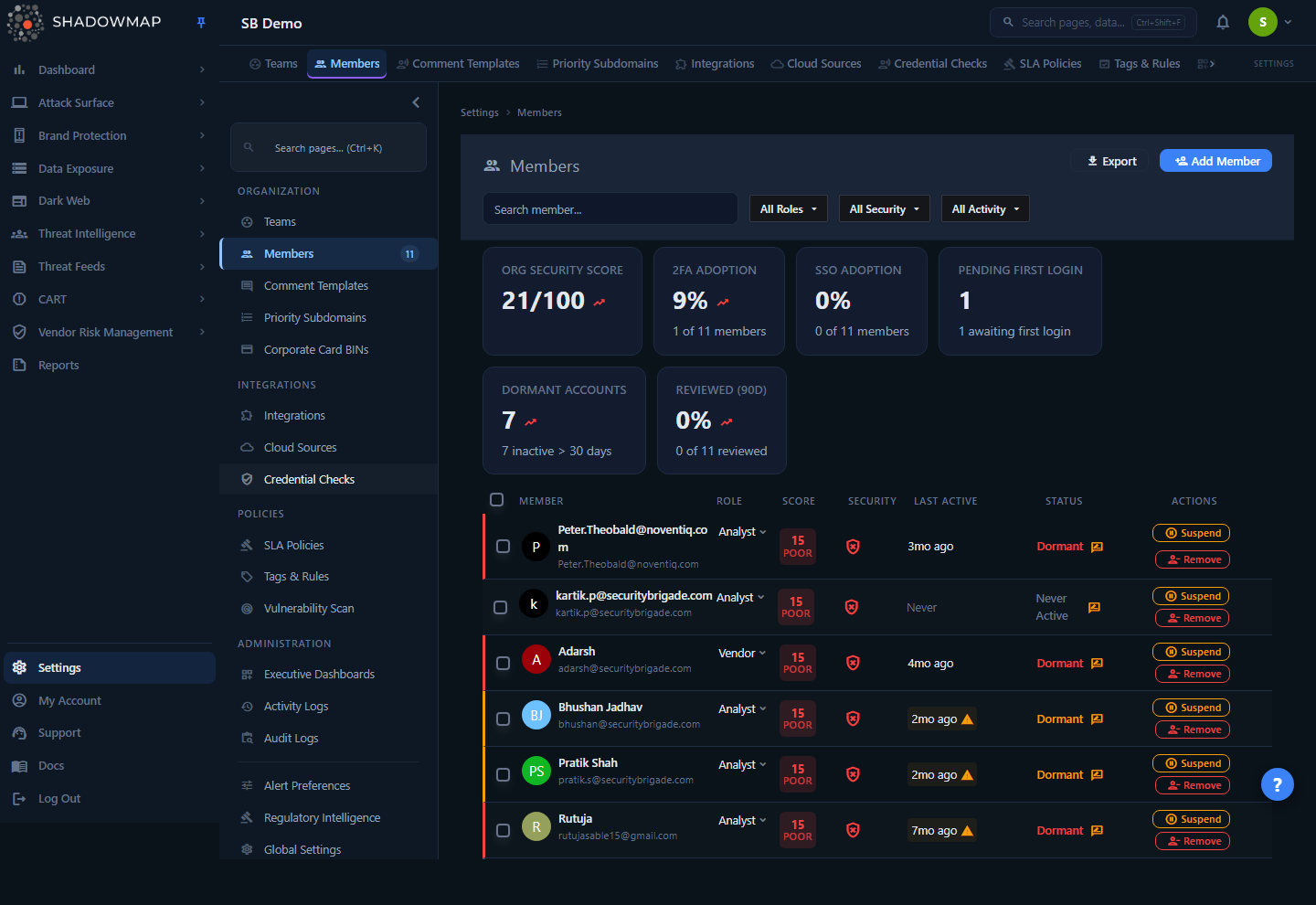
The Members page lists every user in your organization (scoped to your company — you never see members of other tenants). The page has three parts, top to bottom:
- A metrics bar summarizing org-wide account hygiene (security score, 2FA adoption, SSO adoption, pending logins, dormant accounts, review coverage). Several cards are clickable shortcuts that apply the matching filter.
- Filters and search to narrow the list by role, security posture, or activity.
- The member table, one row per user, showing identity, role, security score, 2FA status, last-active time, account status, and contextual actions.
Each row expands inline for a quick preview, or opens a full member profile with three tabs: Overview, Access & Permissions, and Activity & Sessions.
Where this lives
Members is under Settings. Access to the entire Settings area requires the settings.manage permission. What you can do on this page (invite, change roles, remove, export) is gated further by the user-management permissions described below.
How it works
Most of what this page shows is computed server-side and is not obvious from the UI. The important mechanics:
The security score (0–100)
Every member gets a posture score recomputed from their account state on each load. It is additive, capped at 100:
| Signal | Points | Notes |
|---|---|---|
| TOTP two-factor enabled | +40 | The single largest contributor. |
| Logged in within the last 30 days | +20 | Recency / "the account is actually used." |
| Password set (completed first login) | +15 | A member still on a temporary password does not get this. |
| Single Sign-On enabled | +15 | |
| Backup codes generated | +10 | |
| Email OTP enabled | +10 | Only counted when TOTP is off. TOTP is strictly stronger, so the page does not double-count or penalize you for skipping the weaker option — the 10 points fold into the 2FA bucket. |
The badge color follows thresholds: Good (green) for 80+, Fair (amber) for 50–79, Poor (red) below 50. The Org Security Score card at the top is the simple average of every member's score.
Reading the score
A member with TOTP + recent login + a real password already sits at 75. The remaining 25 comes from SSO and backup codes. A score below 50 almost always means 2FA is off and the account is either dormant or still pending first login.
Dormancy
Dormancy is derived from the member's last login date:
- 30+ days → flagged as a warning (amber row accent, "Dormant" status).
- 90+ days → critical (red row accent).
- Never logged in but already past setup → shown as Never Active (the account completed setup but has no recorded login).
- Never logged in and still on a temporary password → Pending first login.
These thresholds drive the Dormant Accounts metric, the activity filters, and the per-row left-border color.
Access reviews
ShadowMap treats access reviews as a first-class compliance signal. A member is considered due for review if they have never been reviewed, or were last reviewed more than 90 days ago. Overdue members show a review icon in the Status column and feed the Reviewed (90d) metric. Marking a member as reviewed (from their Overview tab) stamps the reviewer's name and a timestamp.
Role hierarchy and who can assign what
Roles are ranked by level. A user can only assign roles at or below their own level, and the member list never lets you change your own role:
| Role | Level | Default access | Can assign |
|---|---|---|---|
| Administrator | 3 | Full administrative access to the dashboard, including Settings and user management. | Administrator, Analyst, SOC User, Vendor |
| Analyst | 2 | Full access to all modules. | SOC User only |
| SOC User | 1 | Read-only access to the dashboard. | (cannot assign roles) |
| Vendor | 0 | Vendor-scoped access. | Vendor only |
Because of this, the role dropdown on any given member shows only the roles you are entitled to grant, plus that member's current role (always visible so the label renders). The Access & Permissions matrix is likewise hidden for any member whose role level is higher than yours.
Login anomaly detection
If a member's most recent login came from an IP address not seen in their recent session history, the Last Active cell is highlighted and a "Login from new location" warning appears. This is a lightweight signal — it flags first-time IPs, not a full risk verdict.
How the list loads
The list is fetched in full (/users/search) and filtered, sorted, and paginated client-side at 10 rows per page — this is fine because organizations are typically well under a few hundred members. Typing in the search box triggers a server-side search (debounced) against name and email.
Because that server-side search replaces the loaded list with only the matching subset, the org-wide metrics bar hides while a search query is active — its scores and percentages describe the whole organization, so showing them over a search subset would misreport them. The Role, Security, and Activity dropdowns filter client-side and leave the metrics bar in place.
Understanding the data
Columns
| Column | What it shows |
|---|---|
| Member | Avatar initials, display name, and email. Click the name to expand the inline preview; double-click (or "Open Full Profile") to open the member's detail page. |
| Role | The member's role. If you have permission to update it and it's not your own account, this is an inline dropdown — changing it re-syncs that member's module permissions on the backend. |
| Score | The 0–100 security posture badge with a Good / Fair / Poor label. |
| Security | A 2FA indicator: a green shield (enabled) or a red badge (not enabled). |
| Last Active | Relative time of last login, with a tooltip showing last login IP, location, and method (Azure SSO vs. Password). New-location logins are flagged here. |
| Status | The lifecycle state (see below), plus a review-overdue icon when applicable. |
| Actions | Contextual buttons that depend on the member's state and your permissions. |
Statuses
| Status | Meaning |
|---|---|
| Active | Logged in within the last 30 days, on a real password. |
| Pending | Invited but has not completed first login / is still on a temporary password. |
| Never Active | Completed setup but has no recorded login. |
| Dormant | No login for 30+ days (amber) or 90+ days (red). |
| Suspended | Login blocked and all sessions terminated; the row is dimmed with a red accent. |
Inline preview
Clicking a member's name expands a panel under the row showing their security posture breakdown alongside metadata: Created By, Last Login IP, Location, and Active Sessions count, with a button to open the full profile.
Filtering & search
The header offers a free-text search plus three filter dropdowns. Active filters appear as removable chips, and several metric cards apply a filter when clicked.
| Filter | Options |
|---|---|
| Search | Matches name or email (server-side). |
| Role | All Roles, Administrator, Analyst, SOC User, Vendor. |
| Security | All Security, 2FA Enabled, 2FA Disabled, Uses SSO, No SSO. |
| Activity | All Activity, Active, Dormant 30d+, Dormant 90d+, Pending First Login, Never Active, Unreviewed (90d+). |
Fast hygiene triage
Use the clickable metric cards as one-click filters. "2FA Adoption" jumps to 2FA Disabled, "Pending First Login" to Pending, "Dormant Accounts" to Dormant 30d+, and "Reviewed (90d)" to Unreviewed — the exact populations you act on during an access review.
Adding a member
Click Add Member to open the invite form. New members receive a temporary password by email and must set their own password on first login.
- Email(s) — Enter one address, or several separated by commas to invite a batch at once.
- Two-Factor Authentication — Optionally tick Enforce Two-factor Authentication. When set, the member is required to configure 2FA during their first login.
- Role — Choose SOC User (read-only), Analyst (full module access), or Administrator. Roles you cannot grant are disabled. For Vendor-type companies, the role is fixed to Vendor.
- Data Restriction (optional) — Scope the member to a subset of data using saved-search criteria across Exposure, Alert, Stealer Log, Discussion, and Domain Squatting types. Each restriction is a filter query that limits what that member can see in the corresponding module.
- Team (optional) — Assign the member to one or more teams.
Click Add Member to send the invitation. If a member never receives or acts on their email, use the Resend action (or Resend Credentials on their profile) to send a fresh temporary password.
Taking action
Available actions depend on your permissions (User.INVITE, User.UPDATE, User.REMOVE, User.LEAVE) and the target member's state. Administrators implicitly have invite, update, and remove; Leave requires the User.LEAVE permission.
On a member row
| Action | When it appears | Effect |
|---|---|---|
| Change role | You can update users; not your own row | Re-assigns role and resyncs module permissions. Asks for confirmation. |
| Resend | Member is pending first login | Re-sends their temporary login credentials by email. |
| Suspend | Member is not already suspended | Immediately terminates all their sessions and blocks login. |
| Reactivate | Member is suspended | Restores login access. |
| Remove | You can remove users | Deletes the member from the org. If they still own assets, you're prompted to reassign first (see below). |
| Leave | Your own row, with the leave permission | Removes you from the organization. After leaving you can no longer log in. |
Bulk actions
Select rows with the checkboxes to reveal a bulk bar:
- Suspend — Suspend all selected accounts at once (terminates their sessions).
- Send 2FA Reminder — Email the selected members a reminder to enable two-factor.
Asset reassignment on removal
If you remove a member who still owns assets, the request is rejected (403) and a reassignment step is required so ownership transfers to another user before the account is deleted. This prevents orphaning owned objects.
Export
Administrators can Export the full member roster (roles, security posture, activity) as an asynchronous download for offline review or audit evidence.
Member detail view
Opening a member shows a tabbed profile. The page header carries an inline role dropdown and Suspend / Reactivate buttons (admin-only).
Overview tab
- Security Posture — the same scored breakdown (2FA, Backup Codes, Recent Login, SSO, Password Set, and Email OTP when 2FA is off).
- Account Details — Created By, Date Joined, Last Login (with SSO/Password badge), Active Sessions, Last Login IP, Location, Email, and Status.
- Access Review — review state with a Mark as Reviewed button.
- Pending First Login — a Resend Credentials control, shown only while the member is pending.
- Authentication — admin tools to Remove 2FA (clears the member's existing 2FA methods) and Generate Recovery Code (issues a one-time backup code so a locked-out user can sign in and reset their 2FA). These appear only when your role level is at least the member's.
- Role and Team editors, with a Save Changes bar.
Access & Permissions tab
A per-module permission matrix with Read and Write checkboxes, plus All Read / All Write master toggles and per-module group toggles. A search box jumps to any module. Some toggles are constrained by role: SOC Users cannot be granted Write, and Administrator/Vendor permissions cannot be edited here because they're determined by the role itself. The permission matrix is shown only when your role level is at least the member's — otherwise the tab opens but the matrix is hidden.
Activity & Sessions tab
- Active Sessions — IP, location, browser/OS, login method (SSO or Password), and sign-in time per session, with a status dot (Active / Inactive / Ended). Terminate a single session or Terminate All Sessions to force a global sign-out.
- Audit Timeline — a paginated, filterable event log (each entry with event type, note, IP, and timestamp) so you can trace what the member did and from where.
Common questions
Why is a member's security score low even though their account works fine? The score rewards specific controls, not "can they log in." The most common cause of a Poor score is TOTP being disabled (worth 40 points). Dormancy (no login in 30 days) and a still-temporary password also subtract from it.
What's the difference between "Never Active" and "Pending"?Pending means the member was invited but hasn't completed first login (still on a temporary password). Never Active means they finished setup but have no recorded login.
What exactly happens when I suspend someone? Their active sessions are terminated immediately and they can no longer log in. Nothing they own is deleted. Reactivating restores access. Suspension is the reversible alternative to Remove.
A member is locked out of their 2FA — how do I help without deleting their account? On their profile's Overview tab, use Generate Recovery Code to issue a one-time backup code, or Remove 2FA to clear their methods so they can re-enroll. Both require your role level to be at least theirs.
Why can't I change my own role, or edit another admin's permissions? You can never change your own role from this page (a safety guardrail). You also can't manage anyone whose role level is higher than yours, and Administrator/Vendor permissions are fixed by the role rather than edited individually.
Why can't I remove a member? If they still own assets, removal is blocked until ownership is reassigned to another user — this avoids orphaning their data. Reassign, then remove.
How do I run a quarterly access review? Filter by Unreviewed (90d+) (or click the Reviewed metric card), open each flagged member, confirm their role/permissions, and click Mark as Reviewed. The 90-day clock then resets and the Reviewed (90d) metric climbs toward 100%.
Related
- Roles & Permissions — conceptual overview of the role model that this page enforces.
- RBAC Permissions — the full permission catalog behind the Access & Permissions matrix.
- Teams — group members into teams for assignment and scoping; the Team selector here references them.
- Security — the per-user view of the same 2FA, backup-code, and session controls an admin manages here.
- Sessions — your own active sessions, mirroring the per-member Activity & Sessions tab.
- Saved Searches — the criteria queries reused as data restrictions when inviting a scoped member.
- Audit Logs — the org-wide audit trail; a member's profile shows the slice that pertains to them.