
Security and 2FA
Manage the credentials that protect your own ShadowMap login: change your password, turn on TOTP two-factor authentication (2FA), and review where API tokens come from. Everything on this page applies to your user account only — it does not change settings for other members of your organization.
Overview
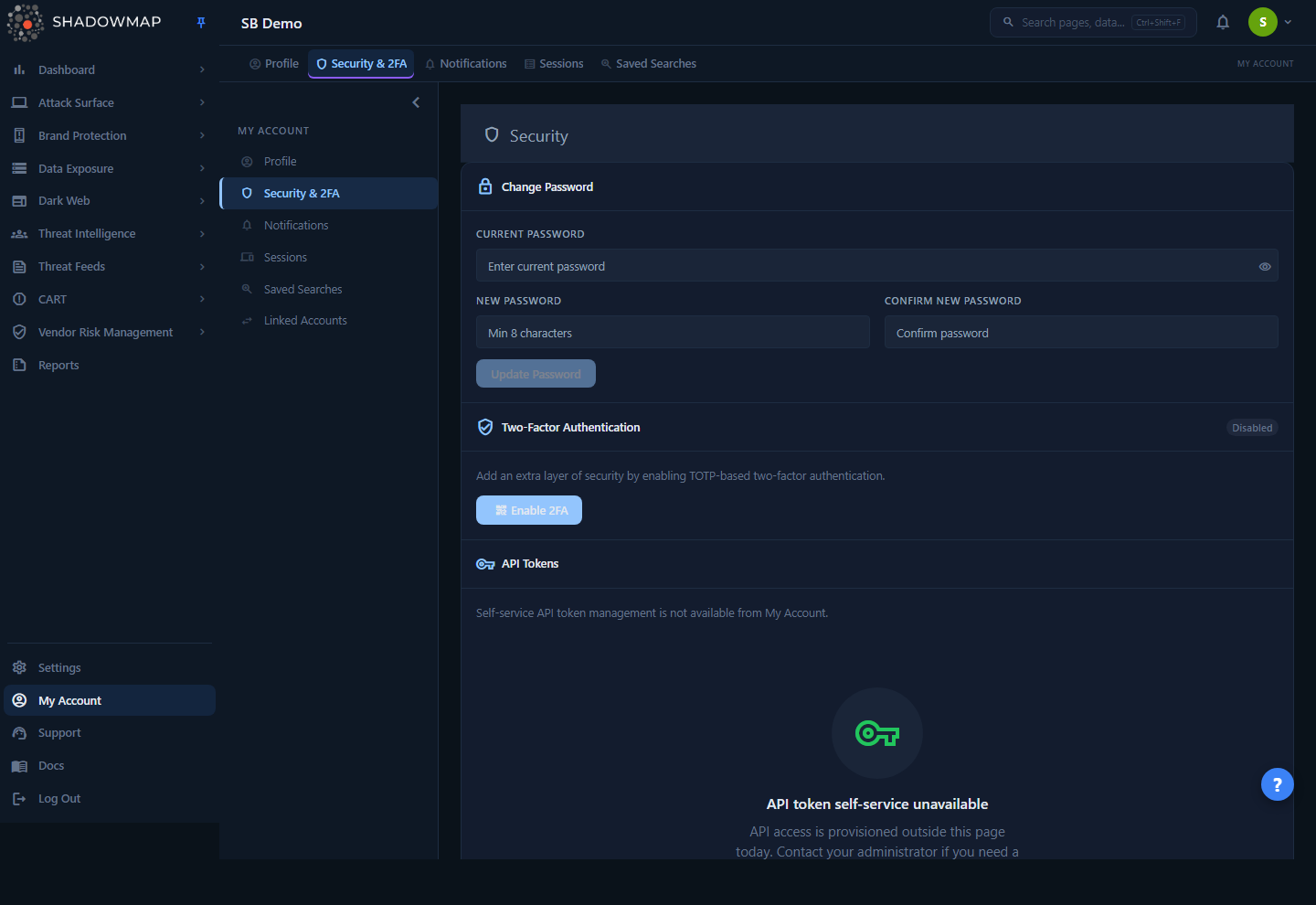
The Security page lives under My Account → Security (/account/security). It is a single scrollable card with three sections, in order:
- Change Password — set a new login password.
- Two-Factor Authentication — enable or disable TOTP 2FA, with a badge showing the current state (
Enabled/Disabled). - API Tokens — informational only; self-service token creation is not offered here.
Older bookmarks to /member/account/security (and the legacy …/2fa/enable-authenticator and …/2fa/view-recovery-codes paths) redirect to this page automatically.
This page is per-user, not org-wide
Changing your password or your 2FA here affects you alone. Org-wide controls — inviting members, resetting another person's password, or disabling someone else's 2FA — live under Members and require admin permissions. See How it works for the admin override mechanics.
How it works
These are the mechanics the UI does not spell out — the password policy, what TOTP actually stores, and what happens at login.
Password change
When you submit the Change Password form, ShadowMap does three things server-side before accepting the new password:
- Re-authenticates you. Your Current Password is verified against your stored credentials. A wrong current password returns a "The password you entered is not correct" error — the new password is never written.
- Enforces the strong-password policy (see the table below). The new password must satisfy every rule.
- Checks password history. The new password must differ from your last 5 passwords. ShadowMap records a hash of your old password each time you change it, so re-using a recent one is rejected.
The form also does a client-side check that New Password and Confirm New Password match (you'll see "Passwords do not match" inline), and disables the Update Password button until all client conditions are met. The server is the source of truth, so the full policy is always re-checked on submit.
| Password rule | Requirement |
|---|---|
| Minimum length | 10 characters |
| Lowercase letter | At least one (a–z) |
| Uppercase letter | At least one (A–Z) |
| Number | At least one (0–9) |
| Special character | At least one of `` @ $ ! % * ? & # ^ ( ) _ + - = [ ] |
| Not a previous password | Must not match any of your last 5 passwords |
The placeholder says "Min 8 characters" but the real minimum is 10
The New Password field shows a "Min 8 characters" hint, but the enforced policy requires at least 10 characters plus the complexity rules above. A compliant-looking 8- or 9-character password will be rejected on submit. Aim for 10+.
Two-factor authentication (TOTP)
ShadowMap's 2FA is TOTP — the time-based one-time-password standard used by Google Authenticator, Authy, 1Password, Microsoft Authenticator, and similar apps. Enabling it works like this:
- Enable 2FA calls the server to generate a fresh 32-character secret and a QR code. The secret is held in your server session (not yet saved to your account) and the QR is rendered inline below the button. The QR encodes the standard
otpauth://URI labelled with a short ShadowMap issuer name and your email address, so your authenticator app names the entry sensibly and keeps your email readable in the app's list. - You scan the QR with your authenticator app, which starts producing 6-digit codes that rotate roughly every 30 seconds.
- You type the current 6-digit code into Enter Verification Code and click Verify & Enable. The server validates the code against the pending secret. Only if the code is valid is the secret written to your account and 2FA marked active. An invalid code is rejected with an error and nothing is saved — so you cannot accidentally lock yourself out with a mis-scanned QR.
- On success, ShadowMap sends a "two-factor enabled" confirmation email and writes an entry to the audit log.
Once enabled, the badge flips to Enabled and the page text confirms you'll be prompted for a TOTP code on each login.
The secret is only committed after a valid code
If you click Enable 2FA, scan the QR, but then cancel or close the page without verifying, nothing is saved — your account stays 2FA-disabled. Re-running Enable 2FA generates a new QR each time. Always finish the verification step.
Disabling 2FA
Clicking Disable 2FA asks for a browser confirmation, then clears your TOTP secret, removes any backup codes tied to it, and emails you a "two-factor disabled" notice. After disabling, future logins no longer prompt for a code.
There is also an admin override: a user with a sufficiently high role can disable 2FA for another member (handled from the Members admin area, not this page). When an admin disables your 2FA, ShadowMap also terminates your active sessions, forcing a fresh login — so a stale, already-authenticated session can't keep access after the change. Role level gates this: you can only disable 2FA for users at or below your own role level.
OTP and SSO (related second factors)
TOTP is the primary, strongest second factor, but two related mechanisms exist in the platform:
- Email OTP — a one-time code emailed at login. It is a weaker alternative to TOTP and is mutually exclusive with it in ShadowMap's account-security scoring (TOTP supersedes it). It is configured outside this page.
- SSO (Azure AD) — when your organization uses single sign-on, login is handled by your identity provider and the password/2FA controls here may not apply to your day-to-day login. SSO is provisioned by your administrator.
If your organization tracks an account-security posture score, enabled 2FA contributes the largest share; OTP contributes only when 2FA is off.
Understanding the data
The three sections and what each control does:
| Section | Controls | What it does |
|---|---|---|
| Change Password | Current / New / Confirm fields, show/hide eye toggle on current, Update Password | Sets a new login password after re-authenticating and enforcing the policy |
| Two-Factor Authentication | Enabled / Disabled badge, Enable 2FA (QR + 6-digit verify) or Disable 2FA | Turns TOTP 2FA on or off for your account |
| API Tokens | (none — informational) | Explains that API token self-service is not available from My Account |
API tokens
The API Tokens section is intentionally read-only. It states that self-service API token management is not available from My Account and that API access is provisioned outside this page. If you need an API token, contact your ShadowMap administrator or account team. For what the API itself covers, see API Overview.
Taking action
Change your password
- Go to My Account → Security.
- Enter your Current Password (use the eye icon to reveal it if needed).
- Enter a new password meeting the policy in New Password, then repeat it in Confirm New Password.
- When the inline checks pass, click Update Password. The button shows "Updating…" while it saves and the fields clear on success.
Enable TOTP 2FA
- In the Two-Factor Authentication section, click Enable 2FA.
- Open your authenticator app and scan the QR code that appears.
- Type the current 6-digit code from the app into Enter Verification Code.
- Click Verify & Enable. The badge changes to Enabled and you'll receive a confirmation email.
Save a backup before you log out
ShadowMap will require a TOTP code on every login once 2FA is enabled. If you lose access to your authenticator app and have no backup, you will be locked out and will need an administrator to disable 2FA for your account (from Members). Keep your authenticator backed up, or enroll on a second device, before relying on it.
Disable TOTP 2FA
- Click Disable 2FA.
- Confirm in the browser prompt. The badge returns to Disabled and a notification email is sent.
Common questions
Which authenticator apps work? Any TOTP-compatible app — Google Authenticator, Authy, Microsoft Authenticator, 1Password, and others. ShadowMap uses the standard TOTP algorithm, so the QR scans the same way in all of them.
Why was my new password rejected even though it looked strong? The most common reasons: it was under 10 characters (the field hint of "8" is outdated), it was missing one of the required character classes (upper, lower, digit, special), it matched a password you've used before, or your Current Password was wrong. The error message identifies which rule failed.
I enabled 2FA but the code is always "invalid." This is almost always a clock-skew problem: TOTP depends on accurate time. Make sure your phone's clock is set to automatic/network time. Also confirm you're typing the current code — they rotate about every 30 seconds.
I lost my phone / authenticator. How do I get back in? Because the verification secret is only committed after a valid code, there's no way to self-recover from this page once you're locked out. Ask an administrator to disable 2FA on your account from Members; doing so also ends your active sessions, after which you can log in with your password and re-enroll a new device.
Can I create an API token here? No. The API Tokens section is informational only — token provisioning happens outside My Account. Contact your administrator. See API Overview.
Does changing my password or 2FA log me out everywhere? Changing your own password or 2FA from this page does not force-terminate your other sessions. (An admin disabling your 2FA does terminate your sessions.) To review and revoke your own active sessions, use the Sessions page.
Where do I see that 2FA was changed? Enabling and disabling 2FA both raise audit-log events and send you an email. Administrators can review these in the audit log; see Audit Logs.
Related
- My Profile — the sibling Account page for your name, contact details, and timezone.
- Sessions — review your active and recent logins (device, IP, location) and revoke sessions you don't recognize.
- Members — where administrators invite users and perform the admin override that disables another member's 2FA.
- Audit Logs — where 2FA enable/disable and other security events are recorded.
- Login Issues — troubleshooting for password, 2FA, and SSO sign-in problems.
- API Overview — what the ShadowMap API covers, since tokens aren't issued from this page.