
FAQ
Short, direct answers to the questions that come up most when teams start using ShadowMap. Each answer points to a deeper page when there is more to know. If your question isn't here, the Glossary defines the vocabulary and Key Concepts explains the underlying model.
Overview
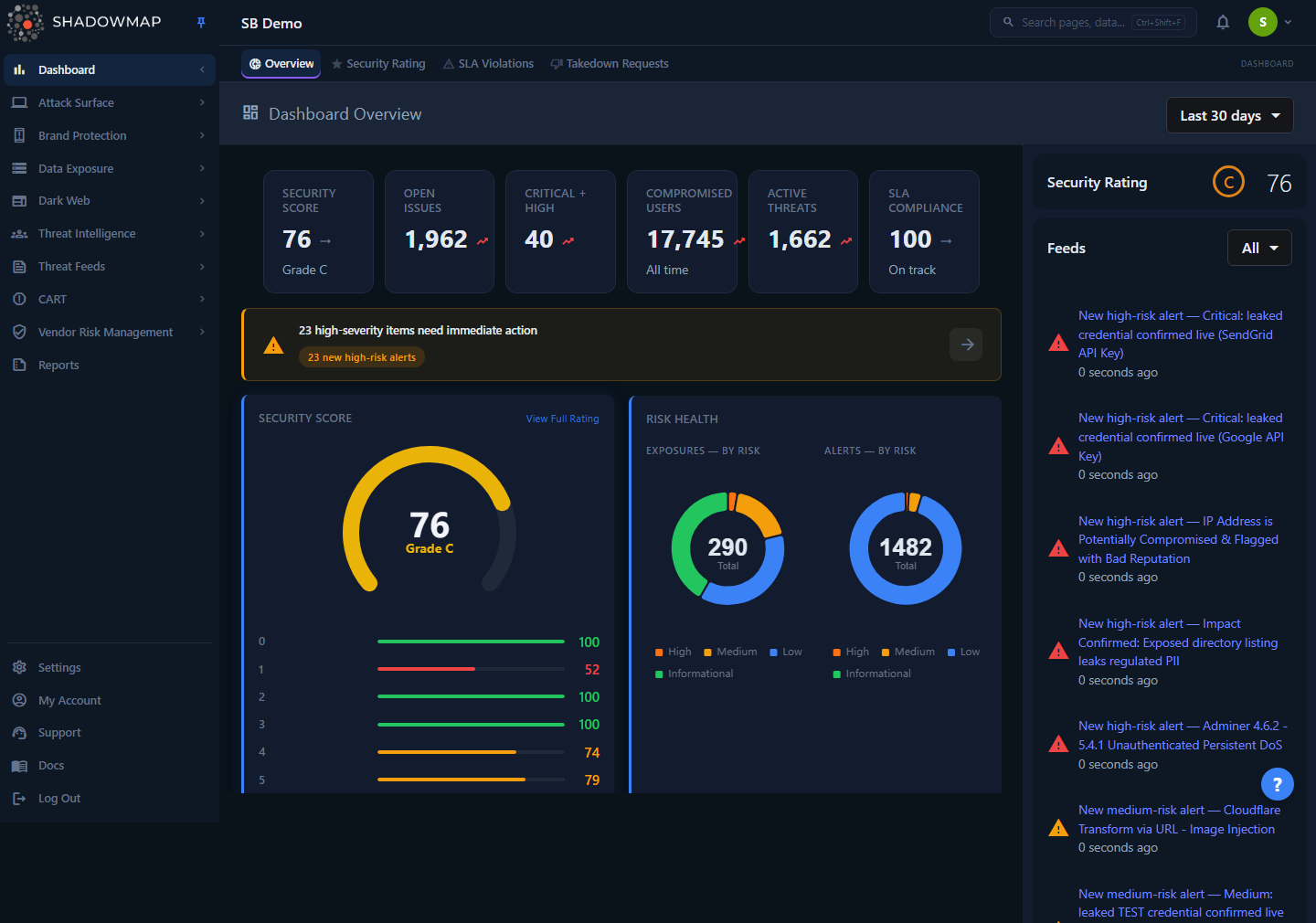
The Dashboard Overview pulls together the things this FAQ keeps referring to: discovered assets, findings grouped by module, the risk-severity distribution, and your SLA posture.
ShadowMap is an External Attack Surface Management (EASM) platform. It continuously discovers your internet-facing assets, scans them and the wider web — including the dark web — for exposures, and presents what it finds as triageable, trackable items spread across modules (Attack Surface Area, Brand Monitoring, Data Leaks, Dark Web, Threats, Threat Intelligence). The questions below are grouped by theme: the platform, findings and severity, the triage workflow, access and accounts, data and the dark web, and getting things done.
Read this first
If you read only one conceptual page, read Key Concepts. It defines assets, findings, severity, status, and SLAs once — and the rest of the platform reads consistently afterwards.
How it works
Most questions below trace back to one model: ShadowMap discovers your internet-facing assets, scans them and the wider web (including the dark web) on a continuous cadence, and turns what it finds into findings you triage through a per-module status workflow. A finding's risk severity is a four-band rating (High / Medium / Low / Informational) derived from an internal numeric score, and you move findings toward a terminal state — or mark them False Positive or Accepted Risk — as you work them. The answers are grouped by theme: the platform, findings and severity, the triage workflow, access and accounts, data and the dark web, and getting things done. Each one links to the deeper page when there is more to know.
The platform
What is ShadowMap?
ShadowMap is a continuous External Attack Surface Management platform. It discovers the internet-facing assets that belong to your organization (domains, subdomains, IPs, web and mobile apps, certificates, cloud resources), monitors them and the open and dark web for exposures, and gives you a queue of scored, trackable findings to act on. It is built by Security Brigade.
How often does ShadowMap scan? Do I have to trigger scans?
Discovery and scanning are continuous — you never trigger a scan manually. Cadence varies by module and data source: some checks run hourly, others daily or weekly. New findings appear automatically as scans complete, and existing findings update in place. Because discovery never stops, your asset list and finding counts change over time without any action from you.
What data sources does ShadowMap use?
A blend of active scanning (DNS resolution, port scanning, web crawling, technology fingerprinting) and passive intelligence (Certificate Transparency logs, passive DNS, dark-web forum and marketplace monitoring, Telegram, breach databases, stealer-log dumps, and curated threat feeds). Discovery seeds from the domains and keywords your administrator configures during onboarding, then expands outward on its own.
Who decides what ShadowMap monitors?
Your organization's Administrator sets the scope — the seed domains, brand keywords, and configuration — typically during onboarding. ShadowMap expands from those seeds automatically. Who can change scope is governed by role; see Roles and Permissions.
What does "asset" mean versus "finding"?
An asset is something you own and expose (a subdomain, an IP, a web app). A finding is one observation about an asset or about your brand/data (an open port, a leaked credential, a phishing site, a CVE). One asset can generate many findings. This matters when you read counts: Asset Inventory counts assets; module dashboards count findings. See Key Concepts.
Findings and severity
What do the severity levels mean? Why is there no "Critical"?
ShadowMap's own risk model is a four-band scale derived from an internal numeric score — there is no "Critical" band; High is the top.
| Band | Internal score | Meaning |
|---|---|---|
| High | >= 8 | Act now — exploitable or high-impact exposure. |
| Medium | 5 – 7 | Address soon; meaningful risk in context. |
| Low | 2 – 4 | Lower-priority; worth reviewing. |
| Informational | 0 – 1 | Context or hygiene; not an active threat on its own. |
The one place you will see the word Critical is data carrying an external rating — chiefly CVEs scored with CVSS, a separate vendor-published 0–10 scale where 9.0+ is Critical. On the CVE Feeds list, a CVE keeps its CVSS Critical label because that rating comes from the CVE record itself, not from ShadowMap's banding. Don't conflate the two scales. Full detail: Severity Levels.
Can a finding's severity change on its own?
Yes. Severity is a number under the hood, so ShadowMap can boost or reduce a finding's priority as context changes — exposure, exploit availability, asset importance — and the band recalculates. The badge you see always reflects the current score, so severity can move over a finding's lifetime without anyone editing it manually.
Why do trend arrows use red for "up" and green for "down"?
ShadowMap uses threat semantics: more findings is bad (red), fewer is good (green). This is deliberately the opposite of financial charts where green-up is positive. A rising count of exposures is a worsening posture, so it is colored red.
What does "False Positive" mean, and how is it different from "Accepted Risk"?
- False Positive — the finding isn't actually yours, or isn't a real issue. It's noise. Marking it false positive removes it from active monitoring and cleans your queue.
- Accepted Risk — the finding is real and yours, but you have made a deliberate decision to tolerate it (a known exposure you can't or won't remediate right now).
Both remove the item from the "needs action" view, but they tell very different stories in reports and audits. Use False Positive for noise; use Accepted Risk for real exposures you're consciously living with.
Why did a finding I closed come back?
Discovery is continuous, so findings can reopen on their own. If an exposure you previously closed is observed live again on a later scan, ShadowMap moves it back into the review queue rather than hiding a current, real risk. Closing reflects the state at the time; a refind reflects reality now. If you want to stop tolerating something from reappearing as "needs action," use Accepted Risk instead of Closed.
The triage workflow
What are the statuses, and do they mean the same thing everywhere?
Every finding carries a status that tracks it through triage. The pattern is the same across the platform — a review queue, one or more triage outcomes, and a terminal state — but the exact set of statuses is defined per module on the backend, so a web application and a dark-web post do not share an identical list. Common vocabulary:
| Status | What it means |
|---|---|
| Needs Review / New / Online / Active | The default landing queue — freshly surfaced, untriaged. |
| Reviewed | Examined and confirmed legitimate but not actively dangerous. |
| Investigating | Under active analysis; not yet resolved. |
| Accepted Risk | A real exposure you have consciously chosen to tolerate. |
| False Positive | Not yours, or not a real issue — removed from monitoring. |
| Closed / Resolved / Mitigated | Terminal: fixed or no longer relevant. |
Always read a status in the context of the module you're in. Full lifecycle and per-module variations: Status Workflow.
How do I change the status of many findings at once?
Most list pages support bulk actions: select the rows (checkboxes), then use the toolbar to move them through statuses together — for example, closing a batch or marking several as Accepted Risk. The same states power the tabs at the top of the list (Needs Review, Reviewed, Accepted Risk, and so on), so switching tabs is how you view each segment of the queue.
What is an "alert"?
An alert is a finding that ShadowMap's CART engine (Continuous Automated Red-Teaming) has scored and surfaced for action. Alerts is the central triage queue that aggregates these scored findings into one place.
How do SLAs work?
An SLA (Service Level Agreement) in ShadowMap is a policy you build, not a fixed product setting. A policy watches one or more module types for findings that match its filter criteria, fires an Immediate Alert when a match appears, and — if you enable it — runs optional escalation levels with actions that fire when a matched finding stays open past your response target (email, plus integrations like PagerDuty or Jira). When a matching finding goes un-actioned past its target it becomes an SLA violation and climbs the escalation ladder if enabled. Build policies under SLA Policies; monitor breaches on the SLA Violations dashboard.
How is my Security Rating calculated?
It rolls up everything above — your open findings, their severities, and how promptly you resolve them — into one posture score. More unresolved high-severity findings and missed SLAs drag it down; clearing your queue and meeting SLAs lift it. See Security Rating and How Scoring Works.
Access and accounts
What roles are available, and what can each do?
There are four roles, ordered by level. A member's role sets their baseline access; an Administrator can fine-tune it per module.
| Role | Baseline access |
|---|---|
| Administrator | Full read and write across every module, plus all of Settings (members, teams, SLAs, integrations, audit logs). Manages the organization. |
| Analyst | Full read and write across the security modules; cannot manage organization-level settings unless explicitly permitted. |
| SOC User | Read-only across the dashboard. Sees every finding but cannot change status, assign, tag, or take action. |
| Vendor | Scoped access for third-party / vendor-risk accounts, limited to the modules a vendor should see. |
You can only manage and assign roles at or below your own level. Full model — including the per-module permission matrix and data restrictions: Roles and Permissions.
Why can't I see a module another colleague can?
Navigation is filtered to the modules your role and permissions allow. If a module is missing from your sidebar, your account either lacks the permission or is subject to a data restriction. An Administrator can grant access under Settings → Members. If you expected an asset rather than a module, see Missing Assets.
How do I reset my password?
Use Forgot Password on the login screen and follow the emailed instructions. If you can't get in at all, see Login Issues.
How do I enable two-factor authentication (2FA)?
Open My Account → Security and enable 2FA. A walkthrough is in First Login; the account-level controls live under Security. Your organization may require 2FA, in which case you'll be prompted on next sign-in.
Why do action buttons (status, assign, takedown) sometimes not appear?
The most common reason is a read-only role (SOC User) — you can view findings but the action controls are hidden. Some actions are also account-tier gated: for example, raising a takedown is available only on active customer accounts (trial/POC, red-team, partner, and vendor accounts can see findings but can't dispatch takedowns).
Data, exports, and the dark web
How do I get my data out of ShadowMap?
Almost every list view has an Export action that produces an Excel (.xlsx) workbook of the exact rows your current filters and search match — not the whole module. It's generated in the background; a progress toaster shows pending → in progress → completed and surfaces a Download button when done. Filter first, confirm the count, then export. Details: Exports.
Where does dark-web and breach data come from, and is it legal to view?
ShadowMap collects from breach databases, stealer-log dumps, dark-web forums and marketplaces, and Telegram channels, then matches that data against your monitored domains, brands, and assets. You see only what is relevant to your organization — for example, your employees' leaked credentials or mentions of your brand. Sensitive values (full passwords, card numbers) are handled and masked appropriately. Start at the Dark Web Overview; related exposure surfaces include Leaked Credentials, Data Breaches, and Stealer Logs.
A leaked credential / data breach shows up — what should I do?
Treat it as a real exposure: force a password reset for the affected account, check for reuse of that password elsewhere, and investigate for unauthorized access. Mark the finding's status to reflect your action (Investigating while you work it, then Closed once remediated). For an exposed asset you can't immediately fix, use Accepted Risk so it stays visible without sitting in the active queue.
What is a stealer log?
Data harvested from a machine infected by info-stealer malware — typically saved credentials, cookies, autofill, and system details exfiltrated from the victim's browser and OS. Stealer logs are especially dangerous because they can include live session tokens and credentials for many sites at once. See Stealer Logs and Compromised Computers.
How long is data kept?
Retention varies by data type. See Data Retention for the specifics per category.
Getting things done
How do I request a takedown of a phishing site or fake app?
Raise the takedown from the finding inside its source module — Phishing & Impersonations, Fake Applications, Domain Squatting, and similar. ShadowMap mints a case, dispatches abuse notices to the relevant hosts, registrars, CDNs, and browser blocklists on a timed cadence, and tracks it to removal. Manage the queue from Takedowns (Dashboard → Takedown Requests). Takedown enforcement is a customer-tier feature.
How do I save a filter set I use often?
Build the filters and search you want, then save them as a Saved Search. Saved searches are reusable, can drive SLA policies, and produce repeatable exports — apply the saved search, then export, to get the same slice each time.
How do I find a specific asset or finding fast?
Use Universal Search to jump across modules from one search box, and Keyboard Shortcuts to move without the mouse. Within a module, the filter and search bar narrows the list, and Bookmarks let you flag rows to return to.
How do I get notified about new findings?
Configure delivery under Notifications and, for time-bound escalation, attach SLA Policies with email and integrations (Jira, PagerDuty) to the saved searches you care about. Integrations are set up under Integrations.
Something looks wrong or I'm stuck — how do I get help?
Start with Troubleshooting: common fixes for Login Issues and Missing Assets. If you still need a hand, reach out via Contact Support.
Common questions
Is this list exhaustive? No — it's the high-frequency set. Each module's own page has a Common questions section tailored to that module, and Key Concepts covers the model in depth.
Where do I look up an acronym like KEV, IOC, or CART? The Glossary defines every domain term and acronym used across the platform.
Do I need to do anything to keep data fresh? No. Scanning is continuous and automatic. Your job is triage — moving findings through their status workflow — not running scans.
Related
- Key Concepts — the underlying model (assets, findings, severity, status, SLAs) that every answer here draws on.
- Glossary — definitions for every term and acronym.
- Severity Levels — the full reference for the four risk bands and how CVSS differs.
- Status Workflow — the complete triage lifecycle and per-module variations.
- Roles and Permissions — who can see and change what.
- Data Retention — how long each data type is kept.
- Troubleshooting — fixes for login problems and missing assets.
- Contact Support — how to reach a human when the docs don't cover it.