
Bookmarks
Bookmarks let you star individual findings — an alert, an open port, a phishing URL, a leaked credential, a vendor — so you can come back to them without re-running a search or rebuilding a filter. A bookmark is a personal pin: it is private to your user account, it persists across sessions and devices, and every list page can be collapsed to show only your bookmarked rows in one click.
Overview
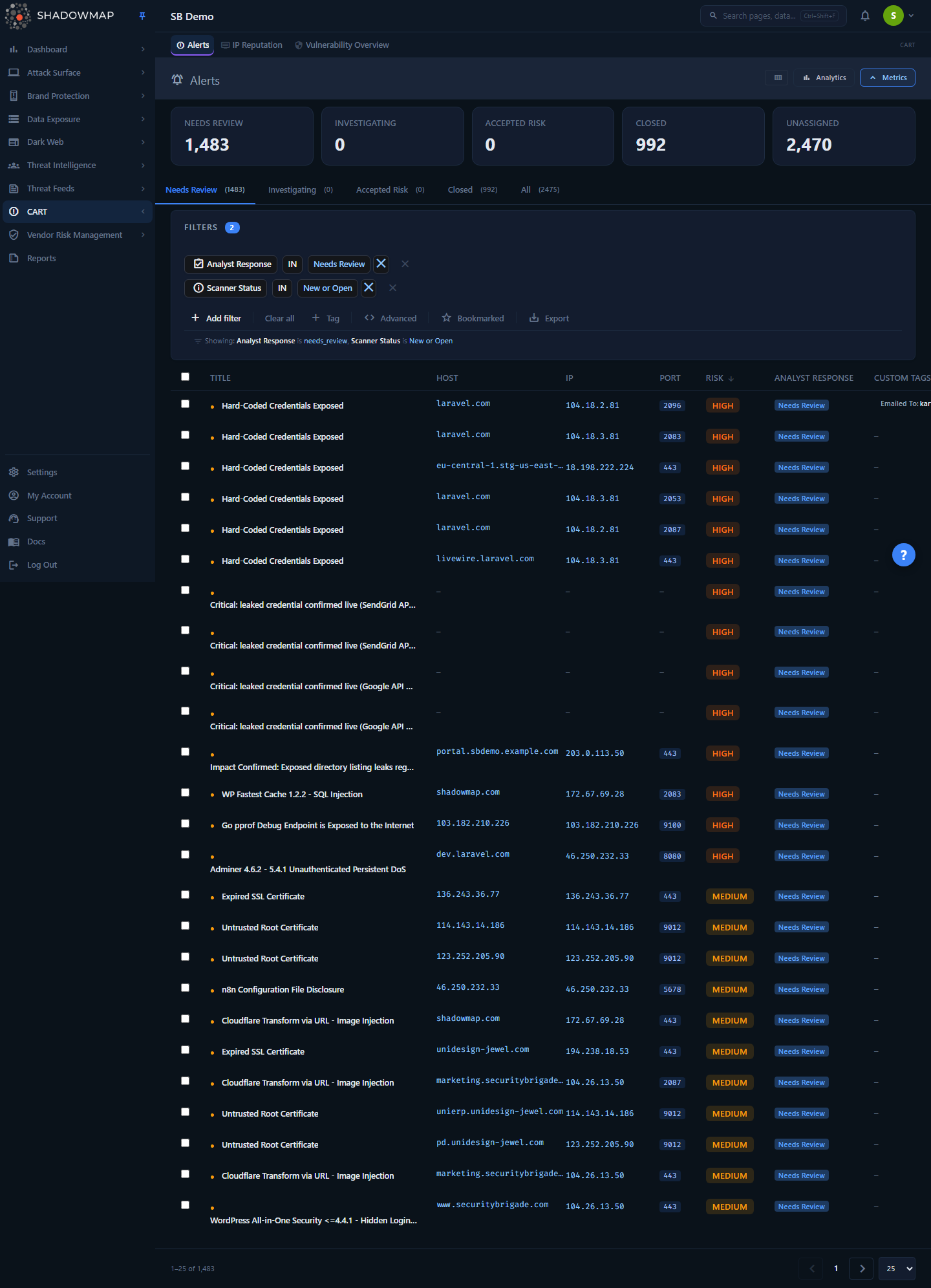
The star icon in each row toggles a bookmark; the "Bookmarked" button in the toolbar (top of the list) filters the view to only your starred items. Shown here on the Alerts module — the same controls appear on every v2 list page.
Bookmarks are not a separate page. They are a control that lives inside every module list view. Wherever you see a list or card grid of findings, you get:
- A star icon on each row (or card) — a filled gold star when bookmarked, an outlined (hollow) star when not.
- A "Bookmarked" toggle in the list toolbar that narrows the table to just your starred rows.
- A bulk "Bookmark" action in the selection bar when you check multiple rows.
- A Bookmark / Unbookmark button in the item detail view.
Use bookmarks as a lightweight, personal triage queue: things you want to revisit, escalate, write up, or keep an eye on — without changing the finding's shared status, assignment, or tags (which are visible to your whole team).
How it works
These are the mechanics you cannot see from the UI.
A bookmark is per-user and per-tenant
Each bookmark row stores three things: your user_id, the tenant's company_id, and the ID of the finding. The consequences:
- Bookmarks are private to you. A teammate looking at the same list sees their own stars, never yours. There is no "shared bookmarks" view — for collaboration use Comments, Custom Tags, assignment, or Sharing & Integrations instead.
- Bookmarks are tenant-scoped. If your account has access to multiple companies/tenants, a finding bookmarked in one tenant is independent of any finding in another.
- Toggling is idempotent. A single endpoint flips the state: if no bookmark exists for
(you, this tenant, this finding), one is created and the API returnsbookmarked: true; if it already exists, it is deleted and the API returnsbookmarked: false. There is no separate "star" and "unstar" call, so a double-click simply lands you back where you started.
Bookmarks are scoped to a single module
There is one bookmark table per module (alerts, open ports, phishing URLs, subdomains, vendors, and so on). A bookmark is tied to a specific finding ID within that module — it does not span modules. Bookmarking an alert in Alerts does not bookmark the open port or web application that alert points at; those are separate records in separate modules with their own stars.
Cross-tenant safety
Before a bookmark is created, the backend verifies the finding actually exists and belongs to your current tenant. A bookmark request for an ID that does not belong to your company returns 404 Not Found and no bookmark is written. You cannot pin a record you are not entitled to see.
How the list loads your stars
When you open a list page, ShadowMap fetches the full set of your bookmarked IDs for that module up front (one request) and renders the gold stars from that set — it does not make a per-row call. Clicking a star sends the toggle to the backend and updates the row to match what was saved. If that write fails, the star stays in sync with the server (it is not left showing a change that didn't persist) and you see a "Failed to update bookmark" message, so the star never silently lies about what was saved.
How "Bookmarked only" filters
The Bookmarked toggle does not filter client-side on the page you are looking at — it asks the backend for only the findings you have starred. Internally it sends a bookmarked_only flag, and the query restricts results to IDs present in your personal bookmark table for that module (scoped to your user_id and the tenant). Because it runs server-side, it spans every page of results, respects the active tab, and works alongside your other filters and search.
Bookmarked vs. the bookmarked filter rule
On modules with the advanced filter builder, "Bookmarked" is a first-class toggle, not a normal column filter. ShadowMap treats it specially: it strips the bookmarked condition out of the regular filter expression (there is no database column to match on) and applies it as the bookmarked_only server flag instead. You get the same result either way — a list narrowed to your stars.
Where you can bookmark
Bookmarking is available across the v2 list modules — roughly two dozen surfaces. Representative examples:
| Area | Modules with bookmarks |
|---|---|
| Threats | Alerts, Open Ports, Network Services, IP Reputation, App Misconfigurations, Defacements |
| Attack Surface | Web Applications, SSL Certificates, Single Sign-Ons, Mobile Applications, JS Trackers, CMDB Reconciliation, Links & Redirects |
| Asset Inventory | Domains, Subdomains, IP Addresses, Internal Hosts |
| Brand Monitoring | Phishing URLs, Domain Squatting, Social Media, Executive Monitoring |
| Data Leaks | Leaked Credentials, Leaked APIs, Leaked Files, S3 Buckets, Elastic Search Instances, Docker Containers, Stack Overflow, Shortener URLs |
| Dark Web | Data Breaches, Discussions, Telegram |
| Dashboard / VRM / TI | SLA Violations, Takedowns, Vendors, Threat Actors |
TIP
If a module shows a star icon on its rows, it supports bookmarks. The control is identical everywhere; only the look differs between table rows (a star in the actions column) and card layouts (a star in the card header).
Taking action
Bookmark a single finding
In any list, click the ☆ star on the row. It fills gold immediately and the finding is now in your bookmarks for that module. Click again to unbookmark. The same toggle is available in the item's detail view (a "Bookmark" / "Unbookmark" button in the header).
Bookmark several findings at once
- Select rows using the checkboxes (or "select all" in the header).
- In the bulk action bar that appears, click Bookmark (the gold star button).
- Each selected finding's bookmark state is flipped, and the selection clears after the action.
Bulk Bookmark toggles each row
The bulk Bookmark action runs the same toggle as the per-row star against every selected finding. Over a clean set of unstarred rows it stars them all — but over a mix of already-starred and unstarred rows it flips each one, so rows that were already bookmarked get unbookmarked. Select unstarred rows when you mean to add bookmarks in bulk.
View only your bookmarks
Click the Bookmarked button in the list toolbar. The list collapses to just your starred findings and the button shows an active (gold) state. Click it again to return to the full list.
You can combine the Bookmarked view with the active tab, search, sort, and any other filters — it simply adds "and is bookmarked by me" to whatever you are already looking at.
Clearing filters also clears Bookmarked
The Clear all filters action resets the Bookmarked toggle back off (and returns you to the module's default tab). This is deliberate — "clear everything" should give you a genuinely unfiltered list, not one still silently scoped to your stars.
Common questions
Are bookmarks shared with my team? No. Bookmarks are private to your user account. Two analysts working the same module each maintain their own independent set of stars. For anything the whole team needs to see, use a Custom Tag, a Comment, assignment, or status changes instead.
Do bookmarks change a finding's status, severity, or assignment? No. A bookmark is metadata about your attention, not the finding's state. Starring an alert does not close it, escalate it, assign it, or alter its severity. See Severity & Status for the controls that do.
Will a bookmark survive after the finding is remediated or auto-closed? The bookmark row persists as long as the underlying finding record exists in that module and remains in your tenant. If the finding is purged from the data set, its bookmark goes with it (there is nothing left to point at). A finding that is merely closed or resolved still exists, so its bookmark — and your "Bookmarked" view of it — is retained.
Can I export or report on my bookmarks? The Bookmarked toggle scopes the list you are viewing, and exports run against the current filtered view — so turning on "Bookmarked" and then exporting yields just your starred rows for that module. See Exports. There is no single cross-module "all my bookmarks" report; bookmarks live within each module.
Why didn't a star stick? If a save fails you'll see a "Failed to update bookmark" message and the star stays in its last-saved state. The most common cause is a transient network error; click the star again. A 404 (very rare from the UI) means the finding is no longer part of your tenant.
What's the difference between a bookmark and a Custom Tag? A bookmark is a private, single-state pin (starred or not) scoped to you. A Custom Tag is a shared, named label visible to your whole team and usable in filters and reporting. Use bookmarks for personal triage, tags for team-wide classification.
Related
- Custom Tags — the shared, team-visible alternative to bookmarks when you need a label everyone can see and filter on.
- Saved Searches — pin a query (filters + search) you re-run often, rather than individual findings.
- Comments — leave investigation notes on a finding for your team.
- Exports — export the current filtered view, including a Bookmarked-only view.
- Severity & Status — the shared workflow controls that, unlike bookmarks, change a finding's state.
- Alerts — the most common place to use bookmarks for day-to-day triage.