
S3 Buckets
ShadowMap continuously discovers cloud storage buckets that are publicly readable and attributed to your organization, then scores each one by exposure risk so you can triage the dangerous ones first. Despite the name, this module covers all four major object-storage providers — AWS S3, Azure Blob, Google Cloud Storage, and DigitalOcean Spaces — not just Amazon.
Overview
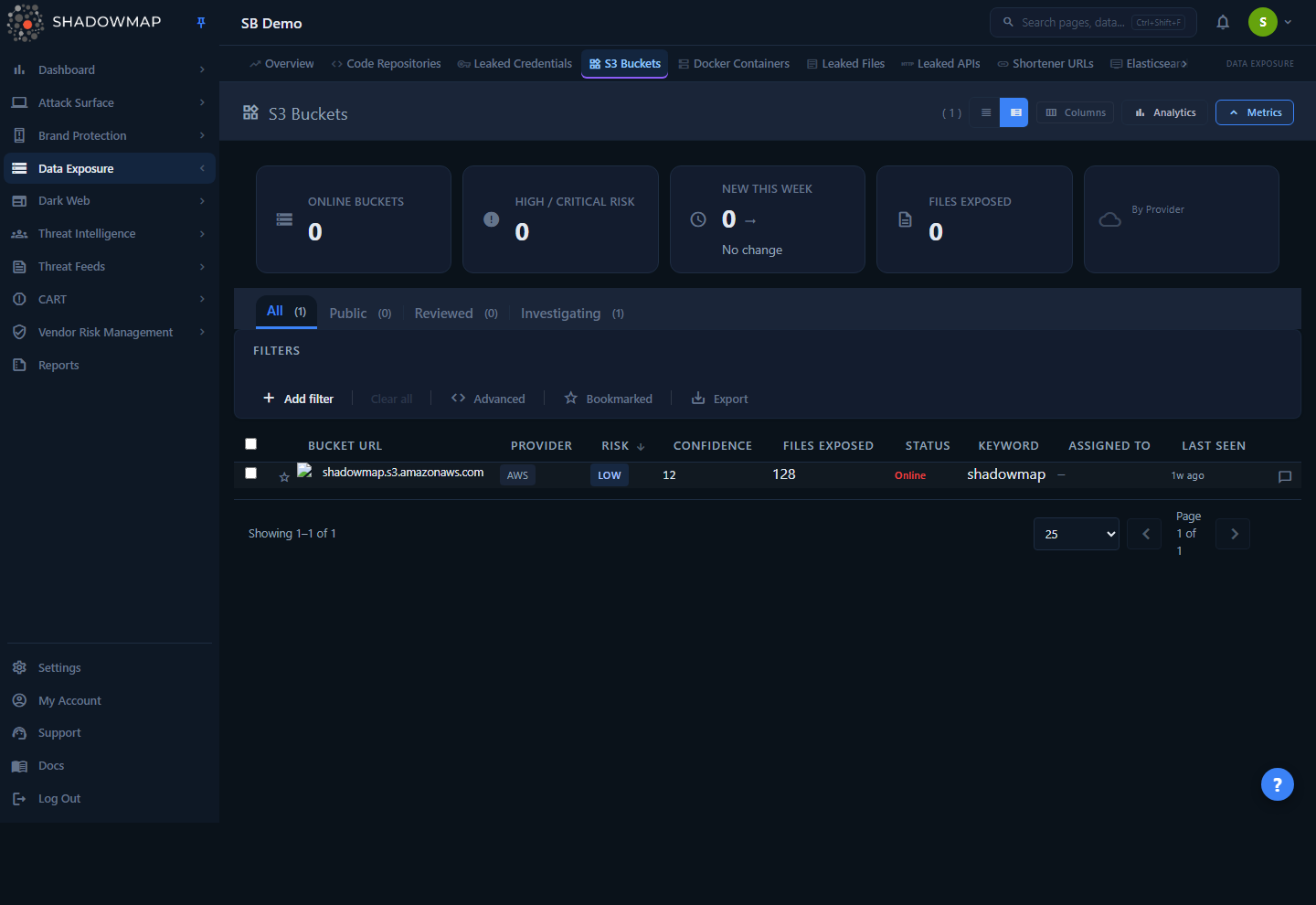
The list page is a triage workbench. At the top, a five-card KPI strip summarizes your exposure (online buckets, high/critical risk, new this week, total files exposed, and a per-provider breakdown). Below that, an optional analytics panel charts detection trend, provider mix, and risk distribution. The main table lists every discovered bucket with its provider, risk rating, detection confidence, file count, age, and triage status. Clicking a row opens a detail drawer; opening the full detail page gives you remediation guidance, compliance mapping, and cross-module links.
Each bucket is a single object-storage endpoint (for example, https://acme-backups.s3.amazonaws.com) that ShadowMap's scanner reached and confirmed was listable or readable without authentication. The module exists because misconfigured buckets are one of the most common — and most damaging — cloud exposure classes: a single world-readable bucket can leak backups, databases, credentials, customer PII, or source code.
How it works
These are the mechanics you can't infer from the screen.
What counts as a finding
A bucket appears here only after the scanner has reached the endpoint and confirmed public accessibility. Every record carries a confidence_score. The dashboard excludes any bucket with a confidence score of 0 from every count, KPI, tab badge, and the detail view — a zero-confidence row is treated as a discarded/unconfirmed candidate and is never shown as a live finding. Confidence is the scanner's certainty that the bucket is genuinely yours and genuinely exposed; a score of 90 or above is surfaced in the detail view as a "high confidence detection."
Attribution by keyword
Buckets are matched to your organization by keyword. ShadowMap tests candidate bucket names built from your brand terms, domains, and known naming conventions (the keyword column records which term matched). This is why a bucket like acme-prod-db-backups gets attributed to Acme — the name contains a tracked keyword. The keyword also drives data-classification and compliance inference (see below).
Risk rating
Each bucket is rated on a six-level scale, assigned by the scanner from its exposure analysis:
| Value | Label | Meaning |
|---|---|---|
| 5 | Critical | Severe exposure — typically online with many files or sensitive keyword context |
| 4 | High | Significant exposure warranting prompt remediation |
| 3 | Medium | Moderate exposure |
| 2 | Low | Minor exposure |
| 1 | Informative (shown as "Info" on the list badge) | Detected but low concern |
| 0 | NA (shown as "N/A") | No risk assigned |
The default sort is risk descending, then confidence descending, so the most dangerous, most certain findings sit at the top of the list.
Online vs. Offline
The Status column reflects current reachability, not triage state:
- Online — the bucket was reachable and publicly accessible at the last scan. These are your active exposures.
- Offline — the bucket is no longer reachable (remediated, deleted, or access removed). It stays in the record for history.
The "Online Buckets" KPI counts only buckets that are both online and still in the Public triage status (status = 1 AND false_positive = 0).
Triage status (Public / Dismissed / Investigating)
Separately from reachability, every bucket carries a triage status that your team manages. Internally this is stored in a legacy column named false_positive, but it now holds a workflow value:
| Status | Internal value | What it means |
|---|---|---|
| Public | 0 | New, untriaged. Confirmed exposed and awaiting review. |
| Dismissed | 1 | An analyst has reviewed and set it aside (handled, accepted risk, or not actionable). |
| Investigating | 2 | Actively being worked / escalated. |
Dismissed was previously labelled Reviewed. The stored value is unchanged (1), and while the rename rolls out some status-change controls — the detail header, the drawer, and the bulk bar — still read "Reviewed" / "Mark Reviewed." A fourth value, Filtered by AI (internal value 6), is set by the optional AI review rather than by your team; see AI review.
Why "Dismissed" filters by false_positive
Because of the legacy column name, the Dismissed tab maps to the false_positive value internally. This is purely a naming artifact — dismissing a bucket does not delete it; it moves it out of the default untriaged queue. The KPI strip and provider/risk breakdowns count only Public (untriaged) buckets, so triaged items drop out of your active exposure numbers.
AI review (advisory)
If your tenant has AI review enabled for this module, ShadowMap surfaces an optional, advisory layer alongside the triage workflow. It annotates and pre-sorts findings — it never overrides an analyst decision.
- AI columns — three read-only columns appear in the table: AI Verdict (the model's disposition), AI Score (a numeric confidence), and AI Tags (controlled labels describing what the bucket contains or exposes — e.g. Source Code, Database Backup, Sensitive Files, Public By Design, Empty Bucket, Third-Party Bucket, Credentials Exposed, PII Exposed). These columns show only when AI review is enabled and the loaded page actually carries AI data; otherwise they collapse entirely. They are not part of the column customizer.
- Filtered by AI tab — a dedicated status tab (internal
false_positivevalue 6) collects buckets the AI advised are benign or likely false positives. It is a disjoint sink: these rows are held out of the Public (untriaged) queue and the KPI counts, so an AI-deprioritised bucket never inflates your active-exposure numbers. The tab appears only when AI review is enabled. - AI filters — when enabled, the filter bar gains AI Assessment (filter by verdict) and AI Tags (filter by label) fields.
"Filtered by AI" is set by the model, not a manual triage action — it is not offered as a status you can assign by hand.
Files exposed
files_exposed is the count of objects the scanner observed as publicly listable in the bucket. The detail page maps this count to an exposure severity badge: 1–10 = Low, 11–50 = Medium, 51–100 = High, over 100 = Critical Exposure. The list currently surfaces the aggregate count only (not a file-by-file inventory), so use the total for prioritization and remediation tracking.
Risk rationale and compliance inference
The detail page auto-generates a Risk Rationale — a plain-English list explaining why the bucket scored where it did. It is derived from the bucket's own attributes: whether it is online, the file-exposure tier, the matched keyword (e.g. a patient keyword suggests PII data), the assigned risk level, the confidence score, and whether it has been reviewed yet.
The same keyword context drives suggested compliance frameworks. For example, a keyword containing payment, card, or credit suggests PCI-DSS; patient, medical, or health suggests HIPAA; personal or pii suggests GDPR/CCPA. Any bucket rated High/Critical with more than 50 exposed files additionally suggests SOC2 and ISO-27001. These are suggestions — analysts confirm or override them.
Deduplication
Each bucket carries a deduplication_hash so the same endpoint is not re-listed across scans. A bucket whose access is later closed flips to Offline rather than being deleted, preserving the exposure history.
Understanding the data
List columns
The table is column-customizable (the Columns control in the page header). Bucket URL is always shown and cannot be hidden (it is locked in the customizer). The other nine columns in the customizer can be toggled on or off, and your selection persists in your browser.
| Column | In customizer | Description |
|---|---|---|
| Bucket URL | Locked (always on) | The storage endpoint, prefixed with a provider icon. |
| Provider | Yes | Cloud platform: AWS, Azure, GCP, or DO (DigitalOcean). |
| Risk | Yes | Risk badge (Critical → N/A), color-coded. |
| Confidence | Yes | Scanner detection confidence as a numeric score. |
| Files Exposed | Yes | Count of publicly listable objects. |
| Days Open | Yes | Age since first detection, color-coded: green ≤7d, blue 8–30d, amber 31–90d, red >90d. |
| Status | Yes | Online (red, active exposure) or Offline (resolved/unreachable). |
| Keyword | Yes | The brand/domain term that attributed this bucket to you. |
| Assigned To | Yes | Initials of the analyst the bucket is assigned to, if any. |
| Last Seen | Yes | Relative time of the most recent scan that observed the bucket. |
Beyond the customizable columns, each row ends with an inline comment cell — always present and not part of the customizer — under the Action column header, for adding and reading notes. When AI review is enabled, three advisory columns (AI Verdict, AI Score, AI Tags) are appended after it; see AI review.
Compact vs. expanded view
The page header has a view toggle. Compact packs more rows into the viewport for fast scanning; expanded gives each row more breathing room. The choice is remembered per browser.
KPI strip
| Card | What it counts |
|---|---|
| Online Buckets | Buckets currently online and still untriaged (Public). Click to filter to online. |
| High / Critical Risk | Untriaged buckets at risk 4–5. Click to filter to High+Critical. |
| New This Week | Untriaged buckets seen in the last 7 days, with a week-over-week trend (red = more, green = fewer). Click to filter to the last 7 days. |
| Files Exposed | Total exposed objects across all untriaged buckets. Informational (not clickable). |
| By Provider | A stacked bar of bucket counts per provider. Click a segment to filter to that provider. |
Analytics panel
Collapsed by default. When expanded it shows three charts, each clickable to drill into the list:
- 30-Day Detection Trend — daily new-detection line; click a day to filter to that date.
- Provider Distribution — donut of buckets per cloud provider; click a slice to filter.
- Risk Distribution — horizontal bar of buckets per risk level; click a bar to filter.
Filtering & search
Use the status tabs across the top — All, Public, Dismissed, Investigating — each with a live count badge, to scope the list to a triage stage. The default tab is All. When AI review is enabled, a Filtered by AI tab is also shown (see AI review).
The filter bar supports these fields:
| Filter | Notes |
|---|---|
| Bucket URL | Substring (LIKE) match on the endpoint. |
| Risk | One or more risk levels. |
| Status | Online / Offline (reachability). |
| Response Status | The triage state: Public, Dismissed, Investigating, or Filtered By AI. |
| Provider | AWS, Azure, GCP, DigitalOcean. |
| Confidence | The scanner detection-confidence score. |
| Assigned To | Filter by the assigned analyst. |
| Keyword | The attribution keyword. |
| Last Seen | Filters on last-seen date. |
| Bookmarked | The star toggle in the filter bar limits the view to your bookmarked buckets. |
| AI Assessment | Filter by the AI verdict. Shown only when AI review is enabled. |
| AI Tags | Filter by AI content/sensitivity label. Shown only when AI review is enabled. |
Shareable filtered views
The current tab, page, sort, search, and filters are written to the URL. Copy the address bar to hand a teammate the exact same filtered view, or bookmark it in your browser to return to it.
Quick filters set by clicking a KPI card or a chart segment are applied as filter rules — the same as if you'd built them by hand — so you can refine them further.
Detail view
Open a bucket from the list (row click opens the drawer; the full detail page is a dedicated route). The header shows the bucket URL, provider, risk and triage-status badges, and the assignee, plus a quick-action bar. The page is organized into four tabs:
Overview
- SLA aging banner — "Open for N days," escalating to "Aging" past 30 days and "Overdue: exceeds 90-day SLA threshold" past 90.
- Risk Rationale — the auto-generated explanation of the score (see How it works).
- Metadata grid — bucket URL, provider (full name), risk level, confidence score, files exposed (with exposure-severity badge), detected vulnerabilities, keyword, first seen, last seen, and takedown-requested date if applicable.
- Data Classification — add/remove free-text tags; keyword-derived tags (e.g. Credentials, PHI, Financial) are offered as one-click suggestions.
- Compliance Frameworks — toggle PCI-DSS, HIPAA, SOC2, GDPR, ISO-27001, NIST-CSF, SOX, CCPA; inferred frameworks are marked "suggested."
- Integrations — shows whether the bucket has been pushed to JIRA or Slack, and when.
- Remediation Guidance — context-aware numbered steps (restrict public access, audit exposed files, enable access logging, enable encryption, and escalate to the security team for High/Critical).
- Exposed Files — an aggregate summary of the publicly accessible object count.
Comments — the bucket's comment thread, with author and timestamp.
Related — cross-module links to related domains and leaked files, helping you trace the exposure to known assets.
Activity — SLA violations recorded against the bucket.
Taking action
Actions are available from the row, the drawer, the detail header, and the bulk action bar (which appears when you select rows via the checkboxes).
| Action | Where | Effect |
|---|---|---|
| Change status | Detail header, drawer, bulk bar | Move buckets between Public, Dismissed, and Investigating. The bulk bar hides the button for the current tab to avoid no-op transitions. These controls still label the Dismissed transition "Reviewed" / "Mark Reviewed" while the rename rolls out; "Filtered by AI" is AI-set and not a manual option. |
| Assign / Clear assignee | Detail header, bulk bar | Route a bucket to a specific analyst or team for triage, or clear the assignment. |
| Tag | Detail Overview, bulk bar | Apply data-classification tags (single bucket or in bulk). |
| Compliance mapping | Detail Overview | Map the bucket to regulatory frameworks. |
| Bookmark (star) | Row, detail | Star buckets to revisit; filter to bookmarked-only from the filter bar. |
| Request takedown | Detail header | Opens the takedown request form (requires a legal-authorization attestation). Once submitted, the button shows "Takedown Sent" and the request date is recorded. |
| Share | Detail header, bulk bar | Push the bucket to a configured integration (JIRA, Slack, etc.). |
| Export | Filter bar, bulk bar | Generate an Excel export of the current filtered/sorted view as a background task. |
| Comment | Row, detail Comments tab | Add notes; comment templates are available. |
Keyboard triage
The list supports keyboard navigation: j/↓ and k/↑ to move between rows, Enter to open detail, Space to select, s to bookmark, Esc to close the drawer, and ? for the shortcut help overlay.
Marking "Dismissed" is not the same as remediating
Dismissing a bucket (still labelled "Mark Reviewed" in some controls) only moves it out of your untriaged queue and your active KPI counts. It does not close the underlying exposure. A bucket stays Online until the public access is actually removed at the cloud provider — at which point the next scan flips it to Offline.
Common questions
Why is this called "S3 Buckets" if it covers Azure and GCP? "S3 bucket" has become the generic industry term for a public object-storage container. The module covers AWS S3, Azure Blob Storage, Google Cloud Storage, and DigitalOcean Spaces; the Provider column tells you which platform each finding is on.
A bucket I fixed still shows up. Why? ShadowMap keeps historical records. Once your remediation takes effect, the next scan will mark the bucket Offline. If it still shows Online, the endpoint is still publicly reachable — re-check the bucket policy and "Block all public access" settings at the provider.
What's the difference between Status and the tabs? Status (Online/Offline) is reachability, set by the scanner. The tabs (Public/Dismissed/Investigating) are your triage workflow, set by your team. A bucket can be Online and Dismissed — meaning it's still exposed but your team has already set it aside.
Why do my KPI numbers not match the All tab count? The KPI cards and the provider/risk breakdowns count only Public (untriaged) buckets, and exclude zero-confidence records. The All tab badge sums Public, Dismissed, Investigating, and — when AI review is enabled — Filtered by AI. Once you dismiss buckets, they leave the KPI numbers but remain in the All count.
How accurate are the suggested compliance frameworks and risk rationale? They are heuristics derived from the bucket's keyword, risk level, file count, and reachability — designed to save triage time, not replace judgment. Treat them as a starting point and override on the detail page as needed.
Can I see the actual files in the bucket? The module reports the count of publicly accessible objects, not a file-by-file listing. Use the count to prioritize, then validate the contents directly against the bucket during remediation.
What does the confidence score mean for triage? Confidence is how certain the scanner is that this is a genuine, attributable exposure. High-confidence findings (90%+) are called out in the rationale. Buckets the scanner could not confirm (confidence 0) are filtered out of the dashboard entirely.
Related
- Data Leaks Overview — the parent module summarizing all data-exposure findings, including S3 buckets.
- Open Databases — publicly exposed databases, a closely related cloud-misconfiguration exposure class.
- Elastic Search Instances — exposed Elasticsearch nodes, another open-data-store exposure.
- Code Repositories — leaked source and configuration that often references or contains bucket credentials.
- Leaked Credentials — exposed secrets that may grant access to private buckets.
- Takedowns — how takedown requests are submitted and tracked across modules.
- SLA Policies — how the days-open aging thresholds and SLA violations shown in the detail view are defined.