
Improving Your Score
A prioritized playbook for raising your ShadowMap Security Rating. Each scorecard category maps to specific factors; this page tells you what drives each factor down and the exact remediation that pulls it back up — ordered by impact and effort so you can start with quick wins and work toward durable gains.
Overview
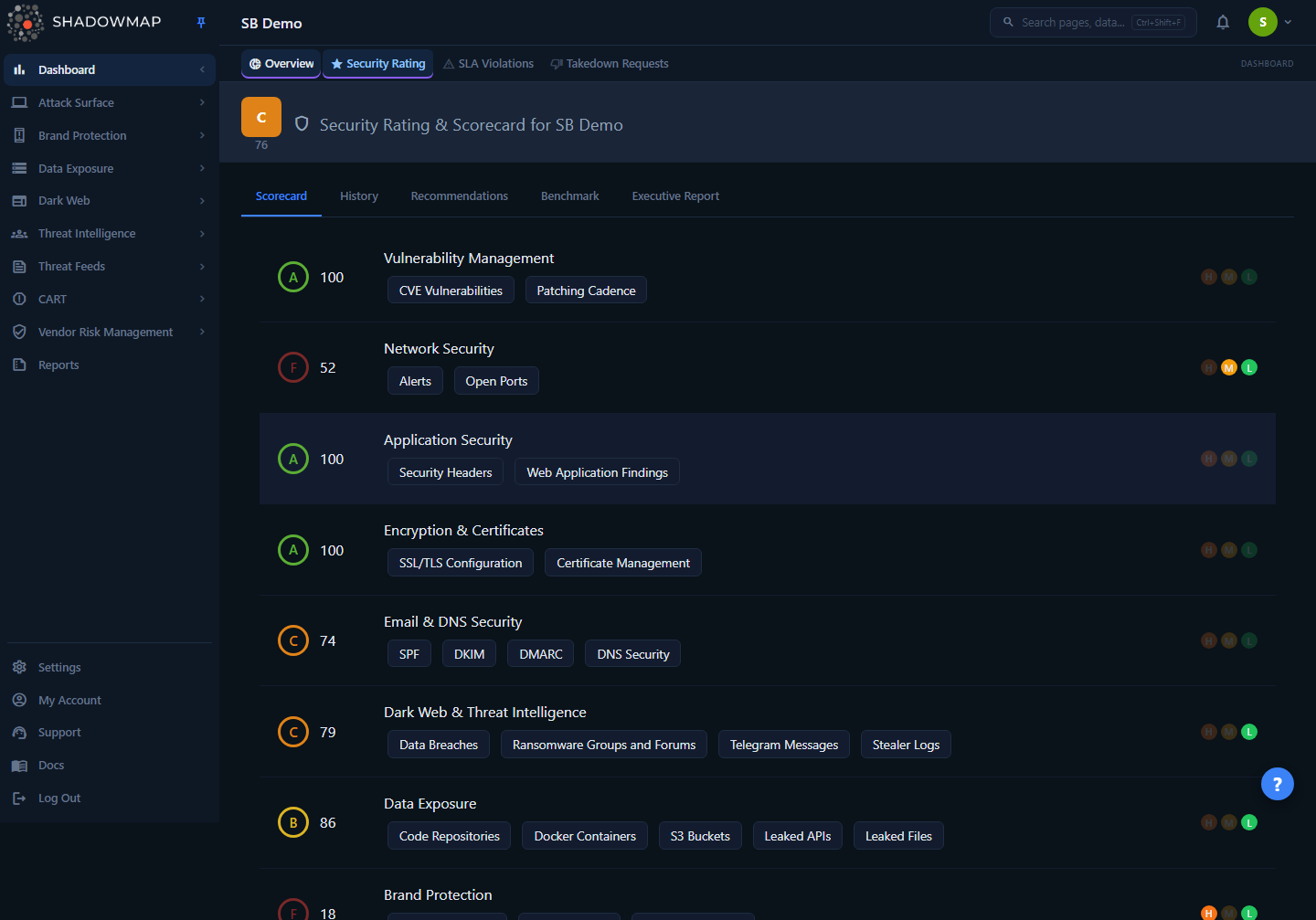
Your Security Rating is a single 0–100 score with a letter grade, computed as the average of your per-category scores. The Scorecard tab breaks that score into per-category scores — Network Security, Application Security, Encryption & Certificates, Vulnerability Management, Data Exposure, Email & DNS Security, Dark Web & Threat Intelligence, and Brand Protection — each card showing its specific sub-factors as chips (for example Open Ports, CVE Vulnerabilities, or SSL/TLS Configuration) that link straight to the backing module. The Recommendations tab turns the worst-scoring factors into a ranked, actionable to-do list with an estimated point gain for each item.
There is no "raise my score" button. The score moves only when the underlying findings change — when you close, action, or remediate the issues that ShadowMap is scoring against. This page exists to shorten the distance between "my grade is a C" and "here is exactly what to fix first."
Where to start
Open the Recommendations tab on your Security Rating page. It is already sorted by priority, and each card shows the estimated point gain. Work top to bottom — you do not need to read this whole page to get moving. Use the sections below when you want to understand why a factor is costing you points and how to fix the underlying issue.
How it works
Understanding the scoring mechanics is what makes remediation efficient — otherwise you spend effort on findings that barely move the number.
The score is an average of category scores
Your headline score is the rounded average of every category score on your most recent scoring date. That has two consequences:
- Your worst category drags the average down disproportionately. Lifting one category from a 40 to a 70 moves the overall score far more than polishing a category that is already at 90.
- A category at 100 cannot help you. Once a category is maxed, additional cleanup in it has zero effect on the headline number. Move your effort to the next-lowest category.
The Recommendations tab already accounts for this — it is ordered by priority (rank 1 first), so the highest-priority work naturally sits at the top.
Grades map to fixed score bands
| Grade | Score range |
|---|---|
| A | 90–100 |
| B | 80–89 |
| C | 70–79 |
| D | 60–69 |
| F | 0–59 |
Because grades are banded, a remediation that moves you from 79 to 80 is a full letter-grade jump (C → B) for one point of work, while moving from 81 to 88 stays a B. When you are near a band boundary, small wins are worth more than the raw point count suggests.
Open vs. closed (actioned) findings
Every category counts open findings (those still requiring action) separately from closed findings (acknowledged, accepted, or resolved in the relevant module). Two things lower a category score:
- The volume and severity of open findings — High/Critical findings weigh far more than Medium or Low.
- A low action rate — leaving findings untouched signals an unmanaged surface, even if you have not yet fully remediated them.
This is the most important mechanic to internalize: you do not always have to fully fix a finding to recover points. Triaging it — marking it Investigating, Accepted Risk, or Resolved in its module — counts as actioning it and improves the action-rate component of the score. Closing the loop on existing findings is the single fastest score lever available to most customers.
Recalculation cadence
Scores are recalculated on a regular cadence (driven by scan completion and a daily scoring job), and the result is cached for short periods. In practice:
- Remediations and triage actions show up at the next recalculation, typically within a day — not instantly.
- The per-category high / medium / low breakdown and the recommendation list are refreshed by the same cycle.
- The History tab plots a daily data point for your overall Score Trend (and your open High/Medium/Low counts on the Risk Trend) across a rolling one-week window, so you can confirm a fix landed by watching the next day's trend.
Don't expect an instant jump
If you close ten alerts and refresh the page, the score will usually be unchanged for a few hours up to a day. Verify the impact on the History tab the following day rather than reloading repeatedly.
How recommendations are generated
The Recommendations tab is data-driven, not a static checklist. The scoring engine inspects your open findings per category and emits a prioritized recommendation row for each material gap, carrying:
| Field | What it tells you |
|---|---|
| Priority number | The rank (1 = work on this first). Recommendations are ordered by priority ascending. |
| Severity | Critical, High, Medium, or Low — color-coded. Drives the priority badge and dot. |
| Estimated score impact | The +N pts badge: the points the engine expects you to recover if you resolve this item. The bar visualizes its size relative to the other recommendations. |
| Affected count | The N findings count: how many underlying findings this recommendation covers. |
| Category | The scorecard category this recommendation rolls up to. |
| Remediation link | The open-in-new icon, which jumps to the exact module/filter where the affected findings live. |
You can dismiss a recommendation (the × icon on hover) if it does not apply to you — that removes it from your list without changing the score. Up to 20 recommendations are shown at a time.
Quick wins (hours to days)
These actions are low-effort and tend to show up at the next recalculation. Start here.
1. Action and triage your existing findings
Category affected: all categories • Effort: low • Impact: high
The fastest score gains usually come not from fixing new things but from clearing the backlog of findings you have already discovered. Open findings that have never been triaged hurt both the volume component and the action-rate component of every category.
- Go to Alerts and any module with an open queue (Phishing, Data Breaches, Code Repositories, etc.).
- For each finding, choose the right disposition: Investigating (you are working it), Accepted Risk (a documented business decision to tolerate it), or Resolved (remediated).
- Use the remediation link on each recommendation to land directly on the filtered queue for that item.
Accepted Risk still counts
Marking a finding Accepted Risk is a legitimate, score-positive action when there is a genuine business justification. It tells ShadowMap the finding is managed, not ignored — and it raises your action rate exactly like a full remediation does.
2. Close unnecessary open ports
Category affected: Network Security • Effort: low–medium • Impact: high
Network Security is driven by open High-risk findings — exposed high-risk ports and open High-severity alerts. High-risk services (remote access, database, file-sharing, and management ports such as RDP, SSH, SMB, FTP, SNMP, and database ports) reachable from the internet are the heaviest contributors.
- Open the Open Ports view (the Open Ports chip on the Network Security card links straight there).
- Identify high-risk services with no business justification for public exposure.
- Firewall them off, move them behind a VPN/bastion, or bind them to internal interfaces.
- Triage the corresponding Alerts so the closed ports are reflected in the next score.
3. Renew expiring or expired certificates
Category affected: Encryption & Certificates (SSL/TLS Configuration, Certificate Management) • Effort: low
An expired certificate is an immediate, visible posture failure that drags the encryption factor down hard. Soon-to-expire certificates are nearly as costly because they will fail imminently.
- Open SSL Certificates (the SSL/TLS Configuration / Certificate Management chips link here).
- Sort or filter for certificates that are expired or expiring within ~30 days.
- Renew and redeploy them. Automate renewal (e.g. ACME) so this never recurs.
4. Force resets for breached credentials
Category affected: Dark Web & Threat Intelligence • Effort: low–medium • Impact: high
Stealer-log and breach credentials are scored as High severity in the Dark Web category because they represent active or imminent account compromise. Every new set of exposed credentials lowers the category.
- Open Stealer Logs and Data Breaches (the Stealer Logs and Data Breaches chips link to their queues).
- Identify the affected accounts.
- Force password resets and enable MFA on those accounts.
- Mark the findings as actioned in their module so the next score reflects the response.
Medium-term (days to weeks)
These require coordination with engineering or a service owner but deliver durable, high-value gains.
5. Remediate critical vulnerabilities
Category affected: Vulnerability Management (CVE Vulnerabilities, Patching Cadence) • Effort: medium–high • Impact: very high
Vulnerability Management is one of the heaviest factors because exploitable CVEs on internet-facing assets are the most direct path to compromise. Prioritize, in order:
- Known-exploited vulnerabilities (CVEs confirmed exploited in the wild) — these are the highest-priority remediations regardless of base severity.
- Critical-severity CVEs, then High-severity CVEs.
Open the Vulnerability Overview (the CVE Vulnerabilities / Patching Cadence chips link here), patch or mitigate, then re-scan or wait for the next scan to confirm the finding clears.
6. Remove exposed code, secrets, and data
Category affected: Data Exposure • Effort: medium
Data Exposure aggregates leaked code repositories, exposed container images, open object storage, leaked API keys, and leaked files. Anything containing live credentials or internal URLs is High severity.
- Review Code Repositories, Docker Containers, S3 Buckets, Leaked APIs, and Leaked Files (each is a chip on the Data Exposure card).
- Revoke any exposed credential immediately — assume it is compromised.
- Remove the sensitive content and lock down the storage (private buckets, deleted images, access controls).
- Triage each finding once handled.
Deleting a file does not delete git history
Removing a secret from the current branch does not remove it from a repository's commit history. Rotate the credential and, where possible, purge the history — the secret is already exposed and must be treated as burned.
7. Request takedowns for phishing and impersonation
Category affected: Brand Protection • Effort: medium
Brand Protection counts active phishing URLs, fake mobile apps, and domain squats. Active, confirmed phishing sites are the most damaging.
- Open Phishing & Impersonations (the Phishing URLs chip), Fake Applications, and Domain Squatting.
- Confirm which entries are genuinely malicious versus benign look-alikes.
- Request takedowns for confirmed phishing and impersonation, and triage the rest.
8. Harden web applications
Category affected: Application Security (Security Headers, Web Application Findings) • Effort: medium
Missing security headers and open web-application findings are common, easily-fixed sources of Application Security penalties.
- Review the Web Applications view (the Security Headers / Web Application Findings chips link here).
- Add the standard hardening headers:
Content-Security-Policy,Strict-Transport-Security(HSTS),X-Frame-Options, andX-Content-Type-Options. - Remove server/version disclosure headers.
- Re-scan to confirm the findings clear.
Ongoing practices
These keep the score from drifting back down and demonstrate a managed program.
- Ensure complete asset coverage. Findings ShadowMap cannot see today become sudden score drops the day they are discovered. Make sure every domain, IP range, and cloud account is in scope so there are no blind spots that surprise you later.
- Keep your action rate high with SLAs. Use SLA Violations to put response deadlines on findings via SLA policies. Consistently meeting them keeps open-finding volume low across every category.
- Watch the trend weekly. Check the History tab to catch drift early. Its Score Trend chart plots your overall score day-by-day and its Risk Trend chart plots your open High/Medium/Low finding counts, so you can see when your posture moved — then use the Scorecard tab to find which category changed and open that category's module to find the specific findings behind the change before issues compound.
Diagnosing a score drop
If your score fell unexpectedly, work through this in order:
- Scorecard tab — which category dropped? That narrows the search immediately.
- History tab — the Score Trend and Risk Trend charts show your overall score and open High/Medium/Low counts day-over-day, so you can pinpoint when the drop happened.
- The dropped category's module — filter for recently discovered or reopened findings (e.g. new Alerts, new Data Breaches, a certificate that just expired).
- Recommendations tab — a fresh recommendation usually appears pointing at the exact issue, with its remediation link.
Most "unexplained" drops are one of three things: newly discovered findings from a fresh scan, breach/stealer data ingested overnight, or a certificate that crossed its expiry date.
Common questions
My score dropped overnight and I didn't change anything — why? Scoring reflects newly discovered findings, not just newly created ones. A scan or an overnight data feed (breach credentials, stealer logs, a new CVE match) can surface issues that already existed. Check the History tab's trend charts and the relevant module filtered to the last few days.
I fixed the issue but my score hasn't moved. Scores recalculate on a cadence (driven by scan completion and a daily job), not in real time, and responses are cached briefly. Wait for the next recalculation — typically within a day — and confirm on the History tab. If the finding is still counted after a full cycle, verify it is actually closed/triaged in its source module, not just remediated on your infrastructure.
What's the single fastest way to raise my grade? Triage your existing open findings. Marking findings Investigating, Accepted Risk, or Resolved improves the action-rate component across categories without waiting on infrastructure changes, and it is usually the largest near-term lever. After that, attack your lowest-scoring category — averaging means the worst category gives the most headroom.
Do I have to fully remediate a finding, or is acknowledging it enough? Acknowledging counts. Actioning a finding (including a documented Accepted Risk) raises the action-rate component immediately. Full remediation additionally removes the finding's severity weight, so it gives the larger total gain — but triage alone still helps and is the right first move on a large backlog.
Why is my Recommendations tab empty? An empty list with a green check means the engine found no material gaps to recommend — your posture looks good for the surface ShadowMap can see. It does not mean your score is 100; remaining points may come from low-severity findings below the recommendation threshold or from coverage gaps. Keep your trend monitored.
I dismissed a recommendation by mistake — did that change my score? No. Dismissing only removes the card from your list; it has no effect on the score. The underlying findings are still scored. The recommendation may reappear at a future recalculation if the gap persists.
A recommendation says "+8 pts" — is that guaranteed? It is the engine's estimate of the gain if you fully resolve every affected finding for that item. Partial remediation yields partial gains, and because the headline score is an average, the realized change to your overall number can differ from the category-level estimate. Treat it as a relative-priority signal, which is exactly how the list is ordered.
Related
- Security Rating & Scorecard — the main page: your overall score, the per-category Scorecard, History trends, Benchmark, an Executive Report, and the Recommendations tab referenced throughout this page.
- How the Score is Calculated — the full methodology: category weighting, severity multipliers, and how open/closed findings roll up into a category score.
- Benchmarking — compare your score against peer organizations to set realistic improvement targets.
- Alerts — where most Network Security and cross-category findings are triaged; the primary place to raise your action rate.
- SLA Violations — put response deadlines on findings via SLA policies to keep open volume and action rate under control.