
Campaigns
Campaigns are curated threat operations — named clusters of activity that ShadowMap has correlated to the threat actors running them, the malware families they deploy, and the CVEs they exploit. The module is built for triage: work each campaign from Needs Review through Under Investigation to Reviewed, pivoting into the linked actor/malware/CVE entities and the underlying indicators (IOCs) as you go.
Overview
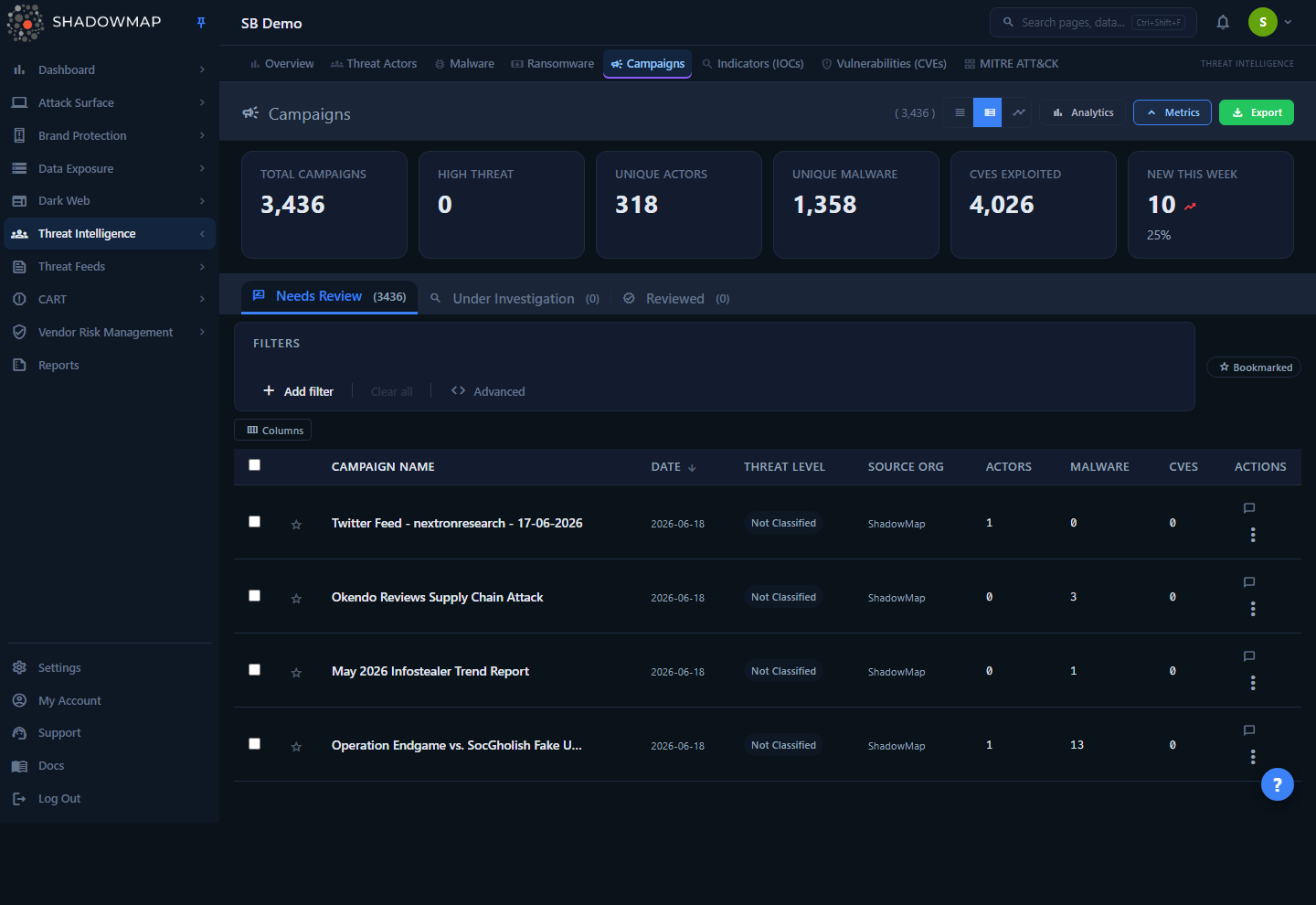
The page opens on a triage table. Across the top you get a six-card KPI strip, an optional analytics panel (collapsed by default), three status tabs that double as a workflow queue, and the campaign list itself. Each row is one campaign, showing its name, date, threat level, source organization, and the count of distinct actors, malware, and CVEs correlated to it.
Click any row to open a detail drawer without leaving the list; open the full detail page for the five-tab breakdown (Overview, Threat Entities, IOC Attributes, Timeline & Context, Compliance & Notes). Select rows to act on them in bulk, bookmark the ones you want to track, and export the list to Excel.
This is the connective tissue of the Threat Intelligence suite: a campaign ties together entities you also see standalone in Threat Actors, Malware, and Vulnerabilities.
How it works
The mechanics below are not visible in the UI but determine exactly what you see.
What qualifies as a campaign
Campaigns are derived from MISP events — the structured threat-event records ShadowMap ingests from its MISP-based intelligence pipeline. A MISP event becomes a campaign only if it has at least one correlated threat actor or malware family. Events with no actor and no malware link are not surfaced here at all.
That correlation rule has a practical consequence: the CVE count can be zero on a valid campaign (CVEs are not required to qualify), but a campaign with zero actors and zero malware will never appear. If a campaign you expect is missing, it most likely has no entity correlations yet.
Where the data is shared vs. private to your account
This is the most important distinction in the module:
| Element | Scope | Notes |
|---|---|---|
| Campaign records (name, date, threat level, entities, IOCs) | Shared global intelligence | The same MISP-derived corpus is available to every account. ShadowMap curates it centrally; you do not "own" or generate campaigns. |
| Triage status (Needs Review / Under Investigation / Reviewed) | Private to your account | Stored per company. Your team's progress is yours alone. |
| Bookmarks | Private to your user | Stored per user within your account. |
| Investigation notes (comments) | Private to your account | Per-company thread, attributed to the analyst who wrote each note. |
Because the campaign corpus is shared, the KPI strip and analytics charts reflect the entire campaign database, not a filtered slice of your environment. Treat them as a read of the global threat landscape, not of your own attack surface.
Curated intelligence, not a scan result
Unlike attack-surface modules (open ports, web apps, certificates), Campaigns is not produced by scanning your assets. It is curated threat intelligence. Use it to understand who is active and how, then pivot to your own surface modules to check whether the exploited CVEs or techniques touch you.
Threat level
Threat level comes straight from the MISP event's threat_level_id and uses MISP's four-level scheme:
| Level | Meaning |
|---|---|
| High | High-impact / high-confidence threat. |
| Medium | Moderate impact or confidence. |
| Low | Low impact or confidence. |
| Not Classified | No threat level set on the source event. |
Threat level is a property of the campaign as ingested — it is not recalculated by ShadowMap from the linked entities or CVE scores.
Entity counts
The Actors, Malware, and CVEs columns are counts of distinct correlated entities for that campaign. They are computed live from the correlation maps, so a campaign linked to APT29 twice still counts one actor. CVE counts here are correlation counts only; CVSS scores and KEV status are shown when you open a campaign's detail (Threat Entities tab), where each CVE is enriched against ShadowMap's vulnerability database.
Campaign names
Some source events store a prefixed name in PREFIX | Actual Title form. ShadowMap strips the prefix and shows only the title, so what you read in the Campaign Name column is the cleaned operation name.
Triage workflow
The three tabs are a queue. Every campaign starts in Needs Review and moves forward as your team works it. Status is per-account, so two customers looking at the same campaign can be at different stages.
| Tab | State key | What it means |
|---|---|---|
| Needs Review | needs_review | Default for any campaign your team has not actioned. A campaign with no status row at all counts here. |
| Under Investigation | under_investigation | An analyst has picked it up and is actively working it. |
| Reviewed | reviewed | Triage complete — assessed and closed out for now. |
The number on each tab is the count of campaigns in that state for your account. The pager total tracks the active tab, not the whole corpus.
Changing status
- Single campaign — open the row's
⋮actions menu (or use a keyboard shortcut) and choose Mark Under Investigation, Mark Reviewed, or Reset to Needs Review. - In bulk — tick the checkboxes on multiple rows. A bulk action bar appears with Under Investigation, Reviewed, Reset to Needs Review, Export Selected, and Share.
- From the drawer/detail — status changes made while a campaign is open refresh the list.
Resetting to Needs Review is always available, so triage is reversible.
Understanding the data
Columns
The table supports nine columns. Seven are shown by default; two (Tags, First Seen) are hidden until you enable them in the column customizer. Campaign Name is always present and cannot be hidden.
| Column | Default | Sortable | Description |
|---|---|---|---|
| Campaign Name | Shown (locked) | Yes | The curated operation name. Hover for the full string if truncated. |
| Date | Shown | Yes | The campaign's reference date from the source event. |
| Threat Level | Shown | Yes | High / Medium / Low / Not Classified badge. |
| Source Org | Shown | Yes | The MISP source organization that published the event. |
| Actors | Shown | Yes | Count of distinct correlated threat actors. |
| Malware | Shown | Yes | Count of distinct correlated malware families. |
| CVEs | Shown | Yes | Count of distinct correlated CVEs. |
| Tags | Hidden | No | MISP tags on the event (shows up to the first three, with a +N overflow chip). |
| First Seen | Hidden | Yes | Relative time since the record was first ingested. |
Click a sortable column header to sort; click again to flip direction. The default sort is Date, descending (newest first). Your view mode and column choices are remembered between visits; sort order, filters, and page size reset to their defaults each time you reopen the module.
View modes
Three layouts are available from the header, and your choice is remembered:
| Mode | Use it for |
|---|---|
| Expanded | The default table with full row spacing. |
| Compact | Denser rows to scan more campaigns at once. |
| Timeline | A scatter plot of campaigns by date (X) vs threat level (Y), with bubble size scaled to total entity count (actors + malware + CVEs). Use the period toggle to change the window. Replaces the table while active. |
KPI strip
Six clickable cards summarize the global campaign landscape. Clicking a card (except Total) applies the matching quick filter to the list.
| Card | What it counts | Click filters to |
|---|---|---|
| Total Campaigns | All campaigns in the corpus (events with an actor or malware link). | — (no filter) |
| High Threat | Campaigns at threat level High. | Threat Level = High |
| Unique Actors | Distinct threat actors across all campaigns. | Campaigns that have an actor |
| Unique Malware | Distinct malware families across all campaigns. | Campaigns that have malware |
| CVEs Exploited | Distinct CVEs referenced across all campaigns. | Campaigns that reference a CVE |
| New This Week | Campaigns dated in the current week, with a week-over-week % change. | Campaigns from the last 7 days |
Trend colors are inverted from finance
On New This Week, an up / red arrow means more new campaigns than last week (worse), and down / green means fewer (better). More threat activity is bad news, so the colors flip the usual convention.
Analytics panel
Collapsed by default (toggle it from the header). It shows four ECharts visualizations over the full corpus: a 12-month Campaign Trend line, a Threat Level Distribution donut, Top 10 Actors by campaign count, and Top 10 Malware by campaign count.
Filtering & search
A free-text search box matches the campaign name. Beyond that, the filter bar exposes seven structured filter fields you can combine:
| Filter | Matches on |
|---|---|
| Threat Level | High / Medium / Low / Not Classified. |
| Source Organization | The publishing MISP org. |
| Threat Actor | Campaigns linked to a named actor. |
| Malware Family | Campaigns linked to a named malware family. |
| CVE ID | Campaigns referencing a specific CVE. |
| Tags | MISP tag substring match. |
| Campaign Date | A date or date range. |
Filter option values are loaded on demand per field. A Bookmarked chip in the filter bar narrows the view to just your starred campaigns. Filters and search apply within the active status tab.
Detail view
Clicking a row opens a drawer for a fast look; the actions menu's Open Detail Page (or navigating directly) opens the full detail page with five tabs. The detail page links back to the list and remembers the active tab in the URL (?tab=), so a deep link lands on the right section.
| Tab | Contents |
|---|---|
| Overview | Campaign name, threat level, date, source org, the actor/malware/CVE/MISP-attribute counts, first-seen time, current triage status, and the tag chips. |
| Threat Entities | Tables of Linked Actors (name, country, description), Linked Malware (name, type, description), and Linked CVEs (CVE ID, CVSS badge, a KEV flag for known-exploited vulnerabilities, and description). |
| IOC Attributes | The campaign's MISP attributes (indicators) in a searchable table: category, type, value, and comment. Each value has a one-click copy button for feeding into your own tooling. |
| Timeline & Context | A scatter-plot timeline scoped to this campaign, plus a Related Campaigns list — other campaigns that share at least one actor or malware family with this one. Click a related campaign to pivot to it. |
| Compliance & Notes | The private investigation thread for your account. Add notes, see who wrote each one and when, and delete your own. Use it to record what you assessed and why. |
The Related Campaigns logic is what makes this module a pivot tool: it surfaces campaign clusters by shared actor or malware, so you can walk an adversary's broader operation rather than reading one event in isolation.
Taking action
| Action | Where | Effect |
|---|---|---|
| Set triage status | Row menu, bulk bar, drawer, or keyboard | Moves a campaign between the three tabs (per-account). |
| Bookmark | Star icon on a row, or the Bookmarked filter | Tracks a campaign for your user; filterable. |
| Add investigation note | Detail → Compliance & Notes | Records analysis in the per-account thread. |
| Copy IOC value | Detail → IOC Attributes | Copies an indicator to the clipboard. |
| Export | Header Export or the bulk bar | Generates an Excel file (columns: Campaign Name, Date, Threat Level, Organization, Tags) as a background task. You're notified when it's ready. The file is not narrowed by the active status tab, filters, search, or sort. |
| Share | Bulk action bar → Share | Shares the selected campaigns via your configured integrations. |
Keyboard shortcuts
The list supports vim-style triage. Press ? to open the in-app shortcut overlay.
| Key | Action |
|---|---|
j / k | Next / previous row |
Enter | Open the drawer for the focused row |
Space | Toggle selection of the focused row |
s | Toggle bookmark |
a | Mark Under Investigation |
d | Mark Reviewed |
Esc | Close the drawer |
? | Toggle the shortcuts help |
Common questions
Are campaigns specific to my organization? No. The campaign corpus is shared, curated threat intelligence derived from MISP events — every account sees the same campaigns. What is private to your account is your triage status, your bookmarks, and your investigation notes. Use Campaigns to understand the threat landscape, then check your own attack-surface and vulnerability modules to see whether a campaign's CVEs or techniques actually touch you.
Why don't the KPI cards match the number of campaigns in my tab? The KPI strip and analytics charts count the entire campaign database, while the tabs and pager count your account's triage queue for the active status. They are measuring different things on purpose.
Why is a campaign I expected not listed? A MISP event only becomes a campaign if it has at least one linked threat actor or malware family. Events without those correlations are excluded, even if they carry CVEs or indicators.
Can a campaign have zero CVEs? Yes. CVEs are not required for an event to qualify — actor or malware correlation is. A high-threat campaign with no CVE link is perfectly valid.
How is threat level decided? It is taken directly from the source MISP event (threat_level_id), using MISP's High / Medium / Low / Not Classified scheme. ShadowMap does not re-derive it from the linked CVEs.
What's the difference between the drawer and the detail page? The drawer is a quick read without leaving the list. The detail page is the full five-tab view — entity tables, IOC attributes, the per-campaign timeline with related campaigns, and the investigation notes thread.
Does export include everything? The export is a background job that generates an XLSX (columns: Campaign Name, Date, Threat Level, Organization, Tags) covering the full list — it is not narrowed by the active status tab, filters, search, or sort. You're notified when the Excel file is ready.
Related
- Threat Actors — the actor entities linked from a campaign; pivot here for full actor profiles.
- Malware — the malware families correlated to campaigns.
- Vulnerabilities — the CVEs a campaign references, with full CVSS and KEV context.
- Indicators — search the IOC attributes that campaigns surface.
- Threat Feed — the broader stream of threat-intelligence events campaigns are curated from.
- Threat Intelligence Overview — the suite landing dashboard that summarizes campaigns alongside actors, malware, and CVEs.
- KEV Compliance — track known-exploited CVEs, including those flagged on campaign detail pages.