
Teams
Create and manage teams to organize your security staff and route findings for investigation. Teams allow you to group users by expertise, responsibility area, or geographic region so that findings can be assigned to the right group.
Overview
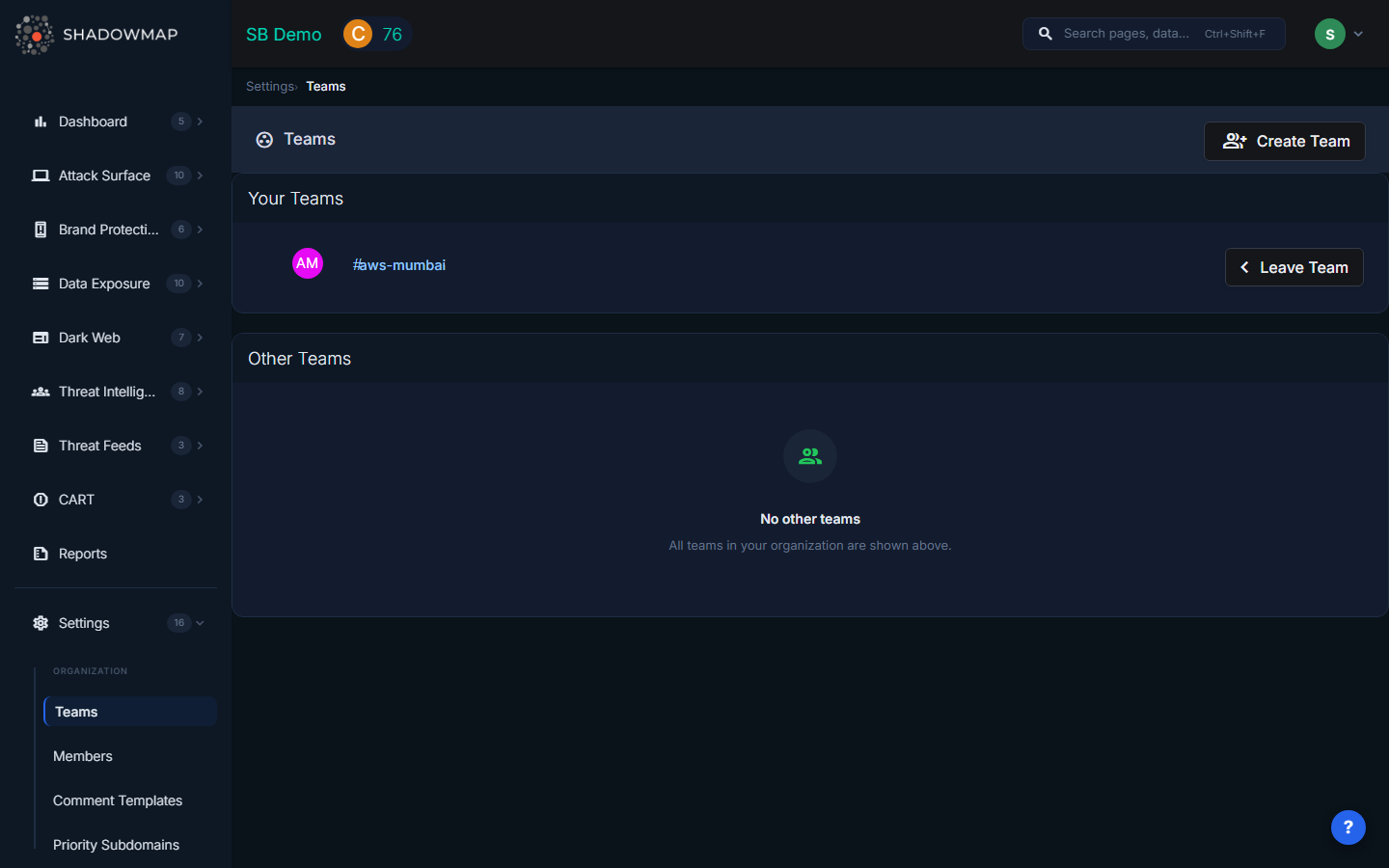
The Teams page is divided into two sections: Your Teams and Other Teams.
Your Teams
Lists all teams you are currently a member of. Each team shows its name with a hash prefix (e.g., #us-team) and an avatar based on the team initials. A Leave Team button allows you to remove yourself from a team.
Other Teams
Lists all teams in your organization that you are not a member of. Each team shows the same name and avatar display. A Join Team button allows you to add yourself to a team (requires the Join permission).
Creating a Team
Administrators can create new teams by clicking the Create Team button in the page header. This opens a modal where you enter:
- Team Name -- A unique identifier for the team (e.g.,
us-team,europe-team,security-ops). Team names should be descriptive and follow a consistent naming convention.
Only users with the Create permission (typically Admins) see the Create Team button.
Team Detail View
Clicking a team name navigates to the team detail page, which has two tabs:
Members Tab
Displays all members of the team with their avatar, name, and email. Actions available:
| Action | Who Can Do It | Description |
|---|---|---|
| Add Member | Users with Join permission | Select from a dropdown of organization members not yet in the team |
| Remove | Users with Remove permission | Remove a specific member from the team |
| Leave | Any team member | Remove yourself from the team |
Clicking a member's name navigates to their member detail page.
Settings Tab
Available to users with the Update permission. Allows:
- Rename the team -- Change the team name. You will be redirected to the new team URL after saving.
- Remove the team -- Permanently delete the team. This requires password confirmation and may affect alert routing and finding assignment.
WARNING
Removing a team may affect team members' access to exposures, alerts, and associated escalations or alert delivery.
How Teams Integrate with Other Features
- Alert assignment -- Findings and alerts can be assigned to teams for investigation
- Notification routing -- Alert notifications can be directed to specific teams
- Finding ownership -- Teams provide accountability for who is responsible for resolving specific findings
- SLA tracking -- SLA violations can be tracked per team to measure response performance