
Tags & Rules
Configure automatic tagging rules to categorize findings as they are discovered. Tag rules apply labels to exposures and alerts based on filter criteria you define, making it easier to organize, search, and route findings to the right teams.
Overview
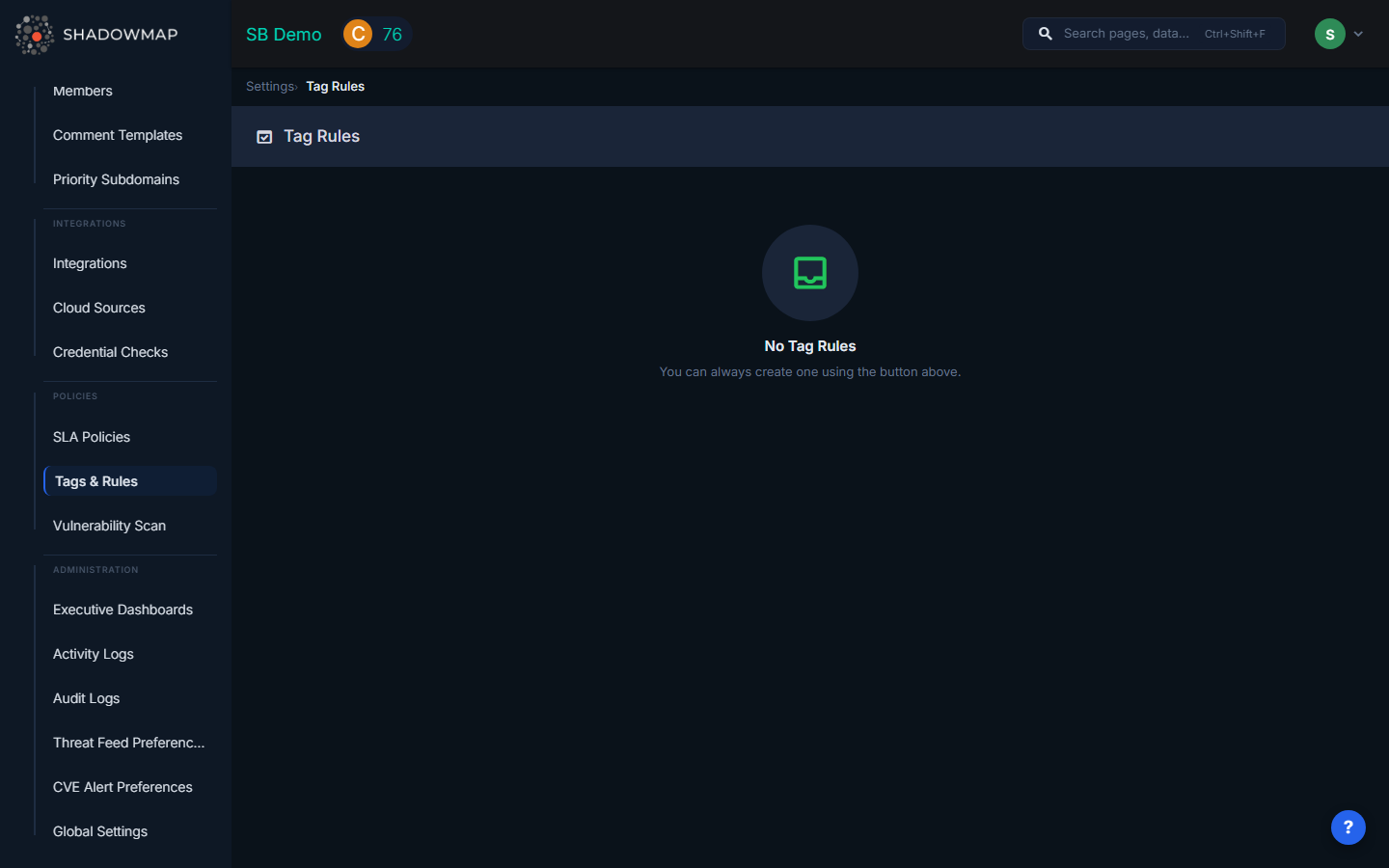
The Tag Rules page displays all configured rules as a list. Each rule shows its name, active/disabled status indicator, and action buttons. Rules can be created, edited, enabled, disabled, or deleted from this view.
Rule List
Each tag rule in the list displays:
| Element | Description |
|---|---|
| Status indicator | Green dot for active rules, gray dot for disabled rules. Hover shows a tooltip ("Active" or "Disabled"). |
| Rule name | The name of the rule. Hovering shows the rule's description in a tooltip (if a description was provided). |
| Actions | Three icon buttons: Delete (trash icon), Edit (pencil icon), and Enable/Disable (eye icon toggle) |
Creating a Tag Rule
Click Add Tag Rule in the page header to open the rule creation form:
| Field | Description |
|---|---|
| Rule Name | A descriptive name for the rule (required, max 190 characters). Example: "Critical Cloud Assets", "EU Infrastructure" |
| Query | The filter criteria that determines which findings this rule applies to (required). Uses the same filter query syntax as the search filters throughout ShadowMap. |
| Apply retroactively | Checkbox to apply the tag to all currently matching exposures or alerts, not just future ones |
Tag rules can target either exposures (findings from asset discovery and vulnerability scanning) or alerts (security events and notifications).
Enabling and Disabling Rules
Rules can be toggled between active and disabled states without deleting them:
- Active rules continuously apply their tags to new findings that match the query criteria
- Disabled rules stop tagging new findings but do not remove tags already applied
- Toggle between states using the eye icon in the rule's action buttons. A confirmation dialog appears before the change is applied.
How Tags Flow Into Alerts and Filters
Once a tag rule is active:
- New findings that match the rule's query criteria are automatically tagged
- Tagged findings can be filtered by tag in the Alerts view and other listing pages
- Team routing can use tags to direct specific categories of findings to the appropriate team
- Reports can be filtered by tag for focused reporting on specific asset groups or risk categories
- SLA tracking can reference tags for priority-based escalation workflows
Use Case Examples
| Rule Name | Query | Purpose |
|---|---|---|
Critical Cloud Assets | source:aws AND risk:critical | Tag all critical findings from AWS infrastructure for the cloud security team |
EU Domains | country:DE OR country:FR OR country:NL | Tag findings related to European infrastructure for GDPR compliance tracking |
Public-Facing APIs | port:443 AND technology:api | Tag exposed API endpoints for the application security team |
Deleting a Rule
Click the delete (trash) icon to remove a rule. A confirmation dialog asks you to confirm deletion. Deleting a rule does not remove tags from previously tagged findings -- it only stops future tagging.