
Members
Manage user accounts, roles, and permissions for your ShadowMap organization. The Members page provides a complete view of all users with controls for inviting, configuring, and removing team members.
Overview
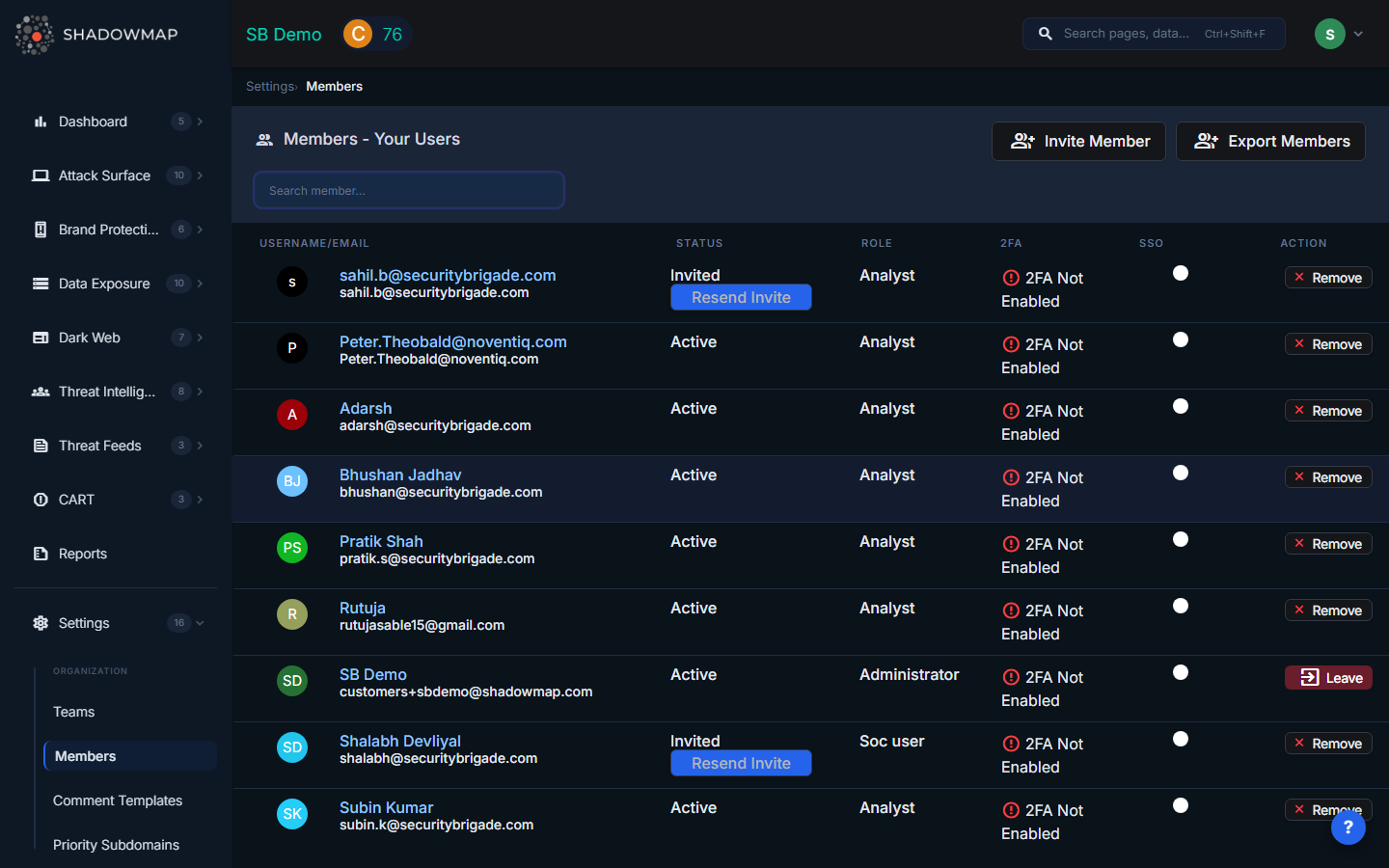
The Members page displays all users in a table with the following columns:
| Column | Description |
|---|---|
| Username/Email | User's display name and email address. Shows avatar initials alongside the name. |
| Status | Account status: Active, Invited, or Deactivated |
| Role | The user's assigned role (see Roles below) |
| 2FA | Two-factor authentication status: Enabled (checkmark icon in green) or Not Enabled |
| SSO | Single sign-on toggle. Admins can enable or disable SSO for individual users. |
| Action | Context menu with available actions for the user |
A search bar in the header allows filtering members by name or email.
Roles
| Role | Access Level |
|---|---|
| Administrator | Full access to all modules and all settings. Can invite and remove members, manage teams, configure integrations, and change organizational settings. |
| Manager | Access to all security modules. Limited settings access -- cannot modify organizational configuration or manage other admins. |
| Analyst | Access to assigned modules only. No settings access. Focused on investigating and resolving findings. |
Role assignment determines what navigation items, actions, and settings pages a user can see and interact with.
Managing Members
Inviting a New Member
- Click Invite Member in the page header (Admin only)
- Enter the new member's email address and select their role
- An invitation email is sent with a unique invite link
- The user's status shows as Invited until they accept
If an invitation has not been accepted, admins can click Resend Invite next to the invited user to generate and send a new invitation link.
Member Detail View
Clicking a member's name opens their detail page with:
- Basics -- Email, status, and date joined
- Invite Link -- For invited users, shows the unique invite link with options to resend. Expired tokens are flagged in red.
- Authentication -- Remove 2FA authentication or generate a one-time recovery code for users locked out of their 2FA
- Role Management -- Change the user's role
- Teams -- View and manage team memberships
Removing a Member
Admins can remove users via the action menu. Removal deactivates the account -- the user can no longer log in, but their historical activity and comments are preserved for audit purposes.
Exporting Members
Administrators can export the full member list to Excel by clicking Export Members in the page header. The export includes username, email, status, role, 2FA status, and SSO configuration.
Security Controls
| Feature | Description |
|---|---|
| 2FA Management | Admins can remove 2FA for users who have lost their authenticator. This should be followed by requiring the user to re-enable 2FA. |
| Recovery Codes | Admins can generate one-time recovery codes for users locked out of their 2FA authentication. |
| SSO Toggle | Enable or disable SSO login for individual users. When SSO is enabled, the user authenticates through your organization's identity provider. |