
Data Breaches
When a third-party service is breached, the dump usually ends up on a forum, marketplace, or paste site. If any of the exposed accounts use one of your domains — or belong to an executive you track — those credentials are now reusable against your perimeter. Data Breaches surfaces every such record ShadowMap has matched to your organization, with the leaked value (and password, where present) in full, so you can reset the right accounts before they are abused.
Overview
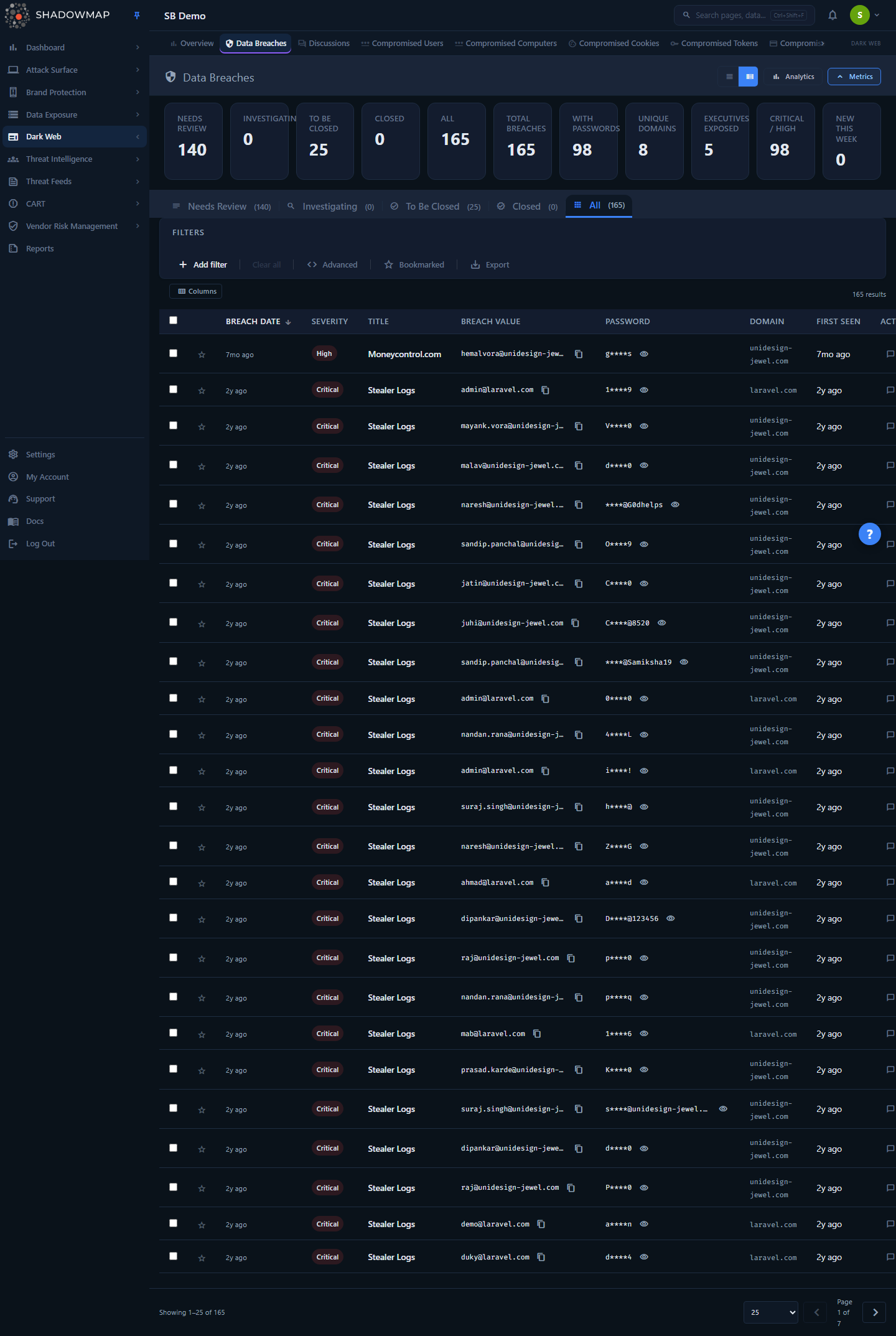
The page is a triage queue. Each row is one leaked credential record: a breached email or username (Breach Value), the source dump it came from (Title), the associated Domain, severity, and — when the dump included it — the Password. Status tabs across the top split the queue by where each record is in your workflow; a KPI strip and a collapsible analytics panel sit above the table for landscape and trend context.
You land on the Needs Review tab by default (/darkweb/data-breaches/needs_review). The bare /darkweb/data-breaches path and the legacy data-breaches-v2/* URLs both redirect here, so old bookmarks and emailed deep links keep working.
Passwords are masked, identifiers are not
The Breach Value (the leaked email/username) is your own exposure data and is always shown in full — you need the complete identifier to find and action the affected account. The Password column is masked by default behind a per-row reveal (eye) toggle to prevent shoulder-surfing. Both fields have a one-click copy button.
How it works
These are the mechanics you cannot see from the UI but that determine which records appear and why.
Where the records come from and how they reach your account
ShadowMap maintains a single, global corpus of breached credentials (breached_passwords) ingested from dark web breach dumps. That corpus has no tenant/company ID — a record is not "yours" by storage, it is matched to you at query time. A record appears in your Data Breaches view if either of these is true:
- its
domainis one of your monitored domains, or - it is tied to one of your tracked executives (
c_executive_id).
This is an OR match, not AND — a breach tied to a tracked executive shows even if the leaked email is on a personal domain you do not monitor, and a breach on one of your domains shows even when the address belongs to nobody you track as an executive. The same scope governs the list, the counts, the filter dropdowns, and any takedown action — so you never see another tenant's breach data, and another tenant never sees yours.
If your queue is empty or thin
Coverage is driven entirely by your monitored domains and tracked executives. Adding domains widens domain-matched breaches; adding executives (see Executive Monitoring) widens executive-matched breaches. There is no "scan" to trigger — matching is continuous against the growing corpus.
Severity
Severity is a stored property of each breach record, not a score this page computes. In practice the values you will see are High, critical, Informational, and Email (the badge styling also recognizes Medium/Low for completeness). By relative risk these rank High > Informational > Email, but the list is not ordered by severity by default — it opens sorted by Breach Date, descending (sort the Severity column to group the highest-risk records together). The "Critical / High" KPI specifically counts records whose severity is High or critical.
A record's severity reflects what was exposed: a dump containing a usable (plaintext or weakly hashed) password is more dangerous than one exposing only an email address, which is why password-bearing records carry heavier severities and email-only records are tagged Email.
Deduplication and correlation
The same email can appear across many separate breaches. Each occurrence is its own row, but ShadowMap fingerprints records (deduplication_hash) so the detail view can tell you "Seen in N breaches" and list the related records. This is how you distinguish a one-off leak from an address that has been exposed repeatedly across years of dumps — the latter is a far stronger candidate for a forced reset and MFA enforcement.
Data Breaches vs. Stealer Logs — read this before you triage
Both surfaces live under Dark Web and both expose credentials, but they are not the same threat and should not be treated with the same urgency.
| Factor | Data Breach (this page) | Stealer Log |
|---|---|---|
| Root cause | A third-party service was breached | A user's device was infected with infostealer malware |
| Scope of one record | One breached service per entry | Every site/app the infected user had saved |
| Password state | Often hashed, salted, or absent | Almost always plaintext |
| Freshness | Can be months or years old | Days to weeks old |
| Session cookies | Not included | Included — can bypass MFA |
| Device context | None | Full machine fingerprint |
The practical implication: a breached password may already have been rotated and is often hashed, so Data Breaches records are important but generally lower urgency than Stealer Logs, where credentials are recent, plaintext, and frequently shipped with session cookies that defeat MFA. Use the dedup signal and severity to prioritize within this queue, and treat Stealer Logs and Compromised Computers as the higher-priority sibling surfaces.
Understanding the data
Status tabs
The tabs are a workflow state machine, not just filters. Each maps to a response_status (and, for legacy rows, an action flag) on the record:
| Tab | Meaning | When to use it |
|---|---|---|
| Needs Review | Untriaged. No action taken yet. | Your inbox — start here. |
| Investigating | Actively being worked. | You have picked it up and are validating impact or chasing a reset. |
| To Be Closed | Action taken; staged for closure. | Remediation is done or it is queued to be cleared. |
| Dismissed | Resolved, or dismissed as a false positive. | Done, or determined not to apply to you. |
| Filtered by AI | Records ShadowMap's AI review judged benign and set aside. System-populated — not a state you move records into, and kept disjoint from Needs Review so auto-filtered rows never appear in your default inbox. | Review what the AI advisor filtered out. Empty until AI review has run for your tenant. |
| All | Every record in scope, regardless of state. | Reporting, exports, searching across the whole history. |
Tab badge counts come straight from the backend in the list response and reflect your full in-scope corpus per state (they do not narrow as you apply filters — see the results counter below for the filtered number).
Columns
The table is column-customizable (the columns icon in the toolbar). Title is always visible; the rest can be toggled and your choice is remembered per browser. Executive and Source are hidden by default.
| Column | Description | Sortable |
|---|---|---|
| Breach Date | When the breach occurred at the third-party service (shown as relative time; may be blank for older dumps). | Yes |
| Severity | The record's risk rating (High, critical, Informational, Email). | Yes |
| Title | Name of the breach / breached service. The primary identifier; always shown. | Yes |
| Breach Value | The exposed email or username belonging to your org — shown in full. | Yes |
| Password | The leaked password, masked behind a reveal toggle. – if none was in the dump. | No |
| Domain | The domain the leaked account belongs to. | Yes |
| First Seen | When ShadowMap first detected this record (relative time). | Yes |
| Executive (hidden by default) | The tracked executive this record maps to, if any. | No |
| Source (hidden by default) | The originating dataset/feed for the record. | No |
Sorting is server-side. Clicking a sortable header toggles ascending/descending; the default sort is Breach Date, descending.
AI advisory columns (AI-enabled tenants)
If AI review is enabled for your tenant, three advisory columns appear after Source: AI Verdict, AI Score, and AI Tags. They summarize ShadowMap's automated assessment of each record and are advisory only — they never change a record's severity or its workflow status. Until the AI assessment has run against your data these cells render empty (–). Two matching filter fields, AI Assessment and AI Tags, appear in the query builder for the same tenants.
View modes and the results counter
The header toggles Expanded and Compact row density (your choice is remembered). The toolbar shows a results counter that reflects the filtered total — the exact query the table was paginated against. With no filters applied it equals the active tab's count; once you apply an advanced query it drops to the real number of matching rows, so a one-row result reads 1 result, not the unfiltered tab total.
Filtering & search
Filtering runs on the advanced query builder, which exposes nine filter fields with dropdown values scoped to your data. You can build rules visually (pick a field, operator, and value) or type the equivalent expression directly into the query box at the top of the filter bar — it accepts a structured syntax such as domain = "example.com" AND severity = "High" (use double quotes around string values). The nine fields are:
| Field | Filters on |
|---|---|
| Breach Title | The dump/service name |
| Domain | The leaked account's domain |
| Breach Value | The leaked email/username |
| Severity | High, critical, Informational, Email, etc. |
| Source | Originating dataset/feed |
| Executive Name | The tracked executive |
| Action Status | Workflow action flag |
| Breach Date | When the breach occurred (date) |
| First Seen | When ShadowMap detected it (date) |
Tenants with AI review enabled get two additional fields — AI Assessment and AI Tags — for filtering on the AI advisory columns.
Two extra controls live at the end of the filter bar:
- Bookmarked — a star toggle that narrows the visible list to records you have bookmarked.
- Export — runs an asynchronous Excel export of the current list state (active tab, filters, sort, and search all included). It runs as a background task and notifies you when the file is ready; see Exports.
The KPI strip is a row of six data-landscape cards: Total Breaches, With Passwords, Unique Domains, Executives Exposed, Critical / High, and New This Week (which also shows a week-over-week trend, where red/up = more breaches = worse). The per-status triage counts are not repeated here — they live in the status tab bar directly below the strip, so surfacing them twice was redundant. Four of the cards apply the matching filter on click — Unique Domains narrows to records that have a domain, Executives Exposed to executive-matched records, Critical / High to High/critical severity, and New This Week to the last seven days. Total Breaches and With Passwords are display-only — they show a count but do not apply a filter. The analytics panel adds four charts — Breach Trend over time, a Severity Distribution donut, Top Breach Sources, and Domain Exposure — and is collapsed by default so the table stays the focus.
Detail view
Click any row to open a side drawer for fast triage without leaving the list. The drawer shows the title, severity, breach date, the fully-revealed breach value and password (each with copy buttons), domain, executive (if mapped), a "Seen in N breaches" dedup badge, and up to five related breaches. From the drawer you can change status (Needs Review / Investigating / To Be Closed / Dismissed), open the full detail page, and step to the previous/next row with the ‹ / › chevrons in the drawer header.
The full detail page (/darkweb/data-breaches/:id/details) expands this into four tabs:
- Overview — every field including Breach Type, Source, Action Status, Response Status, Takedown Requested date, and the dedup note.
- Correlated Findings — the full table of related breaches for this credential (severity, title, breach value, domain, date).
- Activity — free-text Investigation Notes (add/delete your own) plus any SLA Violations raised against the record.
- Compliance — regulatory framing (GDPR Art. 33/34, DORA, HIPAA) and a remediation checklist (password reset initiated, user notified, ticket filed, third-party notified).
Taking action
You can change status from three places: the per-row actions menu (⋮), the drawer, and the bulk action bar. To act in bulk, select rows with the checkboxes (or the header checkbox / keyboard) — a bar appears above the table with Mark Needs Review / Investigating / To Be Closed / Dismissed, Assign to a team member, Clear assignee, and Share.
Beyond status, per record you can: bookmark it (star), assign it to an analyst, add investigation notes and comment templates, and request a takedown (recorded against the record's takedown_requested_on; see Takedowns).
Keyboard-first triage
The list supports keyboard triage: arrow/j/k to move the focused row, Enter to open the drawer, plus single-key shortcuts to mark To Be Closed, mark Dismissed, and bookmark the focused record, and Esc to close the drawer. See Keyboard Shortcuts.
A practical workflow for new breach data
- Open Needs Review and sort by Severity (or filter the Critical / High KPI) to handle password-bearing records first.
- For each record, open the drawer and check the "Seen in N breaches" badge — repeat exposures are your strongest reset candidates.
- Identify the affected account from the breach value; cross-reference it against your directory / SSO.
- Force a password reset and, where supported, enforce MFA — especially for executive-matched records.
- Move handled records to Investigating while remediation is in flight, then To Be Closed / Dismissed once done. Use Investigation Notes to leave an audit trail and Assign to route work.
- Confirm an SLA isn't breaching on the record's Activity tab.
Common questions
Why does a breach show up here when the email isn't on one of my domains? Because it is tied to one of your tracked executives. Matching is domain OR executive — executive-tied records appear regardless of the address's domain.
The password column shows –. Was no password leaked? That dump did not include a password for this record (many breaches expose emails/usernames only, or the value was unrecoverable). The With Passwords KPI counts records that do carry one.
Are the passwords real and current? They are the values from the breach dump. They may be plaintext, hashed/salted, or stale — breach data can be years old, and the affected user may already have rotated. That is exactly why these records are generally lower urgency than Stealer Logs, where credentials are recent and plaintext.
Do the tab badge counts change when I filter? No. Tab badges show your full in-scope total per workflow state. The results counter in the toolbar shows the filtered total for the current query.
Why don't I see another company's breaches even though the corpus is shared? The corpus has no company ID; every query is scoped to your monitored domains and tracked executives. An empty domain/executive set matches nothing — never the whole corpus.
Where did Credit Card Leaks go? That surface was deprecated; the forward path for compromised card data is the Compromised Cards / Stealer-Logs-based view. Old Credit Card Leaks deep links redirect.
Related
- Stealer Logs — the higher-urgency sibling: plaintext credentials and session cookies from malware-infected devices.
- Compromised Computers — the device/machine view behind stealer-log credentials.
- Dark Web Overview — the rollup across all dark web surfaces.
- Executive Monitoring — defines the tracked executives that drive executive-matched breach records.
- Leaked Credentials — credential exposure surfaced from data-leak sources rather than dark web dumps.
- Takedowns and Exports — actions available from this queue.