
Indicators (IOCs)
Look up IP addresses, domains, hostnames, URLs, file hashes, and email addresses against ShadowMap's MISP-backed threat intelligence. Confirm whether an indicator is known-bad, see which campaign or actor reported it, pull every related indicator from the same event, and get alerted when one of your own assets shows up in a feed.
Overview
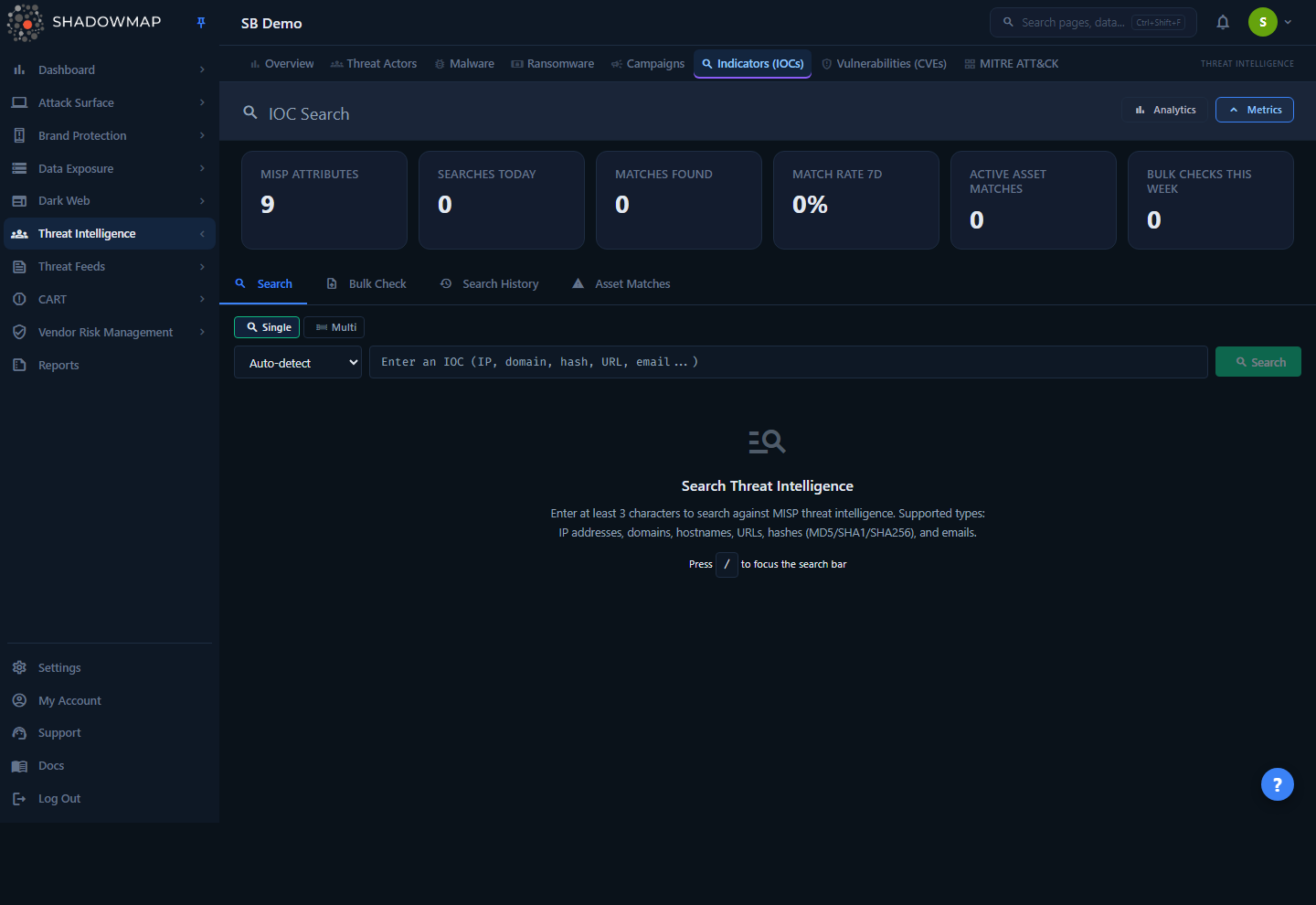
The Indicators page is an investigation tool, not a static list. It opens on the Search tab with an empty search bar and a help prompt. Above the tabs sits a KPI strip (six metric cards) and a collapsible analytics panel; below them are four functional tabs:
| Tab | Purpose |
|---|---|
| Search | Look up a single IOC, or 2–10 IOCs at once, against MISP and review the matching attributes. |
| Bulk Check | Upload or paste up to 2,000 IOCs (CSV/TXT) and check them in batches with live progress and correlation. |
| Search History | A persistent, audit-grade log of every IOC search run by your team, with match counts and bookmarks. |
| Asset Matches | IOCs from threat feeds that match your company's IPs, domains, or subdomains — populated by a daily job. |
Everything here is read against the same MISP instance that powers the rest of the Threat Intelligence module — the Campaigns, Threat Actors, and Malware entities you see in correlation results are the same ones documented elsewhere in this module.
How it works
The mechanics below are not visible in the UI but determine what you get back from a search.
What is being searched
Every search queries a MISP (Malware Information Sharing Platform) instance through its /attributes/restSearch API. Only published events are searched — draft or unpublished MISP events never appear in results. The attribute fields returned for each match are: type, category, value, comment, event ID, and timestamp. There is no per-customer filtering on search: you are searching the full shared CTI corpus, which is why the MISP Attributes metric reads in the tens of millions.
Exact vs. substring matching
The match behaviour depends on the IOC type, and this is the single most important thing to understand:
- Text types — domain, hostname, URL, email — are matched as a substring (wrapped in MISP
%wildcards%). Searchingiciciwill returnicicibank.com,login.icici.example, and so on. This is deliberate: analysts expect a brand or fragment to fan out. - Exact types — IP addresses (
ip-dst/ip-src), MD5, SHA1, SHA256 — are matched exactly. A partial hash or partial IP is meaningless, so no wildcarding is applied. You must paste the full value.
If you leave the type dropdown on Auto-detect, the value is treated as a text search unless it is recognised as an IP. Choosing an explicit hash or IP type forces exact matching.
Type auto-detection
As you type, ShadowMap classifies the value client-side using regex and shows a "Detected: …" chip. Detection rules:
| Pattern | Detected type |
|---|---|
n.n.n.n (dotted quad) | IP Address (ip-dst) |
| 32 hex chars | MD5 |
| 40 hex chars | SHA1 |
| 64 hex chars | SHA256 |
Starts with http:// or https:// | URL |
Contains @ | |
label.tld shape | Domain |
Detection is a convenience only — you can always override it with the dropdown. The minimum query length is 3 characters; shorter values are rejected before any request is sent.
Results are cached
MISP responses are cached server-side for 5 minutes, keyed on the search value, type, and result limit. Re-running an identical search inside that window returns instantly from cache and does not hit MISP again. Single-IOC searches default to a limit of 50 matching attributes.
Every search is recorded
Single-IOC searches are written to Search History automatically, capturing the value, type, result count, match count, the user who ran it, the timestamp, and (as metadata) the unique event IDs and a per-type breakdown. History is company-scoped and shared across your team — it is an audit trail of what your organisation has been investigating, not a private per-user log. If history recording fails, the search itself still succeeds.
MISP-to-MySQL correlation
A raw IOC match tells you "this is known-bad." The correlation layer tells you who and what. When you open the detail drawer, ShadowMap takes the event IDs behind the match and joins them against structured TI tables (misp_event_actor_map, misp_event_malware_map, misp_event_cve_map) to surface the linked threat actors, malware families, and CVEs for those campaigns. This is what connects a single indicator to the higher-level entities in the rest of the module.
Asset Matches are generated by a daily job
The Asset Matches tab is not searched on demand — it is filled by a scheduled job that walks your own inventory and checks it against MISP:
- Up to 50 IPs (from your IP inventory) against
ip-dstandip-src - Up to 30 domains against
domain - Up to 20 subdomains
The job is rate-limited (max 100 MISP calls per company, with a 0.5s delay between calls) to avoid overloading the CTI backend, so very large estates are sampled rather than exhaustively checked. Any hit is stored as an Active asset match for triage. An empty tab means none of the sampled assets currently appear in a feed — it does not certify your entire estate is clean.
Asset Matches signal exposure, not necessarily compromise
An IP or domain appearing in a threat feed can mean you are being targeted, that infrastructure was reused, or that a feed has a false positive. Treat each match as a lead to investigate, then dismiss it or escalate it into a formal Alert workflow.
The Search tab
Single vs. Multi mode
The search bar has a Single / Multi toggle:
- Single — one IOC in a text input. Choose a type or leave it on Auto-detect, then Search (or press Enter).
- Multi — a textarea for 2 to 10 IOCs, one per line. Each line of 3+ characters counts toward the
n / 10counter. Multi-mode runs through the batch endpoint and merges all matching attributes into one results table.
Results table
Matches render in a sortable table. You choose which columns are visible via the column customizer (the Value column is always shown):
| Column | Meaning |
|---|---|
| Type | The MISP attribute type, shown as a colour-coded badge (IP, domain, URL, hash, email). |
| Value | The indicator itself, in monospace, with a one-click copy button. |
| Category | The MISP attribute category (e.g. Network activity, Payload delivery). |
| Event ID | The MISP event the attribute belongs to. Click it to open the detail drawer. |
| Comment | The analyst note attached to the attribute in MISP, if any. |
| Timestamp | When the attribute was last updated, shown as relative time. |
Click any row to open the detail drawer. Sorting (Type, Category, Event ID, Timestamp) is applied client-side to the loaded result set.
Acting on results
Select one or more rows (checkbox, or Space with the keyboard) to reveal the bulk action bar:
- Copy Selected — copies the IOC values, newline-separated, to your clipboard.
- Export Selected — downloads the selected rows as CSV.
- Search Related — collects the unique MISP events behind the selected rows as a pivot starting point and confirms how many events were gathered.
- Share — opens the share/integration dialog to push the selection to a connected destination. See Sharing & Integrations.
You can also attach comments to individual result rows using your saved comment templates.
Keyboard shortcuts
The Search tab is built for keyboard-driven triage. Press ? for the in-app help overlay.
| Key | Action |
|---|---|
/ | Focus the search bar |
j / ↓ | Move focus to the next result |
k / ↑ | Move focus to the previous result |
Enter | Open the detail drawer for the focused row |
Space | Toggle selection on the focused row |
c | Copy the focused IOC value |
Esc | Close the drawer or overlay |
? | Toggle the shortcuts help overlay |
Detail drawer
Clicking a result (or an Event ID, or pressing Enter) opens a side panel titled IOC Context. Use the up/down arrows in the header to step through results without closing it. The drawer shows:
- IOC Summary — value (copyable), type, category, and first/last seen dates.
- MISP Event Context — event ID, title, threat level (High / Medium / Low / Undefined), originating organisation, and event tags.
- Related IOCs — every other indicator from the same MISP event, grouped by type (showing up to 5 per type with a "+N more" count). This answers "what else was reported in this campaign?"
- Campaign / Actor Correlation — linked threat actors, malware families, and campaigns pulled from the structured TI database (only shown when correlation data exists).
- Asset Match Detected — a red callout if this IOC also matches one of your company assets, naming the asset, source, and status.
Drawer actions: Copy IOC and Search Related (marks the event as a pivot point for finding other indicators from the same campaign).
Bulk Check tab
For checking IOC lists from a feed, a threat report, or an incident-response handoff.
Input: toggle between Upload File (drag-and-drop or browse a .csv/.txt, max 2 MB) and Paste IOCs (textarea). A sample CSV is downloadable from the dropzone. The cap is 2,000 IOCs per run; anything beyond that is truncated with a warning.
Accepted formats:
- CSV with headers — a column named
value(orioc/indicator/observable) and optionally atypecolumn. - CSV without headers — the first column is taken as the IOC value.
- TXT — one IOC per line; type is auto-detected.
Both comma and tab delimiters are supported, and surrounding quotes are stripped.
Run: click Check N IOCs against MISP. The list is processed in batches of 20 with a live progress bar, running match rate, and ETA. You can Cancel mid-run — already-checked IOCs are kept. A failed batch marks those IOCs as errored rather than aborting the whole job.
Results: a summary of Checked / Matched / Clean, a per-IOC table (with up to 3 MISP event details inline per row), and a correlation summary that groups matched IOCs by shared MISP event — surfacing where multiple IOCs in your list belong to the same campaign (events with 2+ of your IOCs are highlighted first). Export the results as CSV or JSON, or reset to check another file.
Search History tab
A persistent, sortable, paginated log of every IOC search your team has run.
| Column | Meaning |
|---|---|
| Search Value | The query that was run. |
| Type | The IOC type used (or auto). |
| Results | Total attributes returned. |
| Matches | Matching indicators found. |
| User | The team member who ran the search. |
| Timestamp | When it was run. |
Controls: free-text Search within history, a Bookmarked filter chip, per-row bookmark (star) toggle, re-run an entry back into the Search tab, and Export the history (a background export job that emails/downloads a CSV — useful as GRC evidence of threat monitoring). Sorting is server-side; default order is newest first.
Asset Matches tab
IOCs from threat feeds that intersect your own attack surface, produced by the daily job described in How it works.
| Column | Meaning |
|---|---|
| IOC Value | The matched indicator (copyable). |
| Type | The IOC type. |
| Match Source | Which feed/source the IOC came from. |
| Company Asset | The IP, domain, or subdomain of yours that it matched. |
| Status | Active (red) or Dismissed. |
| First Seen | When the match was first detected (relative time). |
Each active match has a Dismiss action for false positives or non-actionable hits; dismissed rows are greyed out. The table paginates at 25/50/100 per page.
Key metrics
The KPI strip shows six cards (some are clickable and jump to the relevant tab):
| Card | What it counts |
|---|---|
| MISP Attributes | Total indicators in the CTI corpus (abbreviated, e.g. "48.8M"). |
| Searches Today | Searches your team has run today. |
| Matches Found | Indicators matched today (red — more is worse). |
| Match Rate 7d | Share of searches that returned a match over 7 days, with an up/down trend (up = more threats = bad). |
| Active Asset Matches | Current undismissed asset matches (red). Clicks through to the Asset Matches tab. |
| Bulk Checks This Week | Bulk-check runs this week. Clicks through to the Bulk Check tab. |
The collapsible analytics panel (collapsed by default) adds four charts: IOC type distribution (donut), 30-day match-rate trend, top matched campaigns, and 30-day daily search activity.
Common questions
Is searching for an IOC the same as confirming compromise? No. A match means the indicator is known to threat intelligence — it has been reported in a published MISP event. Whether it is relevant to you depends on context. The Asset Matches tab is the signal that one of your assets appears in a feed; the Search tab is for ad-hoc lookups of arbitrary indicators.
Why does searching a short string return so many results? Text types (domains, hostnames, URLs, emails) use substring matching, so a fragment like acme matches every indicator containing it. Narrow the search by using the full value or selecting a more specific type. IPs and hashes are always matched exactly.
Why did my hash return nothing even though it's malicious elsewhere? Hashes are matched exactly, and only published MISP events are searched. If the hash isn't in this MISP corpus, or only exists in an unpublished event, it won't appear. Confirm you pasted the complete hash with no truncation.
Does my search hit MISP every time? No. Identical searches (same value, type, and limit) are served from a 5-minute cache. This is why re-running a query feels instant.
Can other people on my team see what I searched? Yes. Search History is company-scoped and shared, and records the user for each entry. Treat it as a team audit trail.
How many IOCs can I check at once? The Search tab's Multi mode handles 2–10 IOCs. The Bulk Check tab handles up to 2,000 per run (in batches of 20), from a CSV/TXT file or pasted text.
My Asset Matches tab is empty — am I in the clear? Not necessarily. The daily job samples your inventory (up to 50 IPs, 30 domains, 20 subdomains) and is rate-limited, so it does not exhaustively check every asset. An empty tab means nothing in the sampled set currently matches a feed.
What does the threat level in the drawer mean? It is the MISP event's threat level: High, Medium, Low, or Undefined. It reflects the severity the reporting source assigned to the campaign, not a ShadowMap-computed score.
Related
- Threat Intelligence Overview — the dashboard entry point for the CTI module.
- Campaigns — the MISP events that indicators belong to; an Event ID here maps to a campaign there.
- Threat Actors and Malware — the entities surfaced in the drawer's correlation section.
- Vulnerabilities — CVEs are mapped to the same MISP events that indicators belong to (via
misp_event_cve_map). - Alerts — escalate a confirmed Asset Match into a tracked remediation workflow.
- Comment Templates — the canned notes used when commenting on result rows.
- Sharing & Integrations — push selected indicators to connected destinations.