
Vendor Detail
The deep-dive view for one vendor in your portfolio. It pulls together that vendor's security grade, score trend, per-category breakdown, and every finding ShadowMap has attributed to them — high-risk and common vulnerabilities, data breaches, dark web discussions, phishing pages, and Telegram conversations — scoped to a time window you control.
Overview
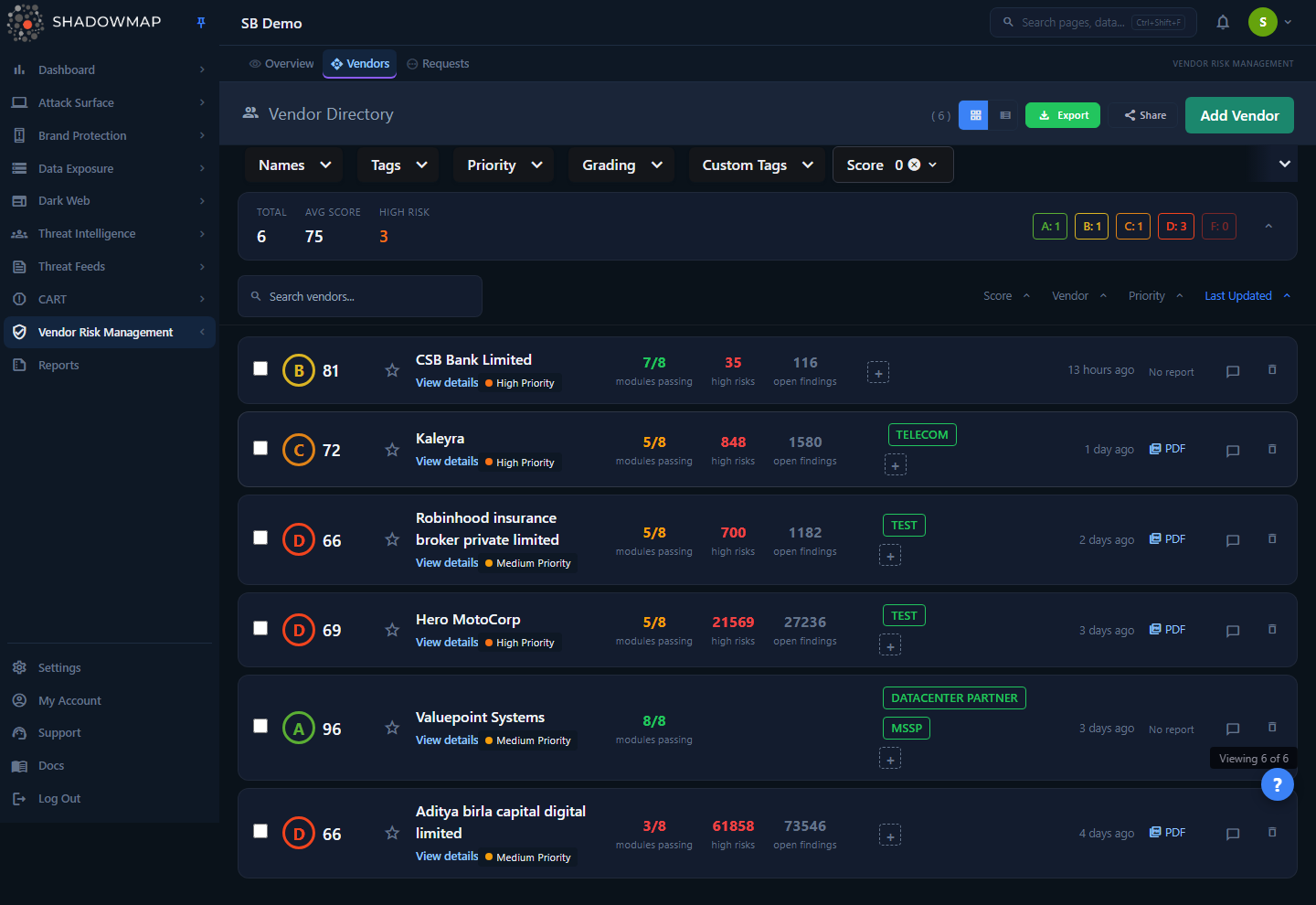
The Vendor Directory list. Selecting any vendor row opens its Vendor Detail page.
You reach this page by clicking a vendor from the Vendor Directory; there is no standalone menu item for it. The URL is /vendor-risk-management/vendors/{vendorId}, and the page title updates to the vendor's name.
At the top, a hero panel shows the vendor at a glance:
- A large letter grade (A–F) derived from the vendor's security score, color-coded.
- The vendor name with a copy-to-clipboard button, and the time since the vendor's data was last refreshed.
- Three badges: Priority (the vendor's risk tier), Security score (0–100), and the number of categories tracked.
- Any Tags (system-assigned) and Custom tags (analyst-assigned) applied to the vendor.
Below the hero is a tabbed workspace. The default Overview tab summarizes findings and category coverage; four more tabs drill into specific finding types and let you record investigation notes.
A time-span selector in the page header (Last 7 / 30 / 90 days, default 30) scopes every finding count and table on the page. Changing it re-fetches all data.
How it works
These mechanics drive the page and are not obvious from the UI alone.
Letter grade and score
The hero grade is computed in the browser from the vendor's numeric final_score (0–100) using fixed thresholds:
| Score | Grade |
|---|---|
| 90–100 | A |
| 80–89 | B |
| 70–79 | C |
| 60–69 | D |
| Below 60 | F |
The same A–F scale is applied to each category's score in the Category Coverage section. The underlying 0–100 score is produced by ShadowMap's security-rating engine — the same engine that scores your own organization. See the Security Rating algorithm for how the number is calculated and what moves it.
What "vendor-specific" means
Every count and table on this page is filtered to findings ShadowMap has attributed to this vendor, not to your own organization. The drill-down tables and Threat Exposure counts resolve the vendor's own domains and assets and query the vendor risk data store for records tied to them. A finding that belongs to your company will not appear here, and vice-versa.
The time span scopes everything
The 7/30/90-day selector is passed as a span parameter to every finding request — the finding counts in the Overview tab and the vulnerability/dark-web/exposure tables. (The Security Score Trend chart is the exception: it always plots a longer, fixed history — roughly the past year in monthly points — regardless of the selector.) A count of 0 for a category means "no records in this window", not "never affected". Widen the span to look further back. Switching the span clears all loaded tab data and reloads it.
Tabs load on demand
Only the Overview tab's data is fetched when the page opens. The Vulnerabilities, Dark Web & Breaches, Threat Exposure, and Notes tabs each fetch their own data the first time you open them, then cache it for the session. This keeps the initial load fast for vendors with large finding sets. If you deep-link with ?tab=vulnerabilities in the URL, that tab's data loads immediately after the main vendor record.
Finding counts vs. the score
The Threat Exposure Summary card on the Overview tab and the four detail tabs draw from live drill-down queries against the vendor's findings for the selected span. The security score and category scores come from the rating engine's most recent evaluation of the vendor. These are two different data paths, so a vendor can show a strong grade while still listing recent findings — the score is a weighted evaluation of the vendor's overall posture, whereas the finding tables are raw recent records for the window you selected.
The Overview tab
The default tab. It has three regions.
Summary cards
Four headline metrics built server-side from the vendor's category data:
| Card | Meaning |
|---|---|
| Open findings | Sum of open findings across all tracked categories. |
| Closed findings | Sum of closed/resolved findings across all categories. |
| Highest scoring category | The category with the best (highest) score, with its score. |
| Lowest scoring category | The category with the worst (lowest) score — usually where to start remediation. |
Security Score Trend
A line chart of the vendor's security score plotted as monthly points over roughly the past year. This chart is not scoped by the 7/30/90-day selector — it always shows the same long-run history. Use it to spot whether a vendor's posture is improving, flat, or degrading — a downward trend is an early signal to engage the vendor before it becomes an incident.
Threat Exposure Summary
A clickable list of finding categories with the vendor's count for each, in the current span. Clicking a category with a non-zero count opens a drill-down modal listing the individual records for that category and span. Categories with a count of zero are disabled. The categories are:
| Category | What it counts |
|---|---|
| High Risk Vulnerability | Severe vulnerabilities found on the vendor's assets. |
| Common Vulnerability | Lower-severity / widely-seen vulnerabilities on the vendor's assets. |
| Phishing Pages | Phishing URLs impersonating or targeting the vendor. |
| Data Breaches | The vendor's credentials/records appearing in breach corpora. |
| Dark Web Discussions | Forum/marketplace posts mentioning the vendor. |
| Telegram Conversations | Telegram channel messages mentioning the vendor. |
Category Coverage
A grid of cards, one per category ShadowMap tracks for this vendor. Each card shows the category name, its score (graded A–F by the same thresholds), a count of open / closed findings, and a severity breakdown of High / Medium / Low. This is the bridge between the single security score and the specific areas dragging it up or down.
The detail tabs
The Vulnerabilities, Dark Web & Breaches, and Threat Exposure tabs each render two tables of the vendor's raw records for the selected span. Table columns are generated dynamically from the data returned, so the exact fields vary by record type, and internal/ID fields are hidden.
| Tab | Tables |
|---|---|
| Vulnerabilities | High Risk Vulnerabilities · Common Vulnerabilities |
| Dark Web & Breaches | Dark Web Discussions · Data Breaches |
| Threat Exposure | Phishing URLs · Telegram Conversations |
If a table is empty, it shows a "No records" message noting the result is scoped to the selected time range — widen the span before concluding the vendor is clean.
TIP
For the full module-level experience of any of these finding types — filtering, status workflow, takedowns — open the matching dedicated module for your own assets, e.g. Phishing URLs, Data Breaches, or Vulnerability Overview. The Vendor Detail tabs are read-only summaries scoped to the vendor.
The Notes tab
A private, per-vendor investigation log. Type a note and click Add Note to append it; each note records the author and a relative timestamp. You can delete your own notes (the delete control only appears on notes you authored). The tab label shows a count of existing notes. Use it to track triage decisions, vendor communications, and follow-ups without leaving the page.
Header actions
The page header carries quick actions for the whole vendor:
| Action | What it does |
|---|---|
| Time span | Sets the 7 / 30 / 90-day window for all data on the page. |
| Bookmark (star) | Toggles a bookmark on this vendor so it surfaces in your saved set. Press B as a shortcut. |
| Share | Opens the share/integration dialog to send this vendor to a connected destination. |
| Export CSV | Downloads a CSV of the vendor's summary: name, score, grade, priority, open/closed totals, and the per-category breakdown (score, High/Medium/Low, open, closed). |
| Download PDF Report | Appears only when a generated PDF report exists for the vendor; opens it in a new tab. |
| Keyboard shortcuts | Opens the shortcut reference. Press ?. |
| Back to Vendors | Returns to the Vendor Directory. Press Esc. |
INFO
The CSV export is the vendor summary — grade, score, and category rollups — not the individual finding records. To pull the raw records for a category, open its drill-down from the Threat Exposure Summary or the relevant detail tab.
Keyboard shortcuts
| Key | Action |
|---|---|
Esc | Back to vendor list (or close an open modal/overlay first) |
B | Toggle bookmark |
1 | Overview tab |
2 | Vulnerabilities tab |
3 | Dark Web & Breaches tab |
4 | Threat Exposure tab |
5 | Notes tab |
? | Show/hide the shortcut reference |
Shortcuts are suppressed while you are typing in the notes textarea or any input.
Common questions
Why does a vendor with an A grade still list recent findings? The grade reflects the rating engine's weighted evaluation of the vendor's overall posture; the finding tables are raw recent records for the selected window. A single phishing page or a handful of low-severity vulnerabilities won't necessarily drop an otherwise strong vendor below 90. Use the Category Coverage and Lowest scoring category to see what the score is actually penalizing.
A category shows 0 — does that mean the vendor is unaffected? It means no records were found in the selected time span. Change the span to Last 90 days to look further back before concluding the vendor is clean for that category.
The findings here look different from my own modules. Why? Everything on this page is scoped to the vendor's assets and domains, not yours. The vendor's phishing pages, breaches, and vulnerabilities are independent of your organization's findings in the main modules.
Can I act on a finding from this page — close it, request a takedown? No. The Vendor Detail tabs are read-only summaries. Actions like status changes and takedowns live in the dedicated modules for those finding types. The only actions on this page are bookmarking the vendor, sharing it to a connected destination, adding or deleting your own investigation notes, and exporting the summary CSV.
Why is the Download PDF Report button missing? It only appears when a PDF report has been generated for that vendor. If there's no report on file, the button is hidden; the CSV export is always available.
Who can see my notes? Notes are stored per vendor and visible to users in your account with access to the Vendor Risk Management module. You can only delete notes you authored.
What permission do I need? Viewing the page and adding investigation notes require read access to the Vendor Risk Management module. Bookmarking a vendor and deleting a note require write access. See Roles & Permissions.
Related
- Vendor Directory — the list this page drills into; filter and sort your full vendor portfolio there.
- Vendor Risk Overview — portfolio-wide rollups, greatest changes, and aggregate exposure across all vendors.
- Vendor Requests — request that a new vendor be added to your monitored set.
- Security Rating algorithm — how the 0–100 score and A–F grade shown here are calculated.
- Phishing URLs, Data Breaches, Vulnerability Overview — the full-featured modules behind the read-only finding tables on this page.