
Shortener URLs
ShadowMap surfaces short links — created on public shortening services like bit.ly, tinyurl, t.co, and goo.gl — that resolve to URLs belonging to your organization. Because short codes are short and predictable, these links are trivially enumerated and the destination they redirect to becomes publicly discoverable, often exposing internal systems, document-share links, and URLs carrying embedded tokens.
Overview
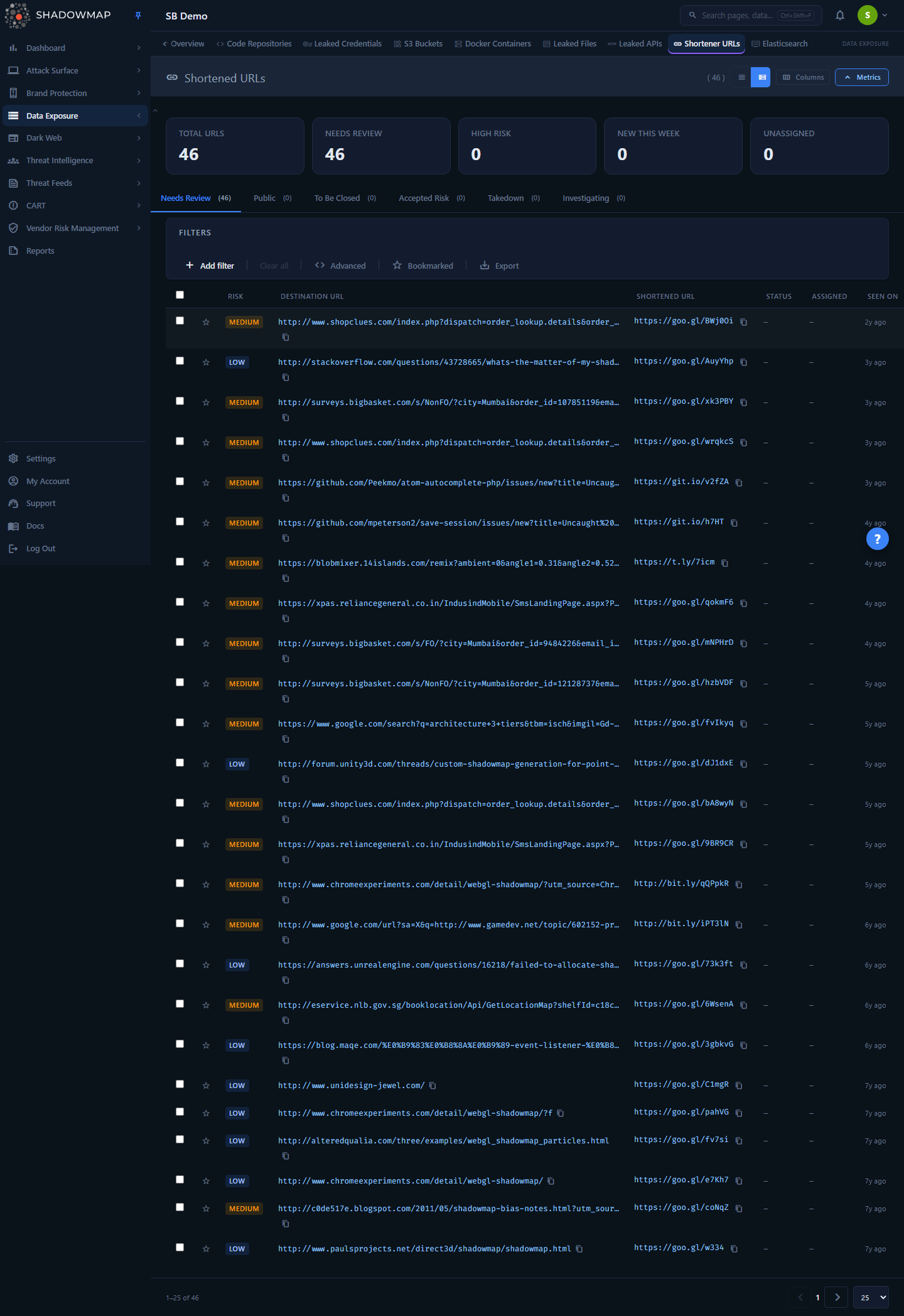
The page is a single sortable, filterable table of discovered short links. Each row pairs the public shortened URL (the bit.ly-style link anyone can resolve) with the destination it points at — the internal subdomain, the full destination URL, and a file extension where one is detectable. A risk badge and a status badge let you triage at a glance, and a metrics strip at the top gives you the headline counts for the queue.
The header shows the total record count, a column customizer (to show or hide optional columns — the Shortened URL column is locked on), and two density modes: Compact and Expanded. Rows support multi-select for bulk triage, per-row bookmarking, inline comments, and one-click copy of either the shortened or destination URL. Click any row to open a detail drawer with the finding's full destination evidence, metadata, and comment thread.
The route /data-leaks/shortener-urls redirects to the Needs Review tab (/data-leaks/shortener-urls/online) by default.
How it works
These are mechanics you cannot see from the table.
What a finding is. Each row is a row in mapped_url_shorteners, keyed to your company. A finding is created when ShadowMap's collectors resolve a public short link whose destination matches one of your brand/domain keywords (the keyword field records the seed that matched). The platform stores the resolved destination URL, the destination sub_domain, a parsed extension, the shortened_url itself, a computed risk, and the seen_on timestamp of first discovery. Findings are de-duplicated by a deduplication_hash, so the same short link is not counted twice.
Why exposure is the threat, not the link itself. A URL shortener is a public redirect: anyone who has — or guesses — the short code is sent to the destination. That has three consequences that make even an "internal" link dangerous once shortened:
- Enumeration is cheap. Short codes are a handful of alphanumeric characters. Automated tools walk the keyspace of a shortener and harvest every destination, including yours.
- The destination is permanently disclosed. A short link to
https://internal-jira.example.com/browse/SEC-1234reveals that the system exists, its naming convention, and sometimes the resource itself — even after the original sharer has forgotten about it. - Secrets in the URL leak in full. Destination URLs that carry invite tokens, session IDs, signed-download parameters, or API keys (
?token=...,?sig=...) are exposed verbatim. The token is the credential.
How risk is assigned. Each finding carries a risk value, stored lowercase as high, medium, low, or informational (the UI's filter list also offers Critical). Risk reflects what the destination reveals — links carrying embedded credentials or pointing at admin/internal tooling rank higher than links to non-sensitive pages. When you sort by Risk, the order is fixed by severity (high → medium → low → informational), not alphabetical, and ties break by an internal confidence score and then by recency.
The "online" / Needs Review population is special. A finding with no triage decision has a response_status of NULL or 0, and reopened findings carry status Reopened. The Needs Review tab deliberately includes all of these: its filter is response_status IN (New, Reopened, 0) OR response_status IS NULL. This is also the exact population the Data Leaks Overview "URL Shorteners" card and its severity breakdown count, so the overview headline reconciles with the list you land on.
New This Week is a rolling 7-day window. The "New This Week" metric counts findings whose seen_on is within the last 7 days; the summary also computes the prior 7-day bucket internally for comparison.
Counts come from a separate summary call. The metrics strip and the tab badge counts are served by a dedicated summary endpoint (/summary) computed in a single aggregate query, independent of the paginated list. The list and the summary both refresh on every tab change, so the badges stay in step with the rows.
Understanding the data
Columns available in the table (toggle optional ones via the column customizer; Shortened URL is always shown):
| Column | What it shows |
|---|---|
| Risk | Severity of the finding — Critical / High / Medium / Low / Informational. Critical renders red, High orange, Medium amber, and Low green. Sortable by severity order. |
| Destination URL | The full URL the short link resolves to, truncated for display with a copy button. The detail value is the link an attacker actually reaches. |
| Destination Domain | The internal subdomain the short link points at (e.g. jira.example.com). This is the field free-text search matches against. Sortable. |
| Shortened URL | The public short link itself (e.g. bit.ly/abc123). Rendered as a clickable, copyable link. Locked on — always visible. Sortable. |
| Status | The triage / response status text (None, Public, To Be Closed, Accepted Risk, Closed, Investigating, Reopened). Blank until triaged. |
| Assigned | The team member the finding is assigned to, if any. |
| Seen On | When ShadowMap first discovered the short link, shown as relative time. Default sort column (newest first). Sortable. |
Every row also carries a bookmark toggle, an inline comment thread, and copy buttons on both URL cells.
Status tabs
The tabs across the top partition the queue by response status. Each tab shows a live badge count.
| Tab | Meaning | Underlying status |
|---|---|---|
| Needs Review | Untriaged and reopened findings awaiting a decision — the default landing tab. | New (1), Reopened (6), 0, or NULL |
| Public | Links the team has reviewed and confirmed point at intentionally public resources. | Public (2) |
| To Be Closed | Findings marked for closure / queued for cleanup. | To Be Closed (3) |
| Accepted Risk | Reviewed and consciously accepted — e.g. a benign owned link not worth acting on. | Accepted Risk (4) |
| Takedown | Findings that have been closed out (link removed/disabled or no longer relevant). | Closed (5) |
| Investigating | Findings actively being worked — typically the genuinely sensitive ones. | Investigating (9) |
Note on the "None" status
A finding shown with no status badge has never been triaged (NULL or 0). These are the bulk of a healthy queue and live under Needs Review. Clearing a status (see Taking action) returns a finding to this untriaged state and back into Needs Review.
Filtering and search
The search-and-filter bar drives the list. Available filter categories:
| Filter | Behavior |
|---|---|
| Destination Domain | Match against the destination subdomain. |
| Shortened URL | Match a specific short link. |
| Destination URL | Match a specific destination URL. |
| Risk | Multi-select severity (Critical, High, Medium, Low, Informational). |
| Extension | Multi-select by destination file/resource type (e.g. pdf, html, json, aspx). The available values are loaded from your own data. |
| Assignee | Filter to findings assigned to a specific team member. |
| Seen Date | Date range against seen_on (when the link was first discovered). |
Two additional controls sit in the filter bar:
- Bookmarked — toggle to show only findings you have starred. This filters the current page client-side; combine it with a tab to focus a saved subset.
- Export — see Export below.
Free-text vs. structured filters
The quick free-text search box matches on the Destination Domain only. To match the shortened link, the full destination URL, or to combine conditions, add a structured filter rule from the categories above. Changing tabs clears any applied filters.
Click any sortable column header to sort; click again to flip ascending/descending. Default sort is Seen On, newest first.
Taking action
Select one or more rows (or use the header checkbox to select the whole page) to reveal the bulk action bar. From there you can move findings between statuses or share them.
Set a status (single or bulk). The action bar exposes one click per status:
| Action | Effect |
|---|---|
| Needs Review | Clears the response status, returning findings to the untriaged Needs Review queue. |
| Public | Marks the finding as an intentionally public link. |
| To Be Closed | Queues the finding for closure. |
| Accept Risk | Records that the exposure is reviewed and accepted. |
| Investigating | Flags the finding as actively under investigation. |
Setting a status moves the finding into the matching tab; the list and counts refresh immediately.
Share. With rows selected, Share opens the sharing/integration dialog to push the selected findings to a connected destination (e.g. a ticketing or chat integration). See Sharing & Integrations.
Bookmark. Star a row to add it to your personal bookmarked set; filter to bookmarks with the Bookmarked toggle. See Bookmarks.
Comment. Each row has an inline comment thread with support for saved comment templates, useful for recording triage rationale or response steps. See Comments.
Copy. Both the shortened-URL and destination-URL cells have a copy button for fast hand-off into a browser or ticket.
Investigating a finding
Click any row — or press Enter on the focused row — to open the detail drawer, a side panel for one-click investigation. It renders from the row already loaded in the list (there is no separate detail fetch), so it opens instantly. The drawer shows:
- Destination evidence — the shortened link and the destination it resolves to, laid out as shortened → resolves to → destination, with the destination rendered as a clickable link.
- Metadata — destination domain, risk, status, the parsed file extension (when detected), the matched keyword (the brand/domain seed that flagged the finding), the assignee, and the first-seen date.
- Comments — the finding's inline comment thread.
The drawer is a read-only investigation view — change a finding's status from the bulk action bar (select the row first), not from the drawer. Press Esc to close it.
Export
The Export button in the filter bar queues a background export of the current view. The export honors the active tab, all applied filters, the search term, and the current sort order, so the file matches exactly what you see on screen. Exports run as a tracked task and download as a shortener_urls-prefixed file. See Exports.
Keyboard triage
The list supports keyboard-driven triage. Press ? to toggle the shortcut help overlay.
| Key | Action |
|---|---|
j / ↓ | Move to next row |
k / ↑ | Move to previous row |
Enter | Open the focused finding |
Space | Toggle selection of the focused row |
s | Toggle bookmark on the focused row |
Esc | Close the open finding |
? | Toggle the shortcut help |
Responding to a finding
Not every short link is an incident. Triage by what the destination exposes:
- Read the destination URL, not just the domain. A short link to a marketing page is low risk; a link to an admin console or a download URL carrying a signed token is critical.
- Revoke embedded secrets immediately. If the destination URL contains an invite token, session ID, signed-URL signature, or API key, treat the token as compromised and rotate/revoke it. The short code does not need to be cracked — the token is already public.
- Disable the short link where you can. Some shorteners let the creator delete or disable the link. If it was created by an employee, removing it stops further resolution.
- Harden the destination. Ensure the internal application behind the link requires authentication and is not reachable from the public internet. Exposure of the URL should not be enough to reach the resource.
- Check access logs for the exposed resource to determine whether the link was used by anyone unexpected.
- Record the decision. Move the finding to Investigating, Accepted Risk, or To Be Closed, add a comment, and assign an owner so the queue reflects reality.
Tokens in shortened URLs are live credentials
A shortened link to something like https://app.example.com/invite?token=... exposes the token in full. Anyone who resolves the short code obtains it. Rotate the token before closing the finding — do not rely on the obscurity of the short code.
Common questions
What's the difference between the shortened URL and the destination? The Shortened URL is the public bit.ly/tinyurl-style link. The Destination (URL and Domain columns) is where it redirects — usually one of your own systems. The shortened link is the exposure vector; the destination is what's exposed.
Why does "Needs Review" sometimes show a large count of items with no status? Untriaged findings have no response status (NULL/0) and that is the normal default. The Needs Review tab is explicitly built to include them along with New and Reopened findings, which is why it is the busiest tab and the default landing view.
The overview card says X but the list shows something different — why? It shouldn't. The Data Leaks Overview "URL Shorteners" card, its severity breakdown, and this page's Needs Review list are all scoped to the identical population (New, Reopened, 0, or NULL). The headline equals the sum of the severities equals the Needs Review list by design.
Does sorting by Risk sort alphabetically? No. Risk sorts by severity rank (High → Medium → Low → Informational), with ties broken by an internal confidence score and then by recency.
What does the Extension value mean? It's the file/resource type parsed from the destination URL (e.g. pdf, json, aspx). It isn't a table column — it surfaces as a filter and in a finding's detail drawer. It's a quick signal for what kind of resource is exposed — a pdf or xlsx destination may indicate a shared document, while an aspx/app path may indicate an internal application.
Why is free-text search not finding a short link I can see? The quick search box matches on the Destination Domain only. To search the shortened link or the full destination URL, add a structured filter rule for that field instead.
What happens when I mark something "Needs Review" in the bulk bar? It clears the response status, returning the finding to the untriaged state — useful to undo a misclassification and put a finding back in the triage queue.
Related
- Data Leaks Overview — the "URL Shorteners" headline card and severity breakdown both link into this page's Needs Review tab.
- Leaked Credentials — when a shortened link's destination carries a token, the underlying secret may also surface here.
- Leaked Files — shortened links frequently point at exposed documents; that module tracks the documents themselves.
- Code Repositories — another path by which internal URLs and tokens reach the public.
- Web Applications — the internal/external apps that exposed destination URLs belong to.
- Exports, Bookmarks, Comments, Sharing & Integrations — the cross-module triage tools used on this page.