
JavaScript Trackers
ShadowMap discovers and catalogs the third-party JavaScript trackers — analytics, advertising, tag managers, session-replay, and customer-data tools — embedded in your externally reachable web applications, and gives you a per-tracker triage workflow to approve the ones you own and flag the ones you don't.
Overview
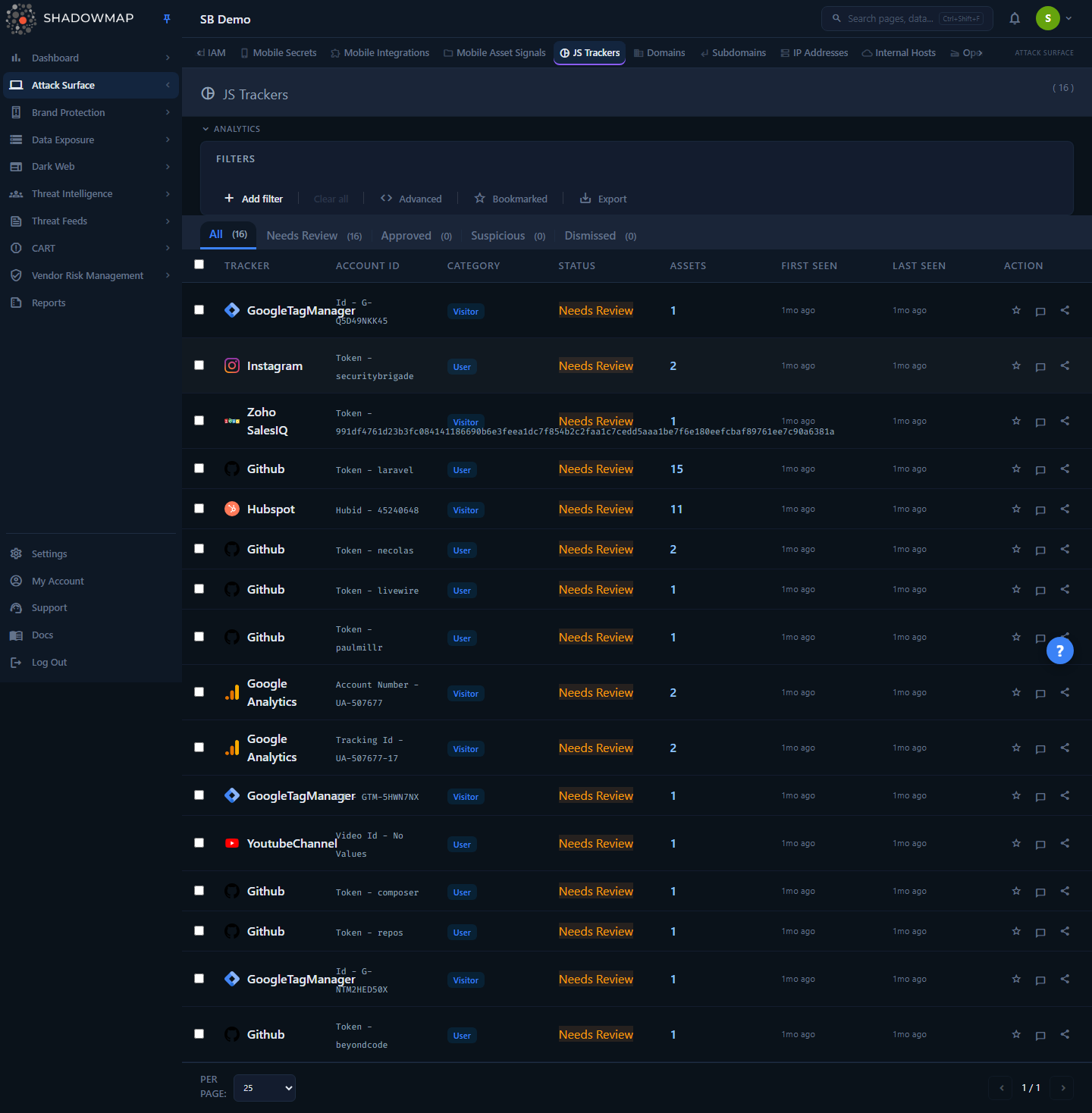
Every third-party script you load runs in your users' browser with the same privileges as your own code. The JavaScript Trackers module turns that blind spot into an inventory: one row per tracker account, where a tracker account is the unique pairing of a provider (for example Google Analytics, Meta Pixel, Hotjar) and the account/property ID found in that provider's embed code on your pages.
The page is a flat table — newest activity first (sorted by Last Seen) — with a collapsible Analytics panel above it, a status-tab triage workflow (Needs Review / Investigating / Genuine / Dismissed), search and filter controls, bulk actions, and a detail drawer that lists exactly which of your web applications load each tracker. The list opens on the Needs Review tab. Use it to catch trackers nobody on the security team approved, verify that every account ID actually belongs to your organization, and document third-party data collection for privacy and compliance.
Where the data comes from
Trackers are extracted during ShadowMap's regular scans of your web applications, not from a separate crawl you trigger here. A tracker only appears once it has been seen on an asset whose application status is New, Open, or Reopened. See Web Applications for how those assets are discovered.
How it works
The mechanics below are not visible in the UI but determine what you see and how counts are derived.
Detection and the (provider, account ID) identity
When ShadowMap scans a web application, it parses the page's loaded scripts and embed snippets and records each tracker as a name (the provider) plus a value (the account or property identifier in that provider's code — a Google Analytics UA-/G- property ID, a Meta/Facebook Pixel ID, a GTM container ID, and so on).
The list groups by (name, value): every distinct provider-plus-account-ID combination is one row, regardless of how many of your pages it appears on. That is why one provider — say Google Analytics — can produce several rows: one per property ID seen across your estate. The Unique Providers metric counts distinct provider names; Total Trackers counts distinct (provider, account ID) pairs.
Scope: only live assets count
The inventory is scoped to your current scan baseline. A tracker is included only when:
- its
last_seenfalls on or after the start of the latest scan session, and - it sits on a web application whose status is New, Open, or Reopened.
When an application is closed (taken down, decommissioned, or no longer reachable), the trackers it carried drop out of the live counts automatically. This keeps the inventory reflective of what is actually running right now rather than everything ever observed.
First Seen, Last Seen, and "new"
For each (provider, account ID) pair the table shows the earliest First Seen and the latest Last Seen across all the assets that carry it. The New This Week metric counts pairs whose First Seen is within the last 7 days; the week-over-week delta on that card compares the last 7 days against the 7 days before that. A rising count is shown in red — new third-party scripts appearing on your sites is a growth in supply-chain exposure, not a neutral event.
Review status is independent of the asset
Each tracker carries its own review status — Needs Review, Approved, Suspicious, or Dismissed — stored per (provider, account ID) and independent of the underlying web application's status. Approving a tracker does not change anything about the asset; it records a triage decision so the tracker stops showing up in your Needs Review queue. New trackers start at Needs Review. When you change a status, ShadowMap stamps who reviewed it and when.
Asset count and the Web Apps drill-down
The Assets value on each row is the count of distinct web applications (http_app_id) currently carrying that tracker. It is a live link: clicking it (or View in Web Apps in the drawer) opens Web Applications pre-filtered to the New/Open/Reopened applications that load that exact provider and account ID, so you can immediately see the blast radius of any one tracker.
Why third-party JavaScript is a risk
A tracker inventory matters because each entry is code you did not write, running where your users type:
- Data exfiltration / Magecart. A compromised analytics or tag-manager script can skim form inputs, session tokens, and PII. Supply-chain skimming via third-party scripts is how the British Airways and Ticketmaster breaches (both 2018) exfiltrated payment data.
- Supply-chain leverage. Attackers target the provider, not you. Compromising one widely embedded analytics or ad vendor reaches every downstream site that loads it — including yours.
- Privacy and compliance. GDPR (Article 30 records of processing), CCPA/CPRA, LGPD, and PCI DSS all require you to know what data is collected and by whom. Undisclosed trackers — often added by marketing or an outside agency without security review — create regulatory and legal exposure.
- Unauthorized data collection. An account ID you don't recognize on a Google Analytics or pixel tracker may mean a third party is quietly collecting your users' behavior.
Understanding the data
Columns
The table is sorted by Last Seen, newest first.
| Column | What it shows |
|---|---|
| Tracker | Provider icon and name (for example Google Analytics, Meta Pixel, Hotjar, Intercom). Always visible. |
| Account ID | The specific account/property identifier found in the provider's embed code. Click the row to open the detail drawer; copy it from there. |
| Category | The tracker's classification (for example analytics, advertising, tag-manager). Shows unknown when ShadowMap has not classified the provider. |
| Status | The tracker's review status — Needs Review, Approved, Suspicious, or Dismissed. |
| Assets | Number of live web applications carrying this tracker. Links into Web Applications filtered to those apps. |
| First Seen | When this tracker account was first detected on your assets, as relative time. |
| Last Seen | When it was most recently observed, as relative time. |
| Action | Per-row bookmark (star), comment, and share controls. |
Review statuses
Every tracker moves through four review states, which are also the page's status tabs. Two of them read differently on the tab than the action that sets them: the Approve action files a tracker under the Genuine tab (its row badge still reads Approved), and the Suspicious action files it under the Investigating tab (its badge still reads Suspicious). Needs Review and Dismissed use one label throughout.
| Status | Meaning | Typical use |
|---|---|---|
| Needs Review | Default for newly detected trackers; not yet triaged. | Your work queue — everything here is unverified. |
| Investigating | Flagged for investigation — unknown owner, unexpected provider, or a possible shadow/unauthorized tracker. Set with the Suspicious action. | Account IDs you cannot tie to your org; unrecognized providers. |
| Genuine | Confirmed as a tracker your organization owns and intends to run. Set with the Approve action. | Sanctioned analytics, your own pixels, approved vendors. |
| Dismissed | Reviewed and intentionally set aside as not actionable. | Known-benign noise you don't want in the Needs Review queue. |
Triage discipline
Treat Needs Review as a real queue. Approve what you own, mark Suspicious anything whose account ID you cannot map to a known organizational account, and Dismiss the rest. Counts on each status tab and the Needs Review metric card make it easy to see your remaining backlog at a glance.
The Analytics panel
The collapsible Analytics strip at the top holds five metric cards:
| Card | Meaning |
|---|---|
| Total Trackers | Distinct (provider, account ID) pairs in the live inventory. |
| New This Week | Pairs first seen in the last 7 days, with a week-over-week trend (red when rising). |
| Unique Providers | Distinct tracker provider names. |
| Assets with Trackers | Distinct web applications carrying at least one tracker. |
| Needs Review | Untriaged trackers — your outstanding backlog (orange when above zero). |
Each of the five cards is clickable, and every one jumps the table to the Needs Review tab — so a click always lands you on your untriaged queue.
Filtering & search
The search-and-filter bar supports free-text search and structured filters:
| Filter | Notes |
|---|---|
| Search | Free-text match against provider names and account IDs. |
| Tracker | Filter to specific providers. |
| Review Status | Needs Review, Approved, Suspicious, Dismissed. |
| Category | Filter by tracker classification. |
| Assigned To | Filter by the team member a tracker is assigned to. |
| First Seen / Last Seen | Date filters — useful for "what appeared recently" or "what's gone stale." |
| Bookmarked | Toggle to show only trackers you've starred. |
The status tabs (Needs Review / Investigating / Genuine / Dismissed) set the top-level review-status scope; switching tabs clears any active filters and reloads the list scoped to that status. The list opens on Needs Review by default — there is no aggregate "All" tab. A Bookmarked toggle in the controls narrows the table to your starred trackers.
Detail view
Click any row to open the detail drawer. It shows:
- Tracker identity — provider icon, name, and the account ID with a copy-to-clipboard control.
- Metadata grid — Category, Review Status, Assets count, First Seen, and Last Seen.
- Associated Web Applications — the list of your assets that load this tracker, each with its URL and last-seen time, so you can confirm exactly where it runs.
- View in Web Apps — opens Web Applications filtered to the live applications carrying this tracker.
- Footer actions (with write access) — Approve, Suspicious, Dismiss.
Use the previous/next arrows in the drawer header to move between trackers without closing it.
Taking action
You can act on a single tracker from the drawer or its row, or on many at once. Select rows with the checkboxes to reveal the bulk action bar, which exposes:
| Action | Effect |
|---|---|
| Approve | Marks selected trackers as Approved (owned/sanctioned). |
| Suspicious | Flags selected trackers for investigation. |
| Dismiss | Sets selected trackers to Dismissed. |
| Assign | Assigns the selected trackers to a team member. |
| Export | Exports the current (filtered) inventory as an Excel file for offline analysis and compliance evidence. |
| Share | Shares the selected tracker(s) via your configured integrations. |
The bulk bar also offers Select All / Deselect All for the trackers on the current page. Bookmark (star), Comment (comment templates supported), and Share are available per row in its Action column.
Status changes are recorded with the reviewer and timestamp, and the inventory refreshes after each action.
Keyboard triage
The list supports keyboard-driven review. Use j/k (or arrow keys) to move between rows, Enter to open the detail drawer, Space to toggle selection, a / s / d to Approve / mark Suspicious / Dismiss the focused row, and ? to show the full shortcut overlay.
Key investigations
| Investigation | How |
|---|---|
| Unknown tracker audit | Work the Needs Review tab. Any provider your security team doesn't recognize warrants investigation before you Approve it. |
| Account-ownership verification | Check that each account ID maps to a known organizational account. An unfamiliar analytics or pixel ID may mean a third party is collecting your users' data — mark it Suspicious. |
| Shadow-marketing detection | Look for account IDs that don't match your organization's known accounts; agencies sometimes add their own tracking codes without disclosure. |
| Post-incident scope assessment | When a tracker provider discloses a breach, find that provider, open the drawer, and use View in Web Apps to enumerate exactly which of your applications load their script and how many users may be affected. |
| Regulatory compliance | Export the tracker inventory to document all third-party data collection for GDPR Article 30 records of processing or CCPA disclosure requirements. |
| Drift watch | Use the First Seen date filter (and the New This Week card) to catch newly added scripts, and the Last Seen date filter to spot trackers that are about to drop off. |
Common questions
What exactly is a "tracker" here — a provider or an account ID? A row is one (provider, account ID) pair. Google Analytics with two different property IDs is two rows; the Unique Providers card counts the provider once, the Total Trackers card counts both pairs.
Why does the count change between scans without me doing anything? The inventory only includes trackers seen in the latest scan session on live applications (New / Open / Reopened). When an app closes or a tracker is removed from your pages, its rows drop out automatically.
Does approving a tracker change the web application's status? No. Review status is stored per tracker and is independent of the asset. Approve/Suspicious/Dismiss only move the tracker through its own triage workflow.
How do I find which sites load a specific tracker? Open the row's detail drawer to see the Associated Web Applications list, or click the Assets count / View in Web Apps to jump to Web Applications pre-filtered to that exact provider and account ID.
Can I export the inventory for a privacy or compliance review? Yes. Export produces an Excel file of the current filtered list — useful as GDPR Article 30 or CCPA evidence of third-party data collection.
What does "New This Week" turning red mean? More new trackers appeared this week than last. New third-party scripts are added attack surface, so the card flags growth as something to look at, not a positive trend.
Related
- Web Applications — the assets trackers are detected on; every tracker drills down here to show where it runs.
- Technology Stack — the broader fingerprint of frameworks, libraries, and platforms on your web properties.
- Links & Redirects — other third-party dependencies and outbound destinations on your web pages.
- Attack Surface Area Overview — how ShadowMap discovers and monitors your external web-facing assets.