
SSL Certificates
A live inventory of every TLS/SSL certificate served by the HTTP endpoints ShadowMap has discovered on your attack surface. Use it to catch certificates that are expired or about to expire, weak keys, self-signed certs, and wildcard sprawl before they become an outage or a trust failure.
Overview
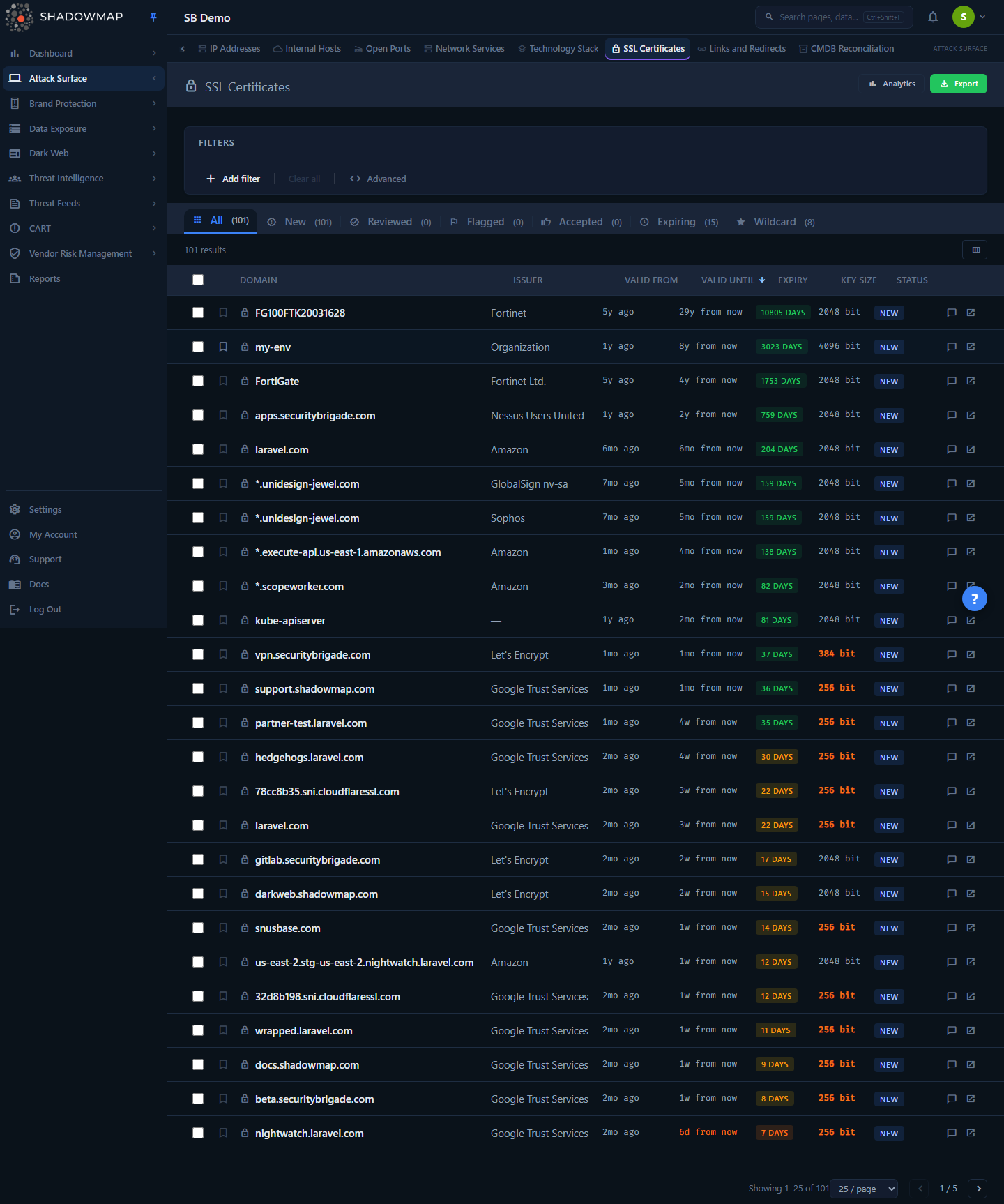
The page opens on the All tab at /attack-surface-area/ssl-certificates/all. At the top, a collapsible analytics panel shows seven KPI cards (certificate health at a glance). Below it sit the filter bar, the workflow status tabs (with Expiring and Wildcard quick-filter chips beside them), a sortable certificate table, and pagination.
Each row is one certificate, presented by at least one of your live endpoints. Clicking a row opens the full certificate detail page. You can triage certificates one at a time, in bulk, or entirely from the keyboard.
SSL Certificates and "SSL Issues" are the same page
ShadowMap previously exposed a separate SSL Issues item under the Threats module. That route now redirects to this page — /threats/ssl-issues lands on /attack-surface-area/ssl-certificates/all. There is one SSL surface, documented here. If you have an old bookmark or a saved link to SSL Issues, it will resolve here automatically (legacy filter parameters are dropped on redirect because the two views used incompatible filter contracts).
How it works
The mechanics below are not visible in the UI but determine exactly which certificates appear and how the health metrics are computed.
Where the certificates come from
This is not a passive Certificate Transparency log dump. A certificate appears here only because ShadowMap's scanner observed it being served by an HTTP endpoint that belongs to you. Internally, each certificate is joined to your live assets through:
ssl_certificates → ssl_certificate_mapping (is_current = 1) → http_apps → sessions (customer_id = you)Two consequences follow from this:
- Only currently-served certificates are shown. The mapping is filtered to
is_current = 1. When an endpoint rotates to a renewed certificate, the old (now-expired) certificate drops off automatically instead of lingering as a false "Expired" finding. - A certificate can map to multiple endpoints. The same cert is often presented on many hosts, IPs, and ports. The list shows the certificate once; the Related Assets tab on the detail page enumerates every endpoint currently serving it.
Active, expired, and expiring are computed from valid_until
ShadowMap derives validity state from the certificate's own valid_until date relative to the current date — it does not depend on you marking anything:
| State | Rule |
|---|---|
| Active | valid_until is in the future |
| Expired | valid_until is today or in the past |
| Expiring ≤ 7 days | still valid, but valid_until is within the next 7 days |
| Expiring ≤ 30 days | still valid, but valid_until is within the next 30 days |
The Expiring quick filter and the two "Expiring" KPI cards use a window of either 7 or 30 days — those are the only two windows the platform computes. "Days Until Expiry" shown in each row is derived the same way (valid_until minus today).
How weak keys, self-signed, and wildcard certs are flagged
These three risk classes drive the KPI cards and are evaluated server-side:
| Class | Definition |
|---|---|
| Weak Key | key_size is set and is below modern strength for the key's type — an RSA (non-EC) key under 2048 bit, or an EC/ECDSA key under 224 bit. Gating on key type stops a modern EC-256 certificate (roughly equivalent to RSA-3072) being mislabeled as weak. |
| Self-Signed | the issuer organization is empty, OR the subject organization equals the issuer organization (the cert effectively vouches for itself, i.e. not CA-issued) |
| Wildcard | the subject name begins with *. (e.g. *.example.com) |
The weak-key gate is evaluated the same way in the KPI count, the list row, and the detail page, so the three views never disagree about whether a given key is weak.
Why self-signed matters on the public attack surface
A self-signed certificate served by an internet-facing endpoint will fail browser and client trust validation. On the external surface it usually signals a forgotten staging box, an appliance shipped with default certs, or a service that was never properly provisioned — all worth investigating.
Security Score
The Score column shows a stored security_score computed by the scanner when the certificate was assessed. It is surfaced as-is in the list and on the detail page; ShadowMap does not recompute it in the dashboard. Treat it as a relative crypto-hygiene indicator (signature algorithm, key strength, validity) rather than a regulatory grade. Not every certificate carries a score — older or partially-parsed certs show —.
Review status is yours, separately from the cert
The workflow status (Needs Review / Investigating / Accepted Risk / Dismissed), bookmarks, and assignments live in a per-company review record that is kept separate from the scan-produced certificate data. That means:
- A certificate that has never been triaged has no review record and is treated as Needs Review.
- Changing status, bookmarking, or assigning a cert never alters the underlying certificate facts — it only records your team's disposition.
- Because review state is per company, the same shared certificate can be marked Accepted Risk by one tenant and untouched by another.
Understanding the data
Status tabs
SSL Certificates uses the platform's canonical review lifecycle. The tabs above the table scope the list to a workflow state and carry live counts:
| Tab | Shows |
|---|---|
| All | Every current certificate on your surface (a meta inventory view — SSL is an inventory, not a pure triage queue, so All leads) |
| Needs Review | Certificates with no actioned review record yet (untriaged) |
| Investigating | Marked for remediation and being worked (renew, replace, fix the key, decommission) |
| Accepted Risk | Risk explicitly reviewed and accepted |
| Dismissed | Reviewed with no further action needed |
Status vocabulary changed
These review states were previously labeled New / Flagged / Accepted / Reviewed. They are now the canonical cross-module states Needs Review / Investigating / Accepted Risk / Dismissed. Old deep-links and bookmarks using the legacy names still resolve — the platform folds new → Needs Review, flagged → Investigating, accepted → Accepted Risk, and reviewed → Dismissed automatically.
Expiring and Wildcard quick filters
Beside the status tabs sit two data-scope quick filters, rendered as chips: Expiring and Wildcard. These are not lifecycle states — they scope the list by certificate facts rather than by your team's disposition, and each carries its own live count. Clicking the active chip clears it back to All.
- Expiring — still-valid certificates inside the expiry window (30 days by default; the two "Expiring" KPI cards narrow this to a 7- or 30-day window).
- Wildcard — certificates with a
*.subject pattern. When the Wildcard filter is active, an extra panel groups wildcard certificates by their base-domain pattern and shows, per pattern, the certificate count, how many are expired or expiring, and the soonest days-until-expiry — useful for spotting a wildcard whose lapse would take down many subdomains at once.
Table columns
Columns are toggleable from the column customizer (the Visible Columns menu on the right of the toolbar); your selection persists in your browser.
| Column | Description |
|---|---|
| Domain | The certificate's subject (common) name. A *. prefix indicates a wildcard. Sortable. |
| Issuer | The issuing CA's organization (e.g. Let's Encrypt, DigiCert). Sortable. |
| Valid From | Start of the validity period. Sortable. |
| Valid Until | End of the validity period. Highlighted in warning/critical color as expiry approaches or passes. Sortable. |
| Expiry | A badge showing days until expiry — green (OK), amber (≤ 30 days), orange (≤ 7 days), red (Expired). |
| Key Size | Public key length in bits. Shown in warning color when the key is weak for its type (RSA < 2048 bit, EC < 224 bit). Sortable. |
| Score | The stored security score (see above). Sortable. |
| Status | Review workflow state: Needs Review, Investigating, Accepted Risk, or Dismissed. |
| Actions | Inline comment thread and an open-detail shortcut. |
Expired certificates are additionally marked with a red left border on the row.
KPI cards
The analytics panel shows seven cards. Four are clickable (they navigate to a list scoped to exactly the set they count); the other three are read-only indicators because no list view filters to precisely that set.
| Card | Meaning | Clickable |
|---|---|---|
| Total Active | Currently-valid certificates (total certificates overall shown in the subtitle) | No |
| Expiring ≤ 7 Days | Valid certs expiring within 7 days — requires immediate action | Yes → Expiring (7-day window) |
| Expiring ≤ 30 Days | Valid certs expiring within 30 days — plan renewals | Yes → Expiring (30-day window) |
| Expired | Certificates already past valid_until | Yes → Expired |
| Weak Key | Below-strength key for its type (RSA under 2048 bit, EC under 224 bit) | No |
| Self-Signed | Not CA-issued (issuer empty or equal to subject) | No |
| Wildcard | Certificates with a *.domain pattern | Yes → Wildcard |
Use Toggle Analytics in the page header to collapse or expand this panel.
Filtering & search
The filter bar supports the platform's standard filter-query pills. Available SSL filters:
| Filter | Type | Notes |
|---|---|---|
| Domain | text contains | Matches the subject name. Also driven by deep-links from other modules (e.g. opening a domain's related certificates). |
| Issuer Organization | value list | Filter to one or more CAs. |
| Key Size | value list | e.g. 2048, 4096 — useful to isolate weak keys. |
| Algorithm | value list | Signature algorithm (e.g. SHA256, SHA384). |
| Valid From | date range | Issuance window. |
| Valid Until | date range | Expiry window — combine with the status tabs for precise renewal planning. |
Filters combine with the active status tab. Switching tabs clears the applied filters (the tab itself is the primary scope). A free-text Domain search arriving from a deep-link survives same-tab refreshes and tab changes.
Detail view
Clicking a row (or pressing Enter on a focused row) opens the certificate detail page. A summary strip at the top shows the expiry badge, exact days until expiry, key size (warning-colored if weak), and the count of related assets. Below it are four tabs:
- Overview — subject (domain, organization, country), issuer (organization, name, country), valid-from/valid-until, security score, review status, and the full list of Subject Alternative Names (SANs) the certificate covers.
- Technical Details — serial number, certificate version, signature algorithm, key type, key size, issuer org unit, and any parsed certificate extensions as key/value rows.
- Related Assets — every endpoint currently serving this certificate: domain, IP address, and port. This is where you confirm which live services a renewal or revocation will affect.
- Activity — the comment and review history for the certificate.
From the detail header you can bookmark the certificate or set its status to Reviewed, Flag, or Accept directly.
Taking action
Triage workflow
Three review actions move a certificate through your queue, available in bulk, on the detail page, and via keyboard. Each button keeps its familiar verb; the status it writes is the canonical lifecycle state shown in the Status column:
| Button | Sets status to | Meaning |
|---|---|---|
| Reviewed | Dismissed | You've looked at it; no further action needed. |
| Flag | Investigating | Needs remediation (renew, replace, fix the key, decommission). |
| Accept | Accepted Risk | Risk acknowledged and knowingly accepted (e.g. an intentional internal self-signed cert). |
Bulk actions
Select certificates with the row checkboxes (or the select-all box in the header), then use the bulk action bar to:
- Mark the selection Reviewed, Flag it, or Accept it.
- Assign the selection to a team member, or clear the assignee.
- Share the selection to a connected integration (creates a ticket/notification via your sharing integration for SSL Certificates).
Keyboard triage
With the table focused, ShadowMap supports rapid keyboard triage (press ? to see the overlay):
| Key | Action |
|---|---|
j / ↓ | Next row |
k / ↑ | Previous row |
r | Mark reviewed |
f | Flag for remediation |
a | Accept risk |
Space | Toggle selection |
Enter | Open detail |
? | Show / hide this help |
Comments and bookmarks
Each row and the detail page carry a comment thread (with reusable comment templates) so analysts can leave context for the next reviewer. Bookmarking a certificate flags it for personal follow-up without changing its workflow status.
Export
The Export button in the page header produces an XLSX (Excel) spreadsheet of the certificate inventory, honoring the active filters and status tab. Rows are exported ordered by expiry date (soonest first), regardless of how the on-screen list is sorted. Exports run as a background task — you'll be notified when the file is ready. This is the artifact compliance teams typically attach to a certificate-inventory or PCI evidence request.
Common questions
Why is a certificate I know exists not listed here? The list only includes certificates currently served by a discovered, live HTTP endpoint of yours (is_current = 1 mapping). If the endpoint isn't in your discovered surface, or has rotated to a different cert, the certificate won't appear. Certificates seen only in CT logs but never served on a reachable endpoint are out of scope for this view.
An endpoint renewed its certificate — why don't I still see the old expired one? By design. When the endpoint starts serving the new certificate, the old mapping is no longer current, so the expired cert drops off. This prevents stale "Expired" false positives after a successful renewal.
What exactly counts as "self-signed" here? A certificate is flagged self-signed when its issuer organization is empty, or when the issuer organization is identical to the subject organization — i.e. it isn't issued by a distinct trusted CA. This is a heuristic on the parsed certificate fields, not a live chain-validation.
Why are some KPI cards not clickable? A card is only a link when the list can filter to the exact same set it counts. Expiring, Expired, and Wildcard have matching list destinations (the Expiring and Wildcard quick filters, plus an Expired scope reached from the card), so they navigate. Total Active, Weak Key, and Self-Signed have no equivalent list filter, so they're shown as read-only indicators rather than links that would land somewhere that doesn't match the number.
Does accepting a certificate's risk change anything about the certificate? No. Review status, bookmarks, and assignments are stored in a separate per-company record. They reflect your team's disposition and never alter the certificate facts or its expiry state.
What's the difference between Flag and Accept?Flag sets the status to Investigating — "this needs to be fixed" (renew, replace a weak key, retire a self-signed cert). Accept sets the status to Accepted Risk — "we've reviewed this and are knowingly accepting the risk." Both move the cert out of the Needs Review queue; only Flag / Investigating signals outstanding remediation work.
Related
- Web Applications — the HTTP endpoints whose live certificates populate this inventory; the certificate's Related Assets tab maps back to these.
- Open Ports — TLS-bearing ports (443, 8443, etc.) are where these certificates are observed.
- Network Services — service-level detail for the endpoints presenting these certificates.
- Domains and Subdomains — the names a certificate's subject and SAN entries cover; wildcard certs map directly to subdomain coverage.
- Alerts — where prioritized findings, including certificate problems, surface for action across the platform.