
Dashboard Overview
The Dashboard Overview is the first screen you land on after login (/ and /dashboard both redirect here). It rolls up your entire external attack surface — exposures, alerts, dark-web exposure, brand abuse, data leaks, and threat intelligence — into a single scrollable page built for a 30-second posture read, with one-click drill-downs into every underlying module.
Overview
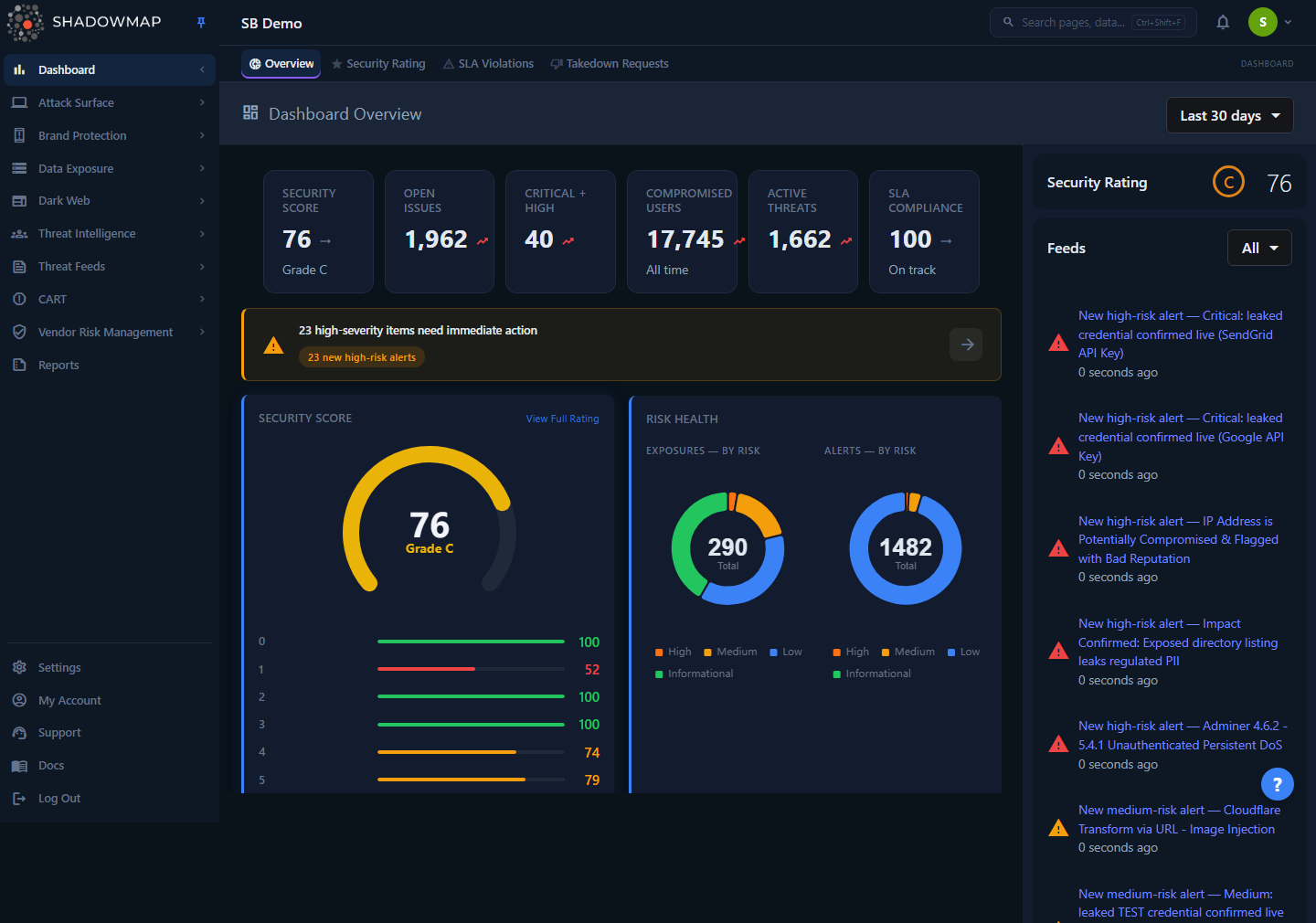
The page is a vertical stack of cards, with a live activity feed pinned to the right:
- Hero metrics strip — six headline KPIs across the top (Security Score, Open Exposures, Critical + High Exposures, Compromised Users, Active Alerts, SLA Compliance). Each card is clickable and jumps to the list that owns its count.
- Action Required banner — appears only when critical/high findings exist; jumps you straight to the worst items.
- Security Score (gauge + per-category breakdown) and Risk Health (exposure/alert donuts) side by side.
- Recent Findings — a prioritized, severity-grouped feed of what changed recently across all modules.
- SLA Violations and Alert Status by Action (alert response workflow) side by side.
- Detection Coverage — a per-module health matrix (open/closed counts and trend per module).
- Historical Trend (open vs. closed over time) and Tracked Actors (threat-intel actor activity) side by side.
- Feeds sidebar — the running stream of new findings, plus a compact Security Rating badge.
A time-range dropdown sits in the Detection Coverage card header and offers Last 7 days, Last 30 days (default), Last 90 days, Last 6 months, Last 1 year, and All time. The selection is saved to your browser, so the dashboard remembers it between sessions. It re-filters only the Detection Coverage matrix — every other card ignores it (see below).
Who sees what
The Detection Coverage matrix requires the dashboard.executive-summary:read permission. If your role lacks it, that section stays empty while the rest of the dashboard renders normally. Every drill-down link also respects per-module permissions — you only reach modules you can access.
How it works
The dashboard makes roughly seven parallel API calls on load. Each card loads and fails independently — a broken widget shows an empty state rather than blanking the page. Changing the time range re-fetches only the Detection Coverage matrix, not the whole page. Here are the mechanics you can't see from the UI.
Where each hero number comes from
The six hero metrics are deliberately sourced from disjoint backend widgets so nothing is double-counted. Each card is clickable and opens the list named in its Source column, so the card value and the destination's record count stay in sync:
| Metric | How it's calculated | Source |
|---|---|---|
| Security Score | Pre-computed overall rating (0–100) with a letter grade. Shows — if no rating has been computed yet. | Security Ratings (finalScore) |
| Open Exposures | Current count of open web-application exposures — the same open queue the Web Applications list shows (status IN (New, Open, Reopened)). | New Exposures widget → Web Applications |
| Critical + High Exposures | The high-risk slice of that same open-exposures set. | New Exposures widget → Web Applications |
| Compromised Users | The needs-action count from the Compromised Users (stealer-log passwords) summary — infected users still awaiting triage, matching the tab it opens. Labelled "Needs action". | Compromised Users summary |
| Active Alerts | Alerts currently in Needs Review. | Alerts subview counts (Needs Review) |
| SLA Compliance | floor(closed / all) as a percentage, where all = open + escalated + closed (see below). Shows — when there is no SLA data. | SLA Violations summary |
"Compromised Users" is the needs-action queue, not a total
The hero Compromised Users card shows the needs-action count from the Compromised Users (stealer-log passwords) summary — infected users still awaiting triage — and is labelled "Needs action". Clicking it opens the Compromised Users list on its needs-action tab, where the visible count matches. It is deliberately not an all-time total: the Dark Web Overview shows a time-windowed count of the same data, so the two surfaces will differ. See Dark Web Overview.
The date range only drives Detection Coverage
The date-range dropdown re-filters the Detection Coverage matrix and nothing else. The hero strip, Risk Health donuts, Recent Findings, SLA, Historical Trend, Tracked Actors, and the Feeds sidebar all load once and use their own current-state or scan-session windows — they don't honour the dropdown. Treat everything except Detection Coverage as a "current state" snapshot.
Security Score and grades
The Security Score gauge shows your overall rating out of 100. The grade and its colour come from fixed thresholds, and the same scale is used for each module bar underneath the gauge:
| Score | Grade | Colour |
|---|---|---|
| 90–100 | A | Green |
| 80–89 | B | Green |
| 70–79 | C | Amber |
| 60–69 | D | Orange |
| 0–59 | F | Red |
The bars below the gauge break the score down by category (e.g. Attack Surface, Dark Web, Brand Protection) so you can see which area is dragging the overall number down. View Full Rating in the card header opens the Security Rating page for the full methodology and factor-level detail.
A blank score means "not computed", not "F 0"
If a rating hasn't been computed for your tenant yet, the score renders as — (and the sidebar badge shows a muted dash), not an "F 0". A real failing grade only appears when there is a genuine zero score behind it.
SLA Compliance math
SLA compliance comes from the SLA Violations summary — the same open/escalated/closed totals the SLA Violations list uses:
compliance % = floor( closed / (open + escalated + closed) × 100 )Only closed (remediated) violations count as compliant; both still-open and escalated (breaching-but-escalated) violations count against you. The result is floored, not rounded, so a portfolio at 99.6% never reads as a clean "100%". When there is no SLA data at all, the card shows — / "No data" rather than a false 100%. Below 90%, the hero card flips to "Needs attention"; at or above 90% it reads "On track". The SLA card itself shows the Open and Closed counts (each links to that SLA tab) plus a short Top Violators list. View All opens the full SLA Violations list.
Risk Health donuts are click-to-filter
The two donuts (Exposures by Risk, Alerts by Risk) break current items into High / Medium / Low / Informational, with the live total in the centre. Clicking a slice navigates you to the corresponding list pre-filtered to that risk band:
- Exposures donut → Web Applications, filtered to
status IN (New, Open, Reopened) AND risk = <slice>. - Alerts donut → Alerts list (All tab), pre-filtered to
status IN (New, Open) AND response = Needs Review AND risk = <slice>.
Alert Status by Action (alert response workflow)
This card mirrors the four working tabs of the Alerts list so the numbers line up exactly:
| Stage | Meaning |
|---|---|
| Needs Review | Alert is open and nobody has triaged it yet. |
| Investigating | Someone has picked it up and is working it. |
| Accepted Risk | Reviewed and consciously accepted (not remediated). |
| Closed | Resolved / no longer relevant. |
Each stage tile links to the matching Alerts tab, and View All in the card header opens the Needs Review tab. The bar underneath shows the proportional split across the four stages.
Detection Coverage matrix
The matrix is a single batch call (/dashboard/executive-summary/batch) that replaces what used to be 20+ individual widgets. Each card shows a module's Open and Closed counts plus a trend percentage. Per EASM semantics, more items is bad: an upward trend renders red, a downward trend green. Only modules with a non-zero count are shown — empty modules are hidden to keep the grid scannable. Each card links to that module's list page. The time-range dropdown lives in this card's header and re-filters only this matrix.
Modules in the matrix, grouped by category:
| Category | Modules |
|---|---|
| Attack Surface (blue) | Web Applications, Network Services, SSO, JS Trackers |
| Alerts (orange) | Alerts |
| Dark Web (red) | Compromised Users / Cookies / Autofills / Cards / Wallets / Tokens, Browser History, Data Breaches, Discussions |
| Brand Protection (purple) | Phishing, Domain Squatting, Fake Applications |
| Data Leaks (cyan) | Code Repositories, Leaked Files, Leaked APIs, Docker Containers, S3 Buckets |
| Threat Intelligence (green) | News Feeds |
Dark-web "Compromised *" cards intentionally show Open only (no Closed column), since those findings are evidence of compromise rather than a workflow you close out.
Recent Findings feed
Recent Findings aggregates findings from 13+ module repositories into one prioritized, severity-grouped list. Each row is a group (e.g. "5 new high-risk alerts") with a severity icon, a count, a category label, and a drill-through arrow. Any group that carries drill-down items exposes an expand control to preview the individual findings in place (each with its own risk letter); the top five groups show by default, with a Show all N toggle for the rest. A summary bar at the top tallies Critical / High / Medium when multiple severities are present. When there's nothing new, the card shows an "All Clear" state. The subtitle reads N in last X days, reflecting the feed's own time window.
Action Required banner
When the findings feed contains critical or high severity groups, a banner surfaces above everything else with one clickable chip per critical/high finding group and a total count. The banner uses a uniform amber warning style; its title reads "critical" when any critical group is present and "high-severity" otherwise. Each chip deep-links into the relevant module list, and the arrow button jumps to the first item. The banner is purely derived from Recent Findings; it disappears entirely when there's nothing critical or high outstanding.
Tracked Actors and Historical Trend
- Tracked Actors lists up to five threat actors you're tracking, with origin/country and (where known) campaign or motivation, plus a relative "last active" timestamp. It's empty until you start tracking actors — an empty card shows a Track Threat Actors link instead. Manage Tracked Actors at the foot of the card opens the Threat Actors list.
- Historical Trend plots Open (red) vs. Closed (green) item counts over time so you can answer "are we getting better or worse?" The chart is empty until enough history has accumulated.
Feeds sidebar
The right-hand sidebar streams new findings as they're detected — each item has a module icon, a title that links to the source, and a relative timestamp. A multi-select filter narrows the stream by category: Attack Surface, Alerts, Dark Web, Brand Protection, Data Leaks, Threat Intelligence. The feed paginates as you scroll. Above it sits a compact Security Rating badge (grade + score) that mirrors the gauge.
Reading the dashboard
A practical top-to-bottom triage when you open the page:
- Action Required banner (if present) — the single highest-priority thing to look at. Click a chip to go straight to it.
- Hero strip — is the Security Score where you expect? Are Critical + High Exposures and Active Alerts trending the wrong way?
- Risk Health donuts — click the High slice on either donut to jump into the high-risk exposures/alerts.
- Recent Findings — scan the severity-grouped feed for anything new; expand a group to preview before drilling in.
- SLA Violations / Alert Status by Action — confirm nothing is breaching SLA and that open alerts are actually being worked, not piling up in Needs Review.
- Detection Coverage — spot any module trending red (growing) and drill into it.
Common questions
My Security Score shows "—" instead of a number. Is something broken? No. A dash means no rating has been computed for your tenant yet (common on brand-new accounts or POCs before the first full scan completes). It is deliberately not shown as "F 0" so a missing rating can't be mistaken for a catastrophic one. The number appears once scan data is available.
The "Compromised Users" number here differs from the Dark Web Overview. Which is right? Both are correct — they measure different things. The Dashboard hero card is the needs-action queue (compromised users still awaiting triage, hence the "Needs action" caption) and matches the Compromised Users list tab it opens. The Dark Web Overview applies a time window over the same data. Use the hero card for what needs working now and the Dark Web Overview for windowed activity.
I changed the time range but the hero metrics didn't move. Expected. The date-range dropdown re-filters only the Detection Coverage matrix. The hero strip and every other card load once and use their own current-state windows. Use the relevant module list page if you need a fully custom date filter.
The Detection Coverage matrix is empty for me. That section requires the dashboard.executive-summary:read permission. If your role doesn't include it, the matrix stays blank while everything else loads. Ask an administrator to grant the permission, or use the per-module list pages directly.
Why do some Dark Web modules show only an "Open" count? The "Compromised *" findings (cards, cookies, tokens, etc.) represent evidence of compromise, not a triage workflow you close out, so they intentionally omit a Closed column.
A finding group in Recent Findings won't expand. Only groups that carry drill-down items expose the expand control. A group with no attached items has nothing to preview, so clicking it goes straight to the module list.
Clicking a donut slice took me to a filtered list — can I clear that filter? Yes. The risk filter is applied via the URL query on the destination list page; clear it there (or remove the filter chip) to see the unfiltered list.
Related
- Security Rating — the full methodology behind the Security Score gauge and the per-category breakdown.
- SLA Violations — the list the SLA card and "View All" link open.
- Alerts — destination for the Alerts donut and the Alert Status by Action stages; its tabs match the response workflow shown here.
- Web Applications — destination for the Exposures donut and the Web Applications matrix card.
- Dark Web Overview — the time-windowed counterpart for the Compromised Users metric.
- Threat Actors — where the Tracked Actors card's "Manage Tracked Actors" link opens.