
Executive Dashboards
Executive Dashboards embed curated Metabase analytics directly inside ShadowMap, giving boards, CISOs, and other stakeholders a single, branded view of attack-surface posture without handing out a Metabase login. Each dashboard is a saved pointer to a Metabase dashboard that ShadowMap renders in-app over a short-lived signed link.
Overview
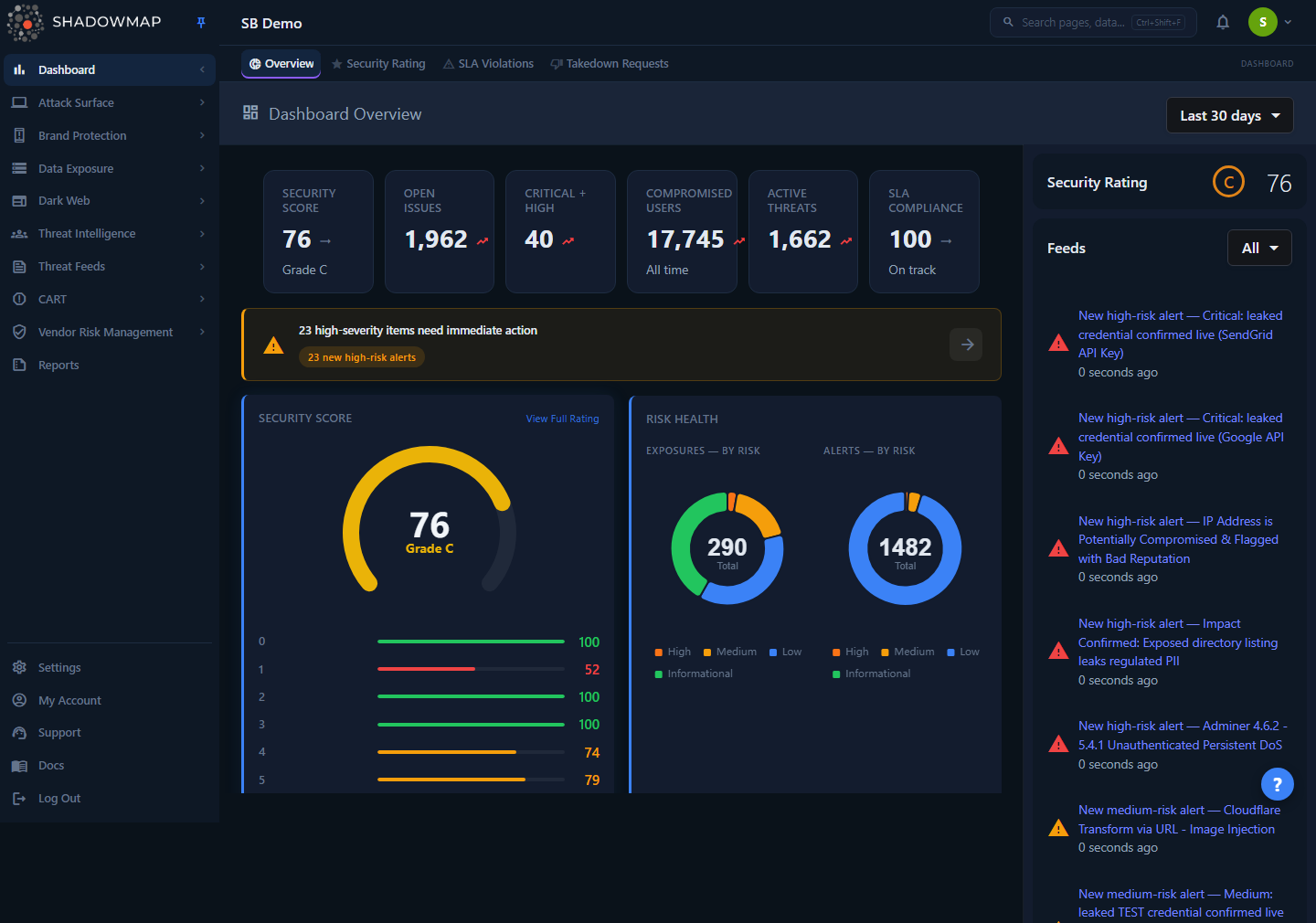
Screenshot shows the Overview fallback
A dashboard only renders when you open it by its record ID, at /dashboard/executive-dashboards/{id}. The bare path /dashboard/executive-dashboards (with no ID) always redirects to the Dashboard Overview, so the captured screenshot above is the Overview page, not an Executive Dashboard. Open a specific dashboard from Settings → Executive Dashboards (Copy link) or via its ID to see the embedded Metabase view.
The feature has two surfaces:
- The viewer at
/dashboard/executive-dashboards/{id}— renders a single configured dashboard full-bleed in an embedded frame. This is what a stakeholder opens. - The manager in Settings → Executive Dashboards — where an administrator registers, names, and removes the dashboards that appear in the viewer. Each entry maps a friendly name to a Metabase dashboard ID.
Because the content is authored in Metabase, what each dashboard shows (charts, KPIs, trends, time ranges) is entirely up to whoever built it in Metabase — ShadowMap does not impose a fixed set of widgets here.
How it works
The mechanics below are not visible in the UI but determine what renders and who can see it.
Embedding model
ShadowMap does not duplicate your analytics. An Executive Dashboard record stores only three meaningful fields:
| Field | Purpose |
|---|---|
title | The friendly name shown in Settings and used to identify the dashboard. |
metabase_dashboard_id | The numeric ID of the dashboard inside your connected Metabase instance. |
company_id | Binds the record to your tenant for multi-tenant isolation. |
When a viewer opens a dashboard, the frontend calls POST /dashboard/executive-dashboard/get with the record ID. The backend looks up the record, confirms it belongs to the caller's company, and returns a fully-formed Metabase embed URL. ShadowMap then loads that URL in an <iframe> so the Metabase content appears inside the ShadowMap shell.
Signed, short-lived access (JWT)
Access to the embedded Metabase content is granted with a signed token, not a Metabase session:
- The backend builds a JWT payload that names the target dashboard (
resource.dashboard = metabase_dashboard_id) and sets an expiry of 10 minutes from the time of the request. - The payload is signed with the HS256 algorithm using your Metabase embedding secret key (
METABASE_SECRET_KEY/metabase.secret_key). - The returned URL is
{metabase_site_url}/embed/dashboard/{token}#bordered=true&titled=true— a Metabase signed embedding link, bordered and showing the dashboard title.
Because the token expires after 10 minutes, the embed link is generated fresh on every load. Viewers never authenticate to Metabase directly and never receive long-lived credentials. If the embed appears blank after the page has sat idle, the token has likely expired — reload the page to mint a new one.
Metabase must be configured server-side
The embed depends on two server settings: the Metabase site URL (metabase.site_url) and the signing secret (metabase.secret_key, from METABASE_SECRET_KEY). If the secret is missing or not a valid string, the viewer returns Metabase is not configured. Please set METABASE_SECRET_KEY. rather than a broken frame. This is an environment-level setup performed by your ShadowMap administrator or by the ShadowMap team, not something configurable from the UI.
Tenant isolation
Every operation is scoped to your company. The viewer refuses to render a record whose company_id does not match the caller (Invalid request), and the Settings update and delete operations only resolve records that belong to your company — a dashboard ID from another tenant returns Dashboard not found. This prevents one tenant from pointing its viewer at, or tampering with, another tenant's Metabase data.
Managing dashboards
Dashboards are created and removed from Settings → Executive Dashboards. This page requires the settings.executive-dashboards:read permission to view and settings.executive-dashboards:write to create, update, or delete.
The page lists every configured dashboard as a card showing its name, the linked Metabase #ID, and the creation date. Each card exposes two actions.
Create a dashboard
- Click New Dashboard (top right).
- Enter a Dashboard Name — the label stakeholders will recognise (for example, Monthly Security Summary).
- Enter the Metabase Dashboard ID — the numeric ID of the dashboard in your connected Metabase instance (for example, the
42in a Metabase URL like/dashboard/42). - Click Create Dashboard.
Find the Metabase Dashboard ID
Open the dashboard inside Metabase and read the number in its URL (.../dashboard/<id>). That dashboard must be marked enabled for embedding in Metabase, and the same signing secret must be configured on both sides, or the embedded frame will fail to load.
Card actions
| Action | Icon | What it does |
|---|---|---|
| Copy link | Copy | Copies a link to your clipboard for sharing the dashboard with another ShadowMap user. The recipient still needs ShadowMap access and the settings.executive-dashboards:read permission. |
| Delete | Trash | Removes the dashboard record after a browser confirmation prompt. This deletes only the ShadowMap pointer — the underlying Metabase dashboard is untouched. |
When no dashboards are configured, the page shows an empty state: No executive dashboards configured — Create a dashboard to embed Metabase analytics for stakeholders.
Viewing a dashboard
A configured dashboard is opened at /dashboard/executive-dashboards/{id}, where {id} is the ShadowMap record ID. The view fetches a fresh embed URL and renders the Metabase dashboard full-width inside ShadowMap. A loading indicator (Please wait..) shows while the signed URL is being generated. If generation fails — for example, the record was deleted, the ID belongs to another tenant, or Metabase is unconfigured — an error toast surfaces the backend message instead of rendering a frame.
Because the content is a live Metabase embed, any interactivity the Metabase dashboard author enabled (filters, drill-throughs, date pickers) works inside the frame, subject to Metabase's signed-embedding limits.
Common questions
The dashboard opened the Overview page instead of my analytics. Why? You opened the bare path /dashboard/executive-dashboards with no dashboard ID. ShadowMap always redirects that path to the Dashboard Overview — a dashboard only renders at /dashboard/executive-dashboards/{id}. Open a specific dashboard by its ID, for example using the Copy link action in Settings → Executive Dashboards. Viewing a dashboard requires the settings.executive-dashboards:read permission.
The embedded frame is blank or shows a Metabase error. Common causes: (1) the target Metabase dashboard is not enabled for embedding; (2) the Metabase signing secret on the ShadowMap server does not match the one in Metabase; (3) the metabase_dashboard_id is wrong or the dashboard was deleted in Metabase; or (4) the signed token expired because the page sat idle — reload to mint a new 10-minute token. If you see Metabase is not configured, the server-side METABASE_SECRET_KEY is missing and an administrator must set it.
Can stakeholders see this without a ShadowMap login? No. The viewer lives inside ShadowMap and requires authentication plus the settings.executive-dashboards:read permission. The "Copy link" action produces an in-app link, not a public Metabase URL. The 10-minute signed token is generated server-side per request and is never exposed for direct reuse.
Can a dashboard show another company's data? No. Every record is bound to a company_id, and the viewer, update, and delete operations all refuse records that do not belong to your tenant. A cross-tenant ID returns Invalid request or Dashboard not found.
I deleted a dashboard by mistake — is the Metabase dashboard gone? No. Deleting in ShadowMap only removes the pointer record (name + Metabase ID). The actual dashboard and its data remain in Metabase. Re-add it from Settings by entering the same Metabase Dashboard ID.
Who can create or remove dashboards? Only users with settings.executive-dashboards:write. Read-only users can open and view dashboards but cannot add, edit, or delete them. Configuring the Metabase connection itself (site URL and secret) is a server-level task handled by your administrator or the ShadowMap team, not via the UI.
Related
- Dashboard Overview — the default landing dashboard, and the page tenants without Executive Dashboards are redirected to. Use it for built-in posture KPIs (security rating, alerts, SLA) when you do not need a custom Metabase view.
- Reports — ShadowMap's native reporting surface; reach for it when you want platform-generated analytics and exports rather than an embedded Metabase dashboard.
- Security Rating — the headline posture score surfaced on the Overview, often the metric an executive dashboard is built to track over time.