
Credit Card Leaks
ShadowMap surfaces payment-card data tied to your organization that appears in infostealer logs and breach dumps circulating on the dark web. Each card is checked against the corporate BIN ranges you configure, so you can separate noise from cards your own bank actually issued.
This page moved
The legacy /darkweb/credit-card view has been replaced by the Compromised Cards surface inside Stealer Logs. Old links (and bookmarks, alert emails, and ServiceNow references) redirect automatically to /darkweb/stealer-logs-v2/cards/needs_action. The data is the same payment-card exposure, with a richer schema (BIN6/BIN8 split, per-machine attribution, BIN matching).
Overview
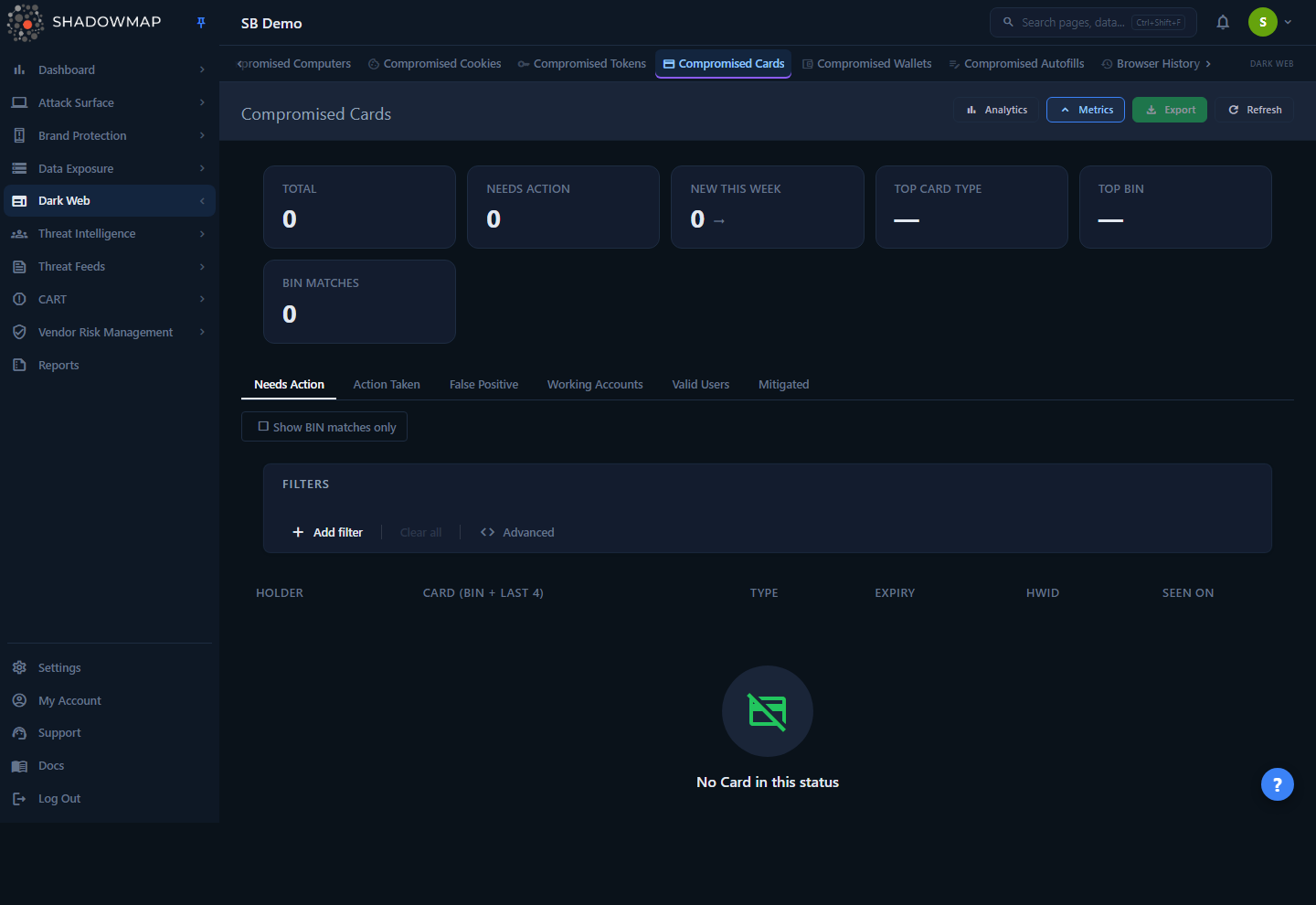
Compromised Cards is one of six finding types extracted from stealer logs (alongside cookies, autofills, crypto wallets, tokens, and browser history). Each row is a single payment card recovered from a stealer dump or carder source and attributed to the infected machine (HWID) it was stolen from.
At the top of the page you get a metrics strip (KPI cards) and an analytics panel (charts) summarizing the whole card set, then a status-tabbed, filterable table. Click any row to open its detail page.
The card number is masked by default in the list — you see only the issuer prefix (BIN6) and the last four digits, never the full PAN. This keeps the list usable without putting full card numbers on screen during routine triage.
How it works
The mechanics below are not visible from the UI but determine what you see and which cards get flagged.
Where the data comes from
Cards are parsed out of infostealer logs — malware (RedLine, Raccoon, Lumma, Vidar, and similar families) that harvests everything stored in a victim's browser and applications, including saved payment cards. Each stolen card is tied to the machine it came from via a hardware ID (HWID), so a single compromised device often produces a cluster of related findings across cards, cookies, autofills, and credentials.
Because the source is malware on an endpoint rather than your payment systems, a card appearing here usually points to one of: a customer or employee whose personal device was infected, a card that was entered on a page your brand controls, or a third party in your payment chain. See Why this matters for how to read the signal.
BIN matching — the key signal
A BIN (Bank Identification Number) is the leading 6-8 digits of a card number, which identify the issuing bank and card program. If you are a card issuer (a bank, fintech, or any org that issues corporate cards), you can register your BIN ranges and ShadowMap will flag exactly which leaked cards came out of your portfolio.
- Configure your BINs under Settings → Corporate Card BINs (
/settings/card-bins). Each BIN is 6-8 digits; add them one at a time or bulk-import a CSV. - On ingest, every new card's
bin6andbin8are compared against your configured BINs. A match sets the row'sis_bin_matchflag, which renders an amber BIN match chip next to the card number in the list. - A match also raises a high-severity notification (
card_bin_match) in your notification bell — near-real-time, without anyone needing to open the page. The notification reads, e.g., "Corporate BIN 411111 matched on card ending 1234."
Without configured BINs, every card is still listed — you just lose the ability to distinguish cards you issued from cards merely associated with your domain or employees.
Status workflow
Every card carries one of six workflow statuses. The list is organized into one tab per status, and both the detail page and the list's bulk action bar (see Bulk actions) expose controls to move cards between them.
| Status | Tab | Meaning |
|---|---|---|
| Needs Action | Needs Action | Default state for a newly ingested card. Awaiting triage. |
| Action Taken | Action Taken | Your team investigated and responded (reissued, reported to the issuer, etc.). |
| Dismissed | Dismissed | Not a genuine exposure for your org, or not actionable. (This is the false_positive state, relabelled "Dismissed" across the Stealer Logs cluster.) |
| Working Account | Working Accounts | The card/identity is confirmed active and relevant — kept for tracking. |
| Valid User | Valid Users | Confirmed to belong to a real user in scope. |
| Mitigated | Mitigated | Risk has been neutralized (card cancelled/reissued). Can be driven automatically — see below. |
New cards always land in Needs Action. The Mitigated tab is shared across all stealer-log finding types and can be populated automatically: under Automated Mitigation (reachable from the Mitigated tab) you manage a list of subdomains whose findings are auto-marked mitigated, so cards tied to systems you've already remediated don't keep reappearing in the active queue.
Counts and dedup
- The metrics strip totals are cross-tab — "Total" reflects every card across all statuses, not just the active tab. Tab counts in the strip break that down by status.
- Cards are deduplicated on ingest (each row carries a
deduplication_hash), so the same card seen in multiple dumps collapses to one finding with first-seen / last-seen tracking. - The table footer shows the count for the active status tab only (e.g. "1-25 of 312"). There is no single cross-tab count chip in the table itself by design.
Understanding the data
List columns
The cards table shows a fixed column set. The full record (including BIN6, BIN8, Group, and Custom Tags) is on the card's detail page.
| Column | Description |
|---|---|
| Holder | Cardholder name as recovered from the stealer log. |
| Card (BIN + last 4) | Masked card number — issuer prefix and last four digits only. Full PAN is never shown in the list. |
| Type | Card network/program string as captured (e.g. "Visa", "Mastercard", "VISA Debit"). |
| Expiry | Expiration as a free-form string from the source (formats vary: 12/25, 12/2025, 2025-12). |
| HWID | Hardware ID of the infected machine the card was stolen from. |
| Seen On | When the card was observed on the source (falls back to ingest date). |
When a row matches a configured corporate BIN, an amber BIN match chip appears next to the masked card number.
Metrics strip
| Metric | What it tells you |
|---|---|
| Total | Every compromised card across all statuses. |
| Needs Action | Cards awaiting triage (red). Click to jump to the Needs Action tab. |
| New This Week | Cards first seen (or ingested) in the last 7 days — detection velocity. |
| Top Card Type | The most common card type among Needs Action cards. Click to filter to it. |
| BIN Matches | Count of cards matching one of your configured corporate BINs (red). Your highest-priority subset. |
Analytics panel
| Chart | What it shows |
|---|---|
| Detection trend | Daily card detections over the last 30 days — a continuous line, gaps filled with zero. |
| Card Type Distribution | The mix of card_type values (as captured, not canonicalised) across Needs Action cards. |
| Top BINs | The top 10 issuing BIN6 ranges by count among Needs Action cards — portfolio exposure for issuers. |
The backend also computes an expiry horizon breakdown (Expired / Active / Unknown) over Needs Action cards. Active cards are live fraud risk and should be prioritized for reissue; unparseable expiry strings land in "Unknown" rather than being guessed.
Filtering & search
The toolbar above the table provides:
- Field filters —
BIN (first 6),BIN (first 8),Card Type,Group,HWID,Custom Tags,Executive, plusSeen OnandAdded Ondate ranges. Filters use field/operator/value rules; dropdown values load on first use. - Search — free-text across the current card set.
- Show BIN matches only — a toolbar toggle (cards-only) that restricts the table to cards matching a configured corporate BIN. When on, a hint confirms you're seeing BIN6/BIN8 matches. This is the fastest way to drill straight to your issued-card exposure.
TIP
Filters and search reset when you switch finding types (cards → cookies, etc.) because each type has its own field set — and they also clear when you switch status tabs, so re-apply a BIN or card-type filter after moving a card to a new status.
Bulk actions
Tick the checkbox on any row — or the header checkbox to select the whole page — to reveal a bulk action bar at the bottom of the screen. From there you can move every selected card to a different status in one step (Needs Action, Action Taken, Dismissed, Working Accounts, or Valid Users) or Add Tags to apply a custom tag to the entire selection. The bar covers the common triage transitions; the Mitigated status is set from the detail page (or driven automatically via Automated Mitigation), and export runs from the toolbar rather than the selection.
Detail view
Clicking a row opens the card's detail page. Status actions sit at the top of the page — buttons to set the card to Action Taken, Dismissed, Working Account, Valid User, or Mitigated. The current status is highlighted, and a Back to list button returns you to the exact tab and filter slice you came from. The record itself is split across three tabs:
Overview — the full card record (Holder, full Card Number, BIN6, BIN8, Card Type, Expiry, HWID, Group, Custom Tags, Seen On, and Added On), plus an inline custom tags chip editor to add or remove freeform tags on the card (e.g. case IDs, owning team). Tags are searchable from the list filters.
Related — the machine-level context. Related computer shows the infected machine's details (computer name, domain, IP, OS, country, group), so you can pivot to everything stolen from the same endpoint; a View Full Computer Detail link jumps to that machine. Related on same machine summarizes other findings (credentials, cookies, wallets, etc.) recovered from the same HWID. A single infection rarely yields just one card; this is where you see the full blast radius.
Activity — the finding's comment thread, for recording triage notes and coordinating with your team. Comments are also reachable inline from each row's Actions column in the list.
Taking action
- Triage BIN matches first. Turn on Show BIN matches only (or use the BIN Matches metric). These are cards your own institution issued — the most actionable and the only set you can directly remediate by reissuing.
- Open the detail and review the related machine. A card is a symptom of an infected endpoint. Check Related computer and Related on same machine to understand the full compromise.
- Act, then record it. Reissue/cancel the card and report to your issuer or acquiring bank as appropriate, then mark the finding Action Taken or Mitigated so it leaves the active queue.
- Tag for tracking. Use custom tags for case numbers or owning teams; use the Dismissed status to clear cards that are out of scope or not genuine exposures.
- Export for downstream work. The Export toolbar button streams the current status tab's cards as a spreadsheet for ticketing, fraud-ops handoff, or evidence.
Why this matters
A leaked corporate card on the dark web is a confirmed live fraud exposure, and a cluster of customer cards tied to your brand can indicate a payment-page compromise (web skimming / Magecart) or a breach at a payment processor in your chain. Confirmed cardholder-data exposure also carries PCI DSS obligations — incident reporting to payment brands and acquiring banks, and potentially a PCI Forensic Investigator engagement. Treat BIN matches and any pattern of cards sharing a source as escalation triggers, not routine noise.
Setup: Corporate Card BINs
To enable BIN matching, configure your issuing ranges under Settings → Corporate Card BINs (/settings/card-bins):
- Enter a 6-8 digit BIN in the input (e.g.
411111) and click Add BIN. Input is validated as 6-8 digits; duplicates are rejected. - Or Upload CSV to bulk-import. The importer reports how many BINs were added, how many duplicates were skipped, and how many rows were invalid.
- Use Download CSV to export your current BIN list, and the row delete action to remove a BIN.
Once configured, matching breach-dump cards are flagged with the BIN match chip and trigger a high-severity notification the moment a new match is ingested.
Common questions
Why did the page redirect to "Compromised Cards"? The old Credit Card Leaks view was retired in favor of the Compromised Cards surface, which has a richer schema (BIN6/BIN8, per-machine attribution, BIN matching) and shares the Stealer Logs workflow. The underlying payment-card data is the same; old deep links redirect automatically.
Why are card numbers masked? The list shows only BIN6 and the last four digits to avoid putting full PANs on screen during routine triage. The full number is available on the card's detail page when you need it for verification or reporting.
Does a card here mean my payment systems were breached? Not necessarily. Cards come from infostealer malware on endpoints, so a card can land here because a customer's or employee's personal device was infected, or because a card was entered on a page your brand controls. A pattern of customer cards tied to your checkout, or any BIN match, warrants investigation as a possible payment-page or processor compromise.
What's the difference between a BIN match and just appearing in the list? Every card associated with your org is listed. A BIN match specifically means the card was issued from a BIN range you registered — i.e. you issued that card. Those are your direct fraud exposure and your highest-priority subset.
How do I stop already-remediated cards from reappearing? Mark them Mitigated, or use Automated Mitigation (from the Mitigated tab) to auto-mitigate findings tied to subdomains/systems you've already remediated.
Can I get alerted without checking the page? Yes. Any new card matching a configured corporate BIN raises a high-severity notification in your bell. You can also configure SLA Policies to escalate new findings on a clock.
Related
- Stealer Logs — the parent module; compromised credentials and the full stealer-log workflow.
- Compromised Computers — the infected machines (HWIDs) these cards are stolen from; pivot here to see a device's full blast radius.
- Data Breaches — third-party breach dumps that may also contain payment-card data.
- Dark Web Overview — summary of all dark-web exposure across sources.
- Card BINs — configure the corporate BIN ranges that drive BIN matching and notifications.
- SLA Policies — put a response clock on new card findings.