
Phishing & Impersonations
ShadowMap continuously monitors the internet for websites that impersonate your organization -- phishing pages designed to steal credentials, clone sites distributing malware, and any web property fraudulently using your brand identity. This module gives your security team the tools to detect, investigate, and take down these threats.
Overview
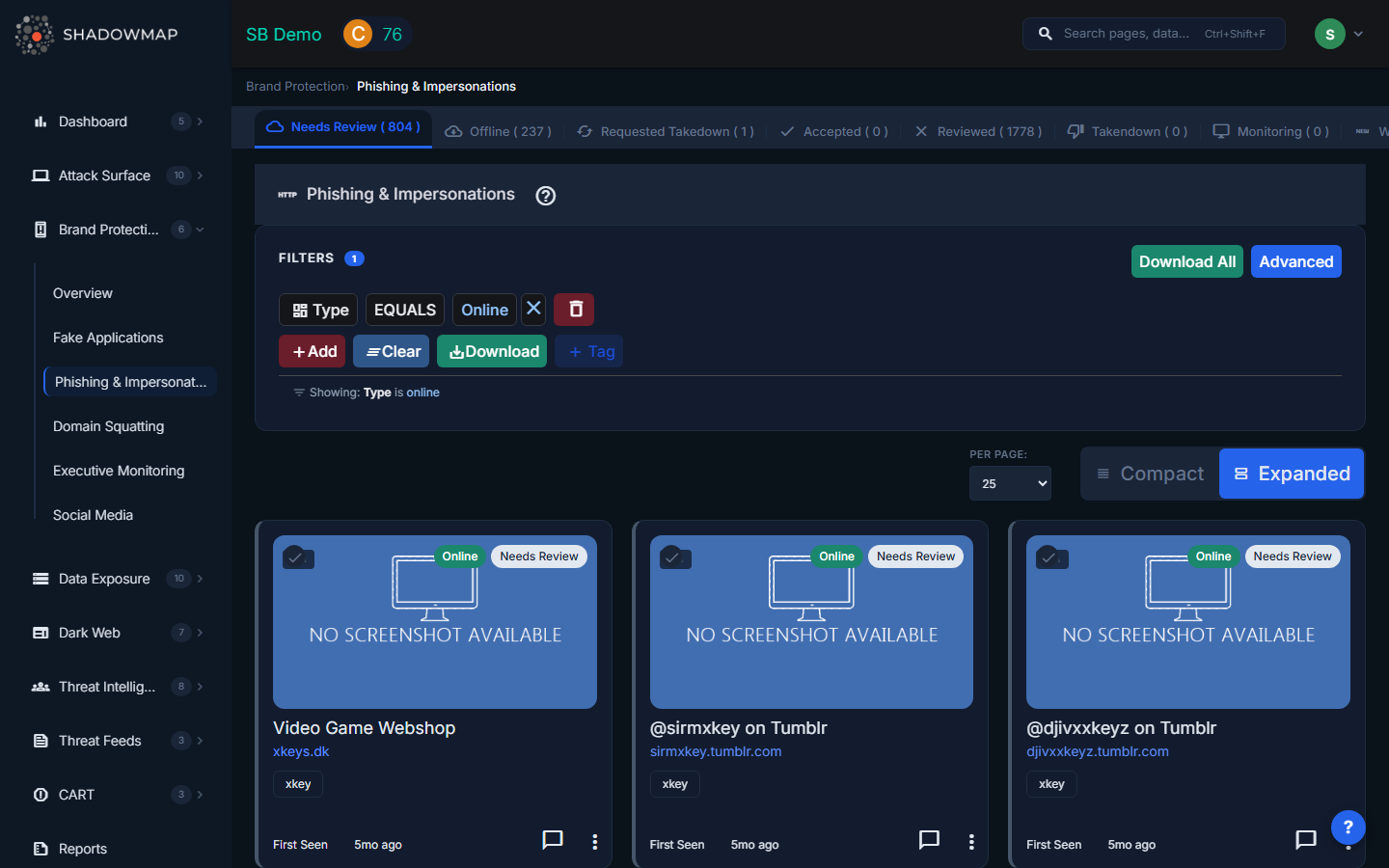
View Modes
The page supports two view modes, toggled via the view switch in the header:
- Card View (Expanded) -- Each phishing URL is displayed as a visual card with a screenshot of the page, risk badge, live status, title, URL, keyword, confidence score, custom tags, and organization tags. Best for visual triage.
- Tabular View -- A traditional table with sortable columns. Best for bulk review when processing large volumes.
Card View Fields
| Field | Description |
|---|---|
| Screenshot | Captured image of the phishing page with a risk badge overlay (top-left) and live status tag (top-right) |
| Title | The HTML title of the phishing page |
| URL / Subdomain | The full URL and extracted subdomain of the impersonation site (clickable to visit) |
| Keyword | The brand keyword that triggered detection |
| Confidence Score | Numerical score indicating how closely the site matches known impersonation patterns |
| Is Live | Whether the phishing site is currently online or offline |
| Custom Tags | User-applied tags for organizing and categorizing findings |
| Organization Tags | Detected organizations or technologies associated with the page |
| First Seen | When ShadowMap first detected this URL (shown as relative time) |
Tabular View Columns
| Column | Description |
|---|---|
| Status | Online/Offline indicator with HTTP status code |
| IP | IP address hosting the phishing page (with "+N more" if multiple IPs detected) |
| Title | Page title |
| Risk | Color-coded risk badge |
| Country | Hosting country |
| Domain | The domain name |
| Last Seen On | When the URL was last confirmed active |
| Takedown Requested On | Date a takedown was requested (if applicable) |
Status Tabs
Findings are organized into status tabs across the top of the page:
| Tab | Description |
|---|---|
| Needs Review | Newly detected phishing URLs awaiting analyst review (default landing tab) |
| Offline | URLs that are no longer resolving or returning content |
| Requested Takedown | URLs for which a takedown request has been sent to the hosting provider |
| Accepted | URLs confirmed as genuine threats and acknowledged by your team |
| Reviewed | URLs marked as false positives after investigation |
| Takendown | URLs that have been successfully removed |
| Monitoring | URLs being actively watched for changes (not yet actioned) |
| Weekly Summary | Newly detected URLs from the past week |
| Malicious | URLs confirmed as actively distributing malware |
Actions
Single-Item Actions (via three-dot menu on each card)
- Mark as Online -- Move a finding back to the Needs Review tab
- Mark as Accepted -- Confirm the finding as a genuine threat
- Request Takedown -- Opens the takedown email form (see below)
- Mark as Reviewed -- Flag as a false positive
- Mark as Monitoring -- Place under active monitoring without immediate action
Bulk Actions (multi-select)
Select multiple URLs using checkboxes, then use the bulk action bar:
- Mark as Accepted -- Bulk-confirm selected URLs
- Mark as Reviewed -- Bulk-dismiss as false positives
- Mark as Online -- Bulk-move back to Needs Review
- Mark as Monitoring -- Bulk-place under monitoring
- Custom Tags -- Apply tags to all selected URLs at once
Takedown Request
When you click "Request Takedown", an email form opens with:
- Priority selection (Low, Medium, High)
- Contact Person -- Select from team members or enter a custom contact (name, email, phone)
- Reason -- Select from Copyright Infringement, Phishing, or Fraud
- A takedown notification email is sent to the relevant hosting provider or registrar
Additional Features
- Add New Phishing URL -- Manually add a URL for monitoring if discovered through other channels
- Export -- Download findings in Excel format with applied filters
- Comments -- Add internal notes and discussion to any finding
- Per-page control -- Adjust how many results appear per page (25, 50, 100, 200, 500, 1000)
How Detection Works
ShadowMap detects phishing sites through multiple methods:
- Domain monitoring -- Scanning newly registered domains for names similar to your brand keywords
- Certificate Transparency (CT) logs -- Monitoring for SSL/TLS certificates issued to lookalike domains
- Content analysis -- Crawling suspicious pages and analyzing HTML, logos, and text for brand impersonation signals
- Keyword matching -- Cross-referencing detected domains against your configured brand keywords
- Third-party threat feeds -- Ingesting known phishing campaign data from external intelligence sources
Use Cases
- Incident response -- Quickly identify and take down active credential harvesting sites targeting your customers
- Proactive defense -- Monitor the "Monitoring" tab for domains that are registered but not yet weaponized
- Compliance -- Maintain a documented audit trail of brand abuse and takedown actions
- Reporting -- Export data for executive reports on phishing trends targeting your organization
Related
- Domain Squatting -- Lookalike domains often host phishing content
- Takedown Requests -- Track all takedown requests across modules
- Brand Protection Overview
- Social Media -- Phishing campaigns often use social media for distribution