
Telegram
ShadowMap monitors Telegram channels and groups used by threat actors and reposts the messages that mention your organization — your brand names, domains, or key personnel. Telegram has become a primary distribution channel for stealer logs, ransomware victim announcements, initial-access sales, carding, and hacktivist coordination, and it often surfaces this activity faster than traditional Tor-based forums.
Overview
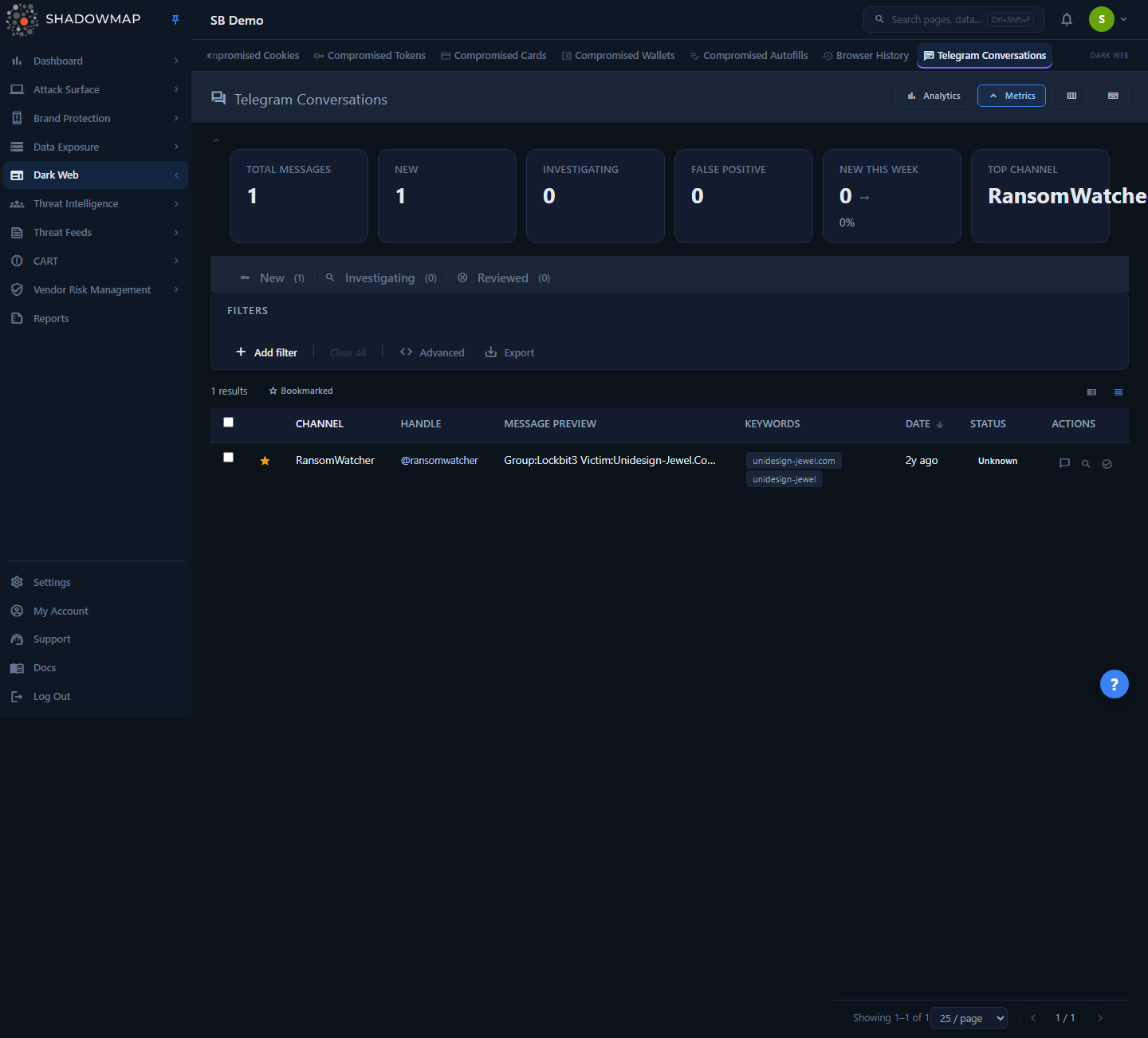
The page is a triage queue. Each row is a single Telegram message that matched one of your monitored keywords, attributed to the channel it was posted in. Above the table you get a metrics strip (counts by status, new-this-week trend, top channel), an optional analytics panel (four charts), status tabs, full-text search and field filters, and a sortable, paginated table. Selecting one or more rows reveals a bulk-action bar; clicking a row opens a detail drawer; the detail page gives a focused, tabbed view of a single message.
Telegram sits in the Dark Web module alongside Data Breaches, Compromised Computers, Stealer Logs, and Discussions. Use it to catch mentions of your assets in the fast-moving channel ecosystem and to route the serious ones into investigation.
How it works
These are the mechanics you can't read off the UI:
- Source. ShadowMap continuously ingests messages from a curated set of Telegram channels and groups associated with cybercrime — credential dumps, stealer-log resellers, ransomware leak announcements, access brokers, carding shops, and hacktivist coordination channels. The backend module that powers this view is internally named Morpheus.
- Matching. A message lands in your queue only when its text matches one of your monitored keywords — brand names, domains, executive names, and other identifiers configured for your tenant. The matched terms are stored on the row and shown in the Keywords column and detail view, so you can see exactly why a message surfaced. A message with no keyword match never enters your queue.
- Channel vs. message. A channel is the Telegram source (display name,
@handle, link); a message is one post within it. The list is message-level — the same channel can appear on many rows. Use the Top Channel metric card or the Top Channels analytics chart to spot a channel that is repeatedly posting about you, which usually signals a campaign rather than a one-off mention. - Status is per-message. New matches arrive in the Needs Review tab (status value
0, badge Active). An analyst moves a message to Investigating (2) while working it, or Dismissed (1) to close it as irrelevant or already handled. Two further states — Legitimate Breach (3) and Filtered by AI (6) — are driven by the AI-review workflow rather than the row buttons. (The Dismissed state is still backed by the platform's false-positive constant internally — value1— because dismissing a row is not necessarily a claim the mention is fake.) - AI triage (when enabled). For tenants with AI review enabled, each message is assessed by ShadowMap's AI, which records an AI Verdict, AI Score, and AI Tags and routes messages it judges benign into the Filtered by AI tab so analysts can focus on the rest. The three AI columns show only when your tenant has AI review enabled and the loaded rows carry AI data; the Filtered by AI tab itself is always present.
- No new scan to trigger. Ingestion runs on ShadowMap's schedule; you don't launch a scan from this page. New messages appear in the Needs Review tab as they are collected.
- Date sorting. The table defaults to sorting by Message Date (
messaged_at), newest first — i.e. the most recent Telegram posts about you are at the top.
Telegram is often the earliest signal
Because banned channels reappear within hours and posting is real-time, the same leak frequently shows up here before it reaches a Tor forum or a structured breach record. When you find a credential dump or stealer-log post mentioning your org, cross-check Stealer Logs and Data Breaches for the same data.
Understanding the data
Statuses
Five workflow states drive the tabs and the status badge on each row, in this order:
| Tab | Row badge | Value | Meaning |
|---|---|---|---|
| Needs Review | Active | 0 | A fresh keyword match that no analyst has triaged. This is your inbox. |
| Investigating | Investigating | 2 | An analyst is actively working the message. |
| Legitimate Breach | Legitimate Breach | 3 | Confirmed as a genuine breach or exposure. Populated by the AI-review workflow. |
| Dismissed | Dismissed | 1 | Triaged and closed — irrelevant, benign, or already handled. |
| Filtered by AI | Filtered by AI | 6 | Automatically set aside by AI review as benign, keeping it out of Needs Review. |
The Dismissed tab and its row badge share one status (value 1), which is still the platform's false-positive constant on the backend — the metrics strip even labels this count False Positive. The label is Dismissed in the tabs and rows because closing a message isn't necessarily a claim the content is fake. The row and drawer status buttons only cover Investigating and Dismissed; the Legitimate Breach and Filtered by AI states are assigned by the AI-review workflow rather than a row action. Tab counts in the header come from the summary endpoint and update as you change statuses.
Columns
The table is column-customizable (the Customize Columns button in the header toolbar toggles visibility; your choice is remembered in the browser).
| Column | What it shows |
|---|---|
Channel (channel_nice_name) | The channel's human-readable display name. Hover for the full value if truncated. |
Handle (channel_name) | The channel's @username. |
Message Preview (desc) | An excerpt of the message text; the full body is in the drawer and detail page. |
| Keywords | The monitored terms that matched this message, as chips (first three shown, with a +N overflow indicator). |
Date (messaged_at) | When the message was posted, shown as relative time. Default sort column. |
Status (response_status) | The current workflow-state badge — Active, Investigating, Legitimate Breach, Dismissed, or Filtered by AI. |
Only Channel, Handle, Date, and Status are sortable; Message Preview and Keywords render as plain headers because the backend can't order by them. When AI review is enabled for your tenant and the loaded messages carry AI data, three more columns appear to the right of these — AI Verdict, AI Score, and AI Tags — showing the AI's assessment of each message.
One further field appears in the detail views but not as a list column: Channel Link (a direct URL to the Telegram channel).
Opening channel links
The detail views include a direct Channel Link to the Telegram channel. These open external, attacker-controlled spaces. Open them from a sandboxed or non-attributable environment, not your corporate identity.
Filtering and search
The search bar combines a free-text search with structured field filters:
- Full-text search — searches within message content.
- Field filters — build conditions on:
- Channel Name (
channel_name) — the@handle. - Channel Display Name (
channel_nice_name). - Keywords (
dwi_keywords) — narrow to a specific monitored term. - Message Date (
messaged_at) — a date range to focus on recent activity.
- Channel Name (
- Bookmarked — the toolbar chip filters the current view to rows you have bookmarked (star icon).
- View mode — toggle Compact / Expanded row density.
Filters are scoped to the active status tab, and switching tabs clears the applied filters. Sorting is available on the sortable column headers — Channel, Handle, Date, and Status.
Detail view
Click any row to open the detail drawer on the right without leaving the list. It shows the channel name, a metadata grid (handle, message date, status), the matched keyword chips, the full message body, and the channel link. Use the chevrons to step prev/next through the list, or the open-in-new icon to jump to the full detail page. Message text is rendered as plain, pre-formatted text (no HTML execution) for safety.
The full detail page (open in new) presents three tabs:
- Overview — handle, display name, message date, status, matched keywords, and the full message.
- Evidence — the channel link (or a "no evidence links" state when none is available).
- Comments — analyst comments and any attachments, with author and timestamp.
Taking action
You can act on a single message (row buttons or drawer) or on many at once (bulk-action bar, shown when one or more rows are selected).
| Action | Where | What it does |
|---|---|---|
| Mark Investigating | Row, drawer, detail, bulk bar | Sets status to Investigating. |
| Mark Dismissed | Row, drawer, bulk bar | Sets status to Dismissed (close the message). |
| Bookmark | Row star, list toolbar | Flags a message for follow-up; filter to bookmarks from the toolbar chip. |
| Comment | Row, detail Comments tab | Add internal notes (and attachments) for investigation tracking. Comment templates are available. |
| Assign | Bulk bar | Assign selected messages to a team or person (or clear the assignee). |
| Share | Bulk bar | Push selected messages to a connected integration (for example Slack, Teams, or a ticketing tool). |
| Export | Search bar, bulk bar | Export the current filtered set (or selection) as a downloadable file. |
| Select all | Table header checkbox | Select every row on the page for a bulk action. |
Keyboard triage is supported on the list — j/k (or arrows) to move between rows, Enter to open detail, Space to select, s to toggle a bookmark, Esc to close the drawer, and ? to show the shortcuts overlay.
A practical triage flow
- Read the match. Is it a credential dump, an access sale, a ransomware victim post, or just a passing brand mention?
- Set urgency. Active credential dumps and access sales mentioning your domains need immediate response; generic mentions may only need monitoring. Move the row to Investigating if you're working it.
- Cross-reference. Check Stealer Logs and Data Breaches for the same data — Telegram often precedes them.
- Watch the channel. A single mention can be the start of a broader campaign; a channel that keeps appearing in Top Channels warrants tracking.
- Document and route. Use comments and Share to create a paper trail and hand off to incident response, then mark Dismissed when closed.
Common questions
Why did this channel/message show up for me? Because the message text matched one of your monitored keywords (brand, domain, executive name, etc.). The matched terms are shown in the Keywords column and on the detail view.
Does ShadowMap join the channels or interact with them? No. This is passive monitoring — ShadowMap ingests and reposts matching messages. You read evidence here; any direct visit to a channel link happens in your own browser, so use a non-attributable environment.
What's the difference between Telegram and Discussions?Discussions covers forum-based dark-web threads (typically Tor-accessed and slower-moving). Telegram covers real-time channel/group messaging. Both watch for mentions of your assets; serious findings often appear on Telegram first.
Can I get a takedown of a channel? Telegram takedowns have limited effectiveness — banned channels frequently reappear under new names — but reporting branded impersonation is still worthwhile. Treat detection and IR routing as the primary value here.
Why is "Dismissed" backed by a "false positive" status internally? Historically the dismiss state used the platform's false-positive constant (value 1), and that constant hasn't changed. The product label is Dismissed because dismissing a message isn't necessarily a claim that the content is fake — it just means it's been triaged and closed. You'll still see the older False Positive label on the metrics-strip card for this count.
What are the AI Verdict, AI Score, and AI Tags columns? For tenants with AI review enabled, ShadowMap's AI assesses each message and records a verdict, a numeric score, and descriptive tags, shown in three extra columns. Messages the AI judges benign are routed to the Filtered by AI tab so they don't clutter Needs Review. The AI columns appear only when your tenant has AI review enabled and the loaded messages actually carry AI data.
How do alerts work for new Telegram matches? New matches land in the Needs Review tab as they're ingested. Configure delivery (email, integrations, SLA timers) so the team is notified rather than polling the page. See Alerts.
Related
- Stealer Logs — raw stealer output that is frequently distributed on Telegram first; cross-check matches here.
- Compromised Computers — infected hosts behind the credentials and logs traded in these channels.
- Data Breaches — structured breach records that Telegram posts often precede or accompany.
- Discussions — forum-based dark-web monitoring; the complementary surface to Telegram channels.
- Dark Web Overview — consolidated summary across all dark-web sources, including Telegram.
- Alerts — route new Telegram detections to your team instead of polling the queue.