
Threat Feed
The Threat Feed provides a curated stream of threat intelligence covering ransomware groups, threat actors, vulnerabilities, exploits, and data breaches -- all summarized by AI for rapid consumption.
Overview
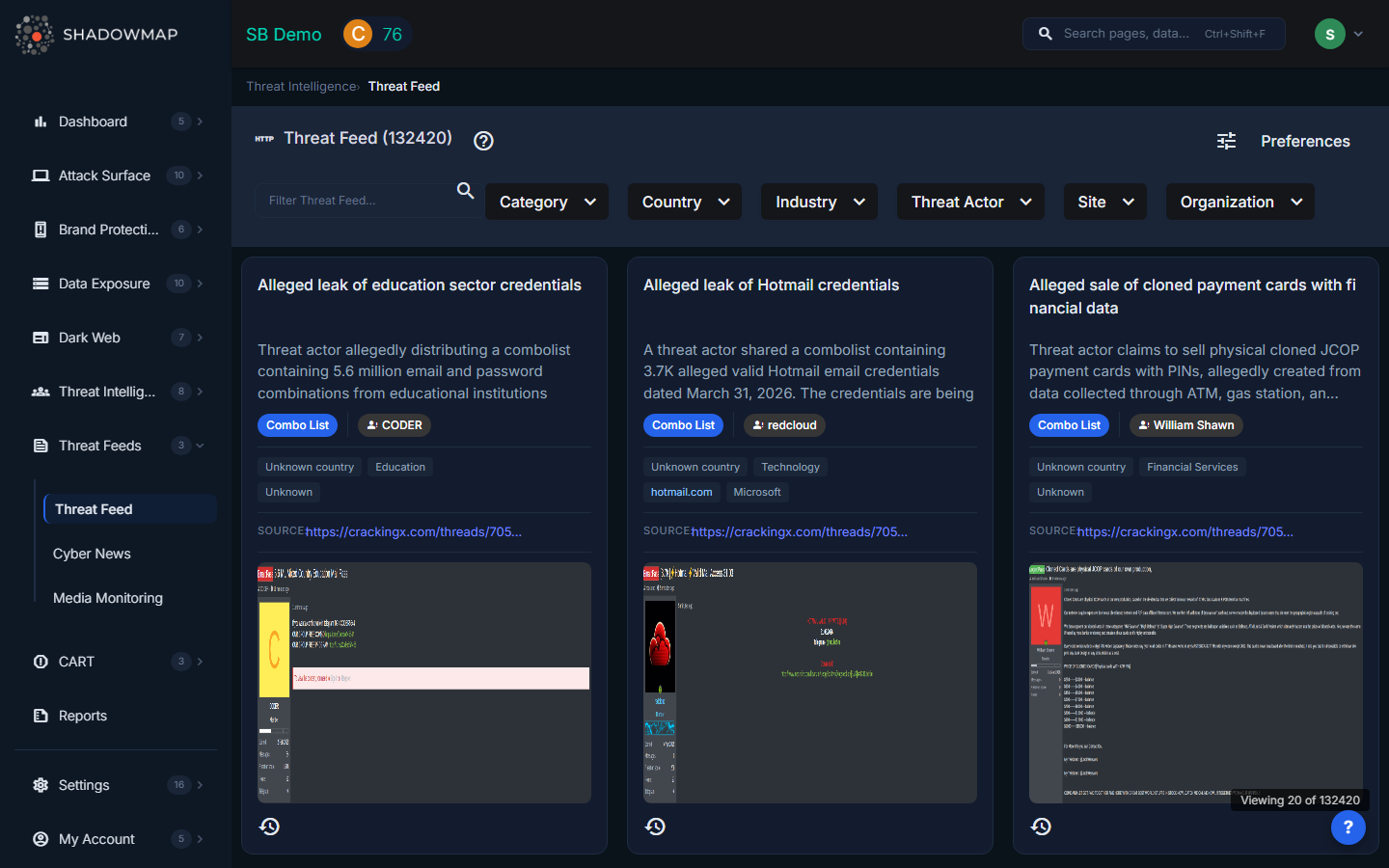
The feed displays intelligence items as a card grid. Each card contains a title, AI-generated summary, metadata chips, and source attribution. Cards are loaded progressively as you scroll, with the total count shown in the page header.
Card Data
Each threat feed card displays:
| Field | Description |
|---|---|
| Title | Headline of the threat intelligence item |
| Summary | AI-generated content summary for quick scanning |
| Category | Classification tag (e.g., Ransomware, Vulnerability, Data Breach, Exploit) |
| Threat Actor | The attributed threat actor or group, when known |
| Country | Country flag and name of the victim or target geography |
| Industry | Targeted industry sector |
| Organization | Named victim organization, when publicly disclosed |
| Site | Source website where the intelligence was collected |
| Source Link | Direct URL to the original intelligence source |
| Screenshots | Attached evidence images, viewable in an inline image viewer |
| Date | When the item was discovered, shown as relative time with full timestamp on hover |
Filtering
The filter bar across the top supports multi-select filtering on several dimensions:
| Filter | Description |
|---|---|
| Search | Free-text search across titles and content |
| Category | Filter by intelligence type (Ransomware, APT, Exploit, etc.) |
| Country | Filter by victim or target country |
| Industry | Filter by targeted sector (Financial Services, Healthcare, Energy, etc.) |
| Threat Actor | Filter by attributed threat actor name |
| Site | Filter by source website |
| Organization | Filter by named victim organization |
All filters use AND logic when combined. Filters are dynamically populated from the backend based on available data.
Admin Preferences
Administrators can configure default feed preferences by clicking the Preferences button in the header (visible only to admin users). This navigates to Settings > News Alert Settings where you can set default category, country, and sector filters that apply automatically when a user first loads the page.
Recommended Workflow
- Scan the card grid for items relevant to your industry, geography, or technology stack
- Use filters to narrow results when investigating specific threat actors or regions
- Click source links to read the full original report
- Review screenshots for visual evidence of dark web posts, defacement, or leak announcements
- Share relevant items with your team for threat briefings or incident preparation