
Docker Containers
ShadowMap detects Docker container images published on public registries that may belong to your organization and contain exposed secrets, proprietary configurations, or internal application code.
Overview
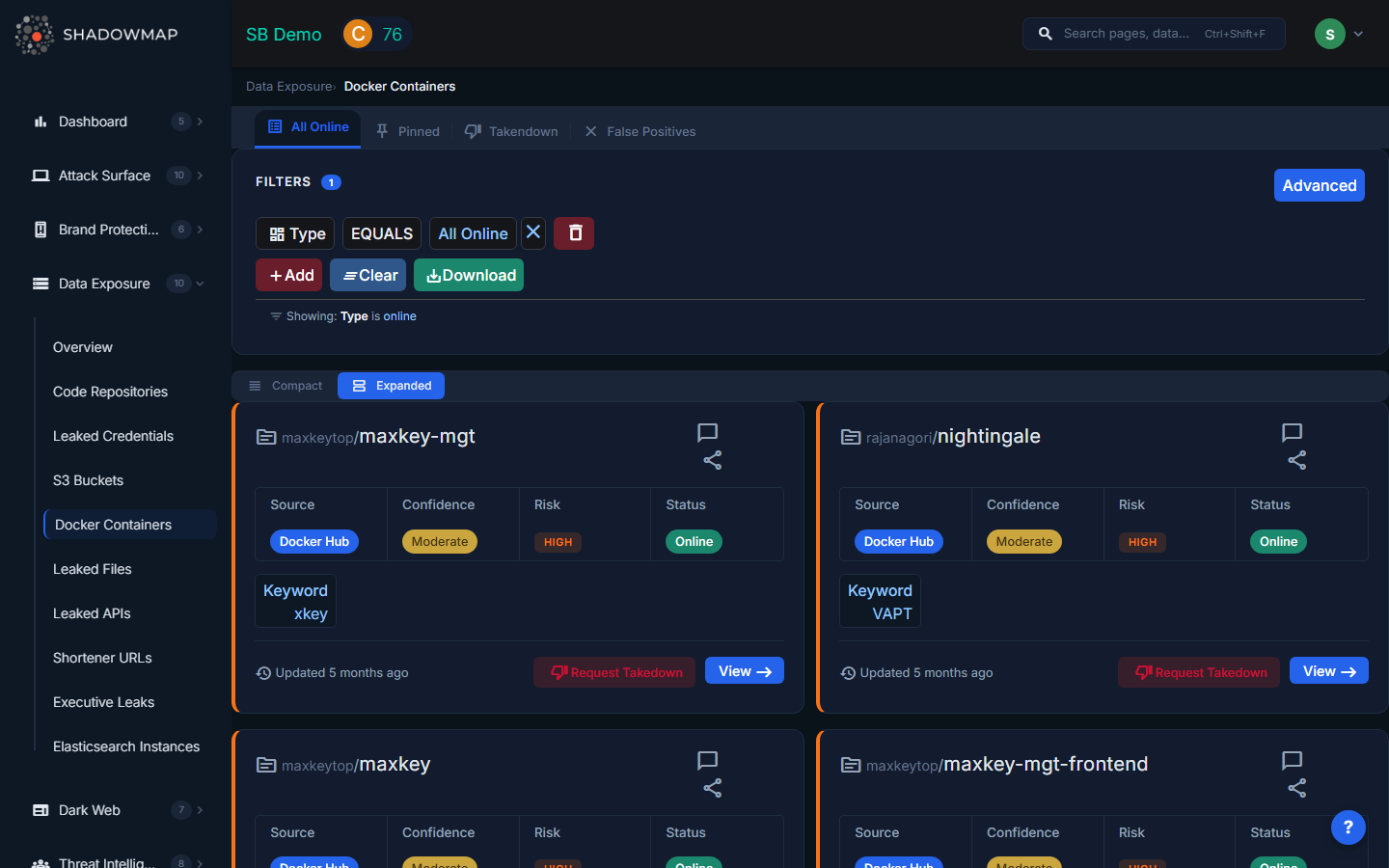
The listing page displays each discovered container image as an expandable card with risk-colored left borders. Results can be toggled between expanded and compact view modes. The total count appears in the header, and results are paginated.
Understanding the Data
Each container card shows:
| Field | Description |
|---|---|
| Publisher | The Docker registry username or organization that published the image, displayed as a clickable link to their profile |
| Image Name | The name of the container image, linked to the image page on the source registry |
| Source | The registry where the image was found: DockerHub, Quay, Amazon ECR, or other public registries |
| Confidence | How confident ShadowMap is that this image belongs to your organization: High (strong keyword match, domain references), Moderate (partial match), Low (weak association) |
| Risk | Severity level based on what was found in the image: Critical (credentials, private keys), High (internal configs), Medium (proprietary code), Low (public/non-sensitive) |
| Status | Current lifecycle status: Online, Takendown, or Bad Image (false positive) |
| Keyword | The search keyword that matched this image to your organization |
| Last Seen | When ShadowMap last verified the image's availability, shown as relative time (e.g., "Updated 3 days ago") |
Detail View
Clicking View on any container card opens a detailed investigation page with three sections:
Overview Tab
Displays the full description/overview of the Docker image as published by its owner. This helps analysts understand the image's purpose and assess whether it legitimately belongs to the organization.
Tags Tab
Lists all available tags (versions) of the container image:
- Tag name (e.g.,
latest,v1.2.3,dev) - Size in megabytes
- Last pushed timestamp with the name of who pushed it
- Clicking a tag navigates to the layer analysis view
Layers Tab
For each tag, you can inspect the individual image layers. Each layer shows the Dockerfile instruction that created it (e.g., RUN, COPY, ENV, EXPOSE). This is where analysts look for:
- Environment variables containing secrets (
ENV API_KEY=...,ENV DATABASE_URL=...) - Exposed ports that reveal internal service architecture
- COPY/ADD instructions that show what files were baked into the image
- RUN commands that may install internal packages or configure internal endpoints
- Vulnerabilities in base images or installed packages
Available Actions
| Action | Description |
|---|---|
| Mark as False Positive (Bad Image) | Moves the image to the Bad Image list, removing it from active findings. Use this when the image does not actually belong to your organization. |
| Remove from False Positive | Restores a previously dismissed image back to active findings |
| Pin / Unpin | Pin important images for quick reference; pinned images appear in a dedicated filtered view. Only available for Online images that are not marked as bad. |
| Comment | Add internal notes using free-text or pre-configured comment templates |
| Share via Integration | Push the finding to connected integrations (ServiceNow CMDB, Jira, Slack, etc.) |
| Request Takedown | Submit a takedown request through ShadowMap's takedown service |
| Export | Download all Docker container findings in Excel format |
Filtering and Search
The filter panel supports:
- Type -- Filter by container type/category
- Source -- Registry source (DockerHub, Quay, ECR, etc.)
- Risk -- Severity level (Critical, High, Medium, Low, Informational)
- Confidence -- Detection confidence (High, Moderate, Low)
- Status -- Lifecycle status (Online, Takendown, Bad Image)
- Keyword -- The matching keyword
- Publisher Name -- The image publisher/owner
Filters combine with AND logic. The default view filters to "Online" containers.
What Gets Detected
ShadowMap scans public Docker registries for images associated with your organization by:
- Matching image names, descriptions, and publisher names against your organization's domain names, brand names, and configured keywords
- Analyzing image layers for internal URLs, credentials, and configuration data
- Monitoring for new image pushes and tag updates over time
Common findings include:
- Development/staging images accidentally pushed to public registries
- CI/CD pipeline images containing build secrets
- Internal microservice images with hardcoded database credentials
- Images referencing internal package registries or artifact stores
Response Guidance
- Verify ownership. Confirm the image belongs to your organization by examining the publisher, image contents, and layer history.
- Inspect layers thoroughly. Use
docker history --no-trunc IMAGE_NAMEor ShadowMap's layer view to examine every layer for embedded secrets. - Rotate exposed credentials. Any secrets found in image layers should be treated as compromised, even if the image has been removed (it may have been pulled and cached by others).
- Make the image private or delete it. Contact the registry to remove public access, or delete the image entirely if it should not exist publicly.
- Review CI/CD pipelines. Determine how the image was published publicly and fix the pipeline configuration. Ensure build secrets are not baked into images (use multi-stage builds and runtime secret injection instead).
- Audit internal registries. Check whether other internal images may have been accidentally made public.