
CMDB Reconciliation
CMDB Reconciliation answers one question your asset register cannot: does what you think you own match what is actually live on the internet? ShadowMap takes your exported CMDB (or App360 inventory), matches each record against the web applications it discovers from the outside, and splits the result into three buckets — Matched, Offline, and Shadow IT — so you can see, per URL, where your records and reality disagree.
Overview
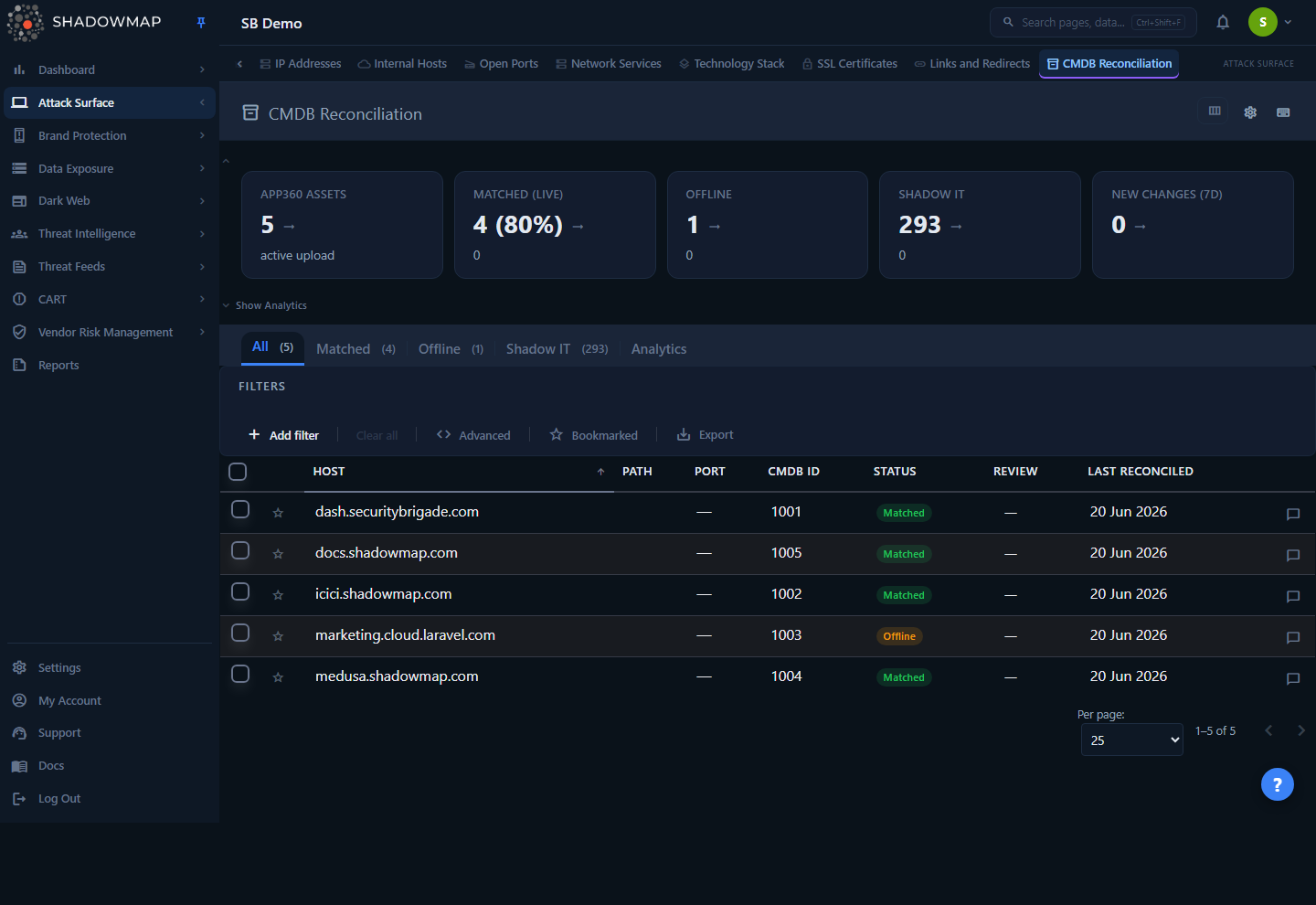
The page opens on the All tab: a flat, paginated table of every CMDB record reconciled against ShadowMap's scan data. Above the table sits a five-card metrics strip (App360 Assets, Matched (live), Offline, Shadow IT, New Changes (7d)) and a collapsible analytics panel. Tabs across the top switch between the reconciliation outcomes, and a separate Analytics tab renders the CISO-facing reconciliation summary instead of a grid.
Each row reconciles one CMDB record (or, in the Shadow IT tab, one discovered application that is not in your CMDB). You can filter, sort, bookmark, comment, assign rows to teammates, bulk-change review status, drill into a side-by-side detail view, and export the whole picture to Excel.
If no integration is configured yet, the page shows a three-step onboarding card (Configure integration → Upload CMDB data → Review results) instead of the table.
Where this fits
CMDB Reconciliation lives under Attack Surface Area. It consumes the same web application inventory you see in Web Applications and pairs it with the asset register you upload — ShadowMap supplies the "live" side, you supply the "should exist" side.
How it works
The mechanics below are not visible in the UI, but they determine every number on the page.
The two data sets being compared
- Your CMDB side — the records from the file you upload. Each row is normalized at upload time into four components:
normalized_host(lowercased,www.stripped),normalized_path(lowercased, leading/trailing slashes trimmed),normalized_port(standard ports 80/443 stored as empty), andnormalized_scheme. Records declared by a bare IP address are kept as well: an IP host has no monitored domain to fall under, so it is admitted to scope by your declaration and matched host-exact against any application ShadowMap discovers on that same IP. - ShadowMap's live side — every open web application discovered for your organisation. "Open" means application status is New, Open, or Reopened; closed and deleted apps are excluded so a decommissioned app never inflates the numbers. ShadowMap normalizes its discovered hosts/paths/ports/schemes with the exact same rules so the two sides are directly comparable.
How a record is classified
For every active CMDB record, the reconciler looks for a live ShadowMap application that matches it:
| Outcome | Meaning |
|---|---|
| Matched | A live application matches this CMDB record on host (and path/port/scheme where specified). The record is real and ShadowMap can see it. |
| Offline | The CMDB record matches no live application. The asset is in your register but ShadowMap cannot reach it — decommissioned, DNS changed, moved behind a firewall/CDN, or never actually exposed. |
| Shadow IT | The inverse: a live application ShadowMap discovered that matches no CMDB record. Unmanaged, unregistered internet-facing surface. |
The matching rule is component-aware, not a naive string compare:
- Host-only CMDB records (a hostname with no path and no port) match any application on that host. Listing
portal.example.comin your CMDB coversportal.example.com/login,:8443, etc. - Full-URL CMDB records must match on each specified component. An empty CMDB component is a wildcard; a specified component must match exactly. A port-pinned record (
:8080) will not match a port-less app. - Path matching is segment-aware. A CMDB path of
/admincovers/adminand any descendant at a/boundary (/admin/users,/admin/users/edit) but not/admin-console. Literal%or_characters in real paths are never treated as SQL wildcards.
Shadow IT counts individual applications
Shadow IT is counted at the application level — one row per unique discovered URL, not per host. So the Shadow IT tab badge, the metrics tile, and the pagination footer all tie to the same number. (Matched/Offline are counted per CMDB record.) The All tab deliberately shows only Matched + Offline rows, because those are the records that came from your CMDB; Shadow IT lives in its own tab.
The CAN-ID override
If an analyst manually tags an application with a can_id (the customer's own assertion "yes, this is in our CMDB"), that application is never counted as Shadow IT — the manual tag supersedes the automated matcher. Auto-tagging writes to this same can_id key (with an empty added_by marking the tag automated); a manual analyst tag additionally forces an app out of Shadow IT even when the automated component matcher would not have covered it.
Reconciliation cadence
| Trigger | When it runs |
|---|---|
| Scheduled | Automatically every day at 04:00 UTC for every company with an active CMDB source. |
| Upload | Immediately after a CMDB file finishes processing. |
| Manual | On demand via Reconcile Now in the settings panel. |
Each run is recorded as a reconciliation run with matched/offline/shadow-IT counts and the deltas versus the previous run — that history powers the trend arrows in the metrics strip and the New Changes (7d) card.
Auto-tagging (optional)
When Auto-tag matched applications is enabled on the source, each reconciliation writes tags onto the live ShadowMap applications: matched apps get cmdb_source, can_id (the external/CAN ID), and cmdb_status: registered; unmatched apps get cmdb_status: unregistered. This lets you filter the Web Applications inventory by CMDB coverage without coming back to this page.
Understanding the data
Matched / Offline columns
The All, Matched, and Offline tabs share one column set (one row per CMDB record):
| Column | Meaning |
|---|---|
| Host | Normalized hostname of the CMDB record. |
| Path | Normalized path component (blank = host-only record). |
| Port | Port component (blank = standard port). |
| Scheme | http / https. |
| CMDB ID | The external identifier from your register (the CAN ID / asset ID). When several rows for the same URL were merged on upload, this holds all of their consolidated CAN IDs. |
| Original URL | The raw URL as it appeared in your uploaded file, before normalization. |
| Status | Match status — matched or offline. |
| Review | Workflow status set by your team (see below). |
| Last Reconciled | Timestamp of the most recent reconciliation that touched this record. |
Shadow IT columns
The Shadow IT tab has its own column set (one row per discovered application):
| Column | Meaning |
|---|---|
| URL | The full constructed URL of the unregistered application (clickable). |
| Host | Hostname. An IP only badge appears when the discovery has no hostname. |
| IP | Resolved IP address. |
| Path / Port / Scheme | URL components. |
| Title | Page title captured by the scanner. |
| Content Bucket | Quality classification of the page — see below. |
| Risk | Risk level of the underlying web application. |
| Review | Workflow status. |
| First Seen | When ShadowMap first discovered this application. |
Shadow IT defaults to sorting by Risk (descending) so the highest-severity unmanaged assets surface first — it is an alerting view. Matched/Offline default to Host (ascending) because they are a registry view where predictable alphabetical order matters. Columns are customizable per tab group (the gear/column icon in the page header) and persist in your browser.
Content buckets
The Content Bucket classifies what each unregistered URL actually serves, so you can separate genuinely live shadow IT from noise. Precedence is first-match-wins:
| Bucket | Definition |
|---|---|
| Real | Live apps with identifiable business content (a meaningful page title). These are the ones to onboard. |
| Linked | 3xx redirect responses. |
| Error | 404 / 403 / 5xx responses and WAF blocks. |
| Static | Blank, default, or marketing pages with no title. |
The practical takeaway, stated directly on the Analytics tab: the Real bucket is your real unmanaged surface to onboard; the rest is expected noise (offline, WAF-blocked, redirects).
Review statuses
Review status is the workflow state your team applies to a row. It is independent of the match status:
| Status | Typical use |
|---|---|
| Needs Review | Not yet triaged. |
| Reviewed | Looked at, no further action. |
| Accepted | Acknowledged and accepted as-is (e.g. a known offline record). |
| Investigating | Actively being worked. |
Filtering & search
The filter bar uses ShadowMap's standard structured filter builder. You can build AND/OR rule sets on the columns shown above — host, port, scheme, content bucket, risk, review status, and more — and the available filter values are loaded per category. A free-text search box is also available.
Two extra controls sit flush with the filter row:
- Bookmarked — toggle to show only rows you have starred. Matched/Offline and Shadow IT keep separate bookmark sets.
- Export — opens the export menu (see Taking action).
Drill from Analytics into a filtered Shadow IT view
On the Analytics tab, clicking a content-bucket row (Real / Linked / Error / Static) jumps you to the Shadow IT tab pre-filtered to that bucket. Clicking a metrics tile (Matched / Offline / Shadow IT) switches to the matching tab.
Detail view
Clicking a Matched or Offline row opens a side-by-side detail page with three tabs:
- Overview — two panels. CMDB Record shows the external ID, original URL, normalized host, status, first/last seen, and any metadata from your file. ShadowMap Detection shows the matched live application's host, IP, risk, and status, with a link through to the full Web Application detail. For offline records, this panel explains ShadowMap cannot see the asset and lists the likely reasons (DNS changed, CDN-fronted, decommissioned, firewalled).
- Reconciliation History — per-run matched/offline/shadow-IT counts and the trigger type for each reconciliation that touched the asset.
- Activity — the review status, assignee, review timestamp, and a comment thread.
A status dropdown in the header lets you set the review status directly from the detail page.
Shadow IT rows behave differently: clicking one navigates straight to the underlying Web Application detail (each row is already a known application). For grouped IP-only or hostname discoveries, a drill-down panel lists every application on that host/IP so you can open each individually.
Taking action
| Action | How |
|---|---|
| Bulk review status | Select rows (checkboxes), then use the bulk action bar to mark them Reviewed / Accepted / Investigating / Needs Review. Mixed selections across Matched/Offline and Shadow IT are routed correctly behind the scenes. |
| Assign | Assign selected rows to a team member, or clear the assignee, from the bulk bar. |
| Bookmark | Star individual rows; filter to bookmarked-only from the filter bar. |
| Comment | Add notes per row (the comment icon at the end of each row) or in the detail Activity tab; comment templates are supported. |
| Share | Push selected rows to a configured integration from the bulk bar. |
| Export | Detailed export, Executive Summary, Shadow IT Summary (on the Shadow IT tab), or the full Reconciliation Workbook. Exports run asynchronously and respect your active filters and sort. |
The Reconciliation Workbook
The Analytics tab (and the Reconciliation Workbook export) produce the CISO-facing deck as a live Excel:
- Top-line flow — Total URLs ShadowMap identified → URLs tracked in App360 (split Matched / Offline) → Additional URLs in ShadowMap but NOT in App360 (your unmanaged surface) → Unique URLs new in the latest scan.
- Breakdown of Additional — the unmanaged surface split by content bucket (Real / Linked / Error / Static) with counts and percentages.
- Per-bucket and App360 sheets in the workbook for row-level evidence.
Generated workbooks are archived under Past reconciliation reports on the Analytics tab and remain re-downloadable within a 13-month retention window — useful for GRC evidence trails.
Keyboard shortcuts
The list supports vim-style navigation: j/k move, Enter opens, Space toggles selection, s bookmarks, a/r/i set Accepted/Reviewed/Investigating, e exports, ? shows the shortcut help.
Prerequisites / setup
CMDB Reconciliation needs an integration and at least one uploaded file before it shows data. Open the gear (Settings) icon in the page header:
- Configure the integration. Choose a provider (App360), name it (e.g. "ICICI App360"), and optionally enable Daily reconciliation email and Auto-tag matched applications. Click Create Integration.
- Upload your CMDB file. Drag-and-drop or select an
.xlsxor.csvfile (max 10 MB). Download the sample template first to match the expected columns. On upload you immediately see a per-file row breakdown — Total rows, Out of scope, In scope, Duplicate URLs merged, Unique assets, and Errors (if any) — and a reconciliation runs automatically. Because the importer groups in-scope rows by their normalized URL, the same URL listed more than once merges into one asset, so Unique assets can be lower than In scope (see the FAQ below). - Review results. The Matched / Offline / Shadow IT tabs populate. Re-upload whenever your register changes, or click Reconcile Now to re-match against the latest scan without a new upload.
The settings panel also shows Upload History (file, status, valid/out-of-scope/error rows, timestamp) so you can audit past imports.
Offline does not always mean dead
An Offline record means ShadowMap could not match it to a live, externally reachable application — not that the asset is gone. Internal-only hosts, CDN-fronted apps, and assets behind a WAF can legitimately read as Offline. Use the detail view's reasons before decommissioning anything.
Common questions
Why is the Shadow IT count higher than the number of hosts I expected? Shadow IT counts individual applications (one per unique URL), not hosts. A single host running several apps on different ports/paths contributes several Shadow IT rows.
An app I know is in my CMDB still shows as Shadow IT. Why? Matching is component-aware. If your CMDB record pins a path or port that differs from what ShadowMap discovered, it will not match. Either upload a host-only record (host with no path/port) to cover the whole host, or have an analyst tag the application with a can_id to force it out of Shadow IT permanently.
How fresh are these numbers? The scheduled reconciliation runs daily at 04:00 UTC. Uploading a file or clicking Reconcile Now re-runs it immediately against the latest scan data.
Which CMDB providers are supported? App360 is the supported provider today, via Excel/CSV upload using the sample template.
Why is the "Unique assets" count lower than "In scope" after an upload? The importer groups in-scope rows by their normalized URL (scheme + host + port + path), so the same URL listed more than once — commonly under several CAN IDs — merges into a single asset with all its CAN IDs kept together. The upload result reports the merged count as Duplicate URLs merged and states the identity Total = Out of scope + Duplicate URLs merged + Unique assets. The consolidated CAN IDs are preserved on the surviving asset's CMDB ID.
Do exports respect my filters? Yes. Detailed and selected-row exports carry your active filter rules, search, status tab, and sort into the generated workbook.
What does the "New Changes (7d)" card count? The number of newly detected changes — newly matched, newly offline, and newly shadow-IT assets — summed across reconciliation runs in the last seven days. It is a trend KPI, not a clickable filter: the asset list itself has no 7-day change filter, so this card is informational.
How long are reconciliation workbooks kept? Archived workbooks are retained for 13 months and are re-downloadable from the Analytics tab within that window.
Related
- Web Applications — the live application inventory that forms the "ShadowMap-detected" side of reconciliation; auto-tagging writes CMDB coverage tags back onto these records.
- Attack Surface Area overview — the parent module and its other discovery views.
- Domains and Subdomains — the asset inventory that feeds web application discovery upstream.
- Exports — how asynchronous exports are generated and retrieved.
- Severity & Status — how review statuses and severity work across ShadowMap modules.