
Exports
Almost every list view in ShadowMap can be exported to an Excel (.xlsx) workbook. An export captures the exact rows your filters and search currently match — not the whole module — and is generated in the background so you can keep working while large data sets compile.
Overview
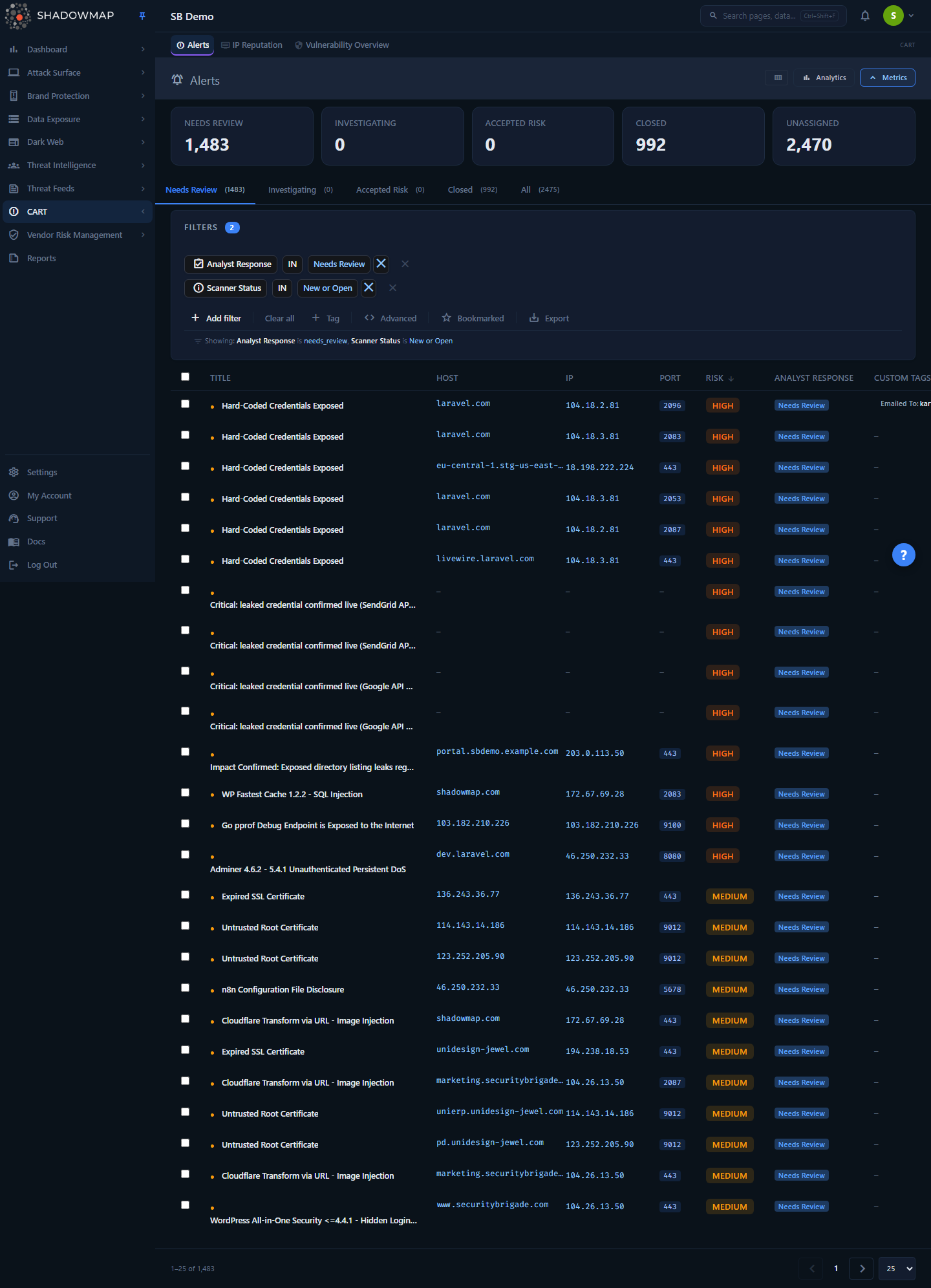
Exports are triggered from the module you are viewing — the Export button on the Alerts list above is representative. There is no standalone Exports page; the workflow (queue, progress, download) is shared across every module.
Exports are not a separate screen. You start one from the module you are looking at — Alerts, Open Ports, Web Applications, Domains, Leaked Credentials, and most other list views expose an Export action (usually a button or a menu item near the filter bar). What happens after you click is identical everywhere:
- ShadowMap reads your currently applied filters, search term, and sort order and submits them with the export request.
- The request is queued as a background job — the page does not block, and you can navigate away.
- A progress toaster appears in the corner showing
pending → in progress → completed, with a live percentage. - When it finishes, the toaster surfaces a Download button. You can also Cancel while it is still running.
The downloaded file mirrors what you would see on screen: the same rows, in the same order, with module-appropriate columns plus extras that are impractical to show in a table (full descriptions, remediation guidance, comment history, disposition audit fields, and your custom tags).
How it works
These are the mechanics you cannot infer from the button.
The export reflects your filters, not the whole module
When you trigger an export, the frontend serializes the active filter tree, free-text search, path filter, and sort and sends it as the export payload. The backend re-runs the same query the list view uses with those filters applied, then streams every matching row into the workbook.
Consequences worth knowing:
- Filter first, export second. If you want "all critical, open alerts on
*.payments.example.com", apply those filters in the list, confirm the count, then export. The workbook will contain exactly that set. - An empty filter exports everything the module would show with no filters applied — which can be very large.
- Sort order is preserved. The rows in the file appear in the same order as the on-screen list (e.g. Alerts default to the best-sort ranking).
- A saved filter set from Saved Searches produces a repeatable export — apply the saved search, then export, to get the same slice each time.
Generation is asynchronous and chunked
Exports run as a queued background job on a dedicated exports worker, not inside your browser request. This is why you get a toaster instead of an immediate file:
- Rows are read from the database in chunks of 2,000 and streamed straight to disk, so memory stays roughly flat regardless of size. A 500,000-row export uses about the same memory as a 5,000-row one.
- Progress is recomputed after each chunk:
processed ÷ total, capped at 99.99% until the file is fully written and closed. Seeing 99.99% for a moment is normal — it means the last chunk is finalizing. - The job has a 4-hour hard ceiling and runs as a single attempt (no automatic retries). In practice even very large modules complete in well under an hour; if an export fails, you simply re-trigger it.
Progress, polling, and the toaster
After you click Export, the browser receives a tracking ID and then polls for status roughly once a minute (it also polls immediately, so synchronous/instant exports show up right away). The toaster reflects one of five states:
| State | Meaning |
|---|---|
| Pending | Queued, waiting for a worker to pick it up. |
| In progress | Actively writing rows; shows a live percentage. |
| Completed | File is ready — the Download button is active. |
| Failed | The job errored. Re-trigger the export. |
| Cancelled | You cancelled it (pending or mid-run). |
You can close the tab or navigate to another module — the job keeps running server-side. The download itself is fetched only when you click Download.
Cancellation
Clicking Cancel stops the export:
- If it is still pending in the queue, the queued job is removed before it ever starts.
- If it is in progress, the cancellation is detected at the start of the next 2,000-row chunk, so there can be a short delay before it actually stops. Any partial file is then deleted.
Where the file lives and when it expires
Exports are temporary
A generated file is automatically cleaned up about one hour after it is created. Download it from the toaster promptly. If you wait too long and the link 404s, just re-run the export — re-running is cheap and always reflects current data.
Generated workbooks are stored in object storage (not on your machine until you download) and are scoped to your organization. Downloads are verified against your company before they are served — you cannot retrieve another tenant's export, and filenames are non-guessable hashes that contain no identifying data.
File format and naming
- Output is almost always Excel
.xlsx(a few specialized exports produce JSON or PDF, or multi-sheet workbooks — for example, CMDB Reconciliation generates a multi-sheet workbook). - The first row is a header row of column names.
- Very long cell values are truncated to Excel's 32,767-character cell limit so the file always opens cleanly.
- The downloaded file is named for readability, e.g.
alerts_of_acme_corp_2026-06-21.xlsx—{module}_of_{organization}_{date}. - Dates in cells are written as human-readable values (typically
DD Mon YYYY HH:MM) matching what the screen shows, in the stored (UTC) wall-clock — they are not converted to your local timezone.
What's in the file
Columns are module-specific, but each export is designed to be a self-contained record — richer than the on-screen table. As an example, the Alerts export includes far more than the visible list columns:
| Column group | Fields included |
|---|---|
| Identity & location | ID, Title, FullURI, Subdomains, Port, Host, IP, Path, Link (deep-link back into ShadowMap) |
| Triage | Finding Type, Risk, Status, Response Status, Assignee, Tags |
| Remediation | Description, Impact, Recommendation |
| Timeline | First Seen On, Last Seen On |
| Network context | Netblock, Country, ASN – Provider |
| Audit / disposition | Dispositioned At, Dispositioned By (who changed status and when) |
| Collaboration | Comment Counts, Last Comment Date, Last Comment, Last Comment Author |
| Custom tags | One column per custom tag key defined for the module |
Audit-ready by design
The Alerts export deliberately omits raw third-party scanner names (it shows a customer-facing Finding Type instead) and includes Dispositioned At / Dispositioned By columns sourced from the activity log. These exist specifically so the workbook can serve as evidence in SOC 2 / ISO 27001 audits — "who closed this finding, and when."
Other modules follow the same philosophy: ports include service and protocol context, leaked-credential exports include source and exposure context, and so on. The columns you get in any given export are a superset of that module's list columns plus its detail-view fields.
Modules that support export
Export is available across the platform. A non-exhaustive list of modules with a dedicated export:
- Threats — Alerts, Open Ports, Network Services, IP Reputation, Vulnerability Overview
- Attack Surface — Web Applications, SSL Certificates, Mobile Applications, Single Sign-Ons, JS Trackers, Links & Redirects, CMDB Reconciliation
- Data Leaks — Code Repositories, Docker Containers, Elasticsearch Instances, S3 Buckets, Leaked Credentials, Leaked APIs, Leaked Files, Shortener URLs
- Brand & Dark Web — Phishing URLs, Social Media, Executive Monitoring, Data Breaches, Stealer Logs, Domain Squatting
- Threat Intelligence — Threat Feed, Vulnerabilities, Threat Actors, Ransomware, Malware
If a module shows a list, look for the Export action near its filter bar. The behavior described on this page applies identically to all of them.
Exports vs. Reports
Use an export when you need the raw data — a spreadsheet you can pivot, filter, or feed into another tool. Use a Report when you need a formatted, branded PDF narrative for stakeholders. They draw on the same underlying data, so a finding's status and disposition match across both.
Common questions
Does the export include all data or just what I'm looking at? Just what your current filters, search, and sort match. To export everything, clear all filters first; to export a slice, filter down to it first. The workbook always equals the on-screen result set.
How many rows can I export? There is no fixed row cap. Exports stream in chunks and have a 4-hour processing ceiling, which in practice is far more than enough — hundreds of thousands of rows complete in minutes to under an hour.
Why is my export taking a while / still "in progress"? Large result sets take time to compile, and the toaster polls for status about once a minute, so the percentage updates in steps rather than continuously. The job runs server-side, so you can navigate away and come back.
I closed the tab — did I lose my export? No. The job runs on the server independently of your browser. Return to the module (or any page) and the toaster reconnects to in-flight exports so you can download when it completes.
My download link stopped working. Generated files are cleaned up about an hour after creation. Re-run the export — it is cheap and will reflect the latest data.
Can I cancel a running export? Yes. Click Cancel in the toaster. Pending jobs are pulled from the queue immediately; in-progress jobs stop at the next 2,000-row chunk boundary, and the partial file is discarded.
Does the export change to my local timezone? No. Timestamps are written as the stored UTC wall-clock value, formatted to match the on-screen display (e.g. 21 Jun 2026 14:30).
Will the file include my custom tags and comments? Yes, where the module supports them. The Alerts export, for example, adds a column per custom tag key plus comment count, last comment, author, and date.
Can someone in another organization access my export file? No. Every download is verified against your organization before the file is served, and filenames are non-guessable hashes containing no readable data.
Related
- Reports — Generate formatted PDF/branded reports instead of raw spreadsheets; same underlying data, different deliverable.
- Saved Searches — Save a filter set, then export it for repeatable, consistent slices of data.
- Custom Tags — Tags you define appear as dedicated columns in module exports.
- Alerts — The reference example used on this page; its export carries triage, disposition, and audit columns.
- Data Retention — How long different data classes (including temporary export artifacts) are kept.