
Universal Search
Universal Search is the command palette that lets you jump to any page in ShadowMap and look up a specific asset or finding — an IP, hostname, URL, or numeric ID — across multiple modules at once, without first navigating to each module and building a filter by hand.
Overview
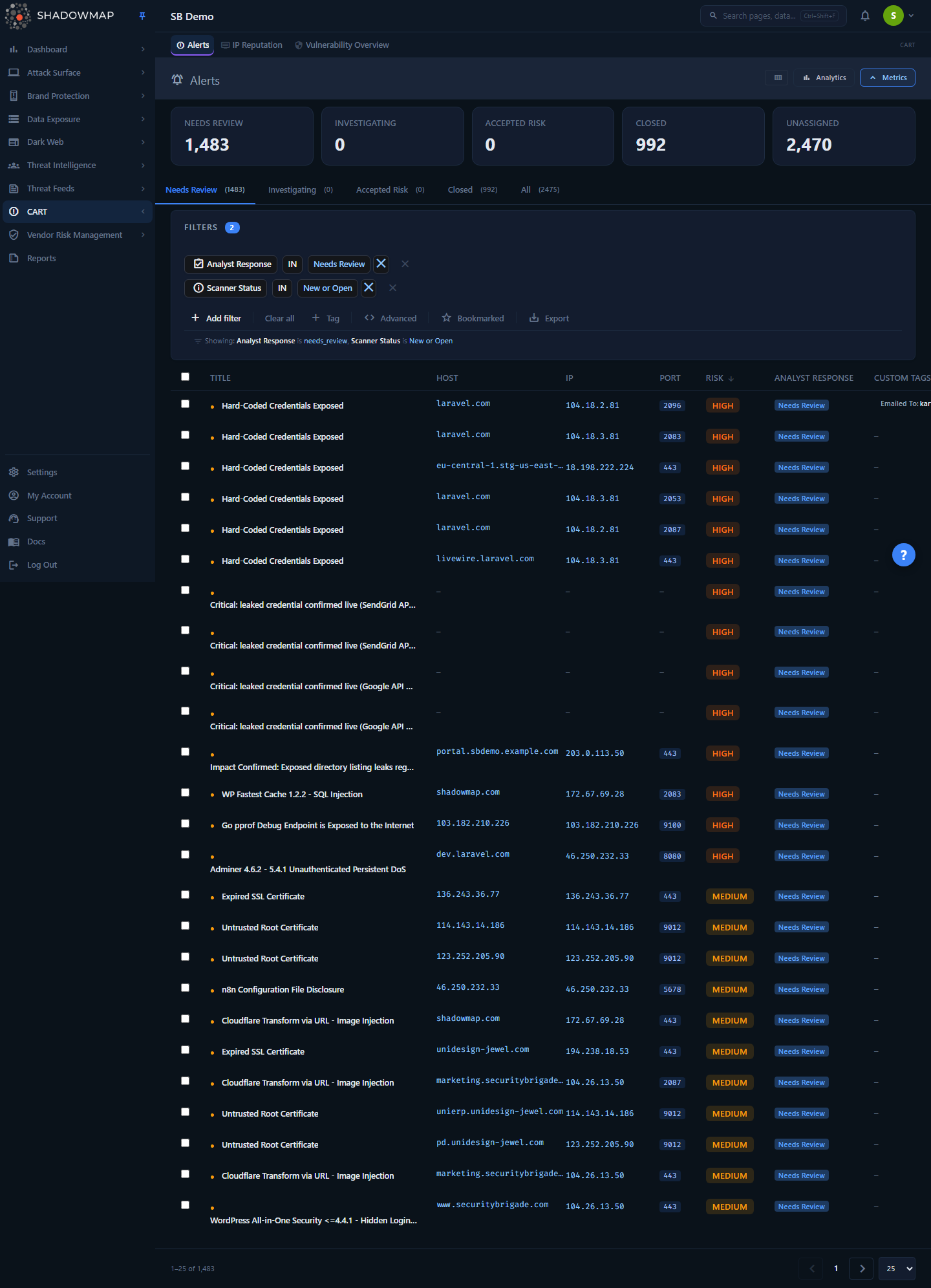
The command palette is launched from the top navigation bar of any module — here, the Alerts page.
Open the palette from the Search pages, data... box in the top navigation bar, or with the keyboard shortcut Ctrl + Shift + F from anywhere in the app. It overlays the current page as a centered modal with a single input and three result sections:
- Recent Searches — the last five pages you navigated to from the palette (shown only when the input is empty).
- Pages & Features — instant, client-side matches against the app's navigable pages.
- Data Results — server-side matches for your search term, grouped by module, each with a status and risk breakdown.
The palette is not a module page and has no URL of its own — it is a global overlay available on every screen.
How it works
Universal Search runs two independent searches in parallel from the same input, because they answer two different questions:
- "Where is the page I want?" — handled instantly on your device.
- "Where does this asset or finding appear in my data?" — handled by the backend.
Page & feature search (instant, client-side)
As you type, ShadowMap filters the list of routes it built from the app's navigation structure. A page matches if your term appears in its title, its path, its section name, or its internal analytics label. Matching is a simple case-insensitive substring test — there is no fuzzy matching, so "open ports" matches but "oprts" does not. This searchable set is not filtered by your permissions — it is the same for every user, built from every route flagged searchable (minus a fixed set of admin and configuration sub-pages). A page you cannot open still appears as a result; access is enforced when you navigate to it, not by hiding it from the palette.
Selecting a page result navigates you there immediately and records it in Recent Searches (stored locally in your browser, capped at the five most recent, most-recent first).
Data search (debounced, server-side)
Data Results query your live findings. To avoid firing a request on every keystroke, the palette waits 500 ms after you stop typing before sending one POST /universal-search request with your term. If you keep typing, the previous in-flight request is cancelled so a slow older response can never overwrite fresher results. A spinner next to the Data Results heading indicates a search is in progress.
If the request fails — a timeout, a server error, or a dropped connection — the Data Results section shows Search failed — could not query data. alongside a Retry button, rather than a misleading No data results found. Retrying re-runs the data search for the term you already typed. Your Pages & Features results are unaffected, since they are matched entirely on your device.
Input type detection
The backend does not search every field for every term. It first classifies your input into one search type, then searches only the fields and modules that make sense for that type. Detection runs in this priority order:
| If the input… | Detected type | Example |
|---|---|---|
| Is all digits | id | 48213 |
| Is a valid IPv4/IPv6 address | ip | 203.0.113.7 |
Starts with http:// or https://, or looks like host/path | url | https://app.example.com/login |
Contains /, ?, &, =, or a file extension | path | /wp-admin/ |
| Looks like a bare domain (label with a dot and a valid TLD) | domain | example.com |
| Anything else | title | apache struts |
This is why the same box behaves differently depending on what you paste: a number is treated as a finding ID and matched exactly, an IP is matched against IP columns, and free text falls through to a title/keyword search.
Hostname vs. domain matching
For domain/host/url types, host-based modules match the exact host you typed and any subdomain of it (a host LIKE '%.term' plus exact-match pattern). Searching example.com therefore surfaces example.com, app.example.com, and mail.example.com together in modules that store full hostnames.
Which modules are searched
A single data search fans out across up to eight result groups. Each is gated by the same read permission as its module — if you cannot read the module, it is silently skipped and never appears in results. Each module also only participates for the search types that apply to it:
| Result group | Matches on | Active for search types |
|---|---|---|
| Alerts | id, IP, host, path, title | id, ip, host/domain, path, url, title |
| Applications (Web Applications) | id, IP, host, path, title | id, ip, host/domain, path, url, title |
| Phishing URLs | id, IP, URL, domain | id, ip, url, domain/host, plus a URL-substring fallback |
| Domain Squattings | id, name (domain) | id, url (host extracted), plus a name-substring fallback |
| Asset Inventory — Domains | exact domain name (online domains only) | domain/host/url |
| Asset Inventory — Subdomains | subdomain (exact or as a parent) | domain/host/url |
| Asset Inventory — IP Addresses | exact IP | ip |
| Asset Inventory — Internal Hosts | exact host | domain/host/url |
Counts, not rows
Data Results return aggregated counts, not the individual records. Each group shows a total item count and a breakdown by status, risk, or metric. To see the underlying records, click into the group (see Acting on results). This keeps the palette fast even when a search matches thousands of findings.
Tenant isolation and safe matching
Every data query is scoped to your company (company_id / customer_id), so Universal Search can never surface another tenant's assets. SQL LIKE wildcards (% and _) in your term are escaped before querying, so a term that happens to contain those characters matches literally instead of matching everything.
Understanding the results
Pages & Features
Each page result shows its icon, title, and the section it belongs to (for example, Open Ports under Attack Surface). Selecting it navigates you there.
Data Results
Each module group shows a header with the module name and a total item count, followed by colored tags describing the breakdown. What the tags mean depends on the module:
| Breakdown type | Where it appears | Tags you'll see |
|---|---|---|
| Risk | Alerts, Applications | High, Medium, Low, Informational |
| Status | Alerts, Applications | New, Open, Closed, Reopened, To Be Closed, Accepted Risk, etc. |
| Live status | Phishing URLs, Domain Squatting | Online / Offline (live) |
| Response status | Phishing URLs, Domain Squatting | Active, Reviewed, Monitoring (Phishing URLs adds Accepted) |
| Metric | Asset Inventory groups | Counts of Applications, Alerts, Subdomains, IPs, SSLs, Internal Hosts |
| Organization | Asset Inventory — Domains | Per-organization domain counts |
Groups with a total of zero are omitted, so you only ever see modules that actually contain matches.
Acting on results
- Select a page result (click, or arrow-key to it and press Enter) — navigates to that page in the current tab.
- Click a Data Results module header — opens that module's list in a new browser tab, pre-filtered to your search term.
The deep link the palette builds depends on the search type and module:
- A numeric ID opens the single record's detail page directly (for example, an Alert, Application, Phishing URL, or Domain Squatting detail view).
- For everything else, the palette constructs a module filter from your term and applies it as a query in the destination page's filter bar — for instance, an IP search into Alerts opens Alerts filtered to
ip = "<your IP>", and a host search into Web Applications opens the Applications list filtered to that host and its subdomains. - Phishing and Domain Squatting links route to the module's All tab so that closed, accepted, or offline items are not hidden by a default review tab.
Because results open in a new tab, the palette stays open and you can click through several modules in sequence without losing your search.
Keyboard shortcuts
| Action | Keys |
|---|---|
| Open Universal Search | Ctrl + Shift + F |
| Move between page results | ↑ / ↓ |
| Open the highlighted page result | Enter |
| Clear the input | Click the ✕ in the search box |
| Close the palette | Esc |
See Keyboard Shortcuts for the full list of app-wide shortcuts.
Common questions
Why don't I see any Data Results, only Pages & Features? Three common reasons: (1) the term genuinely has no matches in your tenant; (2) your input was classified as a type the matching modules don't support (for example, free-text title does not search the Asset Inventory groups, which require an IP, host, or domain); or (3) you lack read permission on every module that would otherwise match. The palette silently skips modules you can't read.
I pasted a full URL with https:// and a path — what gets matched? The URL is split into a host and a path. Host-based modules (Alerts, Applications, Asset Inventory) match the host and its subdomains; if a meaningful path is present, Alerts and Applications additionally require an exact path match. Phishing URLs match the URL with the scheme stripped, so it works whether the stored record used http:// or https://.
Are Data Results live, or a count of everything ever found? They reflect the current state of your data, scoped to your company, at the moment you search. The numbers shown are counts grouped by status/risk — click into a module to see and work the actual records.
Why does searching a number behave differently from searching a hostname? A purely numeric term is treated as a finding ID and matched exactly against record IDs, so clicking through takes you straight to that record's detail page. A hostname is treated as a domain/host and matched against host columns across multiple modules. The box adapts to what you type.
Does Universal Search find Dark Web, Data Leaks, or Threat Intelligence records? No. Data search currently spans Alerts, Web Applications, Phishing URLs, Domain Squatting, and the four Asset Inventory groups. For other modules, use the Pages & Features results to jump to the module, then use that module's own filters. Note that every module page also has its own in-page search and filter bar.
Can I save a Universal Search? The palette itself doesn't save searches, but when you click through to a module the filtered URL is a normal module view that you can save. See Saved Searches.
Related
- Keyboard Shortcuts — the full shortcut reference, including the Ctrl + Shift + F launcher.
- Navigation Guide — how the sidebar, sections, and top bar fit together; Universal Search is the fastest path between them.
- Saved Searches — persist the filtered module views you reach by clicking through a Data Result.
- Alerts — the highest-volume data source Universal Search queries; IP, host, path, and ID lookups land here.
- Web Applications — application lookups by host, path, or ID open here.
- Phishing & Impersonations and Domain Squatting — brand-monitoring matches route to these modules' All tabs.
- Domains, Subdomains, IP Addresses, and Internal Hosts — the Asset Inventory groups returned for host- and IP-typed searches.
- Roles & Permissions — which modules appear in your results depends on your read permissions.