
AI Review
AI Review is a security analyst built into ShadowMap that reads every new finding before you do, assigns it an advisory verdict, a priority score, and descriptive tags, and lifts the obvious noise out of your queue. You start triage from a ranked, reasoned shortlist instead of a raw wall of scanner output — but every verdict is advisory, and your analyst decisions always win.
Overview
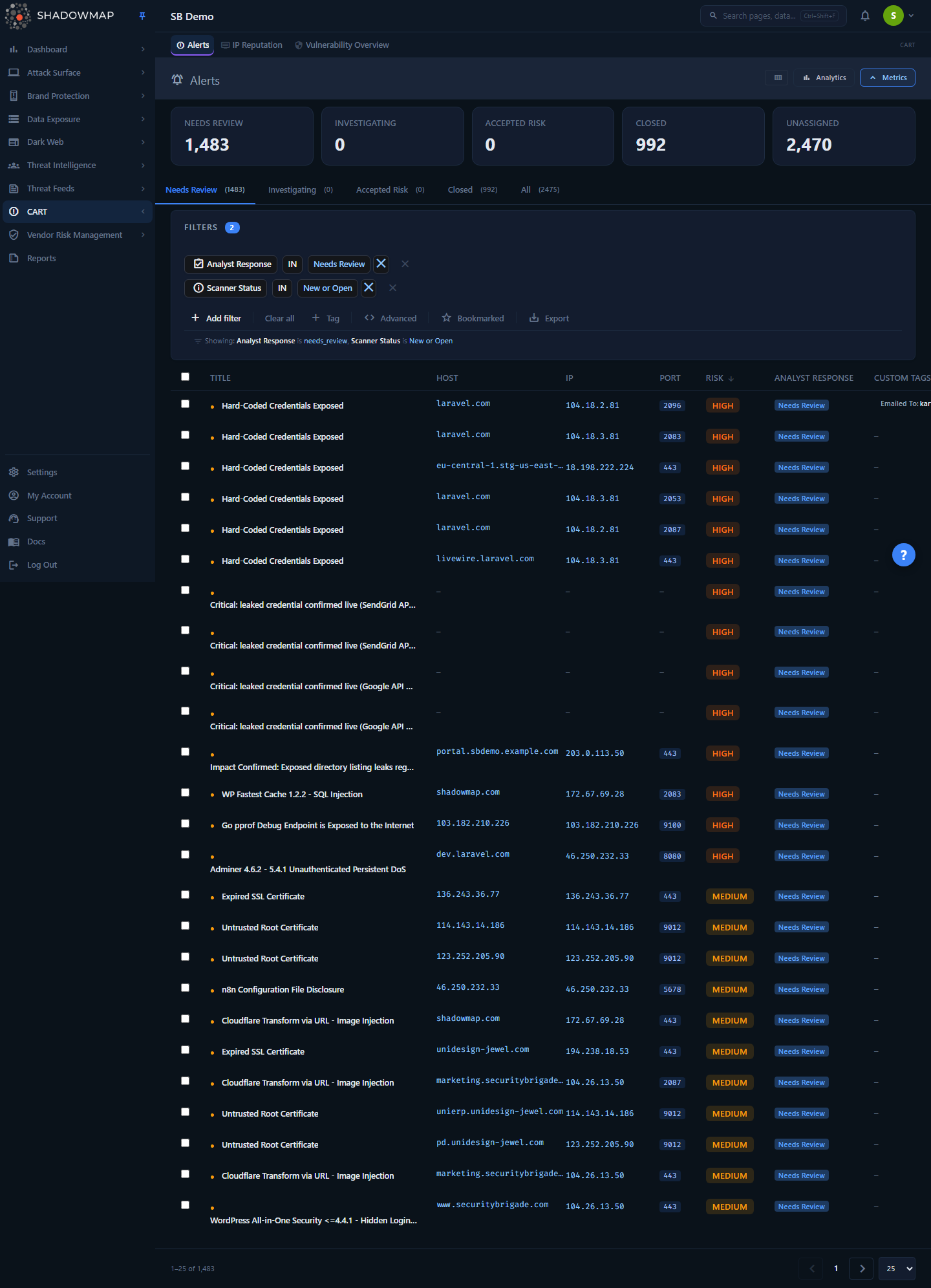
AI Review surfaces the same way in every module that supports it: an AI Verdict, AI Score, and AI Tags column in the list, an AI Assessment section in the detail drawer, and a Filtered by AI tab that collects the findings the AI cleared as noise. Above, the Alerts module — one of the modules that exposes the full pattern.
Scanner coverage has an inconvenient property: the more surface it watches, the more findings it produces, and most of those findings are not the ones that matter. A subdomain enumerator that finds 4,000 hosts, a code-leak crawler that flags 900 repositories, a credential feed with tens of thousands of rows — the signal is real, but so is the triage cost. AI Review exists to pay that cost for you.
For every new finding in a supported module, ShadowMap's AI reviews the evidence and records four things:
- A verdict — is this a confirmed exposure, does it still need a human, is it a likely false positive, or is it benign?
- A score — how much should this one jump the queue relative to its peers?
- Tags — short, structured labels describing what the finding is (its content and sensitivity), so you can filter and group without reading each one.
- Notes — a plain-language explanation of the verdict, visible in the detail view.
The AI never deletes anything and never closes an analyst decision. It re-orders the work and moves cleared noise aside. Everything it touches stays live, auditable, and overridable.
AI Review vs. AI enrichment
This page covers AI Review — the verdict / score / tag / triage layer described above. ShadowMap also runs a separate AI enrichment layer on its intelligence feeds (Threat Feed, Media Monitoring, Cyber News) that scores relevance to your organization, summarizes long articles, and tags topics. That is a different mechanism with a different output — it does not assign the four verdicts or an AI Score. See The second AI: intel enrichment below.
How it works
Most of AI Review is invisible in the UI. The mechanics below explain why the columns behave the way they do.
The AI runs before you, at review time — not at your click
The AI review is not triggered when you open a page. A background review engine processes new findings on the platform's schedule, writes its verdict, score, confidence, tags, notes, and a "reviewed at" timestamp onto the finding, and stamps it with the reviewing model. By the time a finding reaches your list it has already been reviewed. That is why:
- The list loads instantly with AI columns populated — there is no per-page AI call and no waiting spinner.
- A brand-new tenant (or a module whose first AI pass has not completed yet) shows no AI columns even when AI Review is switched on. The columns appear only once findings actually carry AI data, and collapse again on result sets that have none, so you never stare at three columns of em-dashes.
- Re-running a scan does not re-run the AI on findings it has already judged; the review is tied to the evidence, not to the scan cycle.
The verdict model
The AI assigns exactly one of four verdicts to each reviewed finding. These are the labels you see in the AI Assessment filter and the verdict badge:
| Verdict | Badge color | What the AI is saying | What you should do |
|---|---|---|---|
| Confirmed Exposure | Red | The evidence indicates a genuine, actionable exposure. | Work these first — the AI is flagging real risk. |
| Needs AI Review | Amber | The AI could not confidently clear or confirm it; a human should decide. | Your core triage queue — this is where analyst judgment adds the most. |
| Likely False Positive | Blue | The evidence points to a non-issue, but not decisively. | Spot-check, then dismiss or accept in bulk. |
| Benign | Grey | Confidently not a threat — noise. | Nothing required; these are moved off your default queue (see Filtered by AI). |
The verdicts are enum values with no numeric ordering — they are categories, not a scale. The four map to internal keys (real_exposure, needs_review, likely_fp, benign) that are consistent across every module, so an "AI Assessment: Confirmed Exposure" filter means the same thing in Code Repositories as it does in Alerts.
The AI verdict is not the analyst status
A finding's AI Verdict and its analyst response status (Needs Review / Investigating / Accepted Risk / Closed) are two different fields. The AI verdict is advisory and set by the model; the status is authoritative and set by your team. A finding can carry an AI verdict of "Likely False Positive" while still sitting in your Needs Review status queue until an analyst dispositions it. The one place the AI writes to the status axis is the Benign → Filtered by AI move, described below.
What appears per finding
In the list, AI Review adds three columns, shown in this order wherever the finding rows carry AI data:
| Column | What it shows |
|---|---|
| AI Verdict | The verdict badge (Confirmed Exposure / Needs AI Review / Likely False Positive / Benign). |
| AI Score | A numeric priority score. Higher means "look at this sooner." It is the tie-breaker the AI uses to rank findings that share a verdict. |
| AI Tags | Structured labels describing the finding's content and sensitivity — filterable and used to group similar findings. |
These three columns are gated: they appear only when AI Review is enabled for your tenant and the loaded findings actually contain AI data. When they are hidden, they are removed from the column customizer too, so you cannot toggle on a column that would render empty.
Opening a finding's detail drawer or page reveals the full AI Assessment:
| Detail field | What it shows |
|---|---|
| AI Verdict | The same verdict, as a badge. |
| AI Score | The priority score, shown out of 1000 in the detail view. |
| Confidence | How sure the model is of its verdict, as a percentage — distinct from the priority score. |
| AI Tags | The full tag set. |
| AI Notes | The model's plain-language reasoning for the verdict — the "why." |
| Reviewed at | When the AI last reviewed this finding. |
| Model | Always shown as ShadowMap AI. |
Why the model is always "ShadowMap AI"
ShadowMap deliberately never discloses the underlying vendor model or version to customers — the field is a fixed label. The specific model powering a review can change as the platform improves without changing what you see or how you work. Treat "ShadowMap AI" as the reviewer's name, not a version string.
The Filtered by AI queue
When the AI judges a finding Benign, it does one thing to the workflow: it sets the finding's response to Filtered by AI and lifts it out of the default Needs Review queue into a dedicated Filtered by AI tab.
This is the only status the AI sets, and it behaves differently from the analyst-set statuses:
- It is AI-set, never analyst-settable. You will not find "Filtered by AI" in the bulk-action bar or the per-row status menu — it is not a decision a person makes. It is applied by the model and appears alongside the analyst responses purely as a filterable, auditable value.
- Nothing is deleted or hidden. Findings in this tab are still live — the scanner still detects them (
New/Open). They are moved aside, not made to disappear. The tab exists precisely so you can audit what the AI cleared. - The tab only exists when AI Review is on. For tenants without AI Review, there is no Filtered by AI tab and no Filtered by AI response value.
- Your decisions are preserved. The Filtered by AI bucket is disjoint from the analyst-preserved statuses — the AI never overwrites a finding an analyst has already dispositioned (e.g. Accepted Risk stays Accepted Risk).
The Severity and Status Workflow page documents the Filtered by AI response value in the context of the full status model — read it for how the response axis and the scanner-detection axis interact.
Needs Review sorts by AI Score, so the worst floats up
On a tenant with AI Review enabled, the Needs Review tab of a supported module defaults to sorting by AI Score, descending — the findings the AI ranks highest-priority sit at the top of your triage queue automatically. On tenants without AI Review, the same tab falls back to the module's own default sort (for example, threat level). Other tabs keep the module's default sort regardless.
One rule overrides this: a sort you choose always wins. The moment you click a column header to sort — or you open a shared or bookmarked link that already carries a sort — ShadowMap stops applying the AI-Score default and never silently re-imposes it, even as later data loads. The AI orders your queue by default; it never fights your explicit choice.
Filtering by the AI
Two filter fields appear in the filter bar of AI-enabled modules, injected automatically when the AI gate is on and removed when it is off:
- AI Assessment (
ai_verdict) — filter by verdict: Confirmed Exposure, Needs AI Review, Likely False Positive, Benign. The value dropdown shows the friendly labels, never the raw internal keys or the model name. - AI Tags (
ai_tags) — filter by the content/sensitivity tags the AI applied.
Both compose with every other filter and persist in the URL, so "AI Assessment: Confirmed Exposure + last 7 days" is a shareable, saveable view.
Which modules have AI Review
AI Review is not everywhere — it is enabled per module. The table below is the current coverage. The full verdict pattern means the module surfaces AI Verdict / Score / Tags columns, an AI Assessment section, the AI Assessment + AI Tags filters, and a Filtered by AI tab.
| Area | Module | AI Review pattern |
|---|---|---|
| Data Leaks | Code Repositories | Full verdict pattern |
| Data Leaks | Leaked Files | Full verdict pattern |
| Data Leaks | Leaked APIs | Full verdict pattern |
| Data Leaks | Leaked Credentials | Full verdict pattern (leads with the credential working-status axis) |
| Data Leaks | S3 Buckets | Full verdict pattern |
| Data Leaks | Docker Containers | Full verdict pattern |
| Brand Monitoring | Phishing & Impersonations | Full verdict pattern |
| Brand Monitoring | Domain Squatting | Full verdict pattern |
| Brand Monitoring | Social Media | Full verdict pattern |
| Attack Surface | Mobile Applications | Full verdict pattern |
| Threats | Alerts | Full verdict pattern |
| Dark Web | Data Breaches | Full verdict pattern |
| Dark Web | Discussions | Full verdict pattern |
| Dark Web | Telegram | Full verdict pattern |
| Threats | Open Ports | AI priority score + tags (see below) |
Open Ports is the exception that proves the pattern. Rather than a verdict-and-tab workflow, Open Ports uses the AI score as a priority ranking: the IPs whose ports carry the highest AI scores float to the top of the list by default, and AI tags describe them — but no finding is ever hidden or filtered out by the AI. It is the same underlying AI signal applied as an ordering lens instead of a triage queue.
Some modules have no AI Review — and that is by design
Inventory and configuration modules that are not triage queues — for example Single Sign-Ons, SSL Certificates, Cloud IAM, Web Applications, JS Trackers, Links and Redirects, and Network Services — deliberately do not carry AI Review. The absence of AI columns in those modules is expected, not a misconfiguration. Vendor Risk Management does not use AI Review at all.
The second AI: intel enrichment
The Threat Feed, Media Monitoring, and Cyber News modules run a separate AI layer that enriches incoming intelligence rather than triaging findings. It scores how relevant an item is to your organization (matching your domains, sectors, and geographies), summarizes long content, and tags topics. This is not the verdict model — there is no Confirmed Exposure / Benign verdict and no AI Score column. (Threat Feed does surface its own Filtered by AI tab, but it is driven by a separate feed-noise overlay that flags low-value items, not the four-verdict AI Review model.) If you are looking for AI on those feeds, look for relevance and summaries, documented on each module's own page.
Enabling AI Review
AI Review is configured per company, per module, and enabled by default for active customers:
- New active, POC, and RT customers with a valid contract are auto-enrolled. When a customer is onboarded, ShadowMap adds an AI Review configuration row for every supported module, with the AI enabled and customer-visible. A daily job re-checks eligibility, so a customer that becomes eligible later is picked up automatically — the enablement is continuous, not a one-time switch.
- Enrollment is additive and never overrides an intentional setting. If a module has been deliberately turned off for a tenant, or given a custom cap, auto-enrollment leaves it alone. It only fills in modules that were never configured.
- Visibility is a separate flag from processing. A module can be reviewed by the AI internally while the results are hidden from a tenant. What you see is governed by a per-module "customer visible" setting; internal ShadowMap staff always see AI results.
If you do not see AI columns in a module that appears in the coverage table above, AI Review is not enabled or not visible for your tenant. That is a configuration state, not a bug. Contact support to have it reviewed for your account.
How to use AI Review in practice
A pragmatic triage loop for an AI-enabled module:
- Land on Needs Review. It is already sorted by AI Score, so the highest-priority items are at the top.
- Work the Confirmed Exposure verdicts first. Filter AI Assessment → Confirmed Exposure to isolate what the AI believes is genuinely actionable, and disposition those into Investigating.
- Bulk-clear the Likely False Positives. Filter AI Assessment → Likely False Positive, spot-check a sample, and if the pattern holds, select all and set the analyst status (Closed or Accepted Risk) in one action. The AI narrowed the pile; you confirm and clear it.
- Audit the AI's clears periodically. Open the Filtered by AI tab to review what the AI moved off your queue as Benign. Nothing there is hidden — if you disagree with a call, disposition the finding normally and it rejoins your workflow.
- Read the AI Notes when a verdict surprises you. The detail drawer's notes explain the reasoning; use them to calibrate how much to trust the verdict in your environment.
Throughout, remember the division of labor: the AI ranks and pre-sorts; you decide. Setting an analyst status, accepting a risk, requesting a takedown, or reopening a finding all work exactly as they do without AI — the verdict never blocks or overrides a human action.
Common questions
Can the AI close or delete my findings? No. The only workflow change the AI makes is moving a Benign finding into the Filtered by AI tab, and even then the finding stays live and fully visible in that tab. The AI never deletes data, never closes an analyst-set status, and never overrides a disposition you have made. Analyst statuses (Needs Review / Investigating / Accepted Risk / Closed) are always yours to set.
A finding is in Filtered by AI but I think it is real. What do I do? Open it and set its analyst status normally — mark it Investigating, or whatever fits. Your decision takes precedence over the AI's Benign judgment, and the finding rejoins your active workflow. The Filtered by AI tab is an audit surface, not a locked bin.
What is the difference between AI Score and Confidence?AI Score is a priority signal — how far up the queue this finding should jump relative to others (it is what the Needs Review tab sorts by). Confidence (shown in the detail view as a percentage) is how sure the model is of the verdict it assigned. A finding can be high-priority with moderate confidence, or a confident Benign with a low priority score.
Does the AI verdict change my finding's severity? No. Severity is the scanner's risk band (High / Medium / Low / Informational) and is independent of the AI verdict. A finding keeps its severity regardless of what the AI concludes. See Severity and Status Workflow.
Why don't I see AI columns in this module? Either the module does not support AI Review (see the coverage table and the "no AI Review by design" note above), or AI Review is not enabled/visible for your tenant, or the module's first AI pass has not produced data yet. If it is a module that should have it, contact support.
Which AI model does ShadowMap use? The reviewer is shown as ShadowMap AI by design; the specific underlying model is not disclosed and may change as the platform improves. This lets ShadowMap upgrade the engine without changing how you work.
Is the AI on Threat Feed and Media Monitoring the same thing? No — those modules use a separate enrichment layer (relevance scoring, summaries, topic tags), not the verdict/triage model. There is no Confirmed Exposure/Benign verdict and no AI Score on the intelligence feeds. See their module pages.
Are the AI verdicts consistent across modules? Yes. The four verdicts and their meanings are shared platform-wide, so "Confirmed Exposure" in Code Repositories means the same category of judgment as "Confirmed Exposure" in Alerts. The tags differ by module (each module has its own content/sensitivity vocabulary), but the verdict set is common.
Related
- Severity and Status Workflow — where the Filtered by AI response value lives in the full status model, and how the AI axis relates to scanner detection and analyst disposition.
- Alerts — the consolidated triage queue that exposes the full AI Review pattern; the best place to see verdicts, scores, tags, and the Filtered by AI tab together.
- Open Ports — the AI-priority-ordering variant, where the AI score ranks findings instead of filtering them.
- Code Repositories and Leaked Credentials — data-leak modules where AI Review does the heaviest lifting against high-volume queues.
- Threat Feed, Media Monitoring, and Cyber News — the separate AI enrichment layer (relevance, summaries), not the verdict model.
- Saved Searches — persist an AI Assessment / AI Tags filter view for recurring triage.
- Custom Tags and Tag Rules — your own taxonomy and automation, which complement the AI's tags rather than replacing them.
- Status Workflow — the reference lifecycle behind the status badges.
- Glossary — definitions of verdict, score, confidence, and other recurring terms.
- Contact Support — to enable AI Review or review its configuration for your tenant.