
Status Workflow
Every finding in ShadowMap carries a status: where it sits in the detection-and-disposition lifecycle. This is the reference for exactly which states exist, what sets each one, how they transition, and how the historical status codes map into the current four-state model. It is the lookup companion to Severity and Status Workflow, which explains the severity axis and the conceptual split.
Overview
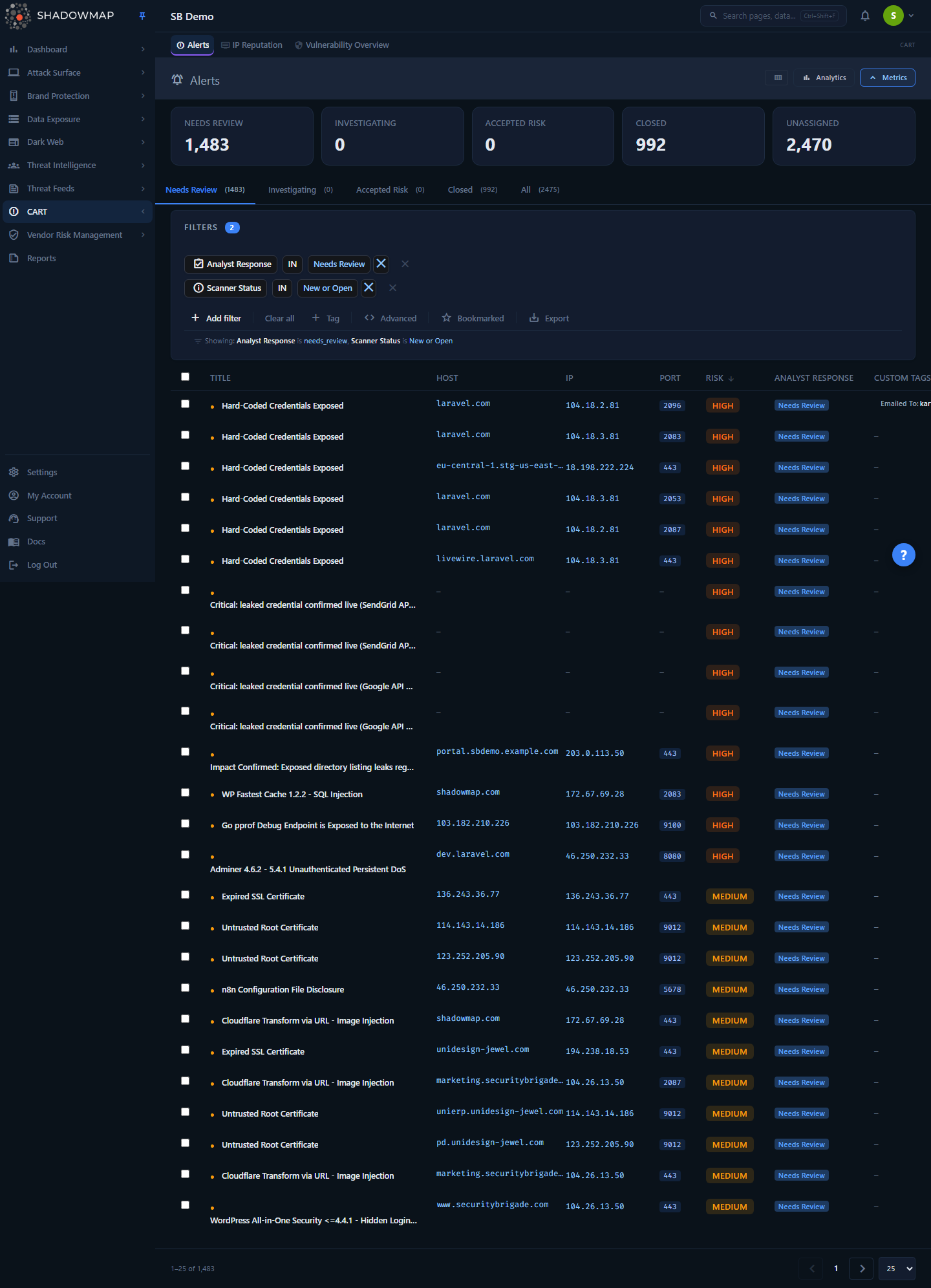
The Alerts module surfaces the full status model: a scanner-detection dot beside each title, the analyst-response tabs across the top, and the same disposition vocabulary used throughout the product. This reference applies wherever a finding has a status.
A finding's status is composed of two independent axes that never override each other:
| Axis | Who sets it | Question it answers | States |
|---|---|---|---|
| Scanner status | Set automatically, recomputed every scan | "Is this still detectable right now?" | New, Open, Closed |
| Analyst response | Set by you or a tag rule (AI review sets one extra value) | "What has the team decided to do about it?" | Needs Review, Investigating, Accepted Risk, Closed — plus Filtered by AI on AI-enabled tenants |
Keeping them separate is deliberate: a re-scan can never silently erase an analyst decision, and an analyst decision never hides a live exposure. The word "Closed" appears on both axes — that overlap is the single most common source of "why is this still here?" confusion, and is addressed in detail below.
How it works
This is the part the UI cannot show you — the rules that decide which state a finding is in.
Scanner status is derived from timestamps, not stored as a flag
The New / Open / Closed scanner status is computed, not a value an analyst or a scan writes directly. It is recomputed on every scan from three timestamps on the finding, and (since the April 2026 indexing migration) cached into an indexed status_text column for fast filtering:
| Timestamp | Meaning |
|---|---|
added_on | When the finding was first discovered |
last_seen_on | The most recent scan that still observed it |
last_scanned | When this asset was last scanned |
The exact rule the platform applies (transcribed from the Alerts status expression):
| Condition | Scanner status | Plain meaning |
|---|---|---|
added_on ≥ last_scanned | New | First seen in the most recent scan. |
last_scanned is null, or the finding was seen at/after the last scan (last_seen_on ≥ last_scanned) and is not new | Open | Previously known and still detectable. |
last_scanned is set, the finding is not new, and last_seen_on < last_scanned (or is null) | Closed | The scanner did not observe it in the latest scan. |
Two consequences follow directly:
- Scanner-
Closedis automatic and reversible. If an exposure disappears — you patched it, the port closed, a leaked page was taken down — the next scan stops observing it and the finding flips toClosedon its own. If it reappears in a later scan,last_seen_onadvances pastlast_scannedand it flips back toOpen— a re-find. You never manually "close" a finding just because it's gone; the scanner handles that, and a staleClosedself-heals the instant it is re-detected. - Scanner-
Closeddoes not mean "resolved" or "handled." It means only "not detected in the latest scan." A finding can be scanner-Closedwhile still sitting unreviewed, and an exposure can be live (Open) while an analyst has already accepted the risk.
In the Alerts list this axis is demoted to a small dot beside the title so it never competes with the analyst-decision badge:
| Dot | Tooltip | Underlying scanner status |
|---|---|---|
| ● filled (amber) | Currently Detected | New or Open |
| ○ hollow (muted) | Not Detected in Latest Scan | Closed |
Analyst response is the four-state disposition you control
This is the axis the team owns. Alerts v2 collapses disposition into four states, each with a stable numeric code, a snake_case key, and a label:
| Code | Key | Label | What it means |
|---|---|---|---|
0 | needs_review | Needs Review | The default — nobody has triaged it yet. This is the "no decision" state and the start of every queue. |
1 | investigating | Investigating | Acknowledged and actively being worked or validated. "I own this and I'm on it." |
2 | accepted_risk | Accepted Risk | Reviewed and consciously accepted — a real finding the business chooses not to remediate. A documented exception. |
3 | closed | Closed | Triage complete — remediated, false positive, or otherwise resolved. |
Setting the response back to Needs Review clears the disposition entirely; it is the absence of a decision, not a decision in itself.
A fifth value you don't set: Filtered by AI
On tenants with AI review enabled, ShadowMap's AI triage can write a fifth disposition value — code 6, key filtered_by_ai, label Filtered by AI. It is set automatically by the AI, never by an analyst (the bulk bar and detail drawer only offer the four states above), and it marks a finding the AI adjudicated as benign so it stays out of your human queues. It surfaces its own Filtered by AI tab and badge, and only appears where AI review is enabled. The four analyst-settable states are unchanged.
How legacy status codes collapse into the four states
ShadowMap predates the four-state model, so older findings and some non-Alerts modules still store a longer status enum. The platform normalizes every stored value into one of the current states so that list, detail, and exports never disagree. The full historical enum and its mapping:
| Stored code | Legacy label | Normalizes to |
|---|---|---|
0 / null | None | Needs Review |
1 | Investigating | Investigating |
9 | Investigating (legacy) | Investigating |
2 | Public | Accepted Risk |
4 | Accepted Risk | Accepted Risk |
3 | To Be Closed | Closed |
5 | Closed | Closed |
10 | Reviewed | Closed |
Where the older labels still appear
You may still see legacy labels — Public, To Be Closed, Reopened, Reviewed — in archived data, in saved searches that were written against the old vocabulary (e.g. response IN ("To Be Closed","None")), and in some modules that have not yet migrated to the four-state UI. When ShadowMap displays a historical finding, it folds the stored code into the current states using the mapping above, so the badge you see is always one of Needs Review / Investigating / Accepted Risk / Closed (or Filtered by AI, where AI review is enabled).
Leaked Credentials and Cloud IAM (migrated August 2026)
These two modules previously stored their own status vocabularies rather than the shared one. Both were converted to the four states, and any export or report produced before August 2026 will use the older labels:
| Module | Old value | Now |
|---|---|---|
| Leaked Credentials | Online | Needs Review |
| Leaked Credentials | Investigating | Investigating |
| Leaked Credentials | Dismissed (stored as "false positive") | Closed |
| Leaked Credentials | To Be Closed | Closed |
| Leaked Credentials | Closed | Closed |
| Cloud IAM | Unauthorized (the "Flag Unauthorized" action) | Investigating |
| Cloud IAM | Approved / Genuine | Accepted Risk |
Two of these are worth explaining, because they are judgement calls rather than renames:
- Leaked Credentials "Dismissed" became Closed, not Accepted Risk. That value meant "this is not really a leaked credential" — the detection was wrong. Accepted Risk is reserved for findings that are real and consciously kept, so filing a false positive there would put a non-existent exposure on your risk register. Closed already covers "remediated, false positive, or otherwise resolved". (Marking a credential as a false positive today uses the separate Mark False Positive action, which suppresses the finding rather than setting a status.)
- Cloud IAM "Approved" became Accepted Risk, not Closed. Approving an anonymously-reachable cloud identity meant "this is intended" — but the identity is still there and still reachable. That is a real exposure you have chosen to accept, which is exactly Accepted Risk. Calling it Closed would have quietly dropped a live exposure off your register.
The two "Closed" meanings, and how the Closed tab reconciles them
"Closed" exists on both axes, which is why the row UI keeps them visually distinct. The Closed tab in Alerts deliberately shows the union of the two — a finding lands in Closed when either is true:
- an analyst explicitly closed it (analyst response =
Closed), or - the scanner can no longer detect it (scanner status =
Closed).
So the Closed count reflects both human dispositions and exposures that simply went away. The active tabs — Needs Review, Investigating, Accepted Risk (and Filtered by AI, where AI review is enabled) — are each scoped to findings the scanner still detects (New or Open), so genuinely-gone items don't clutter your working queues. The table below shows exactly what each tab queries:
| Tab | Analyst response | Scanner status |
|---|---|---|
| Needs Review | needs_review | New or Open |
| Investigating | investigating | New or Open |
| Accepted Risk | accepted_risk | New or Open |
| Closed | closed — OR — | scanner status Closed |
| Filtered by AI * | filtered_by_ai | New or Open |
* The Filtered by AI tab appears only on tenants with AI review enabled. The standalone All tab was retired per the current tab spec — the tabs now scope by disposition rather than offering an unfiltered view.
What happens when you change the response
Setting an analyst response is a recorded, observable action — not just a UI toggle:
- The finding's response value is updated and a response-status tag is written or updated on the finding.
- An audit entry is created (
change-status.alert) capturing who changed it, the old status, and the new status. It appears in the Activity feed and Audit Logs. - If the finding is assigned, the assignee is emailed that the status changed (you are CC'd unless you are the assignee).
- The finding moves tabs immediately in the list — e.g. closing an item on the Needs Review tab drops it out of that tab on the next refresh.
Changing the response never touches the scanner status. The next scan still recomputes detection independently.
Sort and count behavior
- Status sort is semantic, not alphabetical. Findings sort
New→Open→Closedregardless of sort direction, so the freshest work always floats to the top of a status-sorted view. - The KPI strip mirrors the analyst-response axis, not the scanner axis — its cards are the four analyst-response tabs plus an Unassigned count, never the raw scanner
new/open/closedsplit. The green Closed card carries the same union count as the Closed tab: analyst-closed or scanner-closed, so it includes findings that simply went away, not only analyst dispositions.
State reference
Scanner status (automatic)
| State | Set when | Reversible? |
|---|---|---|
| New | The finding's added_on is at or after the latest scan — first observed in the most recent run. | Becomes Open on the next scan that still sees it. |
| Open | Previously known and still observed by the latest scan. | Becomes Closed automatically when a scan no longer observes it. |
| Closed | Not observed in the latest scan. | Flips back to Open automatically if a later scan re-detects it (a re-find). |
Analyst response (manual)
| State | Set by | Effect |
|---|---|---|
| Needs Review | Default; or set explicitly to clear a prior decision | Returns the finding to the work queue; no disposition recorded. |
| Investigating | Analyst (row, drawer, or bulk) | Marks active ownership; pairs with Assign to make ownership visible. |
| Accepted Risk | Analyst | Records a real-but-accepted exposure as a documented exception; removes it from active tabs. |
| Closed | Analyst | Records triage complete (remediated / false positive / resolved); removes it from active tabs. |
On AI-enabled tenants, a fifth value — Filtered by AI — is written automatically by AI triage rather than by an analyst. It is not analyst-settable and is covered in the disposition section above.
Setting the response
You move a finding through the workflow in three ways:
- From the row or detail drawer/page — open the finding and pick Needs Review, Investigating, Accept Risk, or Close.
- In bulk — select multiple findings and use the bulk action bar. In Alerts it exposes one-click Needs Review, Investigating, Accept Risk, and Close, plus Assign, Bookmark, Share, and Tag.
- Automatically, via tag rules — a Tag Rule can disposition findings as they arrive so known-benign classes never reach a human queue.
Investigate and assign
Marking a finding Investigating records that work is underway, but assigning it to a teammate is what makes ownership visible (and emails them). Do both in the same bulk action: set Investigating and Assign together.
Fixing an issue does not auto-set the analyst response
Remediating the underlying exposure flips the scanner status to Closed on the next scan, but the analyst response stays whatever you last set. To take a fixed item out of the active tabs immediately, set its response to Closed (or Accepted Risk); otherwise wait for the next scan to stop detecting it.
Filtering by status
Both axes are first-class filter fields:
- Scanner Status —
new/open/closed(the derived detection state). A power-user filter; most analysts rely on the detection dot instead. - Analyst Response —
needs_review/investigating/accepted_risk/closed(plusfiltered_by_aion AI-enabled tenants).
These compose with every other filter (host, IP, port, risk, finding type, assignee, SLA policy, dates) and can be saved. See Saved Searches.
Cross-module differences
The four-state analyst response and the New/Open/Closed scanner status behave the same way across most modules (Alerts, Open Ports, Vulnerability Overview, Web Applications, SSL Issues, Leaked Credentials, Cloud IAM, and others). A few modules layer their own state on top:
- Web Applications shares the same disposition axis but exposes a longer lifecycle — its tabs are Needs Review, Investigating, Accepted Risk, Dismissed, To Be Closed, and Closed (it is a no-AI module, so there is no Filtered by AI tab). The underlying
New/Open/Closedscanner detection lifecycle is identical to Alerts. - Brand-monitoring and data-leak modules (Phishing, Domain Squatting, S3 Buckets, Leaked APIs, and similar) often add a module-specific live/offline or takedown lifecycle on top of the disposition. The disposition vocabulary still maps to the four states.
- Dark Web modules (Data Breaches, Credit Card Leaks) layer a relevance dimension on top of the disposition — the triage question there is often "relevant to us or not" as much as "remediate / accept / close."
- Leaked Credentials and Cloud IAM use the four analyst states exactly as described above, with no extra lifecycle states. Leaked Credentials adds Filtered by AI where AI review is enabled; Cloud IAM does not (its AI review is advisory only and never sets a disposition). Leaked Credentials additionally carries a verification property — see below — which is a column and a filter, not a tab.
When a module differs, its own documentation page calls out the extra states.
Verification is not a lifecycle state (Leaked Credentials)
Leaked Credentials answers two independent questions about every finding, and it is worth being explicit about which is which:
| Question | Where you see it | Values |
|---|---|---|
| "What have we decided to do about this?" — the analyst response | The tabs | Needs Review / Investigating / Accepted Risk / Closed (+ Filtered by AI) |
| "Does this leaked credential still work?" — verification | A column and a filter, on every tab | Confirmed Working / Maybe Working / Not Working / Not Tested |
Verification is a property of the credential, refreshed by the validation probes — not a stage of your triage. A Confirmed Working key can sit in any analyst state, and moving a finding to Closed does not change whether the key still works.
Confirmed Working does not mean we proved what the key reaches. It means the credential authenticated successfully — liveness, not blast radius. What it can access is a separate axis, Impact, which is only set when a probe actually enumerated something; see Severity Levels. A live key showing Impact not measured is a normal and honest combination, which is why the Confirmed Working tile states how many of its findings have demonstrated reach.
Not Tested is deliberately the catch-all. The three definitive buckets are defined by explicit probe verdicts, and everything else — never probed, not probeable by design, probe errored, or a verdict this version of the platform does not recognise yet — lands in Not Tested. That guarantees every finding sits in exactly one verification bucket, so a credential can never disappear from the list because a new prober shipped a verdict the UI had not been taught about.
These used to be tabs
Until August 2026 the Leaked Credentials tab strip was Confirmed Working / Maybe Working / Not Working / Not Tested plus a set of closure states, and there was no Needs Review tab. That made the module impossible to triage — there was nowhere for an untriaged finding to live, and the counts mixed two unrelated questions. The tabs are now the standard four analyst states, and verification moved to the column and filter described above. Old links using ?tab=confirmed_working still resolve — they land on the list with the matching verification filter applied.
Common questions
Why is a finding still in my queue after I fixed it? Fixing the underlying issue flips the scanner status to Closed on the next scan, but the analyst response you set is preserved. To remove it from the active tabs now, set the response to Closed or Accepted Risk; otherwise the next scan stops detecting it.
A finding I closed came back — is that a bug? No. Scanner status is recomputed from timestamps on every scan. If the exposure is detected again, last_seen_on advances and the finding flips back to Open (a re-find). This is intended early-warning behavior — a recurrence resurfaces even if it was previously gone. Your analyst decision is preserved on the finding.
What's the difference between "Accepted Risk" and "Closed"?Accepted Risk means the finding is real and you've consciously decided not to remediate it — it stays on record as a documented exception. Closed means triage is finished: remediated, a false positive, or otherwise no longer actionable. Both remove the finding from the active work tabs.
Why are there two things both called "Closed"? One is scanner-derived ("the scanner no longer detects this") and one is analyst-set ("the team finished triaging this"). The Closed tab shows the union of both so nothing slips through, while the row UI keeps them visually separate — the detection dot for the scanner axis, the response badge for the analyst axis.
I see "To Be Closed" / "Reviewed" / "Public" / "Reopened" labels — what are those? Legacy status codes from before the four-state model. ShadowMap folds them into the current four states when displaying a finding (see the mapping table above). They can still appear in archived data and in older saved searches.
What is the "Filtered by AI" tab? On tenants with AI review enabled, ShadowMap's AI triage can disposition a finding as Filtered by AI — its assessment that the finding is benign — so it stays out of your Needs Review, Investigating, and Accepted Risk queues. It is set automatically, never by an analyst, and appears as its own tab and badge only where AI review is enabled. The finding is still live (scanner New/Open); it's just held in a separate bucket rather than closed.
Does changing a status notify anyone? Changing the analyst response writes an audit entry (visible in Activity and Audit Logs) and emails the finding's assignee if it has one. Changing the scanner status is automatic and does not notify directly — but a re-find (Closed → Open) can trigger SLA and alert-preference notifications.
My Leaked Credentials tabs changed — where did Confirmed Working go? It is still there, as a column on every row and as a filter, rather than as a tab. The tabs are now the standard Needs Review / Investigating / Accepted Risk / Closed, so the module works like the rest of ShadowMap. To get the old view, open Needs Review and filter Working Status to Confirmed Working. Existing links and bookmarks that used the old tabs still work — they apply the equivalent filter automatically.
A Cloud IAM artifact I marked "Approved" now says Accepted Risk. Did something change? Only the label and where it files. "Approved" meant the exposed cloud identity was intended — the identity is still reachable, so it is a real exposure you have accepted, which is what Accepted Risk means. Nothing about the artifact or its probe results changed, and the decision is preserved. If you meant "this is not an exposure at all", set it to Closed instead.
Can I set status in bulk? Yes. Select multiple findings and use the bulk action bar (Needs Review / Investigating / Accept Risk / Close), or auto-disposition incoming findings with Tag Rules.
Related
- Severity and Status Workflow — the conceptual model and the severity axis (High / Medium / Low / Informational) that pairs with status.
- Severity Levels — reference definitions of the severity bands.
- Alerts — the module where both status axes are surfaced most fully; the best place to work the lifecycle.
- Tag Rules — auto-disposition findings (set their analyst response) as they arrive.
- SLA Policies and SLA Violations — severity and status are the inputs that start and breach remediation clocks.
- Takedowns — the remediation path for brand and exposure findings; a successful takedown resolves the scanner-detection axis on the next scan.
- Activity and Audit Logs — where every status change is recorded.
- Glossary — definitions of status, response, scanner detection, and other recurring terms.