
Saved Searches
A saved search is a named filter you create inside a module and recall later in one click. Instead of rebuilding the same combination of filters every time you triage, you save it once — "Unreviewed phishing", "Critical alerts", "Recent data breaches" — and reapply it whenever you return.
Overview
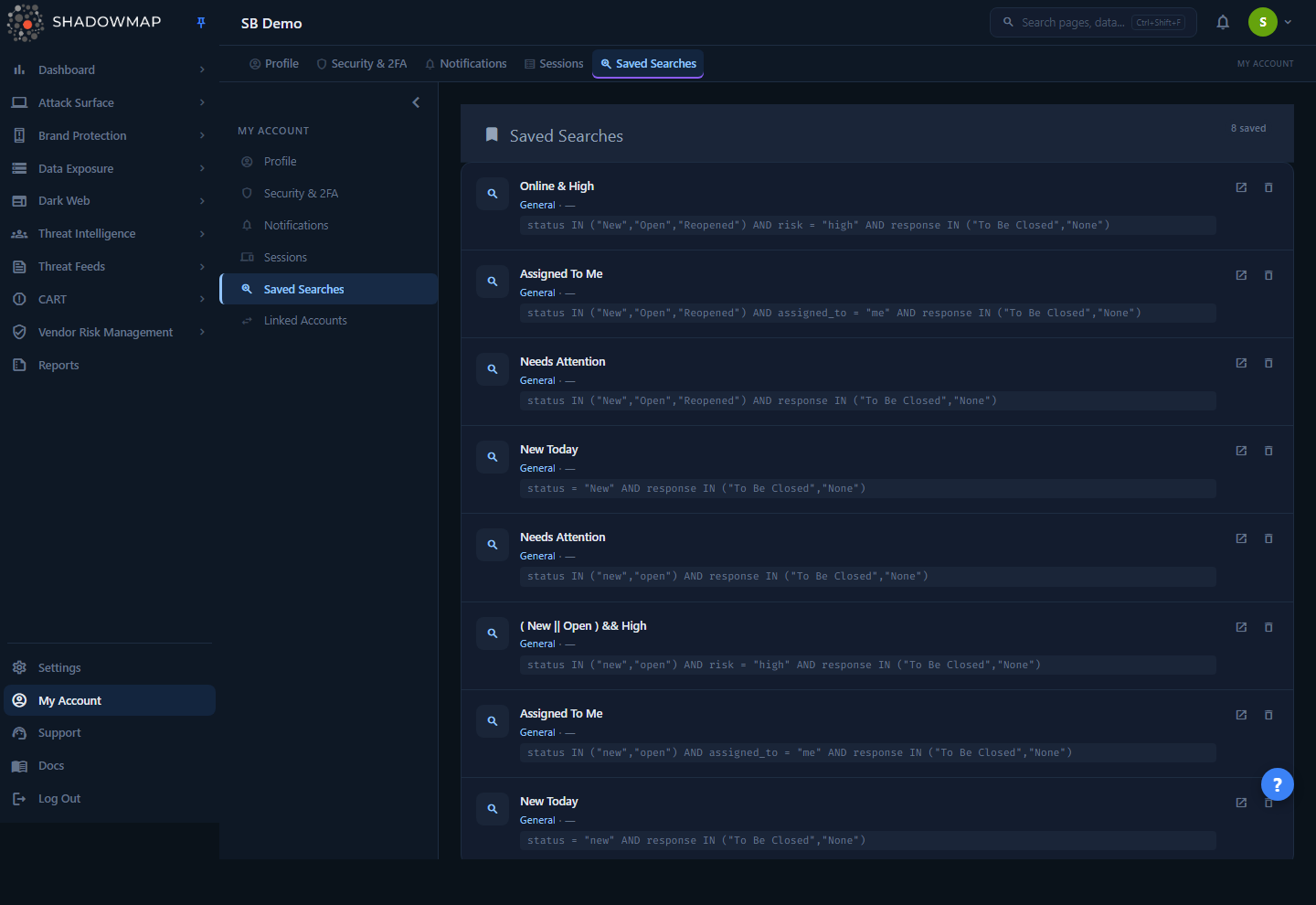
The Saved Searches page (Account → Saved Searches) is the central library of every search you have personally saved across modules. Each entry shows:
- The name you gave it, with a leading icon.
- The module it belongs to (for example Alerts, Phishing & Impersonations, Data Breaches).
- The date you created it.
- A preview of the saved query.
Each entry has two actions: Apply (open icon) and Delete (trash icon). A count badge in the page header shows how many searches you have saved in total. When you have none, the page shows an empty state inviting you to save filter combinations from any module.
Saved searches are per-user
Every saved search belongs to the individual who created it (added_by). What you save is visible and usable only by you — saving a search never changes what your teammates see, and you can't see theirs. To share a recurring view with colleagues, codify it as an SLA Policy or Tag Rule instead, which apply org-wide.
How it works
The mechanics that aren't visible on the list page:
Searches are created inside modules, not here
The Saved Searches page is a management library — it lists, applies, and deletes. Creation happens inside a module. When you have a filter combination applied in a list view (for example, the Alerts or Phishing & Impersonations table), use the Save Current Search action to open the save dialog, give it a name, optionally tweak the query string, and save. The new search then appears on this page and in that module's saved-search dropdown.
The save dialog captures:
| Field | Required | Notes |
|---|---|---|
| Name | Yes | 2–190 characters. Must be unique among your saved searches. |
| Query | Yes | Pre-filled from your current filters; editable before saving. |
| Make this the default view for myself | No | If checked, this search becomes your default view for that module (see below). |
Each search is bound to one module type
A saved search is scoped to the module type it was created in — it is not global. Saving is supported in a defined set of modules, including:
- Web Applications and Alerts
- Phishing & Impersonations and Domain Squatting
- Dark Web Discussions, Third Party Data Breaches, Telegram Conversations, Credit Card Leaks
- Malware Compromised Users and Malware Compromised Computers
- Code Repositories, S3 Buckets, Leaked APIs, Leaked Files, Elastic Search Instances, Docker Containers
- Social Media Monitoring
Because a search is bound to its module type, applying it always returns you to the correct module. The query is stored as a text string captured from your active filters; ShadowMap validates its format for that module type before saving.
"Default for me" replaces the standard view on entry
When you save a search with Make this the default view for myself checked, it becomes the view that loads automatically the next time you open that module — replacing the standard default for you only. The rule is one default per module type per user:
- If you had no personal default for that module type, the new search becomes it.
- If you already had one, the new search takes over as the default for that module type.
Setting a default never affects teammates — it only changes which view you land on. The default checkbox lives in the Save Current Search dialog, so you choose default-or-not at save time.
Uniqueness and validation
When you save, the backend enforces:
- Name is required, 2–190 characters, and unique across your own saved searches. Reusing a name returns "You already have created a Saved Search with this name. Please give some other name."
- Query is required and validated against the module's filter format before it's stored.
Creating and deleting require the Saved Searches write permission (account.saved-searches:write). Viewing and applying are available to any authenticated user. See RBAC Permissions.
Why a delete can be refused
Most saved searches delete instantly. A delete is blocked when the search is still being used as the definition for one of these org-level constructs:
- an SLA Policy (the policy's scope is defined by this saved search)
- a Tag Rule (the auto-tagging rule keys off this search)
- a Data Restriction (a member's data-access scope is built on it)
In those cases ShadowMap returns a "cannot delete" message instead of removing the search, because deleting it would break a live policy. Detach or delete the policy/rule/restriction first, then delete the search. Saved searches that back a policy or tag rule are also hidden from this list so you don't accidentally try.
Audit trail
Creating a saved search writes an entry to the Activity Log (add.saved-search) recording who created it and its name. Useful when reconstructing how a triage view or an SLA scope came to exist.
Understanding the data
| Column / element | What it means |
|---|---|
| Name | The label you gave the search, shown with a leading icon. |
| Module | The module the search belongs to; determines where "Apply" takes you. |
| Date | When you created the search. |
| Query preview | The stored filter query, or a summary of the saved filters. |
| Count badge | Total number of searches you have saved (header). |
Taking action
| Action | Where | Effect |
|---|---|---|
| Save Current Search | Inside a module's list view | Opens the save dialog; persists your current filters as a named search. |
| Make this the default view for myself | Save dialog checkbox | Makes the search the view that auto-loads when you open that module. |
| Apply (open icon) | Saved Searches page | Opens the module the search belongs to. |
| Delete (trash icon) | Saved Searches page | Removes the search after a confirmation prompt. Blocked if it backs an SLA policy, tag rule, or data restriction. |
Delete is permanent and confirmation-gated
Deleting a saved search cannot be undone — you'll need to recreate it from the module filters. The page asks you to confirm before removing. If a saved search is your default for a module, deleting it clears that default, so you fall back to the module's standard view.
Common questions
Where do I create a saved search? There's no "New" button on this page. Inside the module you want to save. Apply your filters in the list view, then use Save Current Search. The new entry appears on this page automatically.
Can my team use a search I saved? No. Saved searches are personal. For a shared, recurring view, model it as an SLA Policy or a Tag Rule — both operate at the organization level and run automatically.
What's the difference between a saved search and a module's built-in views? A module's standard views are available to every user. A saved search is one you define. Marking a saved search as your default makes it load instead of the standard default — but only for you.
I made a search my default and now the module opens to the wrong view. You have a personal default set for that module type. Save a different search as default (the newest one wins, one default per module type), or delete the default search to fall back to the standard view.
Why won't this search delete? It's referenced by an SLA policy, a tag rule, or a data restriction. Remove or repoint that policy/rule/restriction first, then delete the search.
Why is a search I created not showing in this list? Searches that have been promoted into an SLA policy or tag rule are filtered out of the personal list to avoid confusion. They live with the policy/rule, not here.
Does saving a search snapshot the results? No. A saved search stores the filter query, not a frozen result set. Reapplying it always runs against current data, so the same view stays live as your attack surface changes.
Related
- Universal Search — search across modules from one bar; complements per-module saved filters.
- SLA Policies — promote a recurring triage view into an org-wide policy with deadlines and escalation.
- Tag Rules — auto-apply tags to findings that match a saved-search definition.
- Custom Tags — manual labels you can filter on inside the searches you save.
- Alerts — a high-traffic place to save triage views.
- Bookmarks — pin individual findings, as opposed to saving a filter view.
- RBAC Permissions — the
account.saved-searchespermission that gates creating and deleting searches.