
Activity Logs
Activity Logs is a chronological feed of the workflow actions your team takes inside ShadowMap: who assigned an alert, who changed a finding's status, who added a tag, who left a comment, who shared an item to a third-party integration. It answers "what has my team been doing with our findings?" — distinct from sign-in and configuration events, which live in Audit Logs.
Overview
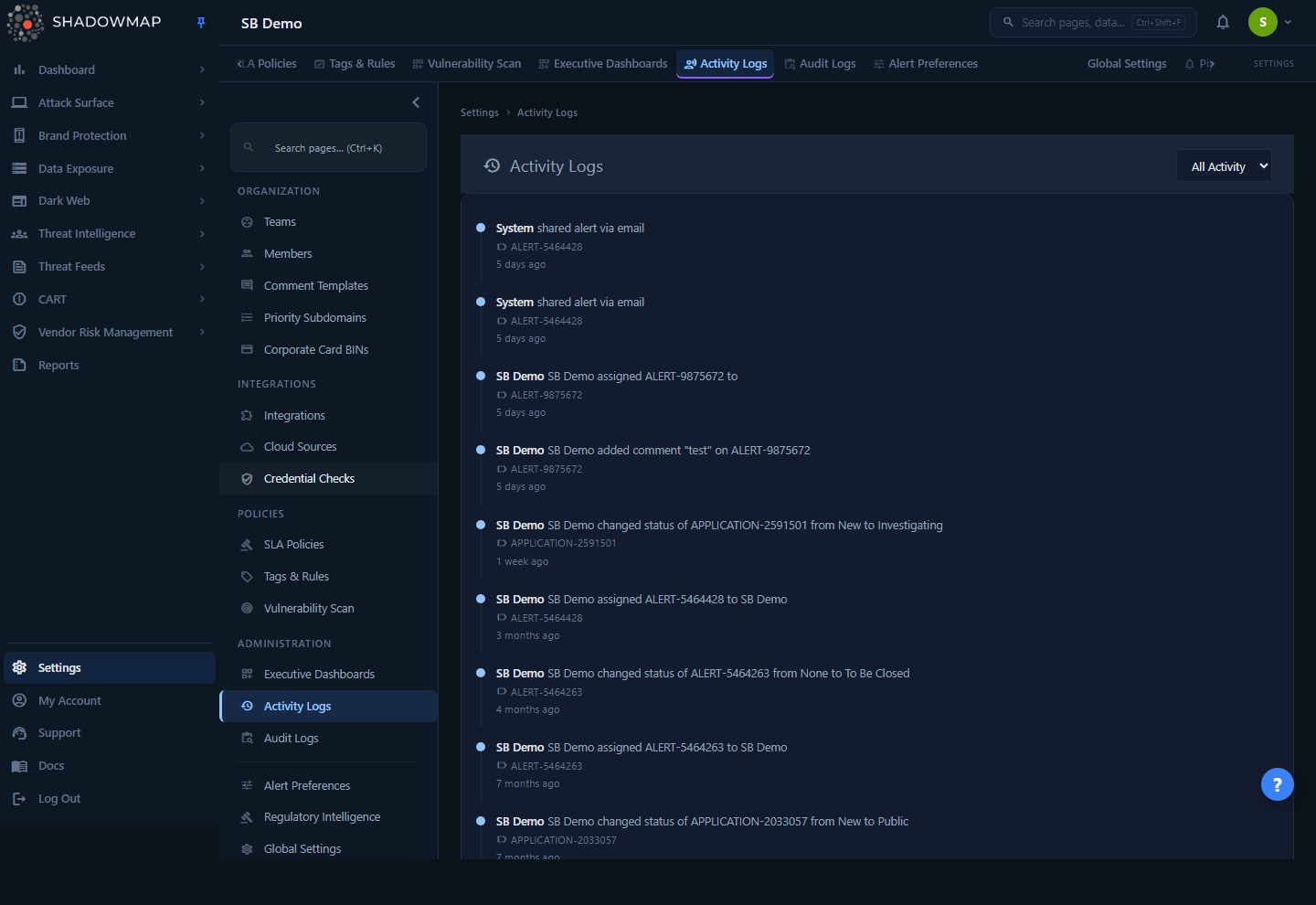
The page renders as a single vertical timeline. Each entry shows four things:
- Who performed the action (the user's name, or
Systemfor automated actions). - What they did, as a human-readable sentence (for example, "Jane Doe assigned alert to John Smith").
- The target — the specific finding the action was performed on (an alert title, an application hostname, a leaked file, etc.), shown with a small label icon.
- When it happened, as a relative timestamp ("2 hours ago", "3 days ago"). Even old events stay in this relative form ("2 months ago", "1 year ago") rather than switching to a calendar date.
Two dropdowns in the page header let you filter the feed by read status, and — when viewing unread items — narrow to a single activity type.
Where to find it
Settings → Administration → Activity Logs (/settings/activity-logs). The page is reachable from universal search and the settings navigation.
How it works
The mechanics below are not visible in the UI but determine exactly what you see.
What generates an activity
An activity row is written every time a user (or an automated process) performs a tracked workflow action on a finding. ShadowMap tracks a fixed catalogue of action types across modules. The current set includes:
| Module | Tracked actions |
|---|---|
| Alerts | Assign, unassign, change status, remove status, share, share via integration, add/update/delete custom tag |
| Web Applications (Exposure) | Assign, unassign, change status, remove status, add/remove suggested risk, add/update/delete/remove tag, add custom tag, share |
| Leaked Files | Assign, unassign |
| Leaked APIs | Assign, unassign, change status, remove status |
| Shortener URLs | Assign, unassign, change status, remove status |
| IP Reputation | Assign, unassign |
| Comments | Add comment (on any commentable finding) |
Each action stores a target object (the finding it acted on), the acting user, a note template that is rendered into the sentence you read, and a timestamp. Actions that aren't in this catalogue — sign-ins, member invites, settings changes — are not activities; they are recorded as audit events instead.
Read vs. unread
Every activity carries a read flag, and the All Activity / Unread / Read filter switches the feed between all rows, rows where read is false, and rows where read is true. The read flag is a property of the activity row itself (company-wide), not a personal per-viewer marker.
Read status is not changed by simply opening this page — loading the feed leaves the read flag untouched, so an item stays in the Unread filter until something explicitly marks it read. (The backend separately tracks an internal "seen" marker when rows are fetched, but that marker is distinct from the read flag and does not move items out of the Unread filter.)
The grouped-unread shortcut (the second dropdown) is built from a separate query that counts only unread rows per activity type, so it surfaces where the unattended work is right now.
Who can see whose activity
Visibility depends on your role:
- Administrators and Analysts see activities performed by every member of the company.
- SOC Users see only the activities they performed themselves. The feed and its total count are filtered to the current user's own actions.
This is enforced server-side, so a SOC User cannot widen the feed by changing filters in the request.
Timestamps and time zone
Each entry shows a relative age ("2 hours ago"). The absolute timestamp behind it is stored and returned in UTC, and the relative age is computed server-side from that explicit UTC instant — so the elapsed time reads correctly regardless of your account or browser time zone. The age stays relative no matter how old the event is ("2 months ago", "1 year ago"); it does not switch to a MMM D, YYYY calendar date.
Reading an entry
Each timeline entry is assembled from the action's note template. For example, the assign alert action stores the template {user_name} assigned {object} to {target_user_name}, which renders as "Jane Doe assigned [alert title] to John Smith". The target finding's short name is highlighted within the sentence.
| Field shown | Meaning |
|---|---|
| User | The member who performed the action. Shows System when no user is associated with the entry. |
| Action sentence | The note describing what happened, with the target finding inlined. Falls back to a formatted version of the raw action name if no note is present. |
| Target summary | The specific finding acted on — an alert title, application host, leaked-file name, etc. Shown beneath the action with a label icon. |
| Time | Server-computed relative age of the event ("5 minutes ago", "3 hours ago", "2 days ago"), staying relative even for old events ("2 months ago"). Shows a dash when the event has no stored timestamp. |
Filtering
Two controls in the page header drive what the timeline shows. There is no free-text search on this page.
| Control | Options | Effect |
|---|---|---|
| Activity filter | All Activity · Unread · Read | Switches the feed between every recorded action, only unread actions, and only read actions. |
| Unread group | All Unread Groups · (per activity type, with counts) | Appears only when Unread is selected and unread groups exist. Narrows the feed to a single activity type (for example, "Assign Alert (12)"). |
The unread-group dropdown lists each activity type that currently has at least one unread item, with the unread count in parentheses — a quick way to jump to the category with the most pending work. Changing either filter resets the feed to page 1.
Pagination
The timeline loads 50 entries per page. When more than one page of results exists, previous/next controls appear at the bottom with a "Page X of Y" indicator. Total page count is derived from the filtered result total, so it updates as you change filters.
Activity Logs vs. Audit Logs
These two sibling pages are easy to confuse. Use the right one for the question you're asking.
| Activity Logs | Audit Logs | |
|---|---|---|
| Answers | "What has my team done with our findings?" | "Who signed in / changed account security?" |
| Records | Assignments, status changes, tags, comments, shares on findings | Authentication and security/account events |
| Shape | Timeline of action sentences with the target finding | Table of member, action, source IP, time |
| Includes IP address? | No | Yes |
| Scope (member role) | Your own actions only | Account-level security events |
Auditing access vs. triage work
For login history, IP addresses, and configuration changes, use Audit Logs. For evidence of who triaged, assigned, or commented on a specific finding, use Activity Logs — or open the finding itself, where its activity timeline is shown inline.
Common questions
Does opening this page mark items as read? No. Loading the feed does not change the read flag, so items stay in the Unread filter after you view them. Read status only changes when an activity is explicitly marked read.
I'm a SOC User and the feed looks empty / shorter than a colleague's. Is it broken? No. SOC Users see only their own actions, while Administrators and Analysts see the whole company's activity. If you expect to see others' actions, you need one of those roles.
Why does an activity say "System" instead of a person's name?System is shown whenever an entry has no associated user on record. The action sentence still describes what happened to the finding.
Can I see every action ShadowMap takes, including scans and ingestion? No. Activity Logs only records the workflow actions in the tracked catalogue (assignments, status, tags, comments, shares). Scanning, asset discovery, and data ingestion are not user-triage actions and don't appear here.
Can I search Activity Logs by finding, user, or date? Not on this page — the only filters are read status and (within Unread) activity type. To trace activity on a specific finding, open that finding; most modules show the item's own activity timeline in its detail view.
Where do login attempts and IP addresses show up? In Audit Logs, not here. Activity Logs deliberately omits IP and authentication events.
Are timestamps in my local time zone? The stored value is UTC, and the "X ago" label is computed server-side from that UTC instant, so the elapsed time is correct regardless of zone. The label stays relative even for old events rather than switching to an absolute date.
Related
- Audit Logs — the security-event counterpart: sign-ins, source IPs, and account changes. Use it for access auditing rather than triage history.
- Alerts — the primary source of assign / status / tag / share activities you'll see in this feed.
- Comments — comments left on findings appear in this timeline as "add comment" activities.
- Custom Tags — tag add/update/delete actions are recorded here.
- Severity & Status — status-change activities reflect the status workflow applied to findings.
- Members — the team roster that determines who can perform (and, by role, who can see) these activities.