
Tag Rules
Tag Rules turn a saved set of filter criteria into a label that ShadowMap applies automatically. Define a rule once — "any web application on a .dev host", "alerts on a priority subdomain", "stealer-log credentials for the finance domain" — and every matching finding gets tagged, both the data you have today and everything that lands in the future. Those tags then become first-class filter values you can pivot on across the platform.
Overview
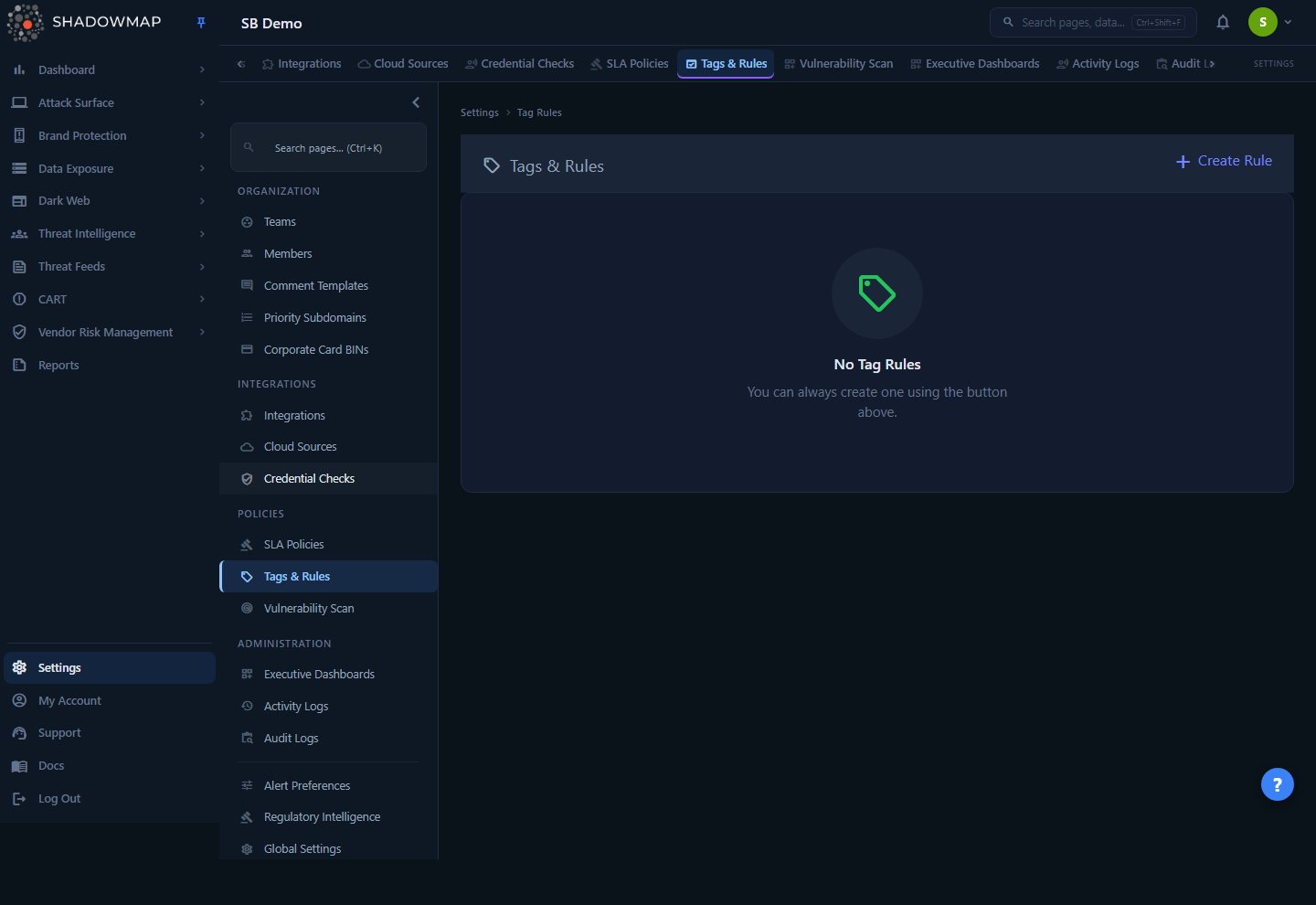
The page (titled Tags & Rules in the app) lives under Settings → Policies. It lists every tag rule configured for your organization in a single table:
| Column | What it shows |
|---|---|
| Name | The rule name. This string is also the literal tag value applied to matching findings. |
| Status | A read-only Active or Inactive badge. New rules are created Active, and the current UI exposes no control to change a rule's status (the per-row actions are Edit and Delete only). |
| Actions | Per-row Edit (pencil) and Delete (trash) icons. |
Each row has a selection checkbox. Selecting one or more rows swaps the header Create Rule button for a bulk bar showing the selected count, a Delete action, and Clear. The Create Rule button (top right) opens the rule builder.
When no rules exist, the page shows a "No Tag Rules" empty state — exactly as in the screenshot above. If the list itself fails to load, the page shows an inline "Couldn't load tag rules." error with a Retry control in place of the table, so a backend hiccup isn't mistaken for an empty configuration.
Tags vs. Tag Rules
A tag is a label on a single finding, applied by hand. A tag rule is the automation that applies a tag to every finding matching a query — and keeps applying it as new findings arrive. If you only need to label a handful of items, tag them manually; if you find yourself re-tagging the same kind of finding repeatedly, write a rule.
How it works
This is the part you cannot see from the table. A tag rule is a named container holding one or more type filters — each a criteria query scoped to a specific module family. When the rule runs, ShadowMap evaluates each type's query against that module's findings and attaches the rule's name as a tag to every match.
The five taggable module types
A single rule can carry one filter block per type. You add as many of the five as you need; each has its own independent criteria query:
| Type | Covers |
|---|---|
| Exposure | Attack-surface findings — web applications, open ports, services, and other host-level exposures. |
| Alert | Items in the Alerts queue. |
| Stealer Log | Credentials and host records harvested from infostealer-malware logs (see Stealer Logs). |
| Discussion | Dark-web forum posts and threads (see Discussions). |
| Domain Squatting | Look-alike and squatted domains (see Domain Squatting). |
Each type is processed by its own matching engine (an Exposure tagger, an Alert tagger, and so on), so the available filter fields differ per type — an Exposure filter offers host/port/path/risk fields, while a Discussion filter offers source/category/title fields. The filter builder loads the correct field set for whichever type you add.
What "matching" means
The criteria you build are compiled into a query expression (shown live under each filter block as Criteria:). A finding matches the rule when it satisfies that type's query. The match runs in two situations:
- On new data (always). While a rule is Active, every newly ingested finding of that type is checked against the rule and tagged if it matches. This happens automatically on the platform's normal ingestion cadence — you don't re-run anything.
- Retroactively (opt-in). If you enable Apply to all matching existing data when saving, ShadowMap also scans the findings you already have and tags the matches. This runs as a background job; on a large attack surface the back-fill is not instantaneous.
If you leave the retroactive toggle off, the rule only governs findings that arrive after you save it. Existing matches stay untagged until they're updated or you re-save the rule with the toggle on.
The tag that gets applied
The tag value is the rule's name, written under the dedicated tag_rule key. Two consequences follow from that design:
- The name is load-bearing. Renaming a rule changes the tag it writes going forward. Existing tags are only rewritten to the new name if you re-save with Apply to all matching existing data enabled — with that toggle off, findings already tagged keep the old name. Choose a name you can live with, because it becomes a filter value everywhere.
- Tagging is idempotent. A finding is never tagged twice by the same rule — the engine checks for an existing
tag_ruletag with that name before adding one. Re-running a rule is safe.
Deleting vs. deactivating
- Deactivating a rule (setting its status to Inactive) stops it tagging new findings — an inactive rule is skipped when new data is processed — and never deletes the tags it already applied. For Exposure and Alert rules the status change also flips those existing tags to inactive; for Stealer Log, Discussion, and Domain Squatting rules the existing tags are left untouched. The current UI exposes no control to change a rule's status (the per-row actions are Edit and Delete), so deactivation is an API-only operation today.
- Deleting a rule removes the rule definition. Tags it previously applied are governed by the delete job for that type and are removed from matching findings, so deletion is the way to permanently "unwind" a rule's effect.
Because the UI only offers Edit and Delete, deleting a rule is the in-app way to stop its effect; delete when you want the tag gone for good.
Async processing and the change log
Add, update, delete, and status-change operations are dispatched as queued background jobs, one per type in the rule. This is why a freshly saved retroactive rule may take a moment to populate, and why a delete on a large data set isn't instant. Failures are captured to error tracking rather than surfaced inline, so if a rule doesn't behave as expected, re-save it or contact support.
Every change to a rule's type criteria is recorded. The edit view shows a Change History table (previous criteria → new criteria, who changed it, and when) for that rule.
Building a rule
The Create Rule form (and the identical edit form) has four parts.
Rule Details
- Rule Name (required, up to 190 characters) — this becomes the tag value. Make it descriptive and filterable, e.g.
External — Login PagesorStealer — Finance Domain. - Description (optional) — free text explaining what the rule is for. Internal only; not part of the tag.
- Rule Name (required, up to 190 characters) — this becomes the tag value. Make it descriptive and filterable, e.g.
Types & Filters
- Use the + Add module type filter… dropdown to add one of the five types. A type can only be added once per rule.
- Each added type shows a full filter builder. Build your criteria; the resulting query string appears live beneath it as Criteria: so you can confirm what will match.
- Remove a type with the trash icon on its section header.
- At least one type must carry a non-empty query, or the save is rejected with "At least one module type with filters is required."
Apply to all matching existing data
- A checkbox. Leave off to tag only future findings; turn on to also back-fill existing matches (runs as a background job).
Save
- Create Rule / Update Rule persists the rule. The rule name is validated as required; per-type criteria are validated server-side and any errors are shown against the relevant field.
A broad query tags broadly
The tag is applied to every match, so an over-broad criteria query can tag thousands of findings in one save — especially with the retroactive toggle on. Check the live Criteria: preview, and prefer narrowing by host, risk, or status before enabling "Apply to all matching existing data."
Where tagged findings show up
Once a rule has run, its tag behaves like any other tag value:
- It appears as a filter value in the modules whose type the rule covers, so you can isolate "everything this rule tagged" in one click.
- It can drive Saved Searches, feed SLA Policies that key off tags, and group findings in Reports.
- It shows alongside manually applied tags on the finding's detail view.
This is the core payoff: instead of re-building the same filter in every module every time, you encode it once as a rule and pivot on the resulting tag everywhere.
Permissions
Tag Rules sit inside the Settings area and are gated by a dedicated permission key:
| Action | Requires |
|---|---|
| View the rules list, open a rule, view change logs | settings.tag-rules:read |
| Create, edit, delete, or change the status of a rule | settings.tag-rules:write |
A user with read-only access can inspect rules and their history but cannot create or modify them. See Roles & Permissions and the RBAC permission reference for how these map to roles.
Keyboard shortcuts
| Shortcut | Action |
|---|---|
n | New tag rule (from the list page) |
Ctrl + S | Save the current rule (in the form) |
See Keyboard Shortcuts for the full list.
Common questions
Do tag rules run automatically, or do I have to trigger them? Active rules run automatically against newly ingested findings — no manual trigger. The only manual step is the optional "Apply to all matching existing data" toggle, which back-fills existing findings when you save.
I created a rule but my existing findings aren't tagged. Why? You almost certainly left "Apply to all matching existing data" off. With it off, a rule only tags findings that arrive after you save. Edit the rule and re-save with the toggle on to back-fill, then allow time for the background job to complete.
Can one rule tag findings across several modules? Yes. A single rule can hold a filter block for any combination of the five types (Exposure, Alert, Stealer Log, Discussion, Domain Squatting). Each block has its own criteria, but they all write the same tag — the rule's name — so you can correlate across modules under one label.
What happens to the tags if I rename a rule? Going forward, the rule writes the new name. Tags already on findings keep the old name unless you re-save with Apply to all matching existing data enabled — with that toggle on, ShadowMap updates the existing tags on still-matching findings to the new name. If consistency matters, plan the name up front or re-save with the retroactive toggle after renaming.
What's the difference between deactivating and deleting a rule? Deactivating stops a rule tagging new findings without deleting the tags it already applied — for Exposure and Alert rules those tags are flipped to inactive, for the other types they're left in place, and the records survive either way. Deleting removes the rule and unwinds its tags from matching findings. Note that the current UI has no deactivate control — the per-row actions are Edit and Delete — so status changes go through the API, while deleting is the in-app way to remove a rule's effect for good.
Why is the page called "Tags & Rules" in the sidebar but "Tag Rules" in the breadcrumb? They're the same page. The header reads "Tags & Rules"; the route and breadcrumb use "Tag Rules." There's no separate tags-management screen here — manual tags are managed on the findings themselves.
Can I tag CVEs, phishing URLs, or other modules not in the list? Not with tag rules. Auto-tagging is limited to the five supported types. For other modules, apply tags manually on the finding, or use a saved search to reproduce the filter on demand.
Related
- Custom Tags — how tags work as a labeling system across the platform; tag rules are the automated way to apply them.
- Tag Rules (feature guide) — the cross-module concept behind this settings page.
- SLA Policies — policies can key off tags, so a tag rule can drive which findings fall under an SLA.
- Saved Searches — save the same kind of criteria for ad-hoc reuse instead of (or alongside) a persistent rule.
- Alerts — one of the taggable types; rule-applied tags become filter values in the alert queue.
- Activity Logs — audit trail of who created, changed, or deleted rules.