
Scan Profiles
Scan Profiles control how ShadowMap's active vulnerability scanner treats your assets. A profile is a named set of rules that match assets from your inventory (by IP, domain, host, ASN, geography, and more) and then apply one of three actions to them: exclude them from ShadowMap entirely, rate-limit how aggressively they are probed, or assign a scan depth (Non Intrusive, Light, or Full). Use them to keep fragile production systems out of intrusive scanning, slow down scanning against bandwidth-sensitive hosts, and concentrate deep scanning where it matters.
Exclude removes an asset completely, not just from scanning. An excluded asset is dropped the moment it is discovered, so it does not appear in your asset inventory and carries no applications, SSL or DNS findings. If you exclude every asset you own, your ShadowMap goes empty. If what you want is "keep monitoring these, just stop probing them", talk to your account contact rather than excluding them.
Overview
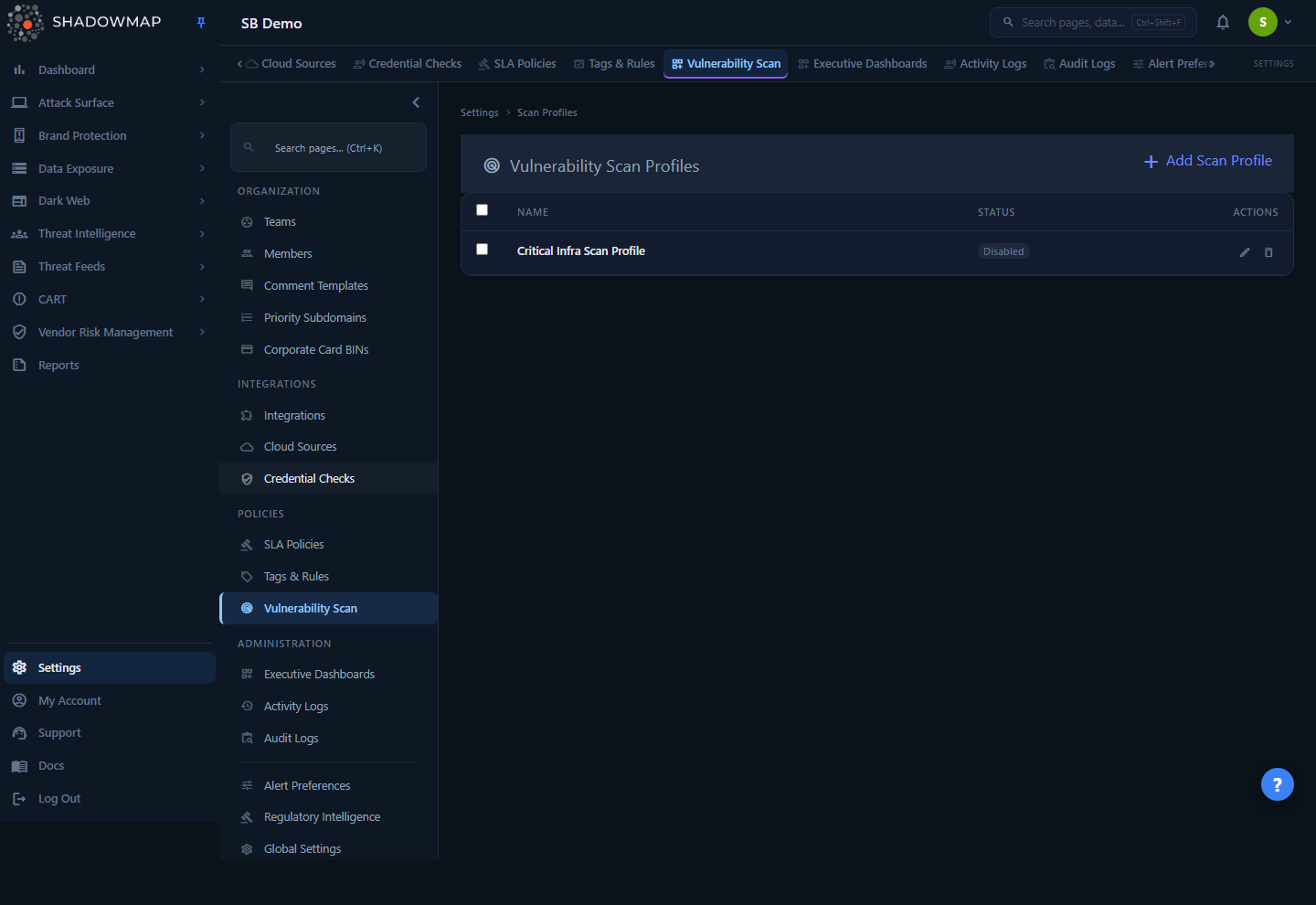
The Scan Profiles page (Settings → Policies → Vulnerability Scan, internally titled Vulnerability Scan Profiles) lists every scan profile configured for your account. The table has three columns:
| Column | Description |
|---|---|
| Name | The profile name you assigned when creating it. |
| Status | Enabled (green) or Disabled (grey). A disabled profile is retained but its rules are not applied during scans. |
| Actions | Per-row Edit (pencil) and Delete (trash) controls. |
From the header you can Add Scan Profile, or — once you tick one or more rows — switch the header into a bulk bar showing the selection count with Delete and Clear buttons. The select-all checkbox in the table header toggles every row.
If no profiles exist yet, the page shows an empty state ("No Scan Profiles — Create a scan profile to configure vulnerability scanning."). With no profiles, the scanner uses its default behavior across your full attack surface; profiles are opt-in overrides, not a required prerequisite for scanning.
Keyboard shortcut
Press n on the list page to jump straight to the new-profile form. On the form, Ctrl+S saves.
How it works
A scan profile is stored as two linked records: a profile group (name, description, on/off status) and one or more scan rules beneath it. Each rule is an asset key → asset values → action triple. The scanner reads enabled profiles and, for every asset it is about to scan, applies the matching rules.
Rule structure. A rule answers three questions:
- What assets does this match? — the Asset Key (a class of asset, e.g. Sub Domains) plus the specific Asset Values you pick from that class (e.g.
api.example.com,vpn.example.com). - What should the scanner do with them? — the Action (Exclude, Rate Limit, or Scan Profile).
- Is this rule live? — a per-rule enabled toggle, independent of the profile's overall status.
Asset values come from your own inventory. When you choose an Asset Key, the value picker is populated by querying ShadowMap's discovered inventory for your account — not free text. This means you can only target assets ShadowMap already knows about, and the available options are scoped to your company. The source of each list:
| Asset Key | Values are drawn from |
|---|---|
| IP | Discovered IP addresses (IP Addresses) |
| IP Range | Configured IP ranges (your seed/CIDR configuration) |
| Domains | Active root domains (Domains) |
| Sub Domains | Discovered subdomains (Subdomains) |
| Hosts | Internal hosts (Internal Hosts) |
| ASN | ASN providers seen across your IP space |
| Continents / Countries / Cities | Geolocation of your discovered web applications |
The geography keys (Continents, Countries, Cities) let you write rules by region without listing each host individually.
Geography rules are not enforced yet. The scanner decides each asset at the moment it is discovered, when it knows the hostname and IP but has not yet resolved a location — so a Continents, Countries or Cities rule is recorded and saved but currently changes nothing. Use IP, IP Range, Domains, Sub Domains, Hosts or ASN for a rule you need to take effect today.
Actions. Exactly one action applies per rule:
| Action | Effect | Extra input |
|---|---|---|
| Exclude | The matched assets are removed from ShadowMap entirely — not scanned, and not listed in your inventory. | None |
| Rate Limit | The scanner throttles request rate against the matched assets to the value you set. | Rate Limit integer, 1–100 |
| Scan Profile | The matched assets are scanned at the chosen depth. | Profile: Non Intrusive Scan / Light Scan / Full Scan |
Scan depth (the Scan Profile action). When the action is Scan Profile, you pick one of three depths:
| Depth | Behavior |
|---|---|
| Non Intrusive Scan | The most conservative depth — appropriate for fragile or production-critical systems where you want to avoid disruptive probing. |
| Light Scan | A middle depth between non-intrusive and full coverage. |
| Full Scan | The deepest depth. Use it where you can tolerate aggressive probing and want maximum coverage. |
Validation rules. The form validates before saving, and the backend independently re-validates the scan rules so they hold even if the UI is bypassed.
Enforced by the form:
- A profile needs a name (the form blocks an empty name and caps the field at 190 characters).
Enforced by the form and re-checked on the server for every rule:
- A profile needs at least one scan rule.
- Every rule needs an asset key, at least one asset value, and an action.
- Rate Limit rules require an integer between 1 and 100.
- Scan Profile rules require a target depth to be selected.
In the form, the Rate Limit field appears only for Rate Limit actions and the Profile/depth field appears only for Scan Profile actions. Switching action types resets the irrelevant field, so you can't, for example, leave a stale rate limit on an Exclude rule.
Status independence. A profile's overall Status (Enabled/Disabled) gates whether any of its rules apply. Each rule also has its own enabled toggle. Disabling the profile is the quick way to suspend all of its rules without deleting them; disabling a single rule lets you keep the rest of the profile active.
Who applies, who reads. ShadowMap's scanning infrastructure reads enabled profiles when planning and executing active scans; the effect of a profile change takes effect on subsequent scan runs, not retroactively against findings already collected. Profiles do not change passive discovery (asset inventory is still built); they govern the active vulnerability scanning phase.
Creating a scan profile
- Click Add Scan Profile (or press n).
- Under Profile Details, enter a Profile Name (required) and an optional Description. Leave Enable scanning ticked to make the profile active immediately, or untick it to save it in a disabled state.
- Under Scan Rules, the first empty rule is added for you. For each rule:
- Choose an Asset Key (e.g. Sub Domains).
- In Asset Values, select one or more values from your inventory. Hold Ctrl (Windows) or Cmd (Mac) to multi-select.
- Choose an Action: Exclude, Rate Limit, or Scan Profile.
- If Rate Limit: set a Rate Limit between 1 and 100. If Scan Profile: choose a Profile depth (Non Intrusive Scan / Light Scan / Full Scan).
- Leave Rule enabled ticked unless you want this rule saved but inactive.
- Click Add Rule to define additional rules in the same profile, or the trash icon to remove a rule.
- Click Create Profile. Validation errors appear inline next to the offending field.
To edit an existing profile, click the pencil icon on its row. The form opens pre-filled; removing a rule that was previously saved marks it for deletion when you click Update Profile.
Exclusions reduce coverage
An Exclude rule removes assets from active vulnerability scanning entirely — ShadowMap will not surface scan-based findings (open ports detail, service vulnerabilities, etc.) for those assets while the rule is enabled. Use exclusions deliberately, document why, and review them periodically so you don't silently lose coverage on systems that later become in-scope.
Deleting profiles
- Single profile: click the trash icon on a row and confirm. Deleting a profile also removes all of its rules.
- Bulk: tick the rows to delete, then use Delete in the bulk bar. Each profile is deleted in turn; the bulk bar shows the live selection count and a Clear button to deselect.
Deletion is permanent. To temporarily stop a profile from being applied without losing its configuration, disable it instead (toggle Enable scanning off, or set the profile to Disabled).
Permissions
Access to this page is governed by the Vulnerability Scan settings permission (settings.vulnerability-scan):
| Permission | Allows |
|---|---|
settings.vulnerability-scan:read | Reach the page and read a single profile, the asset keys, and the asset values. |
settings.vulnerability-scan:write | Load the profile list and create profiles. Updating, deleting, and enabling/disabling are further gated by the update, delete, and change-status sub-permissions. |
If you can't reach Scan Profiles under Settings, your role lacks the read permission. See Roles & Permissions and the RBAC permission reference for how these map to roles.
Common questions
Do I need a scan profile for ShadowMap to scan my assets? No. Without any profile, the scanner uses its default behavior across your discovered attack surface. Profiles are overrides — use them to exclude, throttle, or deepen scanning on specific asset groups.
Why can't I type an arbitrary host into Asset Values? The value picker is fed from your own discovered inventory (IP addresses, subdomains, hosts, domains, ASNs, geolocation). If an asset isn't listed, ShadowMap hasn't discovered it yet, or it belongs to a different inventory class than the Asset Key you selected. Check the relevant Asset Inventory module.
What's the difference between disabling a profile and disabling a single rule? Disabling the profile (its Status) suspends all of its rules at once. Disabling a single rule (its "Rule enabled" toggle) leaves the rest of the profile active. Both are reversible; deletion is not.
What does a Rate Limit value of, say, 20 mean? It throttles how aggressively the scanner probes the matched assets. Lower values are gentler. The allowed range is 1–100. Use it for bandwidth-constrained links, rate-sensitive WAFs/IPS, or fragile appliances you still want scanned, just more slowly.
If two rules match the same asset, which wins? Avoid overlapping rules where possible — give each asset group one clear intent. If you need both a depth and a throttle for the same assets, express that as the most conservative combination (for example, a Rate Limit rule on fragile hosts) rather than relying on rule-ordering, and verify behavior on the next scan run.
Does excluding an asset delete its existing findings? No. Profiles affect future active scans, not data already collected. Existing findings remain until the asset is re-scanned (or not, if you've excluded it). To act on findings, use the relevant threat module.
When do changes take effect? On subsequent scan runs. Editing a profile does not re-scan assets immediately or rewrite historical results.
Related
- SLA Policies — sibling Policies setting; governs remediation timelines for findings rather than how assets are scanned.
- Tag Rules — sibling Policies setting; auto-tags assets/findings, useful for organizing the inventory you target in scan rules.
- Priority Subdomains — flag subdomains as high-priority; complements scan profiles when deciding where to apply Full Scan depth.
- IP Addresses, Domains, Subdomains, Internal Hosts — the inventories that supply asset values to scan rules.
- Open Ports and Vulnerability Overview — where the results of active scanning surface; exclusions and depth set here shape what appears in these modules.