
Alert Preferences
Alert Preferences is where an administrator tunes two of ShadowMap's outbound intelligence feeds: Threat Feed alerts (which countries, categories, and sectors of cyber news matter to you) and CVE Alerts (which vendors and products you want to be notified about when a new CVE lands). Selections here scope what your organization receives so analysts are not buried in irrelevant global noise.
Overview
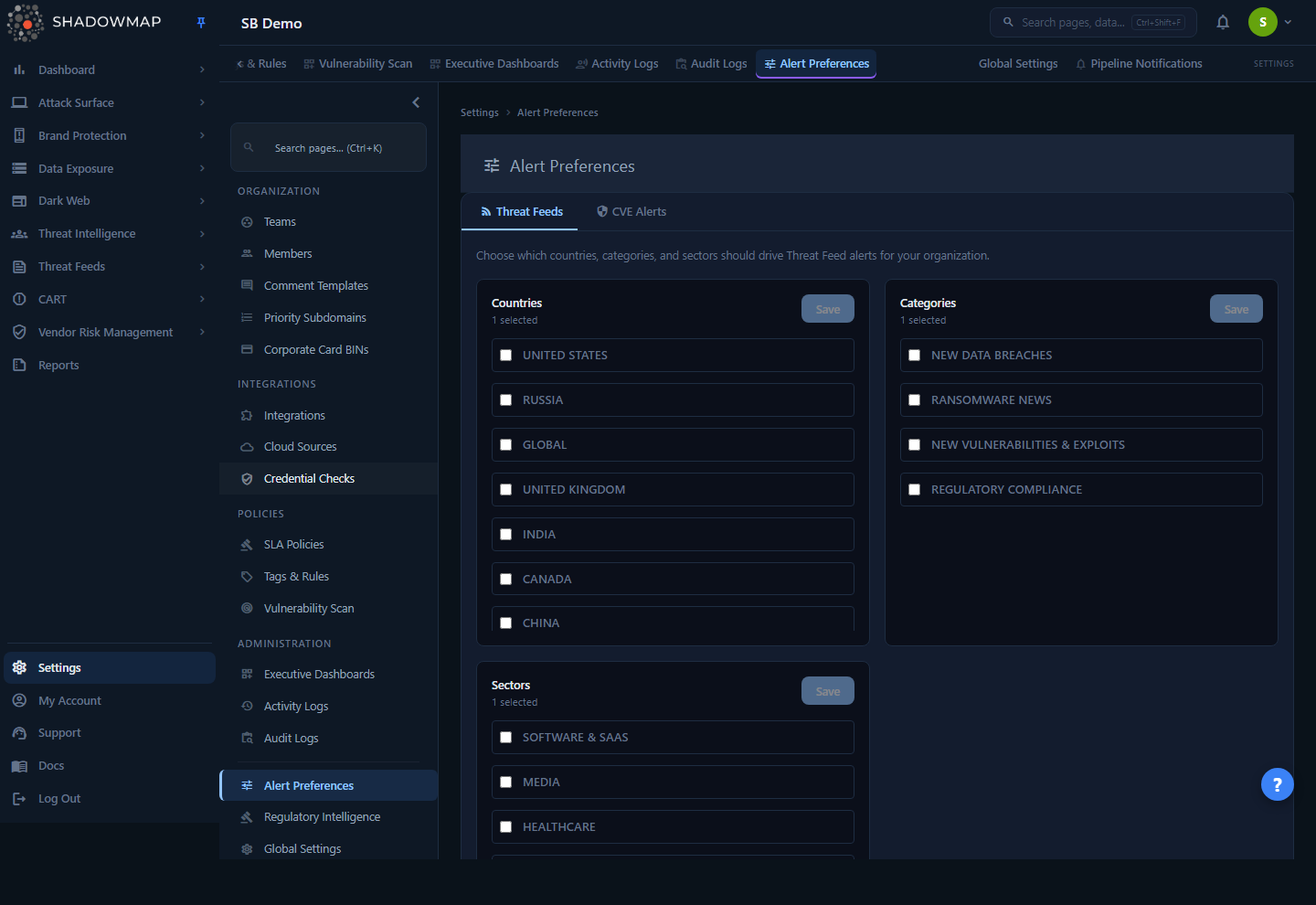
The page lives at Settings → Alert Preferences (/settings/preferences) and is split into two tabs:
- Threat Feeds — checkbox groups for the countries, categories, and sectors that should drive Threat Feed / Cyber News alerts.
- CVE Alerts — a search-and-toggle interface to subscribe to specific products or vendors so you are emailed when matching CVEs are published.
Both tabs configure organization-wide preferences (they apply to the whole company, not just the logged-in user). The actual decision of who receives the resulting emails is a separate, per-user notification setting described in How it works.
Administrator-only page
This page is gated to the administrator role. Non-administrators who navigate to /settings/preferences are redirected to the dashboard overview. If you can't see Alert Preferences in the Settings menu, you don't have the administrator role — see Roles & Permissions.
How it works
The two tabs configure independent pipelines. Understanding what each selection actually does — and what it does not do — is the difference between a useful feed and a silent one.
Threat Feed preferences
Each Threat Feeds group (Countries, Categories, Sectors) is stored as an organization-level preference. Checking a box adds that value to your selection; the Save button per group only becomes active once the current selection differs from what's already saved (it is disabled while the group is unchanged). Each group is saved independently — saving Countries does not commit unsaved changes in Categories.
These selections do two things:
- Scope your cyber-news alerts. They define which slice of the global threat-news stream is relevant to your organization, so the Threat Feed / Cyber News surface and its alert emails focus on your geographies, topics, and industries instead of the entire world.
- Act as your default filter. The same saved selections become the default filter applied when you open the Cyber News / Threat Feed view, so the feed lands pre-narrowed to what you chose here. You can still widen or change the filter ad hoc inside that module — Alert Preferences sets the starting point.
An empty selection means "everything"
If a group has no boxes checked, no narrowing is applied for that dimension. Leaving all three groups empty does not silence the feed — it leaves it global. To genuinely focus the feed, select the specific values you care about in at least one group.
The options offered in each group are pulled live from the threat-intelligence taxonomy (the same country, category, and sector lists used by the Cyber News module), so they reflect what ShadowMap actually tags news with.
CVE Alerts
The CVE Alerts tab subscribes your organization to products and vendors drawn from the CVE affected-vendors catalog (the set of products and vendors that real, published CVEs have been recorded against). When you monitor an item, ShadowMap watches for newly published CVEs that affect it and emails a per-CVE report.
The matching and delivery pipeline runs as a scheduled daily job and works as follows:
- Collect monitored items. All products and vendors you've toggled on (status = monitored) are grouped for your company.
- Match new CVEs by exact name. For each run date, the job finds CVEs created on or after that date whose affected-vendor records exactly match one of your monitored product or vendor names. This is an exact-equality match against the CVE's recorded vendor/product field — not a fuzzy or substring match — so the value you monitor must match the catalog name (which is why you select from search results rather than free-typing).
- Deduplicate against what you've already been sent. CVEs your organization has already been notified about are filtered out, so you won't receive the same CVE twice.
- Generate and email a report. A PDF report is generated per new CVE and emailed to the qualifying recipients.
Severity is resolved automatically
Each alerted CVE carries the best available CVSS score and severity. ShadowMap prefers the newest scoring version in this order: CVSS 3.1 → 3.0 → 4.0 → 2.0 → other, so the email reflects the most current standardized severity for that CVE.
Who actually receives the emails
Alert Preferences decides what qualifies as an alert. A second, per-user setting decides who gets it. For CVE Alerts, an email is only delivered to a contact who:
- is an active contact of the organization,
- has not turned off the CVE email notification preference on their own account, and
- is not an internal ShadowMap user.
The per-recipient toggle lives in each user's own Notification Preferences. It is on by default — a contact stops receiving these emails only if they explicitly switch the preference off. The equivalent per-user toggle for news/threat-feed alerts is the "news alert email" preference, which behaves the same way. So a complete setup is two-sided: an administrator curates the topics and products here, and contacts who don't want the emails opt out on their own profile.
Threat Feeds tab
| Group | What it scopes | Source of options |
|---|---|---|
| Countries | Cyber-news items tied to specific countries / geographies | Threat-intelligence country taxonomy |
| Categories | News topic categories (the AI-classified story categories) | Threat-intelligence category taxonomy |
| Sectors | Industry sectors the news concerns | Threat-intelligence sector taxonomy |
Each group shows a live count of how many values you currently have selected, a scrollable checkbox list, and a per-group Save button. Groups with no available options are hidden.
To set Threat Feed preferences:
- Open the Threat Feeds tab.
- In a group (e.g. Sectors), check the values relevant to your organization. The selected count updates as you go.
- Click Save for that group. The button is only enabled when you have unsaved changes; while saving it shows Saving....
- Repeat per group — Countries, Categories, and Sectors are saved separately.
CVE Alerts tab
This tab has two panels side by side: Search Results (left) and Monitored Products (right, showing everything currently active).
Search controls:
| Control | Behavior |
|---|---|
| Search field | Free-text term (e.g. Apache, Microsoft, OpenSSL). Press Enter or click Search. |
| Search In dropdown | Scope the search: Products and Vendors (default), Products only, or Vendors only. |
| Search button | Runs the lookup; shows Searching... while in flight. |
Search returns up to 50 matching products/vendors, ranked by how many CVEs reference them (most-referenced first), with a per-result count shown as the description (e.g. Vendor • 128 matches). Generic n/a entries are excluded.
To monitor a product or vendor:
- Open the CVE Alerts tab.
- Type a product or vendor name and choose a scope in Search In, then Search.
- In Search Results, click Monitor on the item. It is saved immediately (the button shows Saving..., then the item appears in Monitored Products).
- To stop monitoring, click Unmonitor in Search Results, or Remove in the Monitored Products panel. This is also saved immediately.
Changes save instantly — there's no separate Save button on this tab
Unlike the Threat Feeds tab, each Monitor / Unmonitor / Remove action on CVE Alerts is committed the moment you click it.
Why search instead of free-typing?
CVE matching is exact, against the catalog of vendors/products that published CVEs actually name. Selecting from search results guarantees your monitored value matches the catalog spelling, so future CVEs for that item will actually be caught. A hand-typed value that doesn't match the catalog exactly would silently never alert.
Common questions
Do these preferences apply to me or to my whole organization? The selections (threat-feed topics and monitored CVE products) are organization-wide — they're stored against your company. Whether you personally receive the resulting emails is controlled by your own notification settings, not here.
I selected products but I'm not getting CVE emails. Why? Check three things: (1) the recipient hasn't switched off the CVE email notification preference on their own Notifications profile (it is on by default, so only an explicit opt-out suppresses delivery), and is an active contact who isn't an internal ShadowMap user; (2) the monitored product/vendor name was chosen from search results so it exactly matches the CVE catalog; (3) a new CVE affecting that item has actually been published since you subscribed — the job only sends CVEs created on or after each run date, and only once per CVE.
Will I get re-notified about a CVE I've already seen? No. Each CVE is sent to your organization at most once; subsequent runs skip CVEs already recorded as sent.
Does the Threat Feeds tab silence the news feed if I leave it empty? No. Empty groups apply no narrowing — the feed stays global. Select specific countries, categories, or sectors to focus it.
Why don't my Threat Feed changes take effect after I check boxes? Each group has its own Save button and they save independently. Checking boxes alone doesn't persist — click Save for each group you changed. The button only enables once a group has unsaved changes.
What severity score appears in the CVE alert? The most current standardized CVSS score available for that CVE, preferring CVSS 3.1, then 3.0, 4.0, and 2.0.
Can a regular analyst configure this page? No. The page is administrator-only; other roles are redirected away. Have an administrator curate the preferences. Delivery is then on by default for active contacts — individual users only need to act if they want to opt out on their own profile.
Related
- Notification Preferences — the per-user toggle (on by default) that governs whether CVE and news-alert emails actually reach a given person.
- CVE Feeds — the in-product list of CVEs affecting your environment; CVE Alerts here notify you about newly published CVEs for the products/vendors you monitor.
- Cyber News — the threat-intelligence news surface that Threat Feed preferences scope and pre-filter.
- Threat Feed — the broader threat-feed intelligence stream these preferences narrow for your organization.
- Regulatory Intelligence — a sibling Settings page (
/settings/regulator-feeds) for tuning regulator-feed alerts by domain, industry, and geography. It's configured separately from this page using the same preferences backend. - Roles & Permissions — why this page is administrator-only.