
Teams
Teams group the members of your ShadowMap account into named units — by responsibility area, business unit, geography, or function — so that findings, alerts, and SLA escalations can be routed to a group instead of a single person. A team is a reusable "send to" target: assign an alert or an SLA escalation to a team and every member of that team receives it.
Overview
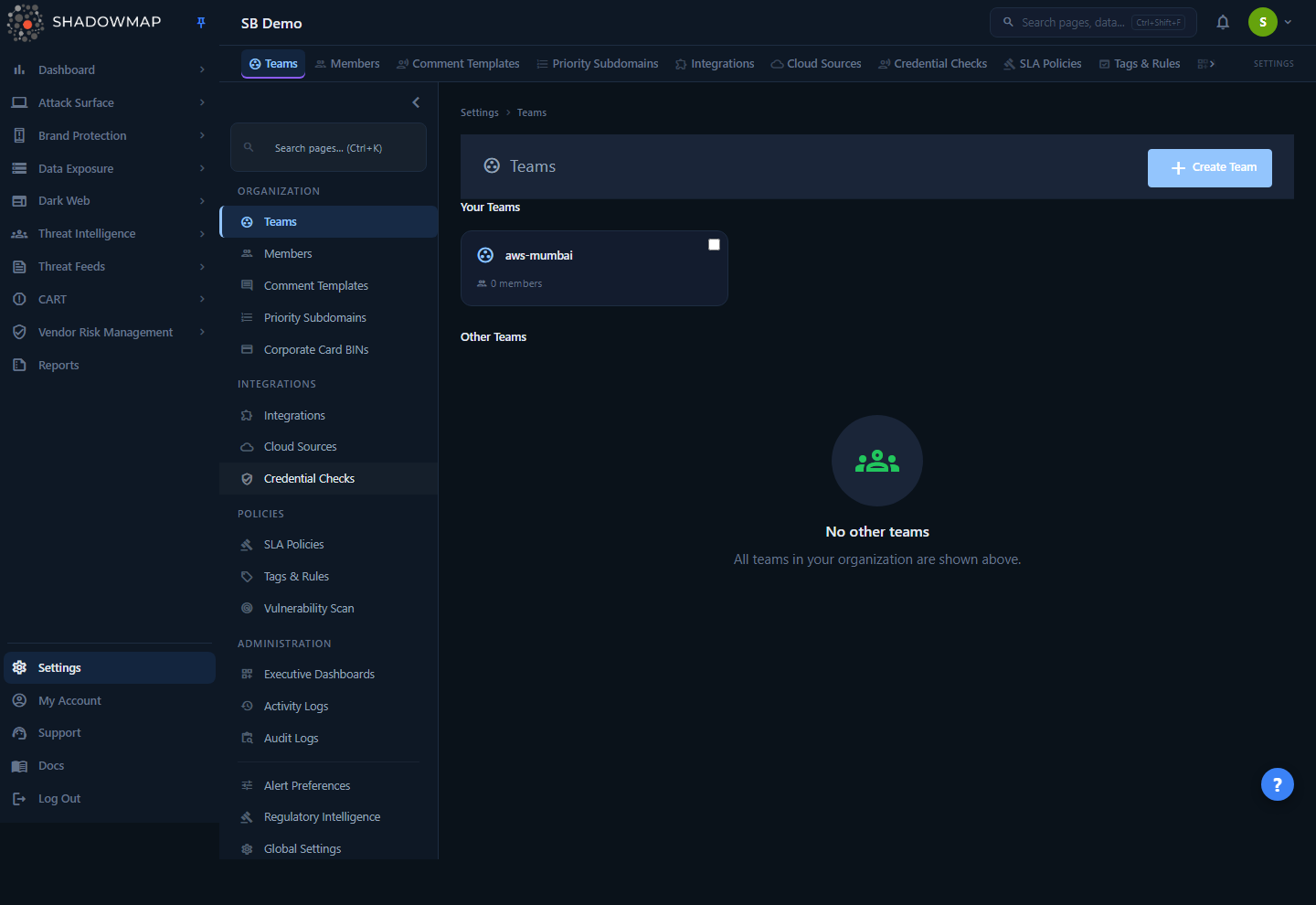
The Teams page lives under Settings → Teams (/settings/teams). It lists every team in your account, split into two sections:
- Your Teams — teams you are currently a member of.
- Other Teams — every other team in the account that you have not joined.
Each team is shown as a card displaying its name — the display name you gave it, or the slug if you left the name blank — and a count of its current members. Clicking a card opens the team detail view, where you manage that team's membership. The Create Team button in the page header opens the create modal (keyboard shortcut: press n). Teams are scoped to your account — you only ever see teams that belong to your organization, never another tenant's.
How it works
Most of the mechanics below are not surfaced in the UI but determine how teams behave.
A team is an assignment target, not a permission set
Creating a team does not grant or change any permissions. Teams do not have roles, and joining a team does not give a member access to data they could not already see. Roles and module access are governed entirely by roles and permissions on the Members page.
What a team does give you is a single, named handle that ShadowMap can route work to. Throughout the product, anywhere you can assign something to a person — an alert, an SLA escalation, a notification — you can instead assign it to a team. When you do, ShadowMap expands the team into its current member list and delivers to every member. Add or remove a member later and the routing follows automatically; you never have to revisit the alert or policy.
Membership is what drives routing
Because routing resolves through current membership, the member list on a team is the source of truth for "who gets this." Two consequences:
- Adding a member to a team immediately makes them a recipient of anything already assigned to that team.
- Removing a member (or deleting the team) stops delivery to them. ShadowMap retains the reference, but a deleted team resolves to a placeholder ("Deleted team") on any item that was still pointing at it — so escalations and alert delivery for that target stop until you re-point them.
The slug, display name, and description
A team is identified by a single URL-safe slug. That slug is what appears with a # prefix in assignee pickers and SLA routing (for example #soc-team) and what identifies the team in its URL (/settings/teams/<slug>). The slug must be lowercase, between 2 and 190 characters, and may contain only letters, numbers, dashes, and underscores; it is normalised to lowercase and must be unique within your account.
A team also stores a friendly display name and an optional description, both set in the create modal. The display name labels the team's card in the list, with the slug used as the fallback when no display name was given. The description is stored for reference but is not currently surfaced elsewhere in the Teams UI.
Tenant isolation
Every team query is scoped to your account on the server. Team lists, membership, and the pool of users available to add are all filtered to your organization by the authenticated session — there is no way to see or join a team outside your own account.
Creating a team
Permission required
Creating a team requires write access to Teams (settings.teams:write), which also gates the team create action (team.create:write). Enforcement is server-side — if you do not have it, the create request is rejected (403). The Create Team button itself is not conditionally hidden in the UI.
- Click Create Team in the page header (or press
n). - Fill in the modal:
- Team Name — a friendly display name, shown with a required marker in the form and stored as the team's display name. It labels the team's card in the list (up to 100 characters). In practice only the slug is enforced on submit; if you leave the name blank the card falls back to the slug.
- Team Slug (required) — the URL-safe identifier stored as the team's
name, used in its URL and in#slugreferences throughout the product. Lowercase with letters, numbers, dashes, and underscores only (e.g.soc-team,europe-office), between 2 and 190 characters, and unique within your account. The create field caps input at 50 characters. - Description (optional) — a free-text note stored with the team (up to 500 characters). It is kept for reference but is not currently shown elsewhere in the Teams UI.
- Click Create Team. The new team appears in Your Teams, and you are added to it as the first member.
The slug is permanent — choose it with care
The Team Slug becomes the team's identifier and its URL, and the Teams UI has no rename control, so pick it deliberately. The Team Name and Description are both stored, but they cannot be edited from the UI after creation either, so treat every field in this form as final.
Naming conventions
Pick a slug convention up front and stick to it — team-<region>, <bu>-soc, vendor-<name> — because the slug is what analysts see (as #slug) when assigning alerts and SLA escalations. Consistent slugs make the assignee picker self-documenting.
Team detail view
Click any team card to open /settings/teams/<slug>. The detail view manages the team's membership.
Members list
Each member is shown with an avatar (their initials), name, and email address. The list reflects current membership and is what every team-targeted assignment resolves to.
Adding a member
Click Add Member to open a picker populated with account members who are not yet in the team (members already on the team are excluded). Select a user to add them; they immediately become a recipient of anything routed to the team.
Removing a member
Each member row has a remove action. Removing a member takes them off the team — they stop receiving items routed to it — but does not affect their account membership, role, or any other team they belong to.
Deleting the team
The Delete Team button in the header permanently removes the team and all of its membership associations after a confirmation prompt.
Deleting a team affects routing
Deleting a team removes it as an assignment target. Any alert, SLA escalation, or notification that was still routed to the deleted team will resolve to a "Deleted team" placeholder and stop delivering to those people until you re-assign it. Review what is assigned to a team before deleting it.
Bulk actions
On the list page, select one or more team cards with their checkboxes to reveal a bulk bar showing the selection count, a Delete action, and Clear. Use this to remove several teams at once. The same routing warning applies — deleting in bulk stops delivery for every assignment pointing at those teams.
Permissions
Team operations are governed by granular permissions, all gated behind read/write access to Teams. Access is assigned through roles on the Members page.
All team routes sit behind the settings.teams:read (read) and settings.teams:write (write) module middleware. The write routes additionally carry a finer-grained action permission:
| Action | Action permission | Typical role |
|---|---|---|
| View teams and members | settings.teams:read | Any user with Settings read |
| Create a team | team.create:write | Admin |
| Add a member to a team | team.join:write | Admin / team manager |
| Remove a member / leave | team.leave:write | Team member (for self) / Admin |
| Update (rename) a team | team.update:write | Admin |
| Delete a team | team.delete:write | Admin |
Permissions are enforced server-side by the route middleware — if you lack the relevant permission, the request is rejected (403). The corresponding controls (Create Team, Add Member, Delete, etc.) are not currently hidden or disabled in the UI based on permission.
Where teams are used
Teams are a routing primitive that other modules consume:
- Alert assignment — assign an alert to a team so the whole group owns it, rather than picking a single analyst.
- SLA escalation — SLA policies can escalate to a team. When an SLA timer breaches, the escalation is delivered to every current team member.
- Notifications — alert and finding notifications can be directed at a team so the right group is paged.
- Accountability — using a team as the owner of a class of findings gives you a clear, durable answer to "who is responsible for this," independent of staff churn.
Common questions
Does joining a team give a member more access? No. Teams never change permissions or data access. A member sees exactly the same modules and findings whether or not they are on a team. Access is controlled by roles, not teams.
What happens to alerts and SLA escalations if I delete a team? Anything still routed to that team resolves to a "Deleted team" placeholder and stops delivering to those people. Re-assign the affected alerts or SLA policies to a live team (or an individual) first.
Can a member belong to more than one team? Yes. Membership is many-to-many — a user can be on any number of teams, and adding or removing them from one has no effect on the others.
Why does the team show with a # in front of its name elsewhere? That #slug form is how the team's URL-safe slug appears in assignee pickers and SLA routing. It is the same team you manage here, identified by its slug.
Can I rename a team? The backend supports updating a team's slug, but the current Teams interface does not expose a rename control — the team detail view is limited to managing members and deleting the team. The display name and description set at creation are likewise not editable from the UI. Because the slug is part of the team's URL, changing it would change that URL; existing alert and SLA assignments resolve through the team's identity, not its URL, so they continue to follow the team.
Can users from another account appear in my teams? No. Teams, their members, and the pool of users available to add are all scoped to your account server-side. You cannot see or add anyone outside your organization.
Related
- Members — invite users, assign roles, and manage the per-user permissions that govern access (teams only handle routing).
- Roles and permissions — how the Create/Join/Update/Delete permissions on Teams are granted.
- SLA Policies — configure escalations that route to teams on breach.
- Alerts — assign findings to a team for investigation and ownership.
- Settings overview — the rest of the account-administration surface.