
Cloud Sources
Cloud Sources let ShadowMap authenticate to your cloud provider accounts with read-only API credentials and pull the asset inventory directly from the source of truth. Instead of inferring what you own from the outside, ShadowMap enumerates your actual EC2 instances, Route 53 records, load balancers, DNS zones, and other resources from the provider's own API — closing the gap between what is externally discoverable and what your cloud accounts actually contain.
Overview
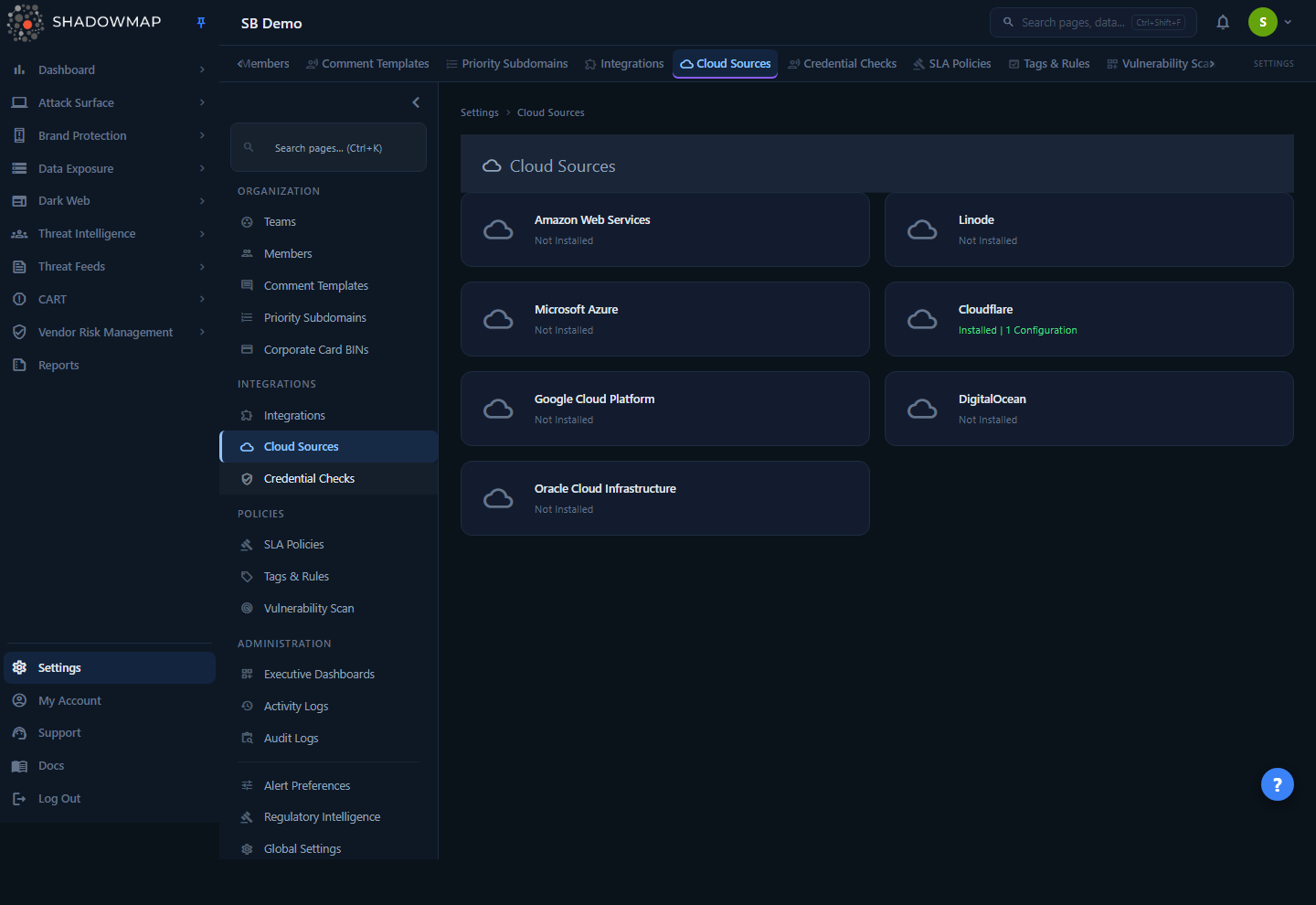
The Cloud Sources page lives under Settings → Integrations → Cloud Sources. It shows a grid of every supported provider as a card. Each card displays:
- The provider logo and name (for example, Amazon Web Services, Microsoft Azure).
- An install status line: either Not Installed or Installed | N Configuration, where N is the number of credential sets you have added for that provider.
Click any card to open the provider's detail page, where you manage the individual credential configurations (called "sources") for that provider.
Where this fits
External scanning shows you what an attacker can see from the internet. Cloud Sources add the inside-out view: the authoritative list of what your accounts contain. Discrepancies between the two — assets in your cloud that never appear in external scans, or external assets that map to no known cloud account — are exactly where shadow IT and orphaned infrastructure hide.
How it works
This is the part you cannot infer from the UI.
Connection model
For each provider you create one or more sources. A source is a named set of read-only credentials (an IAM access key, a service principal, an API token, and so on) plus optional metadata like the region or subscription it scopes to. You can add multiple sources per provider — for example, one per AWS account, one per Azure subscription, or one per business unit — and each is scanned independently.
Credentials are stored as a JSON configuration blob against your company. Sensitive fields (secret keys, tokens, client secrets, private keys, service account JSON) are treated as sensitive and are never returned in plaintext to the browser after they are saved.
Scanning and status
A separate ShadowMap collector (the sm-core cloud scanner) periodically authenticates to each source and enumerates its assets. After every scan it writes a status to the source and appends a history row. The three possible states are:
| Status | Meaning |
|---|---|
| Online | Credentials authenticated and all services were scanned successfully. |
| Partial | Credentials authenticated, but one or more services returned permission errors — the IAM role or token is missing some read scopes. The scan still returns whatever it could read. |
| Offline | Authentication failed. The credentials are wrong, expired, revoked, or the account was disabled. No assets can be collected until they are fixed. |
Each source's current status is shown as a colored chip in the Status column of the provider detail table — green for Online, amber for Partial, red for Offline. A source that has not yet completed its first scan shows a neutral Not scanned chip (never green), so an unscanned source is never mistaken for a healthy one. Hovering the chip reveals the last scan time, how many services were read successfully, and which ones returned errors.
Each scan appends a row to the source's history with the resulting status and a comment summarizing the counts it found (for example, R53 - 10, EC2 - 20). Individual discovered assets are also recorded with a type, a value, and first seen / last seen timestamps, so you can see when a resource appeared and whether it is still present.
Offline detection and alerting
A scheduled job (cloudsource:update-status) acts as a safety net on top of the per-scan status. It evaluates each source against its last three history entries:
- If all three most recent scans were Offline, the source is marked Offline and an email notification is sent to your account owners (and ShadowMap support) so the broken credential gets attention. This three-strikes rule prevents a single transient API hiccup from triggering a false alarm.
- If the latest scan is Partial, the source is set to Partial.
- If any recent scan succeeded (Online or Partial) and the latest is not Partial, the source is restored to Online.
Offline sources go silent, not stale
When a source goes Offline, ShadowMap cannot refresh its inventory — the last successful results remain but are no longer updated. Treat an Offline source as an inventory blind spot, not a clean bill of health. Rotate or fix the credentials promptly.
Uniqueness rules
Two guardrails prevent duplicate or ambiguous sources within a provider:
- Name uniqueness — a source name must be unique per company and per provider type. You cannot have two AWS sources both named
Production, but you could name an AWS source and an Azure source the same. - Configuration uniqueness — you cannot add two sources with identical credentials for the same provider. Attempting to do so returns "Cloud Source already exists with same configuration!"
Supported providers and required fields
Each provider has its own credential form. The fields below are required unless noted; ShadowMap validates them before saving and surfaces provider-side errors (such as a rejected key) inline.
| Provider | Required fields |
|---|---|
| Amazon Web Services (AWS) | Access Key ID, Secret Access Key, Region |
| Microsoft Azure | Tenant ID, Client ID, Client Secret, Subscription ID |
| Google Cloud Platform (GCP) | Service Account JSON, Project ID |
| Cloudflare | API Token, Account ID |
| Oracle Cloud Infrastructure | Tenancy OCID, User OCID, API Key Fingerprint, Private API Key |
| Linode | Personal Access Token |
| DigitalOcean | Personal Access Token |
Every source also has a Name (2–190 characters, letters/numbers/spaces only) and an optional Description.
Use least-privilege, read-only credentials
ShadowMap only needs to read your inventory. Provision credentials with read-only / list / describe permissions (for example, an AWS IAM user with SecurityAudit or ReadOnlyAccess, an Azure service principal with the Reader role, a GCP service account with Viewer). Read-only credentials still surface Partial status if a specific service's read scope is missing — grant the missing read permission to clear it.
Adding a source
Adding a source requires the Cloud Sources write permission.
- Open Settings → Integrations → Cloud Sources and click the provider card you want to connect.
- On the provider detail page, click Add Source (keyboard shortcut: n).
- Enter a Name and optional Description.
- Fill in the provider-specific credential fields from the table above.
- Click Create. ShadowMap validates the input, rejects duplicate names or duplicate credential sets, and saves the source. Any validation failures (missing fields, invalid format, provider rejection) are shown at the top of the form.
The source then enters the scan rotation. After its first successful scan it will show an Online (or Partial) status and begin populating discovered assets.
Managing existing sources
The provider detail page lists every source you have configured for that provider in a table:
| Column | Description |
|---|---|
| Status | The source's latest scan result as a colored chip — Online, Partial, Offline, or Not scanned for a source awaiting its first scan. Hover for the last scan time and per-service breakdown. |
| Name | The label you gave the source. |
| Description | Optional notes. |
| Created By | The member who added the source. |
| Created | When the source was added. |
| Last Scanned | When the collector most recently scanned this source, or Never if it has not yet run. |
Each row has three actions:
- Edit (pencil) — reopen the credential form to update the name, description, or credentials. Sensitive fields are blank in the form; leave them untouched to keep the stored value or re-enter to replace it.
- Discover Assets (magnifying glass) — fetch the assets ShadowMap has discovered for that source on demand and report the count. Use this to confirm a freshly added source is returning data and to inspect what it found.
- Delete (trash) — remove the source after a confirmation prompt. This cannot be undone and stops all future scans for that credential set.
Adding, updating, and deleting sources are written to the audit log, so changes to cloud credentials are traceable to a user and time.
Permissions
Access is gated by the Cloud Sources permission, which has two levels:
- Read — view the provider grid, view configured sources, and run asset discovery.
- Write — add, edit, and delete sources.
Roles without the Cloud Sources read permission do not see this page. See Roles & permissions for how to grant it.
Common questions
Do I need Cloud Sources for ShadowMap to find my assets? No — ShadowMap discovers your external attack surface without any credentials. Cloud Sources are additive: they give ShadowMap the authoritative inside-out inventory so it can correlate what you own against what is externally exposed and flag the gaps.
What permissions should the credentials have? Read-only is sufficient and recommended. ShadowMap only enumerates inventory; it never modifies resources. A read scope that is too narrow shows up as Partial status — widen it to read the affected service and the status clears.
Why is my source showing Partial? The credentials authenticated, but at least one service returned a permissions error. The scan still collected everything it could read. Grant the missing read permission for that service to move the source to Online.
Why is my source Offline and what happens to my data? Offline means authentication failed — the credentials are wrong, expired, revoked, or the account is disabled. The previously collected inventory remains visible but stops being refreshed. After three consecutive offline scans, ShadowMap emails your account owners. Rotate or correct the credentials and the next successful scan restores it.
Can I connect more than one account per provider? Yes. Add a separate source for each account, subscription, project, or region. Each source is named, scanned, and tracked independently. The only limits are that names must be unique within a provider and you cannot reuse identical credentials.
Are my credentials safe? Credentials are stored against your company and the sensitive fields (secret keys, tokens, client secrets, private keys, service account JSON) are never sent back to the browser in plaintext after saving. When editing, sensitive fields appear blank — re-enter them only if you want to replace the stored value.
What does "Discover Assets" actually do? It returns the assets ShadowMap has collected for that source and reports the count, letting you verify the connection is working and inspect the discovered resources (for example, the specific Route 53 records or EC2 instances behind a summary count).
Related
- Integrations — the parent area for all third-party connections; Cloud Sources sits alongside ticketing, chat, and other integrations.
- Domains and IP Addresses — where cloud-discovered DNS records and hosts reinforce your authoritative asset inventory.
- CMDB Reconciliation — compares your known inventory against what ShadowMap finds; cloud-sourced assets strengthen the "known" side of that reconciliation.
- Cloud Sources settings (settings index) — the full settings landing for org configuration.
- Roles & permissions — controls who can read and write cloud source credentials.