
Executive Dashboards
Executive Dashboards let you surface curated Metabase analytics directly inside ShadowMap, so stakeholders see board-ready charts without a second login or a separate BI tool. Each dashboard you register here renders as a securely signed, embedded Metabase view scoped to your company.
Overview
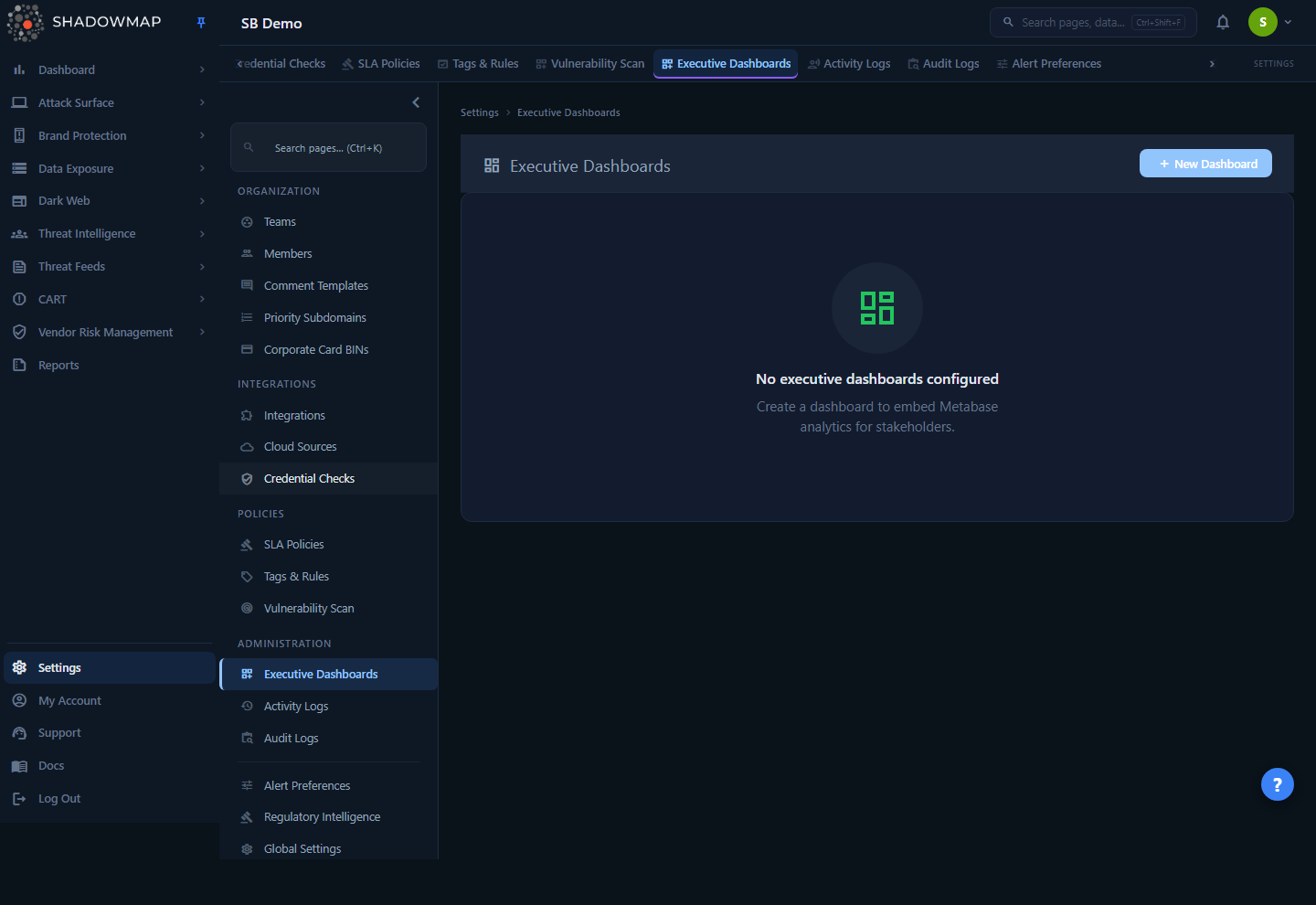
This page (Settings → Executive Dashboards) is the admin surface where you register and manage the Metabase dashboards your organization wants embedded in ShadowMap. It is a configuration page, not a viewer — the dashboards themselves render as embedded Metabase views under the main Dashboard route once they are saved.
Configured dashboards appear as cards in a grid. Each card shows:
- The dashboard name (the card title).
- A Metabase # chip identifying the source Metabase dashboard ID.
- The creation date.
- Copy link and Delete actions.
If nothing is configured yet, the page shows an empty state ("No executive dashboards configured") with a prompt to create one. Use the New Dashboard button in the top-right to add the first.
How it works
The mechanics here are not visible from the UI, and they matter for both security review and troubleshooting.
ShadowMap is the frame; Metabase is the engine
ShadowMap does not compute or store the analytics shown in an executive dashboard. It stores only a pointer — a row in the executive_dashboards table holding three things: your company_id, a display title, and a metabase_dashboard_id (an integer that identifies a dashboard inside your connected Metabase instance). All charting, querying, and data modeling happen in Metabase. ShadowMap embeds the rendered result in an <iframe>.
This means an Executive Dashboard is only as good as the Metabase dashboard behind it. To change what the charts show, edit the dashboard in Metabase — the embed updates automatically. To point ShadowMap at a different dashboard, change the Metabase ID here.
Signed, short-lived embeds (how the iframe is secured)
When a user opens a configured dashboard, the viewer does not load a raw Metabase URL. Instead, ShadowMap's backend:
- Looks up the saved dashboard by ID and verifies it belongs to the requesting user's company. A dashboard whose
company_iddoes not match the caller's company is rejected ("Invalid request"). This is the multi-tenant guard that prevents one tenant from rendering another tenant's Metabase data. - Builds a JWT payload referencing the Metabase
dashboardresource, signs it with the sharedMETABASE_SECRET_KEYusing HS256, and sets an expiry of 10 minutes from issue time. - Returns a signed embed URL of the form
<metabase_site_url>/embed/dashboard/<jwt>#bordered=true&titled=true, which the viewer loads in the iframe.
Two consequences follow from this design:
- The embed token is ephemeral. The signed URL minted for a view expires 10 minutes after it is generated. The viewer requests a fresh token each time the dashboard is opened, so users do not normally notice the expiry. A copied or bookmarked embed URL, however, will stop working after 10 minutes.
- No filters are passed through. ShadowMap sends an empty
paramsobject to Metabase. Any row-level scoping, customer filtering, or parameter locking must be configured inside the Metabase dashboard itself (for example, via Metabase's locked embedding parameters). ShadowMap does not inject the company ID into the dashboard query.
Metabase must be configured server-side
Embedding only works if the ShadowMap deployment has METABASE_SITE_URL and a non-empty METABASE_SECRET_KEY set, and if signed embedding is enabled in Metabase for the target dashboard. If the secret is missing or misconfigured, viewers get "Metabase is not configured." This is an environment-level setup handled with your ShadowMap support contact — it is not configurable from this page.
Where saved dashboards show up
Saving a dashboard adds a card to this Settings page and registers the pointer described above. The dashboard itself renders as an embedded Metabase iframe at /dashboard/executive-dashboards/<id> under the main Dashboard route — navigate to that URL to open it.
Saved dashboards are not added as items in the left navigation. Deleting a dashboard removes its card and the underlying pointer, after which the embedded view at that URL no longer resolves.
The Copy link action
Copy link copies a deep link of the form <your-shadowmap-origin>/executive-dashboard/<id> to your clipboard. This is a link into the authenticated ShadowMap app, not a public, shareable Metabase URL. Anyone opening it must be logged in to ShadowMap and hold the required permission; the actual Metabase embed token is minted server-side on view, never exposed in the copied link. Use it to point a colleague straight at a specific dashboard.
Creating a dashboard
- Click New Dashboard (top-right). The New Executive Dashboard modal opens.
- Enter a Dashboard Name — this is the label shown on the card (for example, "Monthly Security Summary"). This field is required; the Create Dashboard button stays disabled until it is filled.
- Optionally enter a Description. Note: the backend does not currently store this field — it is not saved with the dashboard and does not appear on the card.
- Enter the Metabase Dashboard ID — the numeric ID of the dashboard inside your Metabase instance (for example,
42). You can read this ID from the Metabase dashboard's URL or settings. - Click Create Dashboard. On success the modal closes and the new card appears on this page.
Finding the Metabase dashboard ID
In Metabase, open the dashboard and look at the URL — the number after /dashboard/ is the ID you enter here. Make sure that dashboard has signed embedding enabled in Metabase, or ShadowMap's embed token will be rejected when a user tries to view it.
Understanding the data
Each registered dashboard stores a small, fixed set of fields. There is no per-dashboard access list, schedule, or refresh setting here — those concerns live in Metabase and in your RBAC permissions.
| Field | Where it shows | What it controls |
|---|---|---|
| Name / Title | Card title | The human-readable label users see for the dashboard on this page. |
| Metabase Dashboard ID | "Metabase #" chip on the card | The source Metabase dashboard that gets embedded. |
| Created date | "schedule" chip on the card | When the dashboard was registered in ShadowMap. |
| Company scope | Not shown (server-enforced) | Bound to your company at save time; cannot be changed to another tenant. |
Taking action
| Action | Where | Effect |
|---|---|---|
| New Dashboard | Top-right button | Opens the create modal. |
| Create Dashboard | Create modal | Registers the dashboard and adds a card to this page. |
| Copy link | Card (copy icon) | Copies an authenticated deep link to the dashboard view. |
| Delete | Card (trash icon) | Removes the dashboard after a confirmation prompt. |
Deleting a dashboard removes only the ShadowMap pointer. The underlying Metabase dashboard is untouched and can be re-registered later with the same Metabase ID.
Prerequisites and permissions
- Viewing this page requires the
settings.executive-dashboards:readpermission. - Creating, editing, or deleting dashboards requires
settings.executive-dashboards:write. Read-only users see the configured cards but cannot add or remove dashboards. - A Metabase instance must be connected to your ShadowMap deployment, with
METABASE_SITE_URLset and a validMETABASE_SECRET_KEYconfigured for signed embedding. This is provisioned by ShadowMap and is not self-service from this page.
See Roles & Permissions and RBAC Permissions for how to grant these to a member or team.
Common questions
Where do my executive dashboards appear after I create them? Each saved dashboard renders as an embedded Metabase view at /dashboard/executive-dashboards/<id> under the main Dashboard route; navigate to that URL to open it. Saved dashboards are not added to the left navigation — this Settings page is only for managing the list.
Why does my dashboard say "Metabase is not configured"? The deployment is missing a valid METABASE_SECRET_KEY (or it is not a string). This is a server-side environment setting — contact ShadowMap support to enable Metabase embedding for your tenant.
Can a colleague in another company see my dashboard? No. Every embed request re-checks that the dashboard's company_id matches the requesting user's company before a token is minted. A cross-tenant request is rejected outright, and the embed token is never generated.
Why did a copied embed link stop working? The Metabase embed token is signed with a 10-minute expiry. The viewer mints a fresh token each time the dashboard is opened, so in-app viewing is unaffected, but a raw embed URL captured from the iframe expires quickly. Use the Copy link action, which produces an authenticated ShadowMap deep link that re-mints the token on each visit.
Can I filter the embedded dashboard by date range, business unit, or asset? Not from ShadowMap — it passes no parameters to Metabase. Configure parameters, defaults, and any locked/row-level scoping inside the Metabase dashboard itself.
Does ShadowMap store the chart data? No. ShadowMap stores only the title and the Metabase dashboard ID. All data lives in and is rendered by Metabase; editing the dashboard in Metabase updates the embed immediately.
How is this different from the built-in dashboards? The native Overview and Executive Dashboard views are computed by ShadowMap from your attack-surface data. Executive Dashboards configured here are external Metabase analytics you bring in — useful for custom KPIs, blended data sources, or board reporting templates that live in your BI layer.
Related
- Executive Dashboard — the embedded Metabase view that this page configures, as seen by stakeholders.
- Overview Dashboard — ShadowMap's native, built-in executive summary, for comparison.
- Reports — scheduled and on-demand exports if you prefer document-based stakeholder reporting over live embeds.
- Roles & Permissions and RBAC Permissions — control who can manage and view executive dashboards.
- Settings overview — other administrative configuration pages.