
Integrations
Integrations are the outbound delivery channels ShadowMap uses to push findings into the tools your team already lives in — chat, ticketing, on-call, SIEM, and SMS. You configure the connection once here; SLA Policies and individual Alerts then route findings through it automatically.
Overview
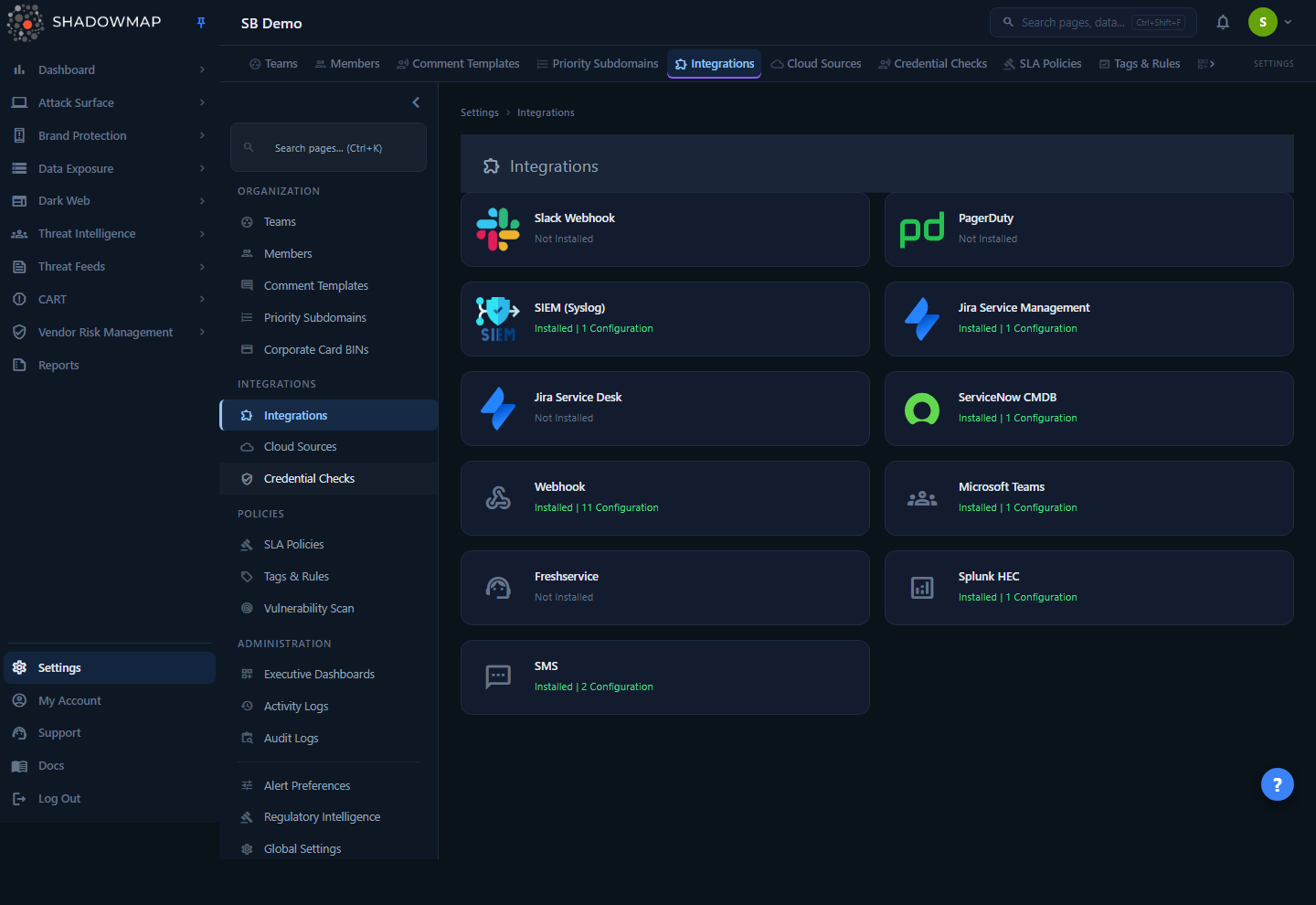
The Integrations page (Settings → Integrations) is a grid of cards, one per supported integration type. Each card shows the provider logo, the type name, and an install status:
- Not Installed — no configurations of this type exist yet.
- Installed | N Configuration — one or more configurations exist (the count is the number of separate configs you have created of that type).
Clicking a card opens its detail page, where you create, edit, test, enable/disable, and delete individual configurations of that type. A delivery-health indicator (green = healthy, yellow = degraded or stale, red = failing) appears on a card when ShadowMap has recent delivery data for that type. A type with no delivery history yet, or whose configurations are all disabled, shows no indicator — it is never assumed healthy.
Integrations are outbound, Cloud Sources are inbound
This page sends data out of ShadowMap (a finding becomes a Slack message, a Jira ticket, a syslog event). Cloud Sources bring asset data in (from AWS, Azure, GCP). They share the same Settings area but serve opposite purposes — don't confuse the two.
How it works
The mechanics below are not visible in the UI but determine exactly what gets delivered, when, and what happens when a destination is down.
Integrations don't fire on their own
Creating an integration here does nothing by itself. An integration only delivers a finding when something references it as a destination:
- A SLA Policy names the integration as a notification channel. When a finding matches the policy's scope and the policy's clock triggers, ShadowMap formats the finding and sends it through every integration the policy lists. This is the primary, automated path.
- A user shares a finding manually from a detail view (for example, sharing an Alert to your SIEM or ServiceNow). This is a one-off, on-demand send.
Because of this, the correct setup order is always: create the integration first, then reference it in an SLA Policy. A newly created integration appears as a selectable channel inside SLA Policy configuration.
Per-type delivery behavior
Each type produces a different artifact in the destination system:
| Type | What it produces |
|---|---|
| Slack Webhook | A formatted message posted to the channel bound to the incoming webhook (title, severity, affected host/IP, link back to ShadowMap). |
| Microsoft Teams | A formatted card posted to the channel via an incoming webhook. |
| PagerDuty | An event created via Events API v2. The finding's risk level travels in the event's custom details; the PagerDuty severity field is sent as a fixed level (not derived from the ShadowMap risk). |
| SIEM (Syslog) | A CEF (Common Event Format) event sent over TCP or UDP — consumable by ArcSight, QRadar, Splunk, and most SIEMs. |
| Jira Service Management | A parent incident with one child subtask per finding; subsequent findings for the same policy attach as new subtasks under the existing parent. |
| Jira Service Desk | A deduplicated service desk request; an existing request for the same finding (matched by its SM# summary prefix) is not duplicated. |
| ServiceNow CMDB | An email-based notification to the configured ServiceNow account, scoped to your company. |
| Freshservice | A ticket created in your Freshservice instance with the configured requester. |
| Splunk HEC | An event forwarded to Splunk's HTTP Event Collector for ingestion into your index. |
| Webhook (generic) | A JSON payload POSTed to any HTTP endpoint — for custom automation, serverless functions, or in-house ticketing. (Listed simply as Webhook on the integrations grid.) |
| SMS | A text message via your configured provider (Twilio, MSG91, Exotel, or Vonage/Nexmo). |
Delivery, retries, and the circuit breaker
Automated SLA deliveries run through a shared notification pipeline with built-in resilience. You cannot configure these values; they are platform defaults.
- Retry with backoff. Every delivery is attempted up to 3 times: immediately, then after ~30 seconds, then after ~5 minutes. A small random jitter is added to the delays to avoid synchronized retries. The first attempt to succeed stops the sequence.
- Delivery logging. Every attempt — success or failure, with status code, response snippet, and attempt number — is written to an internal delivery log keyed to the integration and the triggering SLA violation. This is the audit trail and the data source for health indicators.
- Circuit breaker (health flag, not a kill switch). ShadowMap counts consecutive delivery failures per integration. After 5 consecutive failures, the integration is flagged unhealthy (this is the tripped circuit breaker behind the Failing health state and the red card indicator). Importantly, ShadowMap keeps trying to deliver — the flag does not suspend or auto-disable the integration. A single successful delivery clears the flag immediately; otherwise the flag auto-expires after 24 hours.
The health indicators you see (on the cards and in the configurations table) are derived from more than the circuit breaker alone — ShadowMap reads each configuration's recent entries in the delivery log to classify it as Healthy, Degraded, Failing, Stale, Not tested, or Disabled. The breaker corresponds to the Failing state; the others come from the 7-day success rate and the most-recent delivery outcome. The full state table is in Managing existing configurations below.
Reading the health indicator
A red indicator (Failing) means deliveries to that type have hit the 5-consecutive-failure threshold; a yellow one means a configuration is Degraded (recent delivery failed, or 7-day success under 95%) or Stale (no delivery in the last 7 days after previously succeeding). The usual causes are an expired token, a rotated webhook URL, a firewall change, or an endpoint that's down. Open the type, fix or re-test the affected configuration, and a successful delivery clears the flag.
Multi-tenancy and ownership
Integrations are strictly scoped to your company. When a finding is shared to an integration, the backend re-verifies the target configuration belongs to your company before sending — an integration ID from another tenant is rejected. Within your company, a configuration can be edited or deleted by an Owner, or by the member who created it; other non-owners cannot modify someone else's configuration.
Configuring an integration
You must hold the integration.write permission to create or change integrations. By default this is granted to Owner and Manager roles; Member-level users have read-only access and cannot add or edit integrations (see Roles & Permissions).
General flow:
- Go to Settings → Integrations and click the card for the type you want.
- Click Add Integration (keyboard shortcut:
non the detail page). - Enter a Name — a descriptive label (e.g. "SOC Slack #alerts", "Prod On-Call"). This is how the integration appears when you wire it into an SLA Policy, so name it for its purpose.
- Fill in the type-specific fields (below).
- Click Create. The new configuration appears in the table with an active status dot.
- Click the Test (flask) icon to send a synthetic notification and confirm connectivity before relying on it.
- Reference the integration in an SLA Policy so findings start flowing.
You can create multiple configurations of the same type — for example several Slack webhooks pointing at different channels, then route different finding types to different channels via separate SLA Policies.
Required fields by type
| Type | Fields |
|---|---|
| Slack Webhook | Slack Webhook URL (https://hooks.slack.com/services/T.../B.../...) |
| PagerDuty | Webhook Key — the 32-character Events API v2 integration key |
| SIEM (Syslog) | Host (IP or hostname), Protocol (TCP / UDP), Port (typically 514) |
| Jira Service Management | Jira URL, Username / Email, API Token / Password |
| Jira Service Desk | Jira Service Desk URL, Username / Email, API Token / Password |
| ServiceNow CMDB | ServiceNow Email, Customer ID, PIN |
| Webhook (generic) | Webhook URL (required); Signing Secret and Custom Headers (optional) |
| Microsoft Teams | Teams Incoming Webhook URL |
| Freshservice | Freshservice Domain, API Key, Requester Email (all required) |
| Splunk HEC | HEC Endpoint URL, HEC Token (required); Index (optional — blank uses the token's default index) |
| SMS | SMS Provider (Twilio / MSG91 / Exotel / Vonage), API Key (required); API Secret, Sender ID / From Number, Account ID (optional per provider) |
Provider setup notes
- Slack / Microsoft Teams — these use an incoming webhook URL bound to a specific channel. Create the webhook in Slack (
api.slack.com/messaging/webhooks) or Teams, then paste the URL. The destination channel is fixed by the webhook itself. - PagerDuty — in PagerDuty, open the target service → Integrations, add an Events API v2 integration, and copy the 32-character key.
- Jira (both flavors) — use a Jira API token, not your account password. Generate one at
id.atlassian.com/manage-profile/security/api-tokens. - SIEM (Syslog) — point Host/Port at your syslog collector; events are emitted in CEF over the protocol you choose. Open the corresponding inbound rule on the collector.
- Webhook (generic) — if you provide a Signing Secret, each POST includes an
X-ShadowMap-Signature-256header (HMAC-SHA256 of the payload) so your endpoint can verify authenticity. Custom Headers accepts a JSON object (e.g.{"Authorization": "Bearer ..."}) merged into every request. - Splunk HEC — point the HEC Endpoint URL at your collector (commonly port 8088) and supply the HEC token; leave Index blank to use the token's default.
Managing existing configurations
The type detail page lists every configuration of that type in a table:
| Column | Meaning |
|---|---|
| Status | A dot — green = Active, red = Disabled. This is the enable/disable toggle, not delivery health. |
| Health | A chip showing the configuration's derived delivery health (a separate signal from the Status dot). See the states below. |
| Name | The label you gave the configuration. |
| Created | When the configuration was added. |
| Actions | Edit, Test, Enable/Disable, Delete. |
The Health chip reflects a delivery-health state computed from the configuration's entries in ShadowMap's internal delivery log — deliberately kept separate from the Status toggle, since an enabled configuration can still be failing to deliver. Hover the chip for the evidence behind the state: last delivery time (or "No deliveries yet"), 7-day success rate, and the current consecutive-failure count.
| Health | Meaning |
|---|---|
| Healthy | The most recent delivery succeeded and the 7-day success rate is 95% or higher. |
| Degraded | A recent delivery failed (below the failure threshold), or the 7-day success rate is under 95%. |
| Failing | The circuit breaker is tripped (5+ consecutive failures), or the recent failure run has reached that threshold. |
| Stale | No delivery in the last 7 days, but the last delivery before that succeeded — the channel has gone quiet. |
| Not tested | Enabled, but with no delivery history yet. Neutral — never rendered as healthy. |
| Disabled | The configuration is switched off. Neutral. |
On the integrations grid these six states collapse into the three card tiers: Failing drives the red indicator, Degraded and Stale the yellow one, Healthy the green one, and Not tested / Disabled show no indicator at all.
Action icons (in order):
- Edit (pencil) — change the name or credentials. For security, secret values (tokens, keys, PINs, passwords, signing secrets) are not sent back to the browser, so those fields appear blank when you reopen the editor — re-enter the credential to apply changes.
- Test (flask) — send a synthetic notification to confirm the connection works. A toast reports success or failure.
- Enable / Disable (eye) — toggle the configuration's status. Disabling stops deliveries through this configuration without deleting it — useful for pausing a noisy channel or during maintenance.
- Delete (trash) — permanently remove the configuration after a confirmation prompt. Any SLA Policy that referenced it will no longer deliver through it.
Deleting affects live SLA Policies
Deleting an integration does not warn the SLA Policies that use it. Those policies will silently stop delivering through the removed channel. Disable instead of delete if you only need a temporary pause, and review your SLA Policies after deleting.
Common questions
What's the difference between Integrations and Cloud Sources? Integrations push findings out of ShadowMap (Slack, Jira, SIEM, SMS). Cloud Sources pull asset inventory in from AWS/Azure/GCP. Different direction, different purpose.
Do I have to set up an integration before creating an SLA Policy? Yes. An SLA Policy selects integrations as notification channels, so the integration must exist first. Create and test it here, then it becomes a selectable channel in SLA Policies.
My integration card shows a warning. What does that mean? A red card (Failing) means ShadowMap saw 5 or more consecutive failed deliveries to that integration type — typically an expired token, a rotated webhook URL, or an unreachable endpoint. A yellow card is softer: a configuration is Degraded (a recent delivery failed, or the 7-day success rate slipped below 95%) or Stale (no delivery in the last 7 days after previously succeeding). In every case deliveries keep being attempted; the indicator is a heads-up, not a shutdown. Open the type to see which configuration is affected (its Health chip), fix it, and run Test; a successful delivery clears the flag (it also auto-clears after 24 hours).
If a delivery fails, is the finding lost? Each delivery is retried up to 3 times (immediate, ~30s, ~5min). Every attempt — including the final failure — is recorded in ShadowMap's internal delivery log. Failures keep being retried by the next matching trigger; ShadowMap does not auto-disable a failing integration.
Can I route different finding types to different channels? Yes. Create multiple configurations (e.g. several Slack webhooks, one per channel), then create separate SLA Policies — each scoped to a finding type — and point each policy at the appropriate integration.
Can I send a single finding to my SIEM or ticketing system without an SLA Policy? Yes. From a finding's detail view (for example an Alert) you can share it on demand to a configured integration, separate from any automated SLA routing.
Why can't my teammate add an integration? Adding or editing integrations requires the integration.write permission, which is granted to Owner and Manager roles by default. Members have read-only access. See Roles & Permissions.
Related
- SLA Policies — the primary consumer of integrations; defines which findings trigger delivery and through which channels.
- Alerts — share individual findings to an integration on demand from the alert detail view.
- Cloud Sources — inbound asset import; the inverse of integrations.
- Credential Checks — the Active Directory credential validation configuration, managed alongside integrations in Settings.
- Severity & Status — how ShadowMap's risk levels (carried into the payloads delivered to PagerDuty, CEF/syslog events, tickets, etc.) are defined.
- Roles & Permissions — who can manage integrations (
integration.write).