
SLA Policies
SLA Policies turn ShadowMap into an active response engine. A policy watches a set of finding types using filter criteria you define, fires immediate notifications when a matching finding appears, and — when you enable violations — escalates through a chain of channels if the finding is still open after your time thresholds. This is where you wire ShadowMap into your SOC: email, Slack, PagerDuty, Jira, ServiceNow, SIEM, and more.
Overview
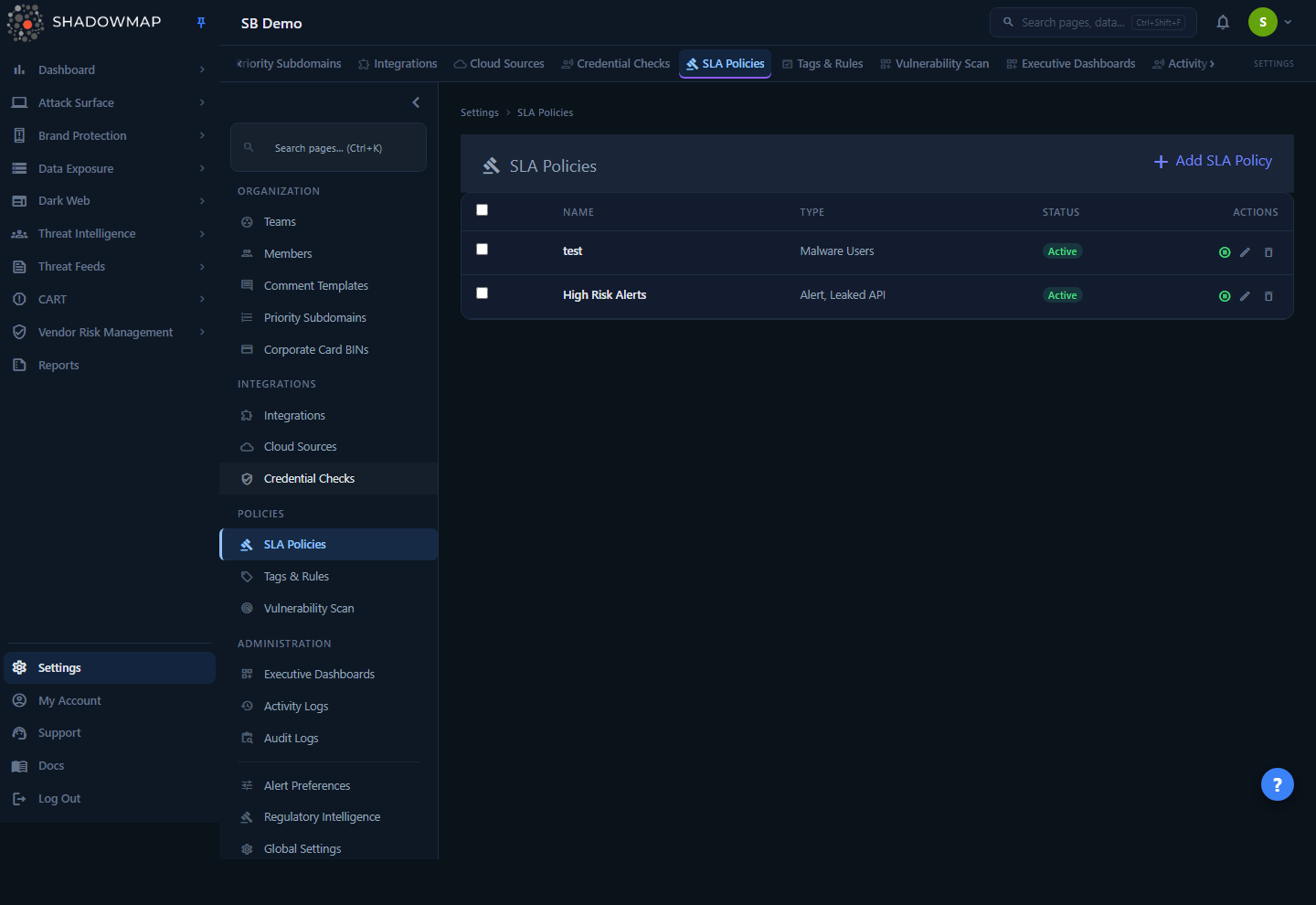
The list page at Settings → SLA Policies shows every policy configured for your organization. Each row gives you the essentials at a glance:
| Column | What it shows |
|---|---|
| Name | The descriptive name you gave the policy (e.g. "Critical Vulnerability Response"). |
| Type | The module types the policy monitors — a comma-separated list such as Alert, Leaked API or Malware Users. A policy can watch several finding types at once. |
| Status | Active (green) means the policy is live and evaluating findings; Inactive (gray) means it is paused but its configuration is retained. |
| Actions | Per-row controls: pause/resume, edit, and delete (see Managing policies). |
Use + Add SLA Policy (top right) to create a new policy, or press n anywhere on the list. Select one or more rows with the checkboxes to reveal a bulk Delete action.
Where the violations show up
The policies you build here are the rules. The findings that breach those rules appear in the SLA Violations dashboard, where you track and work them. This page is configuration; that page is operations.
How it works
A policy is a small workflow with four moving parts, evaluated in order whenever ShadowMap finds new data:
- Match — The finding is tested against each module type's filter criteria. A finding that doesn't match any type in the policy is ignored by that policy.
- Immediate alert — The moment a finding matches, the policy's immediate alert actions fire (email, Slack, Jira, etc.). This always happens, independent of escalation.
- Escalate — If escalation is enabled and the finding is still open after an escalation level's time threshold elapses, that level's notification actions fire. Levels trigger progressively (Level 1, then 2, then 3, then 4).
- Resolve — When the underlying finding is resolved, the open violation closes and escalation stops. Levels that haven't fired yet are cancelled.
Several mechanics matter here that you cannot see from the form:
- Evaluation is scan-driven, not real-time. ShadowMap checks active policies against findings as part of its scan and processing cycle. Immediate alerts and escalation triggers are delivered on the next cycle after the condition is met, not at the exact second a threshold passes. Inactive policies are skipped entirely.
- One finding can breach many policies. If a finding matches the criteria of several policies, each policy opens and tracks its own violation and sends its own notifications, independently. There is no de-duplication across policies.
- Criteria changes are forward-looking. Editing a policy's filter criteria applies to findings going forward. Existing open violations are not retroactively recalculated against the new criteria.
- Resolution is defined per finding type, not by the policy. A policy doesn't decide what "resolved" means — the source module does. An Alert is resolved when its status is Closed; a Stealer Log when it is no longer online; a Phishing URL when the site is taken down. Escalation only continues while the source finding remains open.
- Alert coalescing prevents notification storms. When a single scan surfaces a burst of matching findings (for example, 100 new findings at once), ShadowMap batches them. If more than ~10 violations for the same policy trigger within a short window, the surplus is collapsed into a single digest notification delivered on the next cycle rather than sending one message per finding.
Test a policy safely before going live
Create the policy with your criteria and immediate alerts, but leave Enable SLA Violations off. Watch the immediate notifications to confirm the criteria match what you expect, then turn on escalation. This avoids paging on-call before you've validated the filter.
Building a policy
Click + Add SLA Policy to open the form. It has five sections. A policy requires a name, at least one module type with filters applied, and at least one immediate alert action with a valid target.
1. Policy details
| Field | Required | Notes |
|---|---|---|
| Policy Name | Yes | Up to 190 characters. Use a name that states the intent, e.g. "Exposed Admin Panels — 24h". |
| Description | No | Free text for context — who owns the policy, what it's for. |
2. Types & filters
Choose which finding types the policy monitors. Use the + Add module type filter… dropdown to add a type; each added type gets its own filter builder. ShadowMap supports a broad set of source modules, including:
| Category | Available types |
|---|---|
| Threats | Exposure, Alert, Open Ports, IP Reputation, SSL Certificates |
| Dark Web | Stealer Log, Data Breach, Discussion, Telegram, Credit Card Leak, Malware Users, Malware Computers |
| Data Leaks | Code Repository, Leaked API, Leaked File, S3 Bucket, Docker Container, ElasticSearch |
| Brand Monitoring | Phishing, Domain Squatting, Social Media |
For each type you add, the filter builder lets you narrow what triggers the policy using the same field/operator criteria available on that module's list page — for example severity is Critical, host is one of these, or status is New. The combined rule set is shown beneath the builder as a read-only Criteria Query so you can confirm exactly what will match. A type with no filters applied will not be saved; the form requires at least one type with a non-empty criteria query.
To stop monitoring a type, click the trash icon in that type's header to remove its filter section.
Filters scope the blast radius
A policy that monitors "Alert" with no narrowing filter will fire for every new alert. For escalation policies wired to PagerDuty or SMS, scope tightly (e.g. severity Critical/High only) so you page on-call for what actually matters.
3. Immediate alert via
Define who gets notified the instant a finding matches. Add one or more actions; each action picks a Channel and a Target. You can stack channels — for example email the security team and post to Slack and open a Jira ticket from a single policy.
| Channel | What it does | Needs integration? |
|---|---|---|
| Sends to a selected user or team. | No — always available | |
| SMS | Texts a selected user or team. | Yes |
| Slack Webhook | Posts to a configured Slack channel. | Yes |
| Microsoft Teams | Posts to a Teams channel. | Yes |
| PagerDuty | Creates a PagerDuty incident. | Yes |
| Jira Service Management | Creates a Jira incident. | Yes |
| Jira Service Desk | Creates a service desk ticket. | Yes |
| ServiceNow CMDB | Creates a ServiceNow record. | Yes |
| Freshservice | Creates a Freshservice ticket. | Yes |
| SIEM (Syslog) | Pushes a CEF/syslog event to your SIEM. | Yes |
| Splunk HEC | Sends to a Splunk HTTP Event Collector. | Yes |
| Webhook | POSTs to a custom endpoint. | Yes |
For Email and SMS, the Target dropdown lists your users and teams. For every other channel, the targets come from the matching integration you configured. Channels appear greyed out and marked (Unavailable) until the corresponding integration is set up in Integrations.
Configure the integration first
A channel only shows real targets if its integration exists. Set up Slack, PagerDuty, Jira, ServiceNow, etc. under Integrations before building a policy that uses them.
4. Email alert preference
Controls how email notifications are grouped:
- Summary (default) — Groups all matching findings for the policy into one email. Best for keeping inboxes manageable.
- Individual Alerts — Sends a separate email per finding. Useful when each email maps one-to-one to a ticket in your ITSM system.
5. SLA violations (escalation)
Tick Enable SLA Violations to turn on time-based escalation. When enabled you can add up to four escalation levels. Each level defines:
- Resolve In — the time threshold after the finding was detected before this level fires. The unit is Days (1–90) or Months (1–12). The offset must be a whole number of at least 1.
- Notification actions — one or more channel/target pairs, using the same channel options as immediate alerts. Each level requires at least one action with a valid target.
Levels fire in order and only while the finding is still open, so a typical chain widens the audience as an issue ages:
| Level | Example threshold | Example action |
|---|---|---|
| 1 | 2 days after detection | Email → Security Team Lead |
| 2 | 7 days after detection | Slack → #security-escalations + PagerDuty |
| 3 | 14 days after detection | Email → CISO + open Jira ticket |
| 4 | 1 month after detection | Email → CTO + SMS → Security Director |
Validation rules enforced on save
The form blocks saving if: the name is empty; no module type has filter criteria; there are no immediate alert actions (or an action has no target); escalation is on but has no levels; there are more than four levels; or any level has an invalid time, an invalid unit, or no action with a target. Fix the flagged field and save again.
Save with Create Policy (or Ctrl+S). New policies are active immediately.
Managing policies
Each row on the list page exposes inline actions:
| Action | Effect |
|---|---|
| Pause / Resume | Toggles the policy between Active and Inactive. A paused policy stops evaluating findings but keeps all of its configuration, so you can re-enable it later without rebuilding it. |
| Edit | Opens the form pre-populated with the policy's current configuration. |
| Delete | Permanently removes the policy after a confirmation prompt. |
For housekeeping, select multiple policies with the row checkboxes (or the header checkbox to select all) and use the bulk Delete button that appears in the header. Clear deselects everything.
Disable, don't delete, for temporary pauses
If you only want to stop a policy for a maintenance window or a noisy period, use Pause rather than Delete. Pausing is reversible and preserves the full configuration; deleting is permanent.
Common questions
What happens if I change a policy's criteria? Updated criteria apply to findings going forward. Existing open violations are not retroactively recalculated against the new rules.
Can multiple policies match the same finding? Yes. A single finding can match several policies. Each policy opens and tracks its own violation independently and sends its own notifications — there is no cross-policy de-duplication.
How do I test a policy before paging on-call? Build it with your criteria and immediate alerts, but leave escalation disabled. Confirm the immediate notifications match what you expect, then enable escalation.
What counts as "resolved" so escalation stops? The source module decides, not the policy. An Alert resolves when its status is Closed; a Stealer Log when it is no longer online; a Phishing URL when the site is taken down. Escalation continues only while the underlying finding is open.
Why is a notification channel greyed out? That channel needs an integration that isn't configured yet. Set it up under Integrations and it becomes selectable. Email is the only channel that is always available.
A scan found a hundred matching findings — will I get a hundred alerts? No. ShadowMap coalesces bursts: when many violations for the same policy trigger in a short window, the surplus is batched into a single digest delivered on the next cycle, so you get a summary instead of a storm.
Are alerts instantaneous? Evaluation is tied to ShadowMap's scan and processing cycle, so notifications go out on the next cycle after a finding matches or a threshold passes — close to real time, but not to the second.
Related
- SLA Violations — The operational view of every finding currently breaching a policy you built here.
- Integrations — Configure Slack, PagerDuty, Jira, ServiceNow, Teams, SIEM, Splunk, and webhook channels before referencing them in a policy.
- Alerts — The most common finding type monitored by SLA policies; an Alert's Closed status is what resolves its violation.
- Teams — Group users so policies can route email and SMS to the right people.
- Alert Preferences — Organization-wide notification defaults that sit alongside per-policy alerting.