
Audit Logs
The Audit Logs page is the system-of-record for administrative and account-security changes in your ShadowMap tenant: member invites and removals, user and account-detail updates, 2FA enable/disable, integration and cloud-source changes, SLA and tag-rule edits, team changes, and similar privileged operations. Each entry captures the actor, the action, the source IP, and a precise timestamp, giving you a defensible trail for incident response, access reviews, and compliance evidence.
Overview
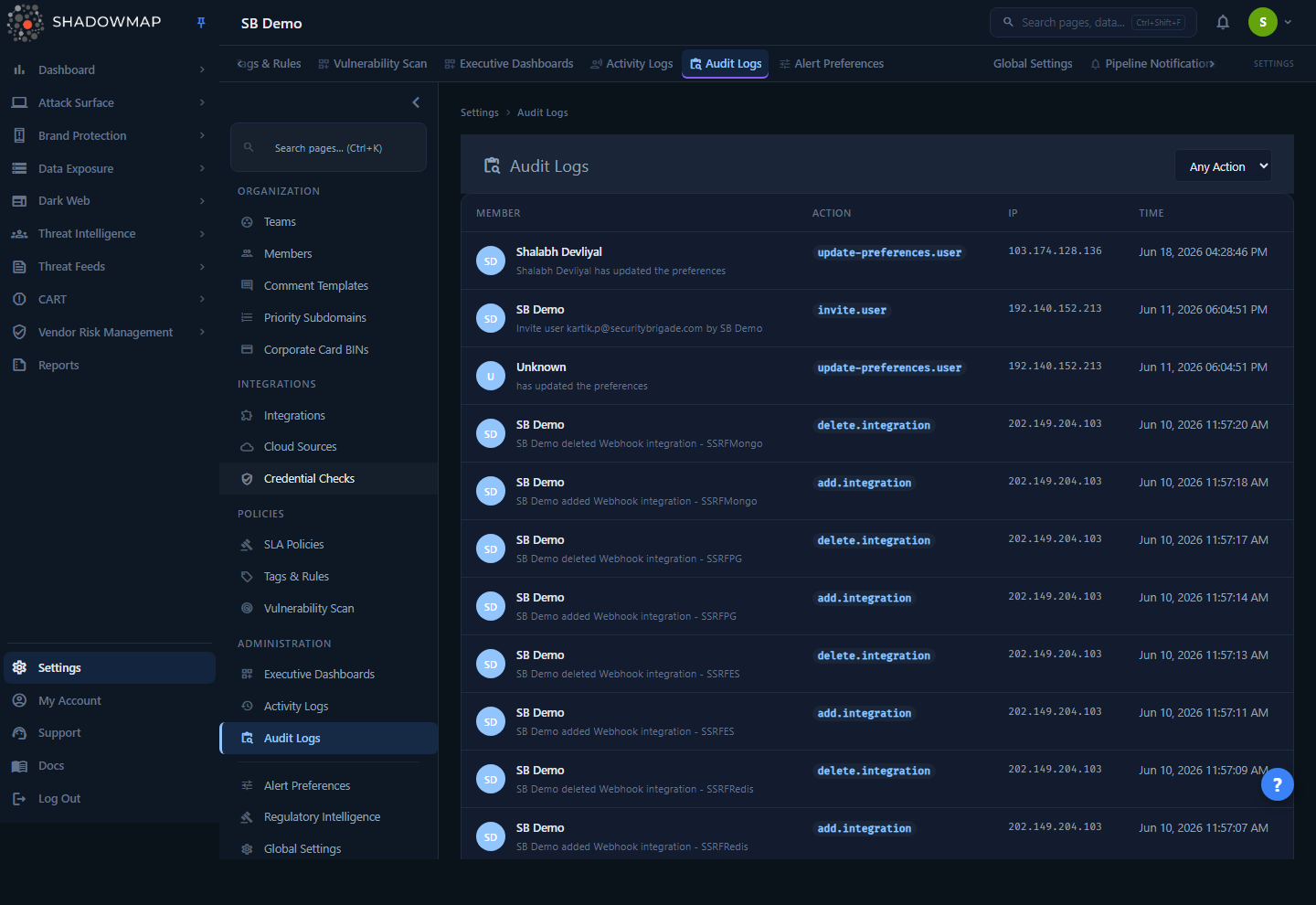
The page is a single reverse-chronological table (newest first). Each row answers four questions:
- Member — who performed the action (name, initials avatar, and a human-readable description of what happened).
- Action — the machine event name for the action (a short badge such as
invite.userorupdate.integration). - IP — the source IP address the action originated from.
- Time — the date and time the action was recorded, formatted in the application's configured timezone.
An Any Action dropdown in the header lets you narrow the table to a single event type. The data is paginated 25 rows at a time, with Page X of Y controls at the bottom.
Audit Logs vs. Activity Logs
These are two different trails, deliberately separated.
- Audit Logs (this page) record administrative and account changes — member/role/2FA/integration/SLA/team/cloud-source changes. Think "who changed the configuration of the account."
- Activity Logs record finding-level workflow actions — assigning an alert, changing a finding's status, adding a comment or tag to an exposure. Think "who triaged the data."
If you are investigating a permission change or a new integration, look here. If you are reconstructing how a specific alert was triaged, use Activity Logs.
How it works
The mechanics below are not visible in the UI but determine what you will and won't find in the log.
What gets logged
ShadowMap emits an audit entry whenever a registered administrative action completes successfully. The current set of audited events, grouped by area:
| Area | Audited actions |
|---|---|
| Members & users | Invite user, regenerate/resend invite, register, remove, reassign, suspend, reactivate, review access, resend credentials, update user, update account details, update preferences |
| Authentication | Enable 2FA, disable 2FA, generate backup codes, admin-generate backup codes |
| Integrations | Add / update / delete an integration (Jira, Slack, PagerDuty, ServiceNow CMDB, ArcSight, etc.) |
| Cloud sources | Add / update / delete a cloud connector |
| Teams | Create, update, remove, join, leave a team |
| SLA policies | Add / update / delete a policy, and add/delete its alert and escalation rules |
| Tag rules | Create / update / delete a tag rule |
| Saved searches | Add / delete a saved search, set a default |
| Dark web | Change a compromised-computer (stealer log) status |
Each event has a fixed name (the badge in the Action column) and a templated note that fills in specifics — for example, the invite.user event renders as "Invite user [email protected] by Admin Name." This note is what appears as the description under the member's name.
Not everything is here
Audit Logs intentionally do not include finding triage. Assigning an alert, changing a finding's status, or adding a comment are recorded as activities, not audit events, and appear under Activity Logs and on the finding's own activity timeline. Failed login attempts are also captured separately (in the per-user security view under Members), not in this table.
Actor attribution and account switching
Every entry is attributed to the actor — the authenticated user who performed the action. The actor is resolved from the user record even if that user has since been deactivated, so historical entries do not lose their attribution when a member is removed.
If the action was performed inside a switched session (an operator acting as another identity via account switching), ShadowMap records the root origin operator alongside the action. This means an action taken "as" another account is still attributable to the real person who initiated it — the audit trail cannot be laundered through a switch.
How the source IP is determined
The IP shown is the client's true source address, resolved through your edge in this order: CF-Connecting-IP (Cloudflare), then X-Real-IP, then the first address in X-Forwarded-For, falling back to the direct connection IP. If a forwarded header contains a proxy chain, only the first (client) hop is kept. Private/internal IP filtering is not applied — internal-network actions show their real internal address.
Timestamps and timezone
Entries are timestamped at the moment the action is recorded and rendered in the application's configured timezone (for example, Jun 21, 2026 03:42:17 PM). The value is formatted server-side, so the same entry reads consistently regardless of who views it.
Immutability and tenancy
Audit entries are append-only — there is no edit or delete control in the product, by design. Every query is scoped to your company_id, so you only ever see your own tenant's trail; one customer's audit log is never visible to another.
Understanding the data
Columns
| Column | What it shows |
|---|---|
| Member | The actor's name and initials, plus a description of the action (the rendered event note, e.g. "User Jane Doe updated by Admin"). Shows "Unknown" if the actor record can't be resolved. |
| Action | The event name badge — the canonical identifier for the action type (e.g. update.integration, disable.2fa, create.team). Use this with the Any Action filter to isolate one kind of change. |
| IP | The source IP address the action came from. Shows — if no IP was captured (e.g. an action triggered by a background job rather than a user request). |
| Time | Date and time the action was recorded. |
Reading an Action badge
Most action names follow a verb.object convention — invite.user, add.cloud-source, delete.sla-policy, update.integration and so on (a few, like the stealer-log event change-stealer-log-computer-status, use a longer descriptive name). The badge is the stable identifier; the human-readable explanation is always in the Member column's description line. When you filter, you filter on these exact names.
Filtering & search
- Any Action dropdown — filter the table to a single event type. The dropdown is populated from the set of event types that have been recorded, so you only see action names that have actually occurred. Selecting one resets to page 1.
- Pagination — 25 rows per page; use the chevron controls to move between pages.
The underlying API also supports filtering by actor (member) and a date range (date_from / date_to), which are used by the export and can be applied programmatically; the in-page header surfaces the action filter directly.
Exporting
Audit logs can be exported to CSV for offline review, ticketing attachments, or handing to auditors. The export honors the same filters (action, actor, and date range) and produces a file named audit-logs-YYYY-MM-DD.csv with the columns: ID, Event, Note, Actor, IP Address, Date.
Export cap
A single export returns up to 10,000 rows. For a complete trail over a long window, export in date-bounded slices (use the date-from/date-to range) and concatenate. This keeps each export fast and avoids truncation on high-volume tenants.
Access & permissions
Audit Logs is a privileged view. Access is gated by the settings.audit-logs:read permission, which by default belongs only to the Administrator role (the administrator role also short-circuits every backend permission check). Analysts, SOC Users, and Vendors do not see this page unless an Administrator explicitly grants them the permission.
Least-privilege note
Because the log exposes who changed what across the whole tenant, treat read access to Audit Logs as a sensitive grant. Reviewing this page is itself a good periodic control — confirm that the only actors performing administrative actions are the ones you expect.
See RBAC Permissions for how permissions map to roles, and Roles & Permissions for the role model.
Common questions
Why don't I see a status change or alert assignment I made? Those are finding-level activities, not administrative audit events. Look in Activity Logs or on the finding's own activity timeline instead.
Are failed login attempts shown here? No. Failed logins are recorded separately and surfaced in the per-user security view under Members, not in this table.
Can an administrator edit or delete an audit entry? No. The log is append-only and there is no delete or edit control in the product. This is what makes it usable as compliance evidence.
Why does an entry show "Unknown" for the member, or — for the IP? "Unknown" means the actor's user record could not be resolved (rare). A — IP means no client IP was associated with the action — typically an action performed by a background process rather than an interactive request.
An action was taken while someone was switched into another account. Who gets credited? The real operator who initiated the switch. ShadowMap tags switched-session actions with the originating (root) user, so the trail attributes the action to the person, not the borrowed identity.
Whose actions can I see — just my company's? Only your own tenant's. Every query is scoped to your company, so audit data is never shared across customers.
How far back does the log go, and how big can the export be? The table itself is unbounded reverse-chronological; CSV export returns up to 10,000 rows per request. Use the date range to slice longer periods. See Data Retention for retention specifics.
Related
- Activity Logs — the companion trail for finding-level workflow actions (assignments, status changes, comments, tags).
- Members — invite, remove, and manage users and roles; the source of many of the events you'll see logged here, plus per-user failed-login visibility.
- Teams — team membership changes recorded in the audit trail.
- Integrations and Cloud Sources — connector add/update/delete actions appear as audit events.
- SLA Policies and Tag Rules — policy and rule edits are audited.
- Account Security — your own 2FA and session settings; 2FA changes are reflected in this log.
- RBAC Permissions — how
settings.audit-logs:readand other permissions map to roles. - Data Retention — how long audit data is kept.