
Notification Preferences
Per-user controls for the account-level emails ShadowMap sends you. These toggles are personal: they apply only to your account, not to your teammates or to your organization as a whole.
Overview
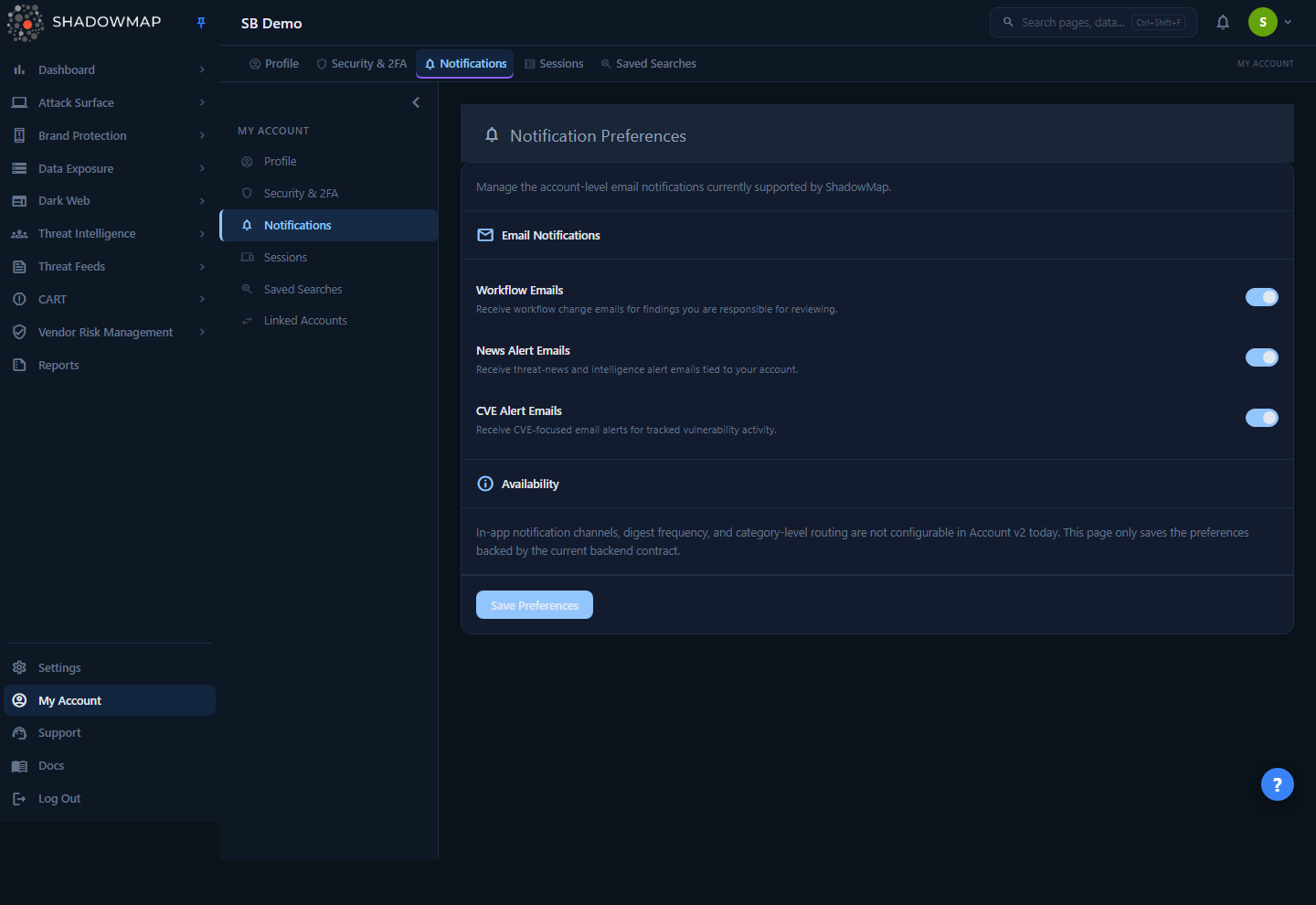
Notification Preferences lives under My Account → Notifications (/account/notifications), alongside Profile, Security, Sessions, and Saved Searches. The page is intentionally small: it exposes the three email channels that ShadowMap can currently route on a per-user basis, each as a single on/off toggle.
When you open the page, it loads your current settings, shows them as toggles under an Email Notifications section, and waits for you to make changes and click Save Preferences. An Availability section below the toggles documents what is not configurable here today (in-app channels, digest frequency, category-level routing).
The three channels are:
| Toggle | What it controls |
|---|---|
| Workflow Emails | Emails about workflow/configuration changes on findings and modules you are responsible for reviewing. |
| News Alert Emails | Threat-news and intelligence digest emails, filtered against your organization's News Alert preferences. |
| CVE Alert Emails | CVE-focused email alerts for vulnerability activity affecting the products your organization tracks. |
Personal vs. organization settings
These toggles affect only the emails sent to you. They do not change what ShadowMap collects, what appears in the dashboard, or what your teammates receive. To change what the organization tracks (which CVE products trigger alerts, organization-wide alert routing), use the admin settings pages described under Related.
How it works
The mechanics here are not obvious from three toggles, because each toggle gates a different backend process with different cadence, content, and default behavior.
Default state: opt-out, not opt-in
All three preferences default to on. The backend treats the absence of a stored preference as "subscribed" — you start receiving every channel and a toggle is only ever consulted to suppress mail. Concretely:
- A user with no saved preference receives all three email types.
- Workflow Emails are suppressed only when the stored value is
never. - News and CVE Emails are suppressed only when the stored value is
No.
This is why a brand-new account already gets news and CVE emails before ever visiting this page. Turning a toggle off is what writes the suppressing value.
How your toggle is stored
The UI shows simple on/off switches, but the values persisted to your user preferences are channel-specific strings, not booleans:
| Toggle | On (stored value) | Off (stored value) |
|---|---|---|
| Workflow Emails | always | never |
| News Alert Emails | Yes | No |
| CVE Alert Emails | Yes | No |
You never see these raw values, but they explain the wording in the descriptions ("opt out via Workflow Notifications = never"). Saving the page issues a single update to your account preferences; there is no per-channel save.
What each channel actually triggers
Workflow Emails. When another user changes the configuration of a module — for example adding, deleting, enabling, or disabling an integration — ShadowMap raises a module-change event. To decide who is eligible to be notified, the notifier resolves all active users in your company, drops the person who made the change (you already know what you did), drops anyone whose Workflow Emails are set to never, and drops accounts with malformed email addresses. The intent is team visibility into security-relevant configuration changes, and this toggle is the single opt-out: setting it to off removes you from that computed recipient set. Note: per-recipient delivery of these module-change emails is currently disabled pending internal approval — in this release the only address that actually receives the notification is ShadowMap's internal support address, and individual users are not emailed yet. Your toggle preference is still recorded and takes effect once per-user delivery is enabled.
News Alert Emails. A scheduled job (send:news-alert-email) collects the day's published threat-news stories, filters them against your company's News Alert preferences — the countries, categories, and sectors your organization has chosen to watch — and emails the resulting digest to that company's active contacts who have News Alert Emails enabled. If those filters leave zero matching stories for a given day, no email is sent at all — an empty inbox can simply mean "nothing matched today," not a broken setting. (When an organization sets no News Alert preferences, every published story matches.) Internal/staff accounts are excluded from this run.
CVE Alert Emails. A scheduled job (send:cve-email-notification) generates per-customer CVE notifications for new CVEs that affect the products your organization selected in its CVE Alert Preferences, then emails them to users who have CVE Alert Emails enabled (internal accounts excluded). Two things gate whether you receive anything:
- Your personal CVE Alert Emails toggle must be on (this page), and
- Your organization must have selected the affected products in admin CVE Alert Preferences.
If your organization has not selected any products to monitor, this toggle has nothing to deliver regardless of its state.
One toggle, two scopes
The CVE channel is the clearest example of the personal/organization split. This page controls whether you receive the mail; the products that generate the mail are an organization-level admin setting. If you are getting too many or too few CVE emails, check both.
Cadence
| Channel | Trigger | Roughly when |
|---|---|---|
| Workflow Emails | Event-driven | Raised when a teammate changes a module/integration configuration (per-user delivery currently disabled pending approval) |
| News Alert Emails | Scheduled batch | Daily digest of that day's matching published stories |
| CVE Alert Emails | Scheduled batch | Periodic batch covering newly published CVEs affecting tracked products |
The exact run times for the batch jobs are operational schedule details and may vary by deployment; the dashboard does not expose a send-time setting.
Using the page
- Go to My Account → Notifications (
/account/notifications). - The page loads your current settings. Each channel under Email Notifications shows as a toggle.
- Flip any toggle on or off.
- Click Save Preferences. A confirmation message ("Preferences saved.") appears on success. If the save fails — typically a transient connectivity issue — you'll see "Unable to save preferences right now." and your changes are not persisted; retry.
Changes apply only after Save
Toggling a switch does not take effect until you click Save Preferences. Navigating away without saving discards the change.
What you cannot configure here
The Availability section on the page is explicit about current limits. In this release, Notification Preferences does not offer:
- In-app / push notification channels — these toggles govern email only.
- Digest frequency — you cannot change how often the news or CVE digests are sent.
- Category-level routing — you cannot, for example, subscribe to CVE emails for one product group and not another from this page. Product selection for CVE alerts is an organization-level admin setting.
If you need finer control (per-category alerting, SLA-driven escalation, third-party delivery to Slack/Teams/email groups), that is handled through organization-level settings rather than this personal page — see Related.
Common questions
I just created my account and I'm already getting CVE and news emails. Why? All three channels default to on. ShadowMap treats "no saved preference" as subscribed, so you receive everything until you explicitly turn a channel off and save. Visit this page and toggle off any channel you don't want.
I turned off CVE Alert Emails but a colleague still gets them. Is that a bug? No. Every toggle on this page is per-user. Your preference suppresses mail to your address only. Each teammate manages their own channels on their own account.
I enabled News Alert Emails but never receive any. The daily news digest is filtered against your organization's News Alert preferences — the countries, categories, and sectors it has chosen to watch. If nothing published that day matches those filters, no email is sent. An empty result is normal on quiet days. Also note that internal/staff accounts are excluded from the send.
I enabled CVE Alert Emails but get nothing. Two gates must both pass: your personal toggle (here) must be on, and your organization must have selected the affected products in admin CVE Alert Preferences. If no products are selected at the org level, there is nothing to send. Ask an admin to review the organization's CVE product selection.
What exactly is a "Workflow Email"? It is a notification that a teammate changed a module or integration configuration (added, removed, enabled, or disabled something). It is meant for the other active users in your company so security-relevant changes don't go unnoticed. You never get a workflow email about your own change. Set the toggle to off to remove yourself from the recipient set entirely. Note that per-user delivery of these emails is currently disabled pending internal approval, so you may not receive them yet even with the toggle on; the preference is still recorded for when delivery is enabled.
Do these toggles affect what shows up in the dashboard? No. They only control email delivery to your inbox. Findings, alerts, and intelligence continue to appear in the dashboard regardless of your email preferences.
Can I get these notifications somewhere other than email? Not from this page — it governs email channels only. Routing alerts to other destinations is configured through organization-level alert and integration settings.
Related
- Profile — your name, contact details, and timezone, which formats the timestamps in the emails you receive.
- Security — password, two-factor, and OTP for the same account.
- Sessions — active and recent sign-ins for your account.
- Alert Preferences — organization-level alert routing and rules (admin), which sit above these per-user email toggles.
- Credential Checks — related admin notification configuration for leaked-credential monitoring.
- SLA Policies — SLA-driven escalation and reminder emails, configured at the policy level rather than per channel here.
- Vulnerability Overview — the in-dashboard vulnerability data that the CVE Alert Emails summarize.
- Cyber News — the in-dashboard threat-news feed that the News Alert Emails digest.