
My Profile
Your personal account record: the name and contact details your colleagues see on comments, assignments, and audit entries, plus the timezone that controls how every date and timestamp across ShadowMap is displayed to you.
Overview
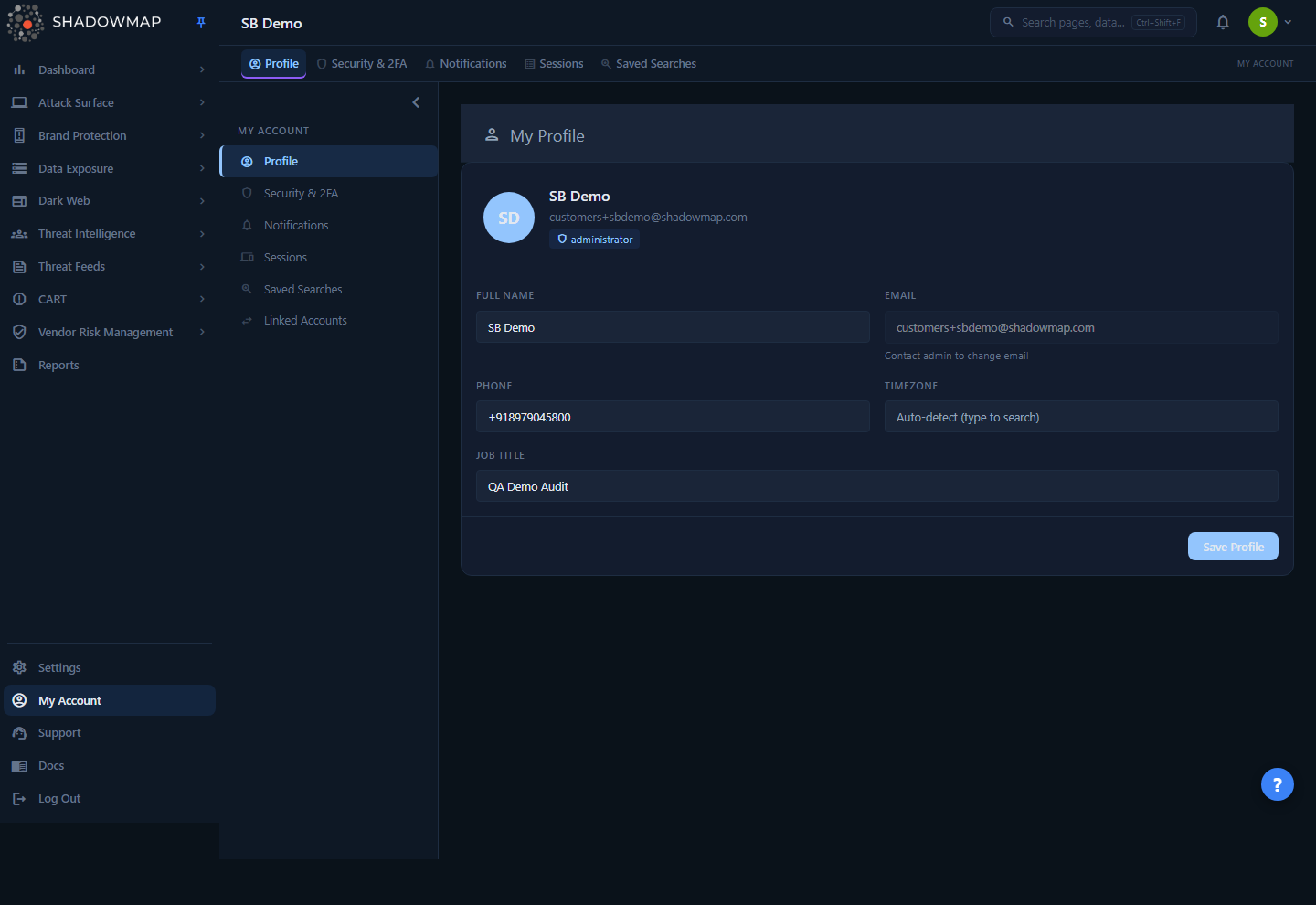
Profile is the first page under My Account (the per-user area, distinct from org-wide Settings). It shows a header card with your avatar initials, full name, email, and role badge, followed by an editable form. Everything here is scoped to your user only — changing your timezone or name does not affect any other member of your organization.
The left sidebar exposes the rest of your per-user pages: Profile, Security & 2FA, Notifications, Sessions, Saved Searches, and Linked Accounts. Which of these you see depends on your permissions.
The editable fields are:
| Field | Editable | Notes |
|---|---|---|
| Full Name | Yes | Required when present. Drives your avatar initials and the name shown on comments, assignments, and the audit log. |
| No | Disabled. Shown for reference only — "Contact admin to change email". | |
| Phone | Yes | Free-text contact number. Optional. |
| Timezone | Yes | Type-to-search IANA timezone. Controls date/time display app-wide (see below). |
| Job Title | Yes | Free-text designation, e.g. "Security Analyst". Optional. |
Email is intentionally locked
Email is your login identity and is tied to invitations, SSO mapping, and notification routing. It cannot be self-edited here. An organization administrator changes it from Settings → Members, or via the support team.
How it works
Most of this page is self-explanatory data entry. The two mechanics you can't infer from the screen are the timezone behavior and where each field is actually stored.
Timezone is the highest-impact setting on this page
The Timezone field is not cosmetic. ShadowMap stores every event — scan timestamps, alert creation, SLA clocks, dark web post dates, certificate expiry — as absolute timestamps, and renders them into your timezone at display time. Changing this field re-renders dates everywhere you look:
- Alert timestamps and "time ago" tooltips
- SLA due dates and violation calculations as displayed to you
- Export timestamps and report cover dates
- Detail drawers, activity feeds, and audit entries
When you save a new timezone, ShadowMap pushes it into your live session state immediately, so dates re-render without a hard refresh — you don't need to log out and back in.
A few details worth knowing:
- The dropdown is server-validated. The timezone picker is populated from the backend's own list of IANA identifiers (
DateTimeZone::listIdentifiers()), and the save endpoint rejects anything not on that list. This prevents a browser-supplied alias (for exampleAsia/Saigoninstead of the canonicalAsia/Ho_Chi_Minh) from being saved and then breaking date rendering on later page loads. If you type a value the server doesn't recognize, the save fails with a validation error rather than silently storing a bad value. - Clearing the field means "leave it alone," not "blank it out." The picker includes an explicit Auto-detect (empty) option, and you can clear the input manually. Saving with the timezone empty leaves your existing preference untouched — it does not wipe your stored timezone. Only an explicit, valid selection changes it.
- Auto-detect / no preference falls back to ShadowMap's default timezone,
Asia/Kolkata(IST), so dates always render in some sensible zone even before you set a personal preference.
Where each field is stored
This matters if you're reconciling what you see here against the Members admin page or the audit log:
| Field | Stored on | Implication |
|---|---|---|
| Full Name | Your user record (name) | Visible to admins under Settings → Members; changes are audit-logged. |
| Phone | Your user record (contact_number) | Contact-only; not used for notifications. |
| Job Title | Your user record (designation) | Display metadata. |
| Timezone | Your user preferences (key/value) | Separate from the user row — a personal display preference, re-validated on save and audit-logged independently. |
| Your user record (read-only here) | Admin-managed. | |
| Role | Your membership (read-only) | Set by an admin; governs which pages and actions you can access. |
Every save writes an entry to the audit trail (update-account-details.user), so administrators can see who changed their own profile details and when.
Avatar and role are derived, not editable
- The avatar is generated from the first letters of your Full Name (up to two characters). There is no image upload — update your name to change the initials.
- The role badge (e.g. Admin, Analyst) is read-only here. Roles are assigned by an administrator and determine your permissions across the platform. See Roles & Permissions.
Editing your profile
- Open My Account → Profile (or your avatar menu → Profile).
- Edit Full Name, Phone, Job Title, and/or Timezone. Email is locked.
- For timezone, start typing a city or region (e.g.
Kolkata,London,New_York) and pick a match from the list, or choose Auto-detect to fall back to ShadowMap's default zone (Asia/Kolkata). - Click Save Profile. The button shows Saving… while the request is in flight.
- On success you'll see a "Profile saved successfully" toast, and any timezone change takes effect immediately across the app.
Set your timezone first
If dates anywhere in ShadowMap look "off by a few hours" — alerts, SLA clocks, dark web post dates — the most likely cause is an unset or wrong timezone here. Fix it once on this page and it corrects everywhere.
Save errors are surfaced, not swallowed
If a save fails, an error toast shows the specific reason rather than silently reverting. The most common cause is an invalid timezone value (one the server's IANA list doesn't contain). Re-pick from the dropdown rather than typing a free-form zone name.
Common questions
Why can't I change my email here? Email is your login identity and is bound to invitations, SSO, and notification routing, so it can't be self-edited. An administrator changes it from Settings → Members, or you can ask support.
I changed my timezone but old dates still look wrong. A timezone change applies immediately to your current session and to subsequent page loads. If a specific view still looks off, reload that view. If it persists, your account may have no valid preference saved — re-open Profile and confirm the Timezone field shows the zone you expect (not blank).
Does changing my timezone affect my teammates or scheduled reports? No. Timezone is a per-user display preference. Everyone sees the same underlying events rendered into their own zone. Report scheduling and SLA calculations are driven by the stored absolute timestamps, not by your display preference.
I cleared the Timezone field and saved — did I lose my setting? No. An empty timezone is treated as "no change." Your previously saved zone stays in effect. To actively switch zones, pick a specific value from the dropdown.
Why is the timezone dropdown limited to certain values? The list comes from the server's canonical set of IANA timezone identifiers, and the save endpoint validates against the same set. This guarantees that whatever you can pick is something ShadowMap can render with — it prevents browser-specific aliases from being stored and later breaking date display.
Where do my name and phone show up? Your name (and avatar initials) appear on comments, assignments, the activity/audit log, and the admin Members list. Phone and job title are contact/display metadata only.
I don't see all the tabs in the sidebar (Security, Sessions, etc.). Each per-user page is gated by a permission. If a tab is missing, your role doesn't grant access to it. See Roles & Permissions.
Related
- Security & 2FA — change your password, enable two-factor authentication, and manage backup codes.
- Notifications — control which workflow, news, and CVE emails you receive.
- Active Sessions — review and revoke devices currently signed in to your account.
- Saved Searches — manage and set defaults for your saved module filters.
- Roles & Permissions — what your role badge controls and how access is granted.
- Members — the admin-side page where an administrator manages email, roles, and member records.