
Linked Accounts
Linked Accounts lets one person move between several ShadowMap user accounts in a single click — the pattern a consultant, MSSP analyst, or multi-tenant administrator uses to jump from one client's account to another without logging out and back in. Each switch is a full, audited session replacement, not a shared login, so tenant isolation and your authentication guarantees are preserved on both sides.
Overview
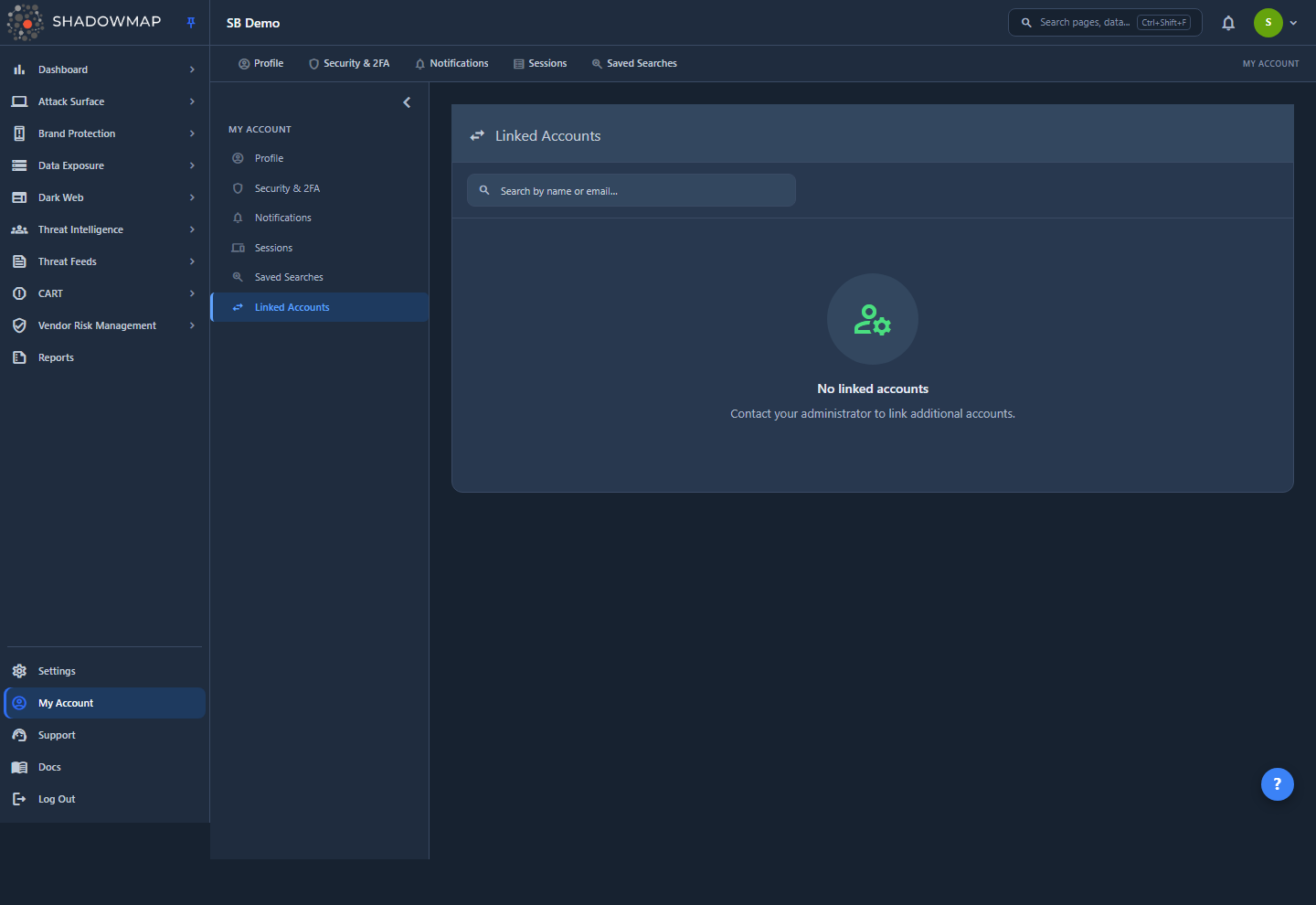
The page is reached from My Account → Linked Accounts (route /account/linked-accounts, nav icon swap_horiz). It shows the accounts you're allowed to switch into and nothing else — it is not a directory of your organization's users. Reading top to bottom:
- A search box that filters the list by account name or email as you type.
- A switch-back row, pinned to the top and highlighted, that appears only while you are operating inside a switched session. It carries a
Your primary accountbadge and a Switch Back button that returns you to the account you started from. - The list of linked accounts — each row shows an avatar, the target account's name and email, and, when the link isn't yet usable, an approval badge (
Pending approvalorRejected). - A Switch button on every approved row. Rows that aren't approved show a status label (
Awaiting approvalorAccess denied) instead of a button. - Pagination at the bottom when you have more than 10 linked accounts (the list is paged 10 at a time).
If you have no links, the page shows an empty state: "No linked accounts — Contact your administrator to link additional accounts." That wording is deliberate: links are not self-service. You cannot create or approve a link from this page — an administrator provisions them for you (see How links are created).
No AI or scoring here
Linked Accounts is a deterministic access-control feature. There is no AI review, risk scoring, or automated analysis on this page — every decision (who you can switch into, and whether a switch is allowed) is governed by explicit link records and the checks described below.
How it works
Almost everything that makes account switching safe happens server-side and isn't visible in the UI. The mechanics below explain what a link is, what a switch actually does to your session, and why switching is more than a cosmetic swap.
What a link is
Every switch is governed by a link record — a one-directional trust relationship from an origin account (the account that is allowed to switch) to a target account (the account it may switch into). A link is only usable when it is both active and approved, and when the target account itself is active and not deleted. Each link record carries:
| Field | Meaning |
|---|---|
| Origin | The account granted the ability to switch. |
| Target | The account that can be switched into. |
| Active | Whether the link is enabled. A deactivated link never appears in your list and can't be used. |
| Approval status | pending, approved, or rejected — see Approval statuses. |
| Approved by / at | Which administrator approved the link, and when. |
| Approval notes | Free-text rationale recorded at approval time. |
| Created by | Which administrator provisioned the link. |
Your list only ever shows links where you are the origin (or, while you're switched, where your root primary account is the origin — see Switching while already switched). Your own current account is always excluded — switching into yourself is meaningless.
Approval statuses
A link moves through an approval workflow before it can be used. The page reflects that state on each row:
| Status | Badge on the row | Can you switch? |
|---|---|---|
| Approved | (none — a Switch button is shown) | Yes. |
| Pending | Pending approval (amber) | No — the row shows Awaiting approval. |
| Rejected | Rejected (red) | No — the row shows Access denied. |
The server enforces this independently of the UI: attempting to switch into a pending link returns "This account link is pending approval," a rejected link returns "This account link has been rejected," and a non-existent link returns "No active link found for this account." In every case the guidance is to contact your administrator.
A switch is a full session replacement
When you switch, ShadowMap does not simply stash the other account in a session variable. It tears down your current session and builds a fresh one for the target account. In order, the server:
- Logs out the current account, which also deletes the "remember me" recaller cookie and cycles its database token — so your original account can't silently re-authenticate later (see the warning below).
- Flushes, invalidates, and regenerates the session, discarding all origin-account data and issuing a new session ID (this prevents session fixation).
- Logs in the target account with no persistent "remember me" cookie.
- Records the switch as a login in the target account's Sessions history (marked as an account-switch login) and updates its last-active timestamp.
- Writes an append-only audit entry capturing who switched into whom, from which IP and browser, and when.
- Sets a one-time signal that tells your browser to clear locally cached state on the next page load.
Because your old session is destroyed rather than layered over, no data from the previous tenant carries into the new one — this is what keeps the two accounts isolated.
The remember-me cookie is deliberately killed on every switch
If the origin account's "remember me" cookie survived a switch, then when your switched session later expired, the next request would silently re-authenticate you as the original, often more-privileged, account — with no login prompt. Switching removes that cookie precisely so you can never be quietly dropped back into a higher-privilege account you thought you'd left.
Local state is purged so tenants don't bleed together
Your browser caches per-account preferences — dashboard filters, column layouts, recent searches, and the cached security rating — in local storage. A hard page reload alone would leave those in place, so the previous tenant's cached data (including its security rating and permission set) could bleed into the account you just switched into.
To prevent that, the switch clears local and session storage before reloading, and the server also sets a short-lived fresh_switch cookie as a backstop: the app clears local storage again on the next load if it sees that cookie. The net effect is that the account you land in always boots from a clean slate.
Two-factor authentication on switch
You can only reach the switch action after you have passed your own login, including two-factor and one-time-password verification if your account requires them — the endpoint sits behind the same 2FA/OTP gate as the rest of the app. Switching itself does not re-challenge you: the target account's second factor is intentionally not requested, which is what makes switching seamless.
Switching bypasses the target account's second factor — scope link targets carefully
Because a switch does not re-prompt for the target's 2FA, being linked into a 2FA-enabled account effectively lets you into it without that account's second factor. This is an accepted trade-off for seamless switching, and it puts the responsibility on administrators: switch targets should be dedicated service or delegated accounts, provisioned deliberately at link-creation time — not a shortcut into a colleague's fully privileged, 2FA-protected personal account. The person doing the switching is the one held accountable in the audit trail.
Switching while already switched
You don't have to return to your primary account to reach another linked account. While you're operating inside a switched session, the list merges two sets of links: the ones belonging to your root primary account and the ones belonging to the account you're currently in. So if your primary account (call it P) is linked to a hundred client accounts, you can hop directly from client V1 to client V2 without going back to P first.
A few rules keep this bounded and safe:
- The merge is only one level deep — your primary's links plus the current account's links. It never follows deeper transitive chains.
- Your primary account is never shown as an ordinary target in the list; it's surfaced separately as the pinned switch-back row at the top.
- When the same target is reachable through more than one link, the most permissive approval status wins (approved beats pending beats rejected) — if any valid approved path exists, you can take it.
- Every forward hop still checks that your primary account is active. If your primary has been deactivated, further forward switching is blocked and you can only switch back.
- Switching back to your primary is always allowed — it needs no link check, because the session already carries proof that you started there.
Session lifetime, rate limits, and the kill-switch
Several server-side controls sit around switching:
- Switch sessions expire after 8 hours. While you're switched, each forward hop requires a still-live switch session. If it has expired (or been revoked — see below), forward switching is blocked with "Your switch session has expired or been revoked", and you can only switch back to your primary or log out and start over.
- An administrator kill-switch can revoke all active switched sessions for a compromised primary account at once, immediately cutting off further forward hops across the whole chain.
- Rate limiting is scoped to your root primary account — a cap of 100 switches per hour tied to the primary (not the intermediate account), so the limit can't be bypassed by chaining through several accounts. A coarser per-minute throttle sits on top as an abuse backstop.
- A background job removes expired switch-session records hourly, so administrators' view of who is currently switched-in stays accurate.
How links are created
There is no self-service flow to add a linked account from this page — by design. An administrator provisions a link (recording who created it), and an administrator approves it (recording who approved it, when, and any notes). Only then does the target appear on your list with a working Switch button. If you need access to an account you can't see, the correct path is to ask your administrator, who manages users and access from the Members area.
The audit trail
Every switch writes a permanent, append-only audit record: the acting account, the target account, the source IP address, the browser's user agent, the originating session, and the timestamp. These records are never updated or deleted, so the history of who switched into which account — and from where — is preserved for security and compliance review.
Switch into a linked account
- Open My Account → Linked Accounts.
- Find the account you want. Use the search box to filter by name or email if the list is long.
- Confirm the row is approved — approved rows show a blue Switch button. (Rows badged
Pending approvalorRejectedcan't be used yet.) - Click Switch. Confirm the prompt — it warns that your current page will reload.
- The session is replaced and the app reloads into the target account. You now see that account's data, and a switch-back row appears at the top of Linked Accounts.
If the switch can't be completed, ShadowMap shows the specific reason (pending approval, rejected link, no active link, target unavailable, expired switch session, or rate-limited) rather than a generic failure.
Switch back to your primary account
- Open My Account → Linked Accounts (or return to it) while operating inside a switched session.
- At the top of the page, find the highlighted switch-back row showing your primary account with the
Your primary accountbadge. - Click Switch Back and confirm. The app reloads into your original account, and the switch-back row disappears — your session is now a normal, non-switched session again.
Switching back never requires an approval check; it's always available while you're switched.
Permissions
Access to this page is gated by the account.linked-accounts:read permission:
- With
account.linked-accounts:read, Linked Accounts appears in your My Account navigation and the linked-accounts list loads. - Without it, the nav item is hidden and the list endpoint is not authorized.
- Performing a switch additionally requires an authenticated session that has already cleared 2FA/OTP, plus a valid approved link to the target — both enforced server-side regardless of what the UI shows.
See Roles & Permissions and the RBAC permissions reference for how this key maps to roles.
Common questions
Why is my list empty even though I know I should have access? Links are provisioned and approved by an administrator, not created here. If the account you expect isn't listed, the link hasn't been created yet, isn't active, or its approval is still pending — contact your administrator via Members.
A row shows "Awaiting approval" or "Access denied." What do I do?Awaiting approval means the link exists but an administrator hasn't approved it yet; Access denied means the link was rejected. Neither can be switched into. Ask your administrator to approve the link or explain the rejection — the server blocks the switch either way.
Does switching share a login between the two accounts? No. Switching fully replaces your session with the target account's session — it logs the first account out, regenerates the session, and logs the second account in. The two accounts never share an authenticated session, and no data carries across.
I switched into an account with 2FA — why didn't it ask for a code? By design. You already passed your own 2FA before switching, and the target account's second factor is intentionally not re-challenged so switching stays seamless. This is exactly why switch targets should be scoped to dedicated delegated/service accounts rather than colleagues' personal accounts — see the warning under Two-factor authentication on switch.
Can I jump straight from one client account to another without going back to my main account? Yes. While you're switched, the list merges your primary account's links with the current account's links, so you can hop directly between them. Your primary account is always available as the switch-back row at the top. The merge is one level deep and doesn't follow longer chains.
I got "Your switch session has expired or been revoked." Why? Switch sessions last 8 hours, and an administrator can revoke all active switched sessions for a primary account for security reasons. When that happens, forward switching stops — you can still switch back to your primary account, or log out and log back in to start fresh.
Is switching recorded anywhere? Yes. Every switch is written to a permanent, append-only audit log (acting account, target, IP, browser, and time), and it also shows up as an account-switch login in the target account's Sessions history.
Will the previous account's dashboards or filters follow me into the new account? No. Local browser state (filters, column layouts, cached security rating) is cleared on every switch, and a server signal forces a second clear on the next load, so the account you land in starts from a clean slate.
Related
- Security & 2FA — manage your own password and two-factor authentication; the second factor you clear here is what gates your access before you can switch.
- Sessions — each switch appears as an account-switch login in the target account's session history; the place to confirm which sessions are live.
- Members — administrators provision and approve linked accounts, and manage users, from here — the counterpart to this self-service page.
- Profile — your personal account details and the rest of the My Account area.
- Roles & Permissions and RBAC permissions reference — how the
account.linked-accountspermission is granted. - Login issues — troubleshooting sign-in and unexpected-logout problems, including behavior around switched sessions.