
My Saved Searches
A saved search is a named filter query you capture once in a module (Alerts, Web Applications, Dark Web, and others) and reuse from then on. My Saved Searches is the central account page where every search you've created is listed and managed in one place — so a recurring triage view like "open critical alerts assigned to me" is something you save once and re-apply from the module instead of a filter combination you rebuild each time.
Overview
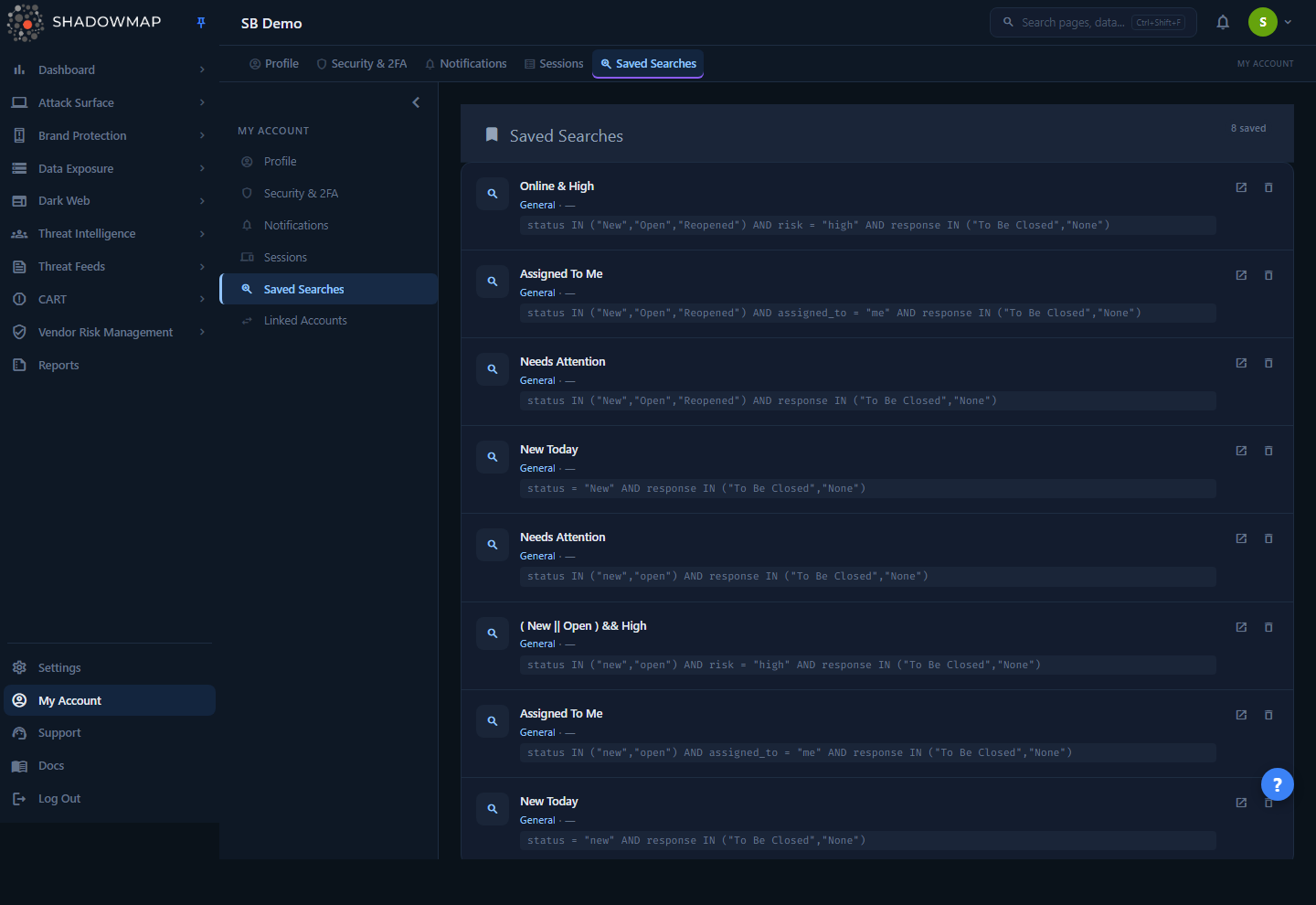
The page is reached from My Account → Saved Searches (/account/saved-searches). A count badge in the header shows how many searches you have ("8 saved" in the example above). Each saved search renders as a card with these parts:
- Module icon — a small icon on the left of the card that reflects the module the search belongs to (a phishing hook for Phishing, a key for Leaked Credentials, and so on). A search whose type can't be matched to a known module falls back to a generic magnifier.
- Name — the label you gave it (e.g. Online & High, Assigned To Me, Needs Attention).
- Meta line — a short caption under the name showing the originating module the search belongs to (e.g. Alerts, Domain Squatting, Leaked Credentials) followed by the search's creation date.
- Query — the literal filter expression, shown in monospace (e.g.
status IN ("New","Open","Reopened") AND risk = "high" AND response IN ("To Be Closed","None")). This is the filter set the search represents.
On the right of each card are two actions: an Apply search icon (open-in-new) that opens the search's module with the saved filter applied, and a Delete icon (trash) that removes the search.
Per-user, not shared
Saved searches are scoped to your user account. Other members of your organization do not see your saved searches here, and you do not see theirs. This page lists only searches you created.
How it works
These are the mechanics you can't see from the card list alone.
Where searches come from
You don't create searches on this page — you create them inside a module. When you've applied a filter combination you want to keep, the module's Save Current Search dialog captures three things:
| Field | Meaning |
|---|---|
| Name | A label, 2–190 characters, unique among your own saved searches. |
| Query | The filter expression in ShadowMap's query syntax (see below). The dialog pre-fills this from the filters you currently have applied; you can edit it before saving. |
| Make this the default view for myself | Optional. If checked, this search becomes the view that loads automatically when you open that module. |
The dialog posts to the saved-search service, which validates the input, stores the search against your user ID and company, and writes an entry to the audit log (add.saved-search). The new search immediately appears on this page and in the module's saved-search selector.
The query syntax
The Query is not free text — it's a structured filter expression that the module parses back into applied filters. It uses field/operator/value clauses joined by boolean keywords:
- Fields are module-specific columns — for Alerts:
status,risk,response,assigned_to, and so on. - Operators include
=for a single value andIN (...)for a set. - Clauses are combined with
AND. Values are quoted.
Real examples from the screenshot:
status IN ("New","Open","Reopened") AND risk = "high" AND response IN ("To Be Closed","None")
status IN ("New","Open","Reopened") AND assigned_to = "me" AND response IN ("To Be Closed","None")
status = "New" AND response IN ("To Be Closed","None")
Because the query is stored verbatim, applying a saved search reproduces exactly the filter set you saved — independent of any UI defaults the module ships with.
Search types
Every saved search is bound to an internal type — the module it was created in. The type is set at save time and is fixed: a search created in one module belongs to that module's filter fields and can't be re-pointed to another. ShadowMap supports saved searches across a wide range of modules (Alerts, Web Applications, Domain Squatting, Phishing, the Dark Web feeds, Data Leaks surfaces, and more).
The type also governs the per-module default search (see below), which is scoped per type.
Module shown on each card
The card resolves the search's type into its module label (on the meta line) and a matching icon, so you can tell at a glance which module each search came from. A card only falls back to a generic General label and magnifier icon when its type can't be resolved to a known module — for example a search saved against a since-deprecated module type. The query itself always belongs to its original module regardless of the label shown.
Default searches
Checking Make this the default view for myself at save time marks the search as your default for that module's type. There is one default per type per user: saving a new search as default replaces any previous default for the same module. The default is the view ShadowMap loads automatically the next time you open that module, so your most-used triage filter is applied without any clicks.
TIP
Use a default search to make a module open straight into your working view — for example, set "open critical alerts assigned to me" as your default for Alerts so the queue is already filtered the moment you land on the page.
Why some searches can't be deleted
A saved search is a reusable query object, and ShadowMap reuses the same object type to back other features. Before deleting, the service checks whether the search is referenced by:
- an SLA policy (the policy's scope is defined by a saved-search query),
- a tag rule (an automation rule that tags findings matching a query), or
- a data restriction (a member's view is limited to findings matching a query).
If a search is in use by any of these, the delete is rejected and you'll see an error explaining why — remove the dependency (or delete the policy/rule/restriction) first. Searches that back an SLA policy or tag rule are also hidden from this page so they aren't mistaken for ad-hoc personal searches.
Taking action
| Action | Control | Result |
|---|---|---|
| Delete | Trash icon on the card | Removes the saved search after a confirmation prompt. Blocked if the search backs an SLA policy, tag rule, or data restriction (see above). |
| Apply search | Open-in-new icon on the card | Opens the search's module and re-applies the saved filter (passed through as the module's query). A few saved-search types have no destination view yet (Software as a Service, the deprecated Credit Card Leaks, and AI Domains) — for those you'll see a brief notice instead of navigation. |
| Create | Save Current Search dialog inside a module | Captures the current filters as a new named search; not initiated from this page. |
| Set as default | Make this the default view for myself checkbox at save time | Makes the search the auto-loaded view for that module type. |
Delete is permanent
There is no undo. Deleting a saved search removes it for your account; to get it back you'd recreate it from the module. The underlying findings are never affected — only your stored query is removed.
Common questions
Where do I create a saved search? Inside a module. Apply the filters you want, then use that module's Save Current Search option. The search then shows up here and in the module's saved-search selector. This page is for managing and reusing what you've already saved.
Can my whole team use a search I saved? Saved searches on this page are per-user. Team-wide reuse is handled by features that are built on top of saved-search queries — SLA policies, tag rules, and data restrictions — which an administrator configures in Settings and which apply across the organization.
What does the label under each search name mean? It's the module the search belongs to (e.g. Alerts, Domain Squatting, Leaked Credentials), followed by the date you created the search. A card shows a generic General label only when its type can't be matched to a known module — usually a search saved against a deprecated module type.
Why won't a search delete? It's being used by an SLA policy, a tag rule, or a data restriction. ShadowMap blocks the delete so the dependent feature doesn't break. Remove or repoint the dependency first, then delete the search.
I made a search the default but the module still opens unfiltered — why? A default is per-module-type and per-user, and only one default exists per type. If you saved a newer search as default for the same module, it replaced the older one. Re-save the search you want as the default, with the Make this the default view for myself box checked.
Can two of my searches share a name? No. Names must be unique within your own account (and a query that duplicates an existing one is rejected too). Pick distinct, descriptive names like Critical · Assigned to Me.
Related
- Saved Searches (feature guide) — the cross-module concept, the query syntax, and how to create and apply searches from within a module.
- Alerts — the module where saved searches are most heavily used for recurring triage queues.
- SLA Policies and Tag Rules — organization-wide automations built on saved-search queries; these are the team-shared counterpart to your personal searches.
- My Account: Profile and Notifications — sibling pages in the same My Account section.
- Universal Search — the global search bar for finding pages and assets, distinct from module saved searches.