
SLA Policies
SLA Policies turn ShadowMap from a place you check into a system that pushes work to the right people on a clock. A policy watches one or more modules for findings that match a filter you define, fires an immediate notification when a match appears, and — if you enable it — escalates to additional people and channels when a matched finding stays unresolved past your response target.
Overview
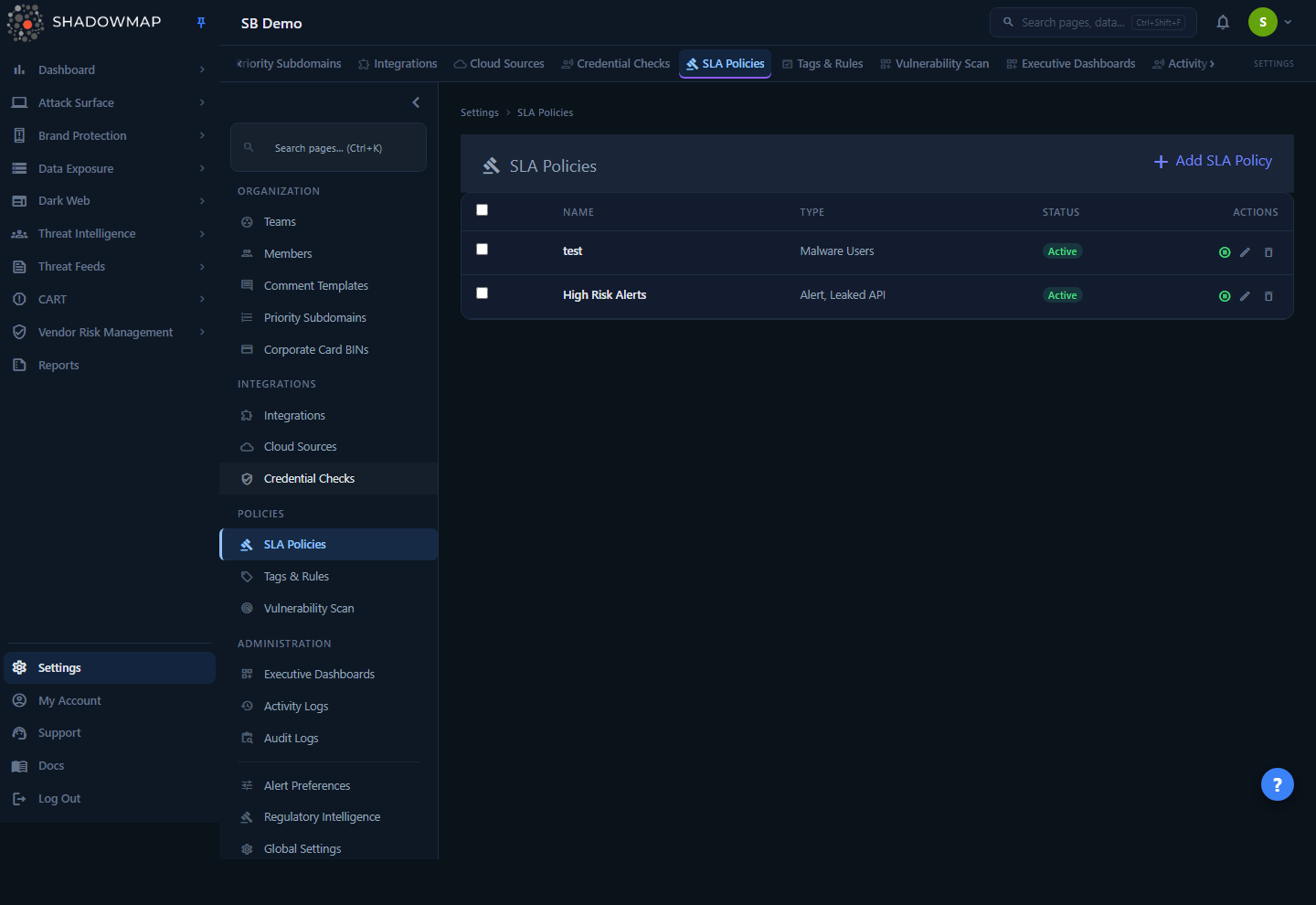
SLA Policies live under Settings → Policies → SLA Policies. The landing page is a flat list of every policy in your account:
| Column | What it shows |
|---|---|
| Name | The policy name you assigned. |
| Type | The module type(s) the policy watches, e.g. Phishing, Open Ports, Alert, Leaked API. A policy can span multiple module types. |
| Status | Active (green) or Inactive (grey). Inactive policies are kept but do not fire. |
| Actions | Per-row controls: pause/resume (toggle Active/Inactive), edit, and delete. |
From the list you can:
- Add SLA Policy — opens the create form (keyboard shortcut
n). - Pause / resume a policy with the play/pause icon, without editing it.
- Edit or Delete an individual policy.
- Bulk delete — select rows with the checkboxes and use the Delete button in the bulk bar.
Who can manage policies
Creating, editing, deleting, and toggling policies require the SLA write permissions (sla.add:write, sla.update:write, sla.delete:write, sla.change_status:write). By default these are granted to account Owners and Managers; standard Members have no SLA permissions. See Roles & Permissions.
How it works
A policy is evaluated automatically by ShadowMap's violation checker — you never run it manually. Understanding the evaluation flow is the difference between a policy that does what you expect and one that floods inboxes or stays silent.
The evaluation flow
- Match. On each evaluation pass, the checker loads every Active policy for your account and tests new and open findings against each policy's filter criteria, per module type.
- Immediate alert. When a finding first matches, the policy sends its Immediate Alert notifications. This is the "something just appeared that you care about" signal — it fires once, when the match is detected.
- Track to resolution. A matched finding is tracked as an open SLA item until the underlying finding is resolved/closed in its module.
- Escalate (optional). If SLA Violations are enabled and a matched finding is still open after an escalation level's Resolve In window elapses, that level's notifications fire. Up to four escalation levels can fire in sequence as the item ages.
- Close. When the underlying finding is resolved, the SLA item closes and no further escalations fire for it.
Notifications are queued and dispatched, not sent inline — so a burst of matches is delivered reliably rather than blocking the scan. Each dispatched violation is marked delivered or errored, and delivery failures (for example, a dead webhook) are recorded rather than silently dropped.
Immediate Alert vs. SLA Violations — two distinct mechanisms
These are configured in separate sections of the form and answer different questions:
| Immediate Alert | SLA Violations (escalations) | |
|---|---|---|
| Fires when | A finding first matches the policy. | A matched finding is still open after a level's Resolve-In window. |
| How many times | Once per match. | Once per level reached (up to 4 levels). |
| Purpose | "Tell me this exists, now." | "Nobody fixed it in time — escalate." |
| Required? | Yes — at least one action. | Optional — toggle Enable SLA Violations. |
A policy with only Immediate Alerts is a routing rule (send matching phishing findings to the brand team's Slack). Add SLA Violations when you also want time-based accountability (if a Critical open port is still open after 7 days, page on-call).
Matching is filter-driven, not severity-driven
There is no fixed "Critical = 24h" table. A policy matches whatever its filter criteria select within a module type. You build the criteria with the same query builder used elsewhere in the product, so you can scope a policy as broadly or narrowly as you need — for example, only phishing findings with a Malicious status, or only open ports on priority subdomains. The compiled Criteria Query is shown beneath each type's filter so you can confirm exactly what will match before saving.
Escalation timing
Each escalation level has a Resolve In value and a Unit:
| Unit | Allowed range |
|---|---|
| Days | 1 – 90 |
| Months | 1 – 12 |
Levels fire in order as the finding ages past each window. A common pattern is Level 1 at 3 days (notify the owner), Level 2 at 7 days (notify the manager), Level 3 at 14 days (page security leadership). You can configure up to four levels per policy; each level must define at least one notification action.
Notification channels
Both Immediate Alerts and escalation levels send through one or more actions. Each action is a Channel plus a Target.
| Channel | Target | Availability |
|---|---|---|
| A team member (assignee) | Always available. | |
| SMS | A team member (assignee) | Requires the SMS integration. |
| Slack Webhook | Configured Slack destination | Requires the Slack integration. |
| Microsoft Teams | Configured Teams destination | Requires the Teams integration. |
| PagerDuty | Configured PagerDuty destination | Requires the PagerDuty integration. |
| Jira Service Management | Configured Jira destination | Requires the integration. |
| Jira Service Desk | Configured Jira destination | Requires the integration. |
| ServiceNow CMDB | Configured ServiceNow destination | Requires the integration. |
| Freshservice | Configured Freshservice destination | Requires the integration. |
| Splunk HEC | Splunk HTTP Event Collector | Requires the integration. |
| SIEM (Syslog) | Syslog destination | Requires the integration. |
| Webhook | Generic webhook endpoint | Requires the integration. |
Channels you haven't set up appear greyed out
Only Email is available out of the box. Every other channel shows as (Unavailable) and cannot be selected until the matching integration is configured and active for your account under Integrations. Configure the integration first, then return to the policy to wire it into an action.
Email and SMS actions target a specific team member (an assignee from your account). Integration-based channels target whatever destination that integration exposes (a Slack channel, a Jira project, etc.).
Email delivery preference
When a policy uses Email actions, the Email Alert Preference controls batching:
- Summary — groups the policy's matching findings into a single digest email. Best for high-volume policies where one finding per email would be noise.
- Individual Alerts — sends a separate email per finding. Best for low-volume, high-signal policies where each finding deserves its own ticket-able message.
Creating a policy
- Go to Settings → Policies → SLA Policies and click Add SLA Policy.
- Policy Details — give the policy a Name (required) and an optional Description.
- Types & Filters — from the Add module type filter dropdown, pick a module to watch (Alert, Phishing, Open Ports, Leaked API, S3 Bucket, Data Breach, Stealer Log, SSL Certificates, and more). Build the filter criteria for that type; the compiled Criteria Query appears below. Add more module types to have one policy span several modules. At least one type with a non-empty filter is required.
- Immediate Alert Via — add at least one action (Channel + Target). This is what fires when a finding first matches.
- Email Alert Preference — choose Summary or Individual Alerts (applies to Email actions).
- Enable SLA Violations (optional) — toggle on to add time-based escalation. Add up to four levels, each with a Resolve In window, a Unit (Days/Months), and at least one notification action.
- Click Create Policy (or press
Ctrl+S). New policies are created Active.
Validation rules enforced on save
A policy will not save unless: the name is filled in; at least one module type has filter criteria; at least one immediate-alert action exists and has a target; and — when SLA Violations are enabled — there is at least one escalation level, no more than four, every level has a valid whole-number Resolve-In within range, and every level's actions have targets. Errors are shown inline next to the offending field.
Where violations surface
Policies generate the data behind two views:
- Notifications — the immediate alerts and escalation messages are delivered through your chosen channels and reflected in your in-product notifications.
- SLA Violations dashboard — open SLA items (findings that matched a policy and are tracked to resolution) are listed on the dashboard's SLA Violations page, where they carry an Open or Closed status. Use it to see what's overdue and which policy raised it.
Common questions
Do I need to define severity-to-time targets like "Critical in 24 hours"? No. ShadowMap doesn't impose a fixed severity/time matrix. You decide what a policy matches via its filter criteria (which can include severity) and you set your own Resolve-In windows on each escalation level. This lets one customer treat a 7-day-old open port as a violation while another uses 30 days.
What's the difference between an Immediate Alert and an escalation? The Immediate Alert fires once, the moment a finding matches the policy. Escalations fire later, only if the matched finding is still unresolved after a level's Resolve-In window. Immediate Alerts are mandatory; escalations are opt-in via the Enable SLA Violations toggle.
A channel I want is greyed out — why? Only Email works without setup. Slack, Teams, PagerDuty, Jira, ServiceNow, Freshservice, Splunk, Syslog, and generic Webhook channels appear as (Unavailable) until the corresponding integration is configured and active. Set it up under Integrations, then add it to the policy.
Can one policy cover multiple modules? Yes. Add several module type filters to the same policy. Each type carries its own filter criteria, and the Type column on the list page shows all the types a policy spans.
How many escalation levels can I have, and how long can each be? Up to four levels. Each level's Resolve-In window is 1–90 days or 1–12 months.
If I pause a policy, do I lose its configuration? No. Pausing sets the policy to Inactive — it stops firing but keeps every setting. Resume it any time from the play icon. Deleting is the only destructive action.
Why didn't a policy fire? Most often the policy is Inactive, the filter criteria don't actually match the findings you expect (check the compiled Criteria Query), or the action targets a channel/integration that isn't available. A matched finding only escalates if SLA Violations are enabled and it stays open past a level's window.
Related
- SLA Violations dashboard — where open and closed SLA items raised by your policies are tracked.
- Integrations — configure Slack, Teams, PagerDuty, Jira, ServiceNow, and other channels before wiring them into policy actions.
- Notifications — control how and where ShadowMap notifications reach you.
- Alerts — the Alert module is one of the most common policy targets; scope a policy to high-severity open alerts to drive escalation.
- Roles & Permissions — SLA policy management is gated to roles with SLA write permissions.
- Severity & Status — how findings are scored and tracked, which feeds the filter criteria your policies match on.