
Keyboard Shortcuts
ShadowMap is built for analysts who live in the queue. Most high-volume work — moving through a finding list, opening a detail drawer, selecting rows for a bulk action, jumping to any page or asset — has a keyboard equivalent so you never have to leave the keyboard mid-triage. This page documents every shortcut the platform actually listens for, grouped by where it applies.
Overview
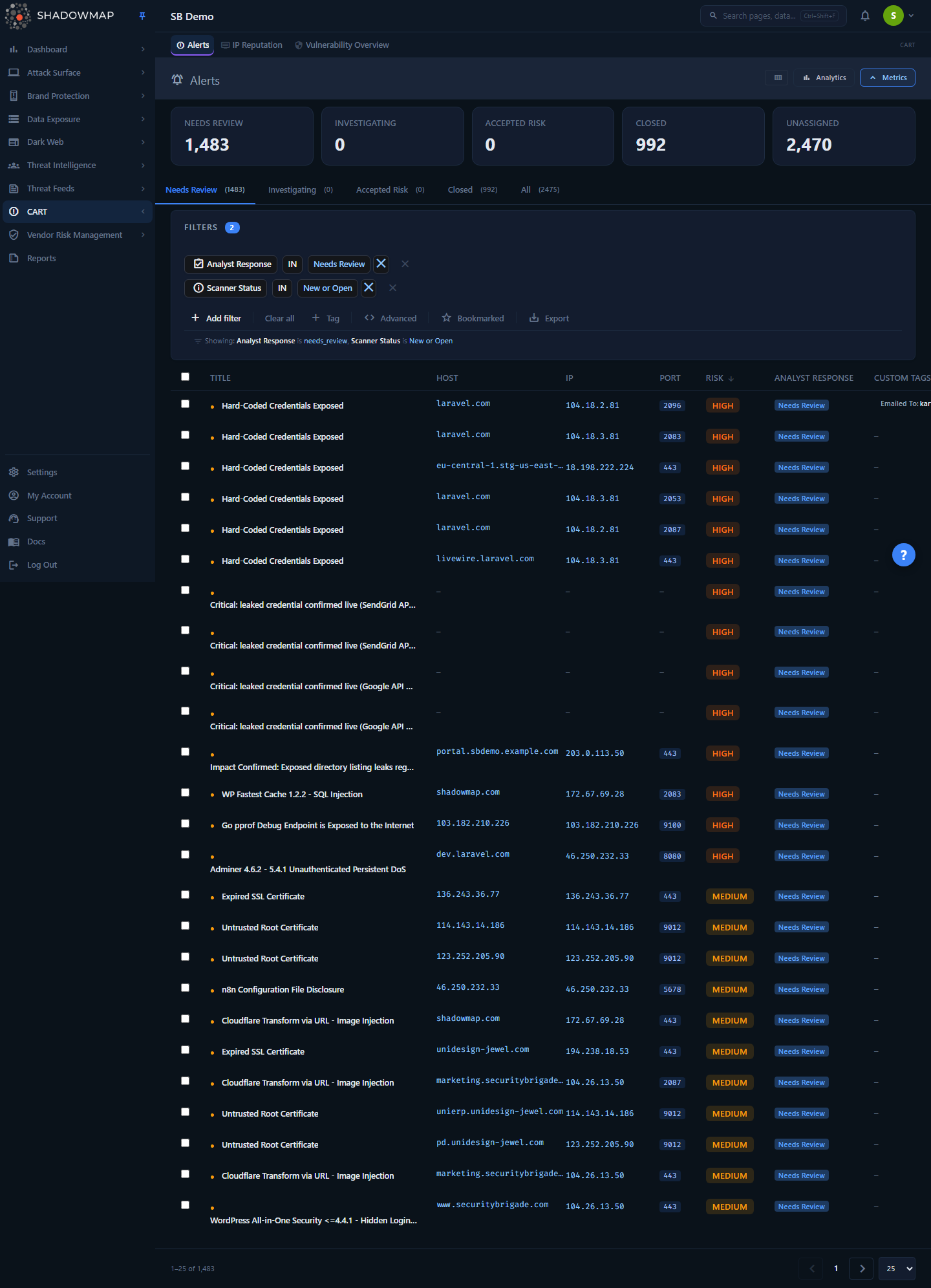
On the Alerts list, j/k step through alerts by opening and paging the detail drawer and Esc closes it. The fuller row-focus triage pattern — j/k to move the highlighted row, Enter to open it, Space to select for a bulk action — is wired into most other v2 list pages, such as Phishing.
There is no single "shortcuts settings" screen. Instead, shortcuts are layered by context:
- A global command palette for search and navigation, available on every page.
- A global help button (the floating
?in the bottom-right corner) that opens a quick reference and that you can also toggle by pressing?. - Per-list triage shortcuts (
j/k/Enter/Space/Esc/?and a few module-specific action keys) on finding list pages. - Settings-page shortcuts (
Ctrl+Kto search settings,nto create,Ctrl+Sto save a form).
A consistent rule runs through all of them: shortcuts are suppressed while you are typing. If focus is in a text input, textarea, dropdown, or any content-editable field, single-key shortcuts are ignored so you can type freely. Modifier combos like Ctrl+K and Ctrl+Shift+F are the deliberate exceptions and fire even from inside a field. Shortcuts are also suppressed while a modal dialog is open.
How it works
These are the mechanics you cannot infer just by looking at the UI.
Shortcuts are scoped to where you are
ShadowMap does not register one giant global hotkey map. Each surface attaches its own keyboard listener when it mounts and removes it when you navigate away:
- The command palette (
Ctrl+Shift+F) and the global help dialog (?) are mounted by the application shell, so they work from anywhere. - A finding list page attaches its triage listener only while that list is on screen. The
j/k/Enterkeys move through that list's rows; they do nothing on a dashboard or a detail page. - Settings pages share their own listener (
Ctrl+K,?) plus whatever the current settings page registers (n,Ctrl+S).
The practical consequence: the same physical key can mean different things on different screens, and a shortcut you used on the Alerts list will not be active once you open a detail view.
Input and modal suppression
Every shortcut listener first checks what currently has focus. If the active element is an <input>, <textarea>, <select>, or a content-editable region, single-character shortcuts are skipped entirely — so typing j into a search box types the letter j, it does not move the row focus. Listeners also bail out when a modal overlay is open, so a key press meant for a confirmation dialog never leaks through to the list behind it.
The only keys that intentionally bypass input suppression are the global modifier combos: Ctrl+Shift+F (command palette) and, on settings pages, Ctrl+K (settings search). These are designed to be reachable even mid-typing.
The command palette does two searches at once
Pressing Ctrl+Shift+F opens the command palette. When you type, it runs two searches in parallel:
- Pages & Features — an instant, client-side filter over every navigable route in the app (module pages, settings, features). This populates with no network round-trip, so it is effectively zero-latency.
- Data Results — a debounced (about half-second) server-side call to universal search. ShadowMap classifies what you typed (an IP, a hostname, a domain, a URL, a path, or a numeric ID) and returns matching records grouped by module, with per-status counts. Selecting a module result deep-links you straight into that module's list, pre-filtered to your search term, or directly to a record's detail page when you searched by ID.
The palette cancels an in-flight data search if you keep typing, so a slow earlier query can never overwrite the results of a newer one. Recent selections are remembered (stored locally in your browser) and shown when you reopen the palette with an empty box. See Universal Search for the full breakdown of what each input type matches.
The ? help dialog is a quick reference, not a settings page
The floating ? button (bottom-right of every page) and the ? key open a small dialog listing the always-available global shortcuts. On finding list pages, pressing ? opens that page's own shortcut overlay listing its triage keys. Pressing ? again, or Esc, closes it. Because ? requires Shift on most layouts, it does not collide with the single-letter triage keys.
Global shortcuts
These work on every page (outside of text fields).
| Shortcut | Action |
|---|---|
Ctrl+Shift+F | Open the command palette (search pages, settings, and data) |
? | Toggle the keyboard-shortcuts help dialog |
Esc | Close the open dialog, overlay, or command palette |
Inside the command palette:
| Shortcut | Action |
|---|---|
↑ / ↓ | Move between results (pages and recent searches) |
Enter | Open the highlighted result |
Esc | Close the palette |
TIP
Ctrl+Shift+F is the fastest way to reach any screen or any asset. You do not need to know the navigation path — type a page name (e.g. "open ports"), an IP, a hostname, or a finding ID and jump straight there.
List-page triage shortcuts
Finding list pages support keyboard-only triage so you can process a queue without touching the mouse. Move focus with j/k, open the detail drawer with Enter, multi-select with Space, then run a bulk action.
| Shortcut | Action |
|---|---|
j or ↓ | Move focus to the next row |
k or ↑ | Move focus to the previous row |
Enter | Open the detail drawer for the focused row |
Space | Toggle selection of the focused row (for bulk actions) |
Esc | Close the open drawer, or clear the help overlay / selection |
? | Toggle this page's shortcut help overlay |
The focused row is scrolled into view and visually highlighted as you move. Selecting rows with Space feeds the same selection that the bulk action bar operates on, so you can pick several rows by keyboard and then apply a status change, takedown, or tag to all of them.
Module-specific action keys
Some lists add extra keys for in-place triage and detail-drawer navigation. Availability varies by module — press ? on any list to see exactly what that page supports.
| Shortcut | Action | Where it applies |
|---|---|---|
n | Next item while a detail drawer is open | Threat Feeds, Stealer Logs, Discussions, and similar drawer-based lists |
p | Previous item while a detail drawer is open | Same drawer-based lists |
b / s | Toggle bookmark on the focused item | Lists with bookmarking — the key differs by list (b on Threat Feeds, s on Phishing and most other v2 lists) |
a | Accept / approve the focused item | Triage lists (e.g. phishing triage) |
d | Dismiss / mark reviewed the focused item | Triage lists |
t | Request takedown for the focused item | Triage lists that support takedowns |
INFO
n/p only do anything while a detail drawer is open — they step to the next or previous record without closing and reopening the drawer, which is the fastest way to read through a filtered set one item at a time.
WARNING
The accept (a), dismiss (d), and takedown (t) keys act immediately on the focused row. They are intended for high-throughput triage queues (such as phishing). Make sure the correct row is focused — the highlighted one — before pressing them.
Settings shortcuts
Settings pages share a small shortcut set plus per-page actions.
| Shortcut | Action |
|---|---|
Ctrl+K | Focus the settings sidebar search / open the settings command palette |
? | Toggle the settings shortcut help overlay |
Esc | Close the help overlay |
n | Create a new item on list pages (new team, integration, cloud source, SLA policy, scan profile, tag rule) |
Ctrl+S | Save the current form (SLA policy, scan profile, tag rule editors) |
Ctrl+K works even when your cursor is in a field, so you can jump to settings search at any time. The n shortcut maps to whatever "create" action the current settings page offers, and Ctrl+S saves the form you are editing instead of triggering the browser's save-page dialog.
Common questions
Why did pressing j type a letter instead of moving down the list? Your focus was inside a text field (often the search box). Single-key shortcuts are intentionally disabled while you type. Click on the list body, or press Esc to leave the field, then j/k will move the row focus.
The shortcuts work on Alerts but not on the page I'm looking at. Why? Triage shortcuts are attached per list page. Dashboards, overview screens, and detail pages do not register the j/k/Enter map. Open a finding list (Alerts, Phishing, Threat Feeds, Stealer Logs, and similar) and they become active. The command palette (Ctrl+Shift+F) and ? help, however, work everywhere.
Is there a Mac equivalent for the Ctrl combos? Settings search treats Cmd the same as Ctrl, so Cmd+K works on macOS. The command palette, however, is bound specifically to Ctrl, so use Ctrl+Shift+F to open it (the Cmd variant is not wired).
How do I see the exact shortcuts for the page I'm on? Press ? (outside any text field), or click the floating ? button in the bottom-right corner. On a list page this opens that page's own overlay listing its available keys; elsewhere it shows the global shortcuts.
Can I remap shortcuts? No. The shortcut map is fixed by the platform and cannot be customized per user.
Do the action keys (a, d, t) ask for confirmation? They act on the focused row immediately, in the same way the on-screen action buttons do. Use Space to multi-select instead when you want to review a set before applying a bulk action from the action bar.
Related
- Universal Search — the search engine behind the
Ctrl+Shift+Fcommand palette, including how each input type (IP, host, domain, URL, ID) is matched and routed. - Navigation Guide — how the dashboard is laid out and how to move between modules.
- Platform Features — the selection you build with
Spacefeeds the bulk action bar; the features index covers status changes, tagging, and exports. - Alerts — the highest-volume triage list, and the best place to practice keyboard navigation.
- Phishing URLs — a triage queue that uses the accept / dismiss / takedown action keys.
- Glossary — definitions of the triage terms (accept, dismiss, takedown, bookmark) the action keys map to.