
Tag Rules
Tag Rules apply a label to every finding that matches a saved set of filter criteria, automatically and continuously. Instead of hand-tagging assets one at a time, you define the rule once and ShadowMap tags every current and future finding that matches — across exposures, alerts, stealer logs, dark web discussions, and domain squatting.
Tags created this way behave like any other tag: you can filter on them in module lists, route them to teams, scope reports to them, and reference them in workflows.
Overview
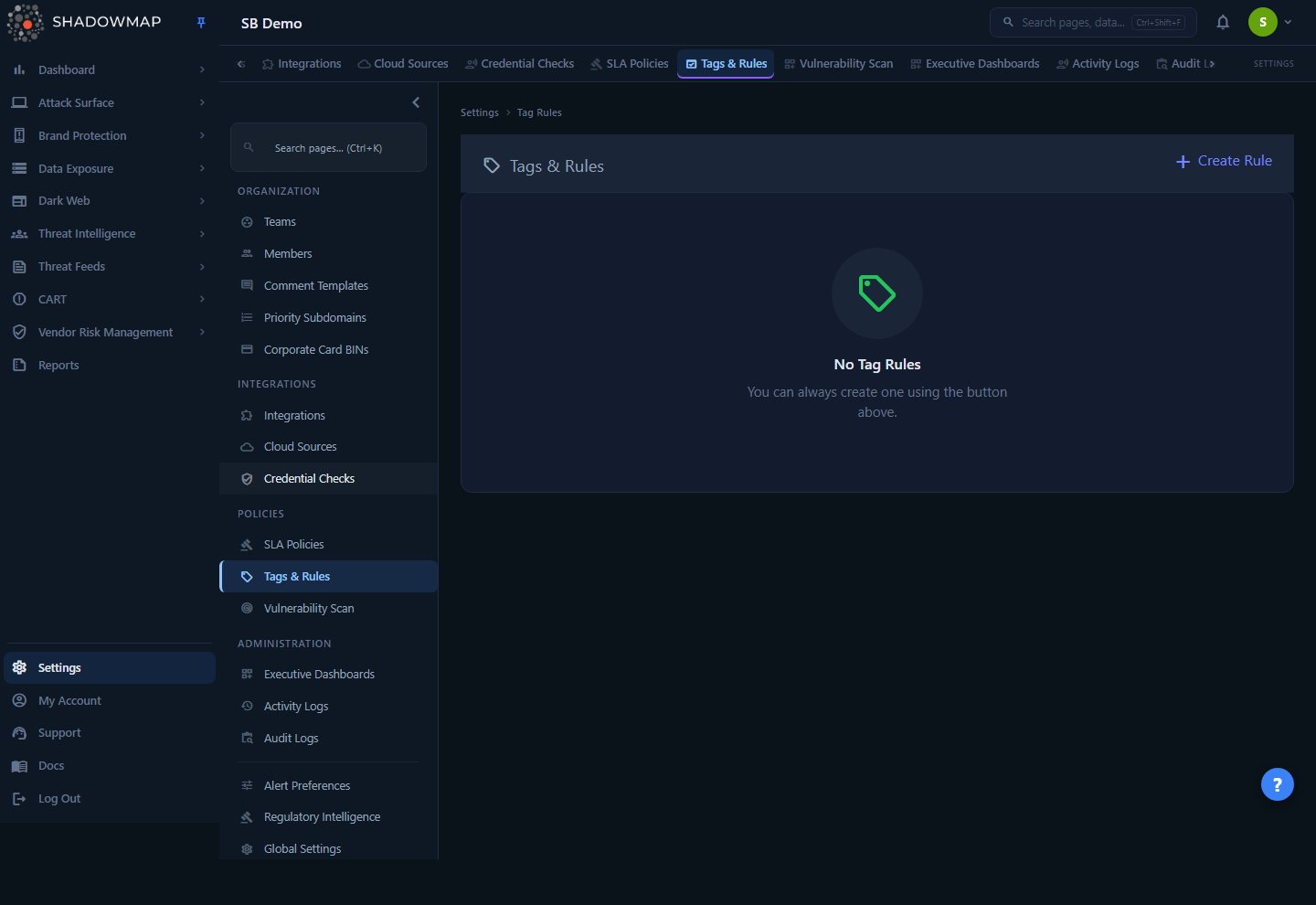
Tag Rules live under Settings → Tags & Rules. The list page shows every rule configured for your company, with three columns:
| Column | What it shows |
|---|---|
| Name | The rule's name. This name is also the tag value that gets applied to matching findings. |
| Status | Active (green) or Inactive (gray). Active rules tag new findings as they arrive; inactive rules are paused. |
| Actions | Edit (pencil) and Delete (trash) for each rule. |
From the header you can Create Rule, and when one or more rows are checked a bulk bar appears with a Delete action and a selection count. Press n anywhere on the list to jump straight to the create form.
Who can manage tag rules
Managing tag rules is governed by the settings.tag-rules:write permission; viewing the list requires settings.tag-rules:read. By default, Administrators and Analysts can create, edit, and delete rules; SOC Users have no tag-rule access. See Roles & Permissions.
How it works
The mechanics below are not visible from the UI, but they determine exactly what gets tagged and when.
A rule is a name plus one or more typed queries
Every tag rule has a name, an optional description, a status, and one or more module-type filters. Each module-type filter pairs a ShadowMap module (the "type") with a filter query expressed in the same query language used by the search bars throughout the product. Internally each type's query is stored as a saved search in the tag_rule category, so a rule can span several modules at once — for example, one rule that tags both Exposures and Alerts matching the same business criteria.
The rule name is the tag value
When a rule fires, the tag it writes onto a finding is the rule's name. If you create a rule named Critical Cloud Assets, every matching finding gets the tag Critical Cloud Assets. There is no separate "tag" field — name the rule exactly what you want the tag to read. Because of this, rule names are unique per company (you cannot have two rules with the same name, regardless of whether they are Active or Inactive).
The tag is written with the internal key tag_rule, which distinguishes rule-applied tags from manually applied custom tags. A duplicate check prevents the same tag from being added twice to the same finding.
When tagging happens
There are two moments a rule can tag a finding:
- Going forward (always). While a rule is Active, ShadowMap evaluates it against newly discovered items as they enter the platform during scans and inventory runs. Only items in the
Newstate are considered at this stage, so an active rule continuously tags fresh matches without re-touching existing data. - Retroactively (opt-in). When you tick Apply to all matching existing data on the create/edit form, ShadowMap queues background jobs (on the dedicated
tagrulequeue) that scan your existing matching findings and apply the tag to them too. This box is not persisted as a rule setting — it is a one-time action that runs when you save. Leave it unchecked and the rule only affects items discovered from that point on.
Retroactive runs are asynchronous
Applying a rule to existing data dispatches background jobs rather than tagging inline. On a large estate, tags may take a little time to appear across all matching findings after you save.
Inactive rules and deleting are non-destructive
- An Inactive rule stops tagging new findings. It does not remove tags that were already applied.
- Deleting a rule (the trash icon on its row) stops future tagging and removes the rule, but again does not strip tags from findings that were already tagged.
In both cases, the historical tags remain on the findings and in your filters. If you need to remove already-applied tags, do so from the finding lists themselves.
Change history
Editing a rule's criteria is tracked. When you open a rule that has been edited, a Change History table records, per module type, the previous criteria, the new criteria, who made the change, and when — useful for auditing why a tag's population shifted over time.
Supported module types
A single rule can include one filter block per module type. The available types in the create/edit form are:
| Type | Tags findings in | Typical use |
|---|---|---|
| Exposure | Asset, attack-surface, and data-exposure findings ("exposures") | Tag assets by environment, owner, cloud provider, or business unit |
| Alert | Alerts | Tag and route alerts to the right response team |
| Stealer Log | Stealer Logs | Tag credential-theft records by affected app, domain, or department |
| Discussion | Dark web discussions (ransomware groups & forums) | Tag dark web chatter relevant to a brand, product, or executive |
| Domain Squatting | Domain Squatting | Tag look-alike domains by brand or campaign |
One query per type, multiple types per rule
Each module type you add gets its own filter block and its own criteria. A rule with both an Exposure and an Alert block applies the same tag name to matches in both modules — keeping a single label consistent across the asset and the alert that references it.
Creating a rule
- Go to Settings → Tags & Rules and click Create Rule (or press
n). - Enter a Rule Name. Remember: this is the tag that will appear on findings, so name it the way you want the tag to read (required, up to 190 characters, unique within your company).
- Optionally add a Description explaining what the rule does — helpful for teammates auditing rules later.
- Under Types & Filters, use the + Add module type filter dropdown to add one or more module types (Exposure, Alert, Stealer Log, Discussion, Domain Squatting).
- For each type, build the criteria using the filter controls. The resulting query string is shown beneath each block as Criteria, so you can confirm exactly what will match. At least one type must have a non-empty query.
- Optionally tick Apply to all matching existing data to tag your existing matching findings now (a one-time retroactive run). Leave it off to tag only findings discovered from now on.
- Click Create Rule. The rule is created as Active and appears in the list.
Build the query in the module first
The filter builder here uses the same query syntax as each module's own filters. If you are unsure how a query will behave, build and preview it in the module's list view, then reproduce it here.
To change a rule later, click Edit on its row. You can rename it, edit or remove any type's criteria, add new types, and run another retroactive Apply to all matching existing data pass. Press Ctrl+S to save from the form.
How tags get used downstream
Once a rule is active and findings carry its tag, the tag is a first-class filter and routing primitive:
- Filtering — Filter any of the supported module lists by the tag to pull up exactly the population the rule defines.
- Saved searches — Combine the tag with other criteria in a saved search for repeatable views.
- Reporting — Scope a report to a tag to report on a specific asset group or risk category.
- Routing & workflows — Use tags to organize findings for the right teams and to underpin tag-driven automation such as consistent labeling across alerts and the assets they reference.
This is the difference between Tag Rules and one-off custom tags: a custom tag is a manual label you apply to a specific item, while a tag rule is a standing policy that keeps a label populated automatically as your attack surface changes.
Common questions
Does the tag use a value I set, or the rule name? The rule name is the tag value. There's no separate tag field — name the rule exactly what you want the tag to read.
Will an existing finding get tagged when I create a rule? Only if you tick Apply to all matching existing data. Otherwise the rule tags findings discovered after it becomes active. The retroactive option can be re-run any time by editing the rule and ticking it again.
What happens to tags if a rule is Inactive or deleted? Nothing is removed. An Inactive rule pauses future tagging; deleting removes the rule and stops future tagging. Tags already applied to findings stay until you remove them from the finding lists.
Can one rule cover more than one module? Yes. Add multiple module-type filters to a single rule (e.g. Exposure and Alert). The same tag name is applied to matches in every type you include.
Why can't I create two rules with the same name? Rule names are unique per company because the name is the tag value. Reuse would make the tag ambiguous. The uniqueness check covers every existing rule (Active or Inactive) — edit the existing rule instead.
Why don't my retroactive tags show up immediately? Retroactive tagging runs as background jobs on a dedicated queue. On large data sets there can be a short delay before every matching finding shows the tag.
Can SOC Users create tag rules? No. Managing tag rules requires the settings.tag-rules:write permission, granted to Administrators and Analysts by default. SOC Users have no tag-rule access at all. See Roles & Permissions.
Related
- Custom Tags — Manually applied, ad-hoc labels. Tag Rules automate the same tag system as a standing policy.
- Saved Searches — Reusable filter queries; each tag-rule type is stored as one internally, and you can search on rule tags.
- Alerts — A common tag-rule target for organizing and routing security events.
- Stealer Logs, Discussions, Domain Squatting — Other modules a tag rule can tag.
- SLA Policies — The sibling policy type under Settings → Tags & Rules / SLA Policies, for time-bound remediation tracking.
- Reports — Scope reporting to a tag-rule label for focused, repeatable reports.